
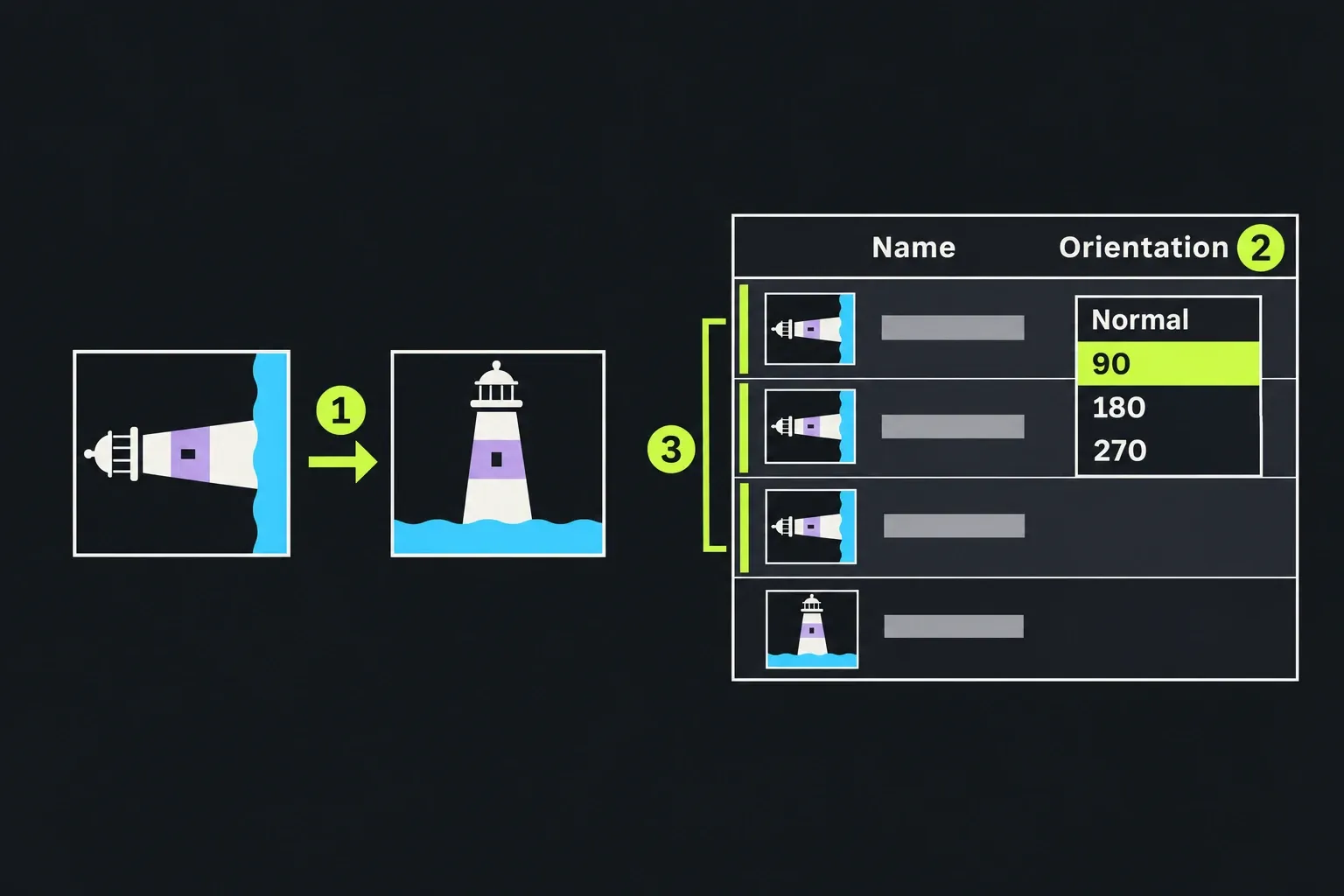
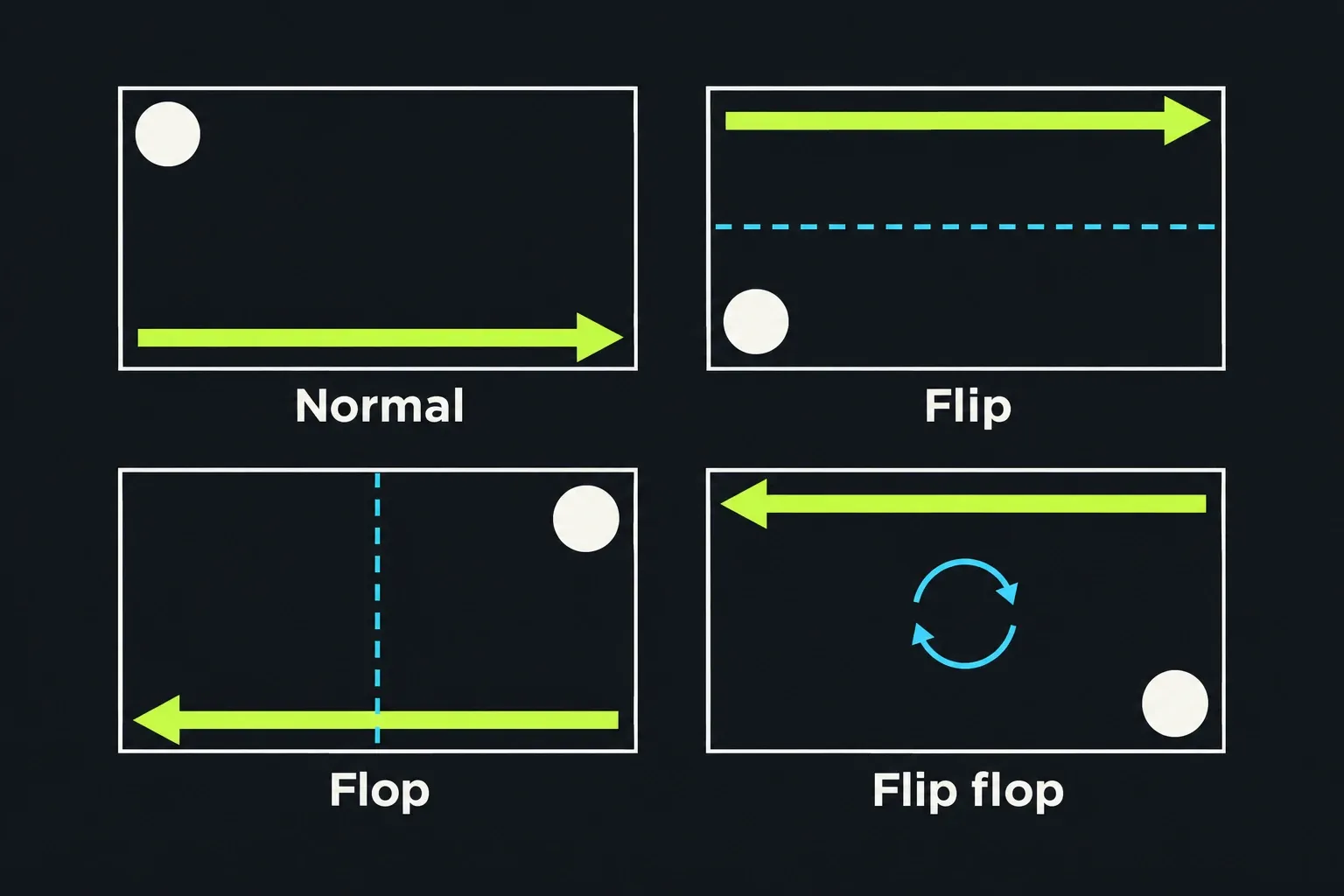
To correct a clip recorded sideways or upside down, set its Orientation to 90, 180 or 270 where those values are offered; the change applies to every use of that source without changing the original file. For one segment or another angle, use Transform 3D and Rotation Z. Reflection is a different job: Flip mirrors top to bottom and Flop mirrors left to right. A camera mounted upside down needs a 180-degree turn, not Flip on its own.
I'd reach for Orientation first when a phone wrote the wrong rotation flag, because it corrects every use of the clip without adding a separate effect. I'd save Transform 3D for deliberate angles and for the one shot that has to differ from the rest of its clip.
| Task | Control or route | Setting |
|---|---|---|
| Clip arrives sideways | Clip metadata, Orientation field | 90 or 270 |
| Clip arrives upside down | Clip metadata, Orientation field | 180 |
| Fix many clips at once | Bin list view, Orientation column | Select the clips, set one value |
| Any angle, or one segment only | Transform 3D on the clip | Rotation Z, then Scale to fit |
| Straighten a tilted horizon | Transform 3D on the clip | Rotation Z 1 to 3, Scale up slightly |
| Mirror left to right | Flop, where offered by your installed effects list | Check the reflection in the viewer; it reverses lettering too |
| Turn 180 degrees with an effect | Flip flop community effect, or Transform 3D | Rotation Z 180 |
Fix a sideways clip with Orientation
The 2023 discussion of the Orientation field describes four values: Normal, 90, 180 and 270. A regular answering a 2021 thread on overriding rotation metadata explains that the setting is used for preview and export and leaves the original footage untouched, and in an earlier 2021 thread another regular adds that it applies automatically to every segment of that clip in every timeline. That's the whole appeal: one change across the clip's uses, with no separate effect to manage.
- Select the clip. Click its tile in the bin, or click it on the timeline: the Knowledge Base page on clip information says the 2026.1 Info panel then shows that clip's source.
- Open its metadata. In 2026.1 open the Info panel's Metadata tab and find Orientation directly below Compression. Older builds open a metadata panel from the clip tile instead.
- Set Orientation. For the four-value menu described above, try Normal first if a previous value has turned the clip incorrectly. Otherwise pick 90 and look at the viewer; use 270 if the turn goes the wrong way, or 180 for upside down.
If the field is absent from your panel, check whether the bin's list-view column menu offers Orientation. The batch route below applies when those controls match.
Fix a whole card of phone clips
When a phone or action camera hands you twenty sideways clips, don't fix them one by one. For the batch route described in the 2022 and 2023 discussions below, switch the bin to list view. If its column-label menu offers Orientation, enable it, then select the affected clips and set the value that worked in a single-clip check. Forum regular hugly pointed out in a 2022 thread on rotating before editing that the column changes a whole selection at once, and jwrl, answering a 2023 thread on turning a portrait clip, called the 3D DVE route "definitely NOT the best way" for this job because it needs more processing than the metadata. The 2026.1 What's New page notes that list-view metadata columns now scroll sideways, so a wide set of columns no longer hides the one you need.
Why the clip came in sideways
Lightworks reads the rotation flag a camera writes into the file and turns the clip on import. When it gets it wrong, the flag usually is the problem: "Sometimes the file header is written incorrectly by the camera. It happens most often with phone cameras," as jwrl put it in a 2023 thread on portrait video. A free file inspector such as MediaInfo shows the rotation value the camera stored, and it's what forum regulars ask to see when a rotation problem won't go away. Whatever the flag says, Orientation overrides it.
Before you rotate anything, check Dimensions and aspect ratio on the Metadata tab. A clip that looks "squeezed" can be a perfectly upright 1080 x 1920 portrait shot sitting inside a 16:9 sequence with bars at the sides, and that needs framing, not rotation. Two older bugs are gone too: version 2023.2 fixed a clip LUT turning an automatically rotated file, and 2025.1 and 2025.2 added support for the EXIF orientation flag on still images, so phone photos now import the right way up. Import settings and the formats Lightworks reads are covered in the guide to importing media.
Rotate 90 degrees or any angle with Transform 3D
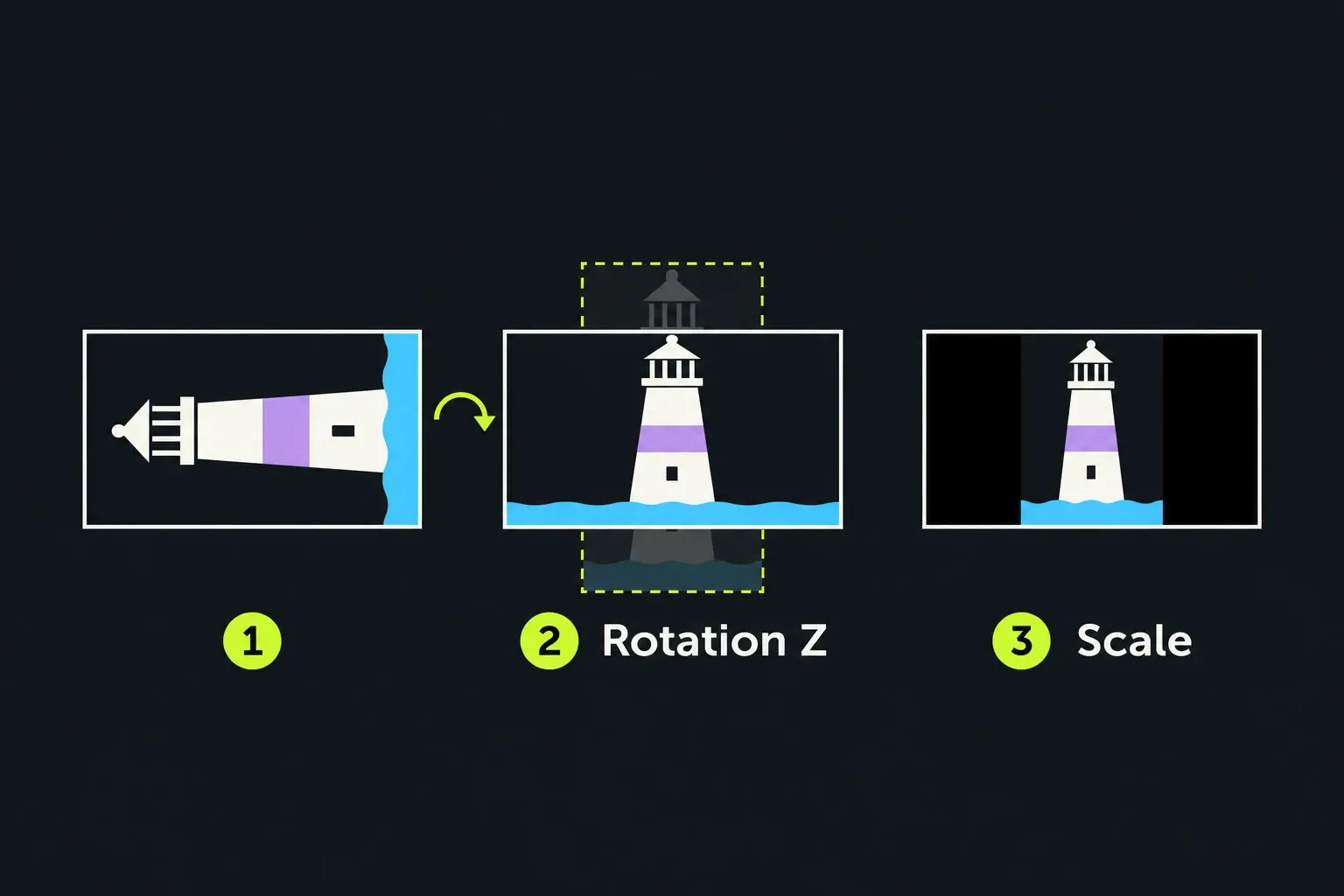
Use an effect when the rotation is a creative choice, when only part of a clip needs it, or when the angle isn't a quarter turn. Lightworks 2026.1 makes Transform 3D the default transform, and the What's New page says the legacy Transform and Framing effects still work where they're already used but are no longer offered as new effects. So older tutorials that tell you to add a 3D DVE now mean Transform 3D.
- Drag Transform 3D from the Effects browser onto the clip itself. In 2026.1, double-click and Apply follow track targets and land on the top-most targeted track with a clip under the playhead, so dragging is the safe way to hit the right clip.
- Set Rotation Z to the angle you want. The Knowledge Base page on transform, crop and reframing tools describes Rotation in X, Y and Z around a movable Pivot, with every value keyframeable.
- Set Scale so the picture fits. Scale runs from 0 to 10, with 1 as normal size.
The scale step is where most rotations go wrong. Turn a sideways 1920 x 1080 clip by 90 degrees inside a 1920 x 1080 sequence and the upright picture is 1920 pixels tall in a 1080-pixel frame, so the top and bottom vanish. A 2019 user in the rotate video and size thread hit exactly that. Scale 0.5625, which is 1080 divided by 1920, makes the whole picture fit: it ends up 607.5 pixels wide, with 656.25-pixel bars on each side.
Straighten a tilted horizon
A small rotation shows the frame's corners, so you have to zoom in to hide them, and that zoom costs picture. For a 16:9 frame the scale you need is the cosine of the angle plus 16/9 times its sine:
| Rotation Z | Scale to hide corners | Picture area lost | Width kept of 1920 |
|---|---|---|---|
| 1 degree | 1.031 | 5.9% | 1,862 px |
| 2 degrees | 1.061 | 11.2% | 1,809 px |
| 3 degrees | 1.092 | 16.1% | 1,759 px |
| 5 degrees | 1.151 | 24.5% | 1,668 px |
I'd straighten with the smallest angle that looks level, because every extra degree costs about another 5% of the picture. Past 3 degrees, ask whether the tilt bothers anyone but you. If you'd rather crop or reframe than zoom, the crop, resize and reframe guide compares the options.
Fix an upside-down clip
A camera mounted upside down needs a 180-degree turn, and you have three ways to get it:
- Orientation 180. Best when the whole clip is upside down, for the same reasons as above.
- Flip flop. A community effect in the Lightworks user effects bundle that "Rotates video by 180 degrees". Its effect file notes that it uses less than half the processing of separate Flip and Flop effects, and it needs Lightworks 2023 or later.
- Transform 3D, Rotation Z 180. Works anywhere, but a regular in the 2018 upside-down import thread pointed out that the 3D route uses more GPU than a flip and flop.
Don't stop at Flip on its own. Flip mirrors top to bottom, so an upside-down shot comes out the right way up but reversed left to right, as the replies in that same thread point out. You need Flip and Flop together, or one Flip flop. I'd pick Flip flop over the pair when you need an effect at all, because one effect is easier to keep track of than two.
Mirror video left to right
Flop is the left-right mirror. Lightworks regular hugly put it plainly in a 2019 thread on a mirrored-halves effect: "flop for horizontal mirror, flip for vertical". In older builds both sat in the DVE group of effects, which was later renamed Transform. Search the Effects browser for Flop; where it is listed, drag it onto the intended clip and compare the result in the viewer.
The removal of the legacy Transform and Framing entries does not establish whether your build offers a separate Flop effect. If it is absent, check the effects catalogue and build-specific help instead of assuming an unverified substitute. For an upside-down camera recording, Orientation 180 or a segment's Transform 3D Rotation Z 180 remains the rotation route above. A horizontal mirror reverses signs, logos and shirt prints, so check every visible piece of lettering before accepting the shot.
For a mirrored-halves look rather than a full flip, the community Rosehaven effect creates mirrored top-and-bottom or left-and-right halves with a movable axis. Community effects install from the effects menu with Install community effects, and the guide to Lightworks effects and plugins walks through that and what Free can use.
Portrait footage in a landscape sequence
For an upright 9:16 clip fitted completely inside a 16:9 sequence, you have two choices. Keep the whole picture with bars at the sides, or fill the frame by enlarging that fitted picture about 3.16 times, which keeps only 31.6% of its height. The enlargement can soften the result when the retained source pixels do not cover the output resolution. jwrl gave the same warning in a 2023 thread on rotating 90 degrees: enlarge a turned section to fill the frame and its resolution suffers.
The middle road is the Reframe effect. Per the transform Knowledge Base page it can fill the blanked areas with a zoomed copy of the same clip, with another clip, or with black. A blurred, zoomed copy behind an upright phone shot is the familiar look from news and social video, and it keeps the whole subject sharp. Going the other way, from a 16:9 edit to a 9:16 file, is a delivery job covered in exporting vertical video from Lightworks. Older forum posts say Free can't export portrait; the Knowledge Base page on web and social delivery now says portrait export and 1080p delivery are available on the Free plan.
The camera turned in the middle of a shot
When someone turns a phone halfway through a recording, Orientation can't help, because it turns every part of the clip. Cut the clip at the frame where it turns with the Cut tool from the cutting and trimming guide, then put Transform 3D only on the segment that's sideways. Choose Rotation Z 90 or 270 to make it upright, then fit Scale to the source and sequence dimensions. Scale 0.5625 is the matched 1920 x 1080 source-and-sequence example above, rather than a setting for every clip. The user in the 2023 rotating thread did just that, cut the clip, rotated the other part and added a transition, and reported it "looks okay now".
If you add a dissolve across the join, keep the rotation effect collapsed onto its clip. In a 2016 reply in a beginner rotation thread, jwrl warned that with effects unfolded the picture could un-rotate halfway through the dissolve; 2026.1 calls the same commands Expand Effects and Collapse Effects.
The rotation turns both layers
If you rotate a picture-in-picture inset and the background turns with it, the effect sits after the two layers have been mixed. In a 2025 thread on rotating only one video, a regular explained that the upper Transform 3D rotates everything because both videos combine before it, and another reminded the poster that "Lightworks uses nodes rather than layers". The fixes, from that thread and the 2026.1 notes:
- Drag the Transform 3D onto the clip you want to turn, not onto a track or a stack above it, and check track targets before using Apply.
- Open Video Routing with the + beside the effect settings and disconnect the rotating effect's Bg input, as jwrl suggested, so Transform 3D turns only the clip it sits on.
Layer order, Replace edits and picture-in-picture scale are covered in the guide to video overlays and picture in picture.
What 17 forum threads show
I grouped 17 Lightworks forum threads found across seven searches for this guide, from 2013 to 2025, by the reported problem and the advice or outcome described in the discussion.
| Problem | Threads | Share | Advice or reported fix |
|---|---|---|---|
| Clip arrives sideways or upside down | 10 (2013 to 2024) | 59% | Orientation in all 6 threads since 2021; DVE rotation or Flip and Flop before that |
| Rotated picture crops or stretches | 2 (2019, 2021) | 12% | Scale and position after rotating; Orientation when the flag was wrong; matching X and Y Scale for distortion |
| Left-right mirror wanted | 3 (2019 to 2024) | 18% | Flip or Flop with a wipe, or community mirror effects |
| Camera turned mid-shot | 1 (2023) | 6% | Cut at the turn, rotate one segment, add a transition |
| Rotation hits another layer | 1 (2025) | 6% | Effect on the clip itself, background input disconnected |
In this sample, 10 of the 17 threads concern a clip arriving sideways or upside down. All six discussions from 2021 onward in that group include Orientation advice. I'd therefore check the source orientation first for an incorrectly turned import, then use a segment effect for a deliberate rotation, mirror or mid-shot correction.
Troubleshooting rotation and flips
| Symptom | Likely cause | Fix |
|---|---|---|
| Every phone clip imports sideways | Wrong rotation flag in the file | Set Orientation for the batch in list view |
| Rotated clip loses its top and bottom | Rotated without scaling | Fit Scale to the actual dimensions; 0.5625 is the matched 1920 x 1080 example above |
| Upside-down fix reads backwards | Flip used on its own | Add Flop, or use Flip flop or Orientation 180 |
| Picture looks squeezed | Upright portrait clip in a landscape sequence, or distorted X and Y Scale | Check Dimensions in the Info panel; reset X and Y Scale to match |
| Background turns with the inset | Rotation applied after the layers mix | Drag the effect onto the inset clip; check Video Routing |
| Rotation undoes itself during a dissolve | Effects expanded across the transition | Collapse Effects before adding the dissolve |
| Only one shot of a reused clip should turn | Orientation changes every use | Set Orientation back, use Transform 3D on that segment |
If several rotated clips make playback stutter, the effect is drawing every frame live; the slow playback fixes start with proxies, which is one more reason to prefer Orientation where it fits.
Verdict
Rotation in Lightworks splits cleanly in two. For a clip that arrived the wrong way round, I'd check Orientation first and judge the picture in the viewer before applying the same correction across a bin. A rotation you want, whether a straightened horizon, a mirrored shot or a phone turned halfway through a take, belongs in Transform 3D or a flip effect on that one segment. I'd use the list-view Orientation column for a batch when those controls are present and a single-clip check gives the intended result. Keep the Flip versus Flop rule in mind: Flip mirrors top to bottom, Flop mirrors left to right, and those two reflections together equal a 180-degree turn. The Lightworks keyboard shortcuts are worth a look once these fixes become routine.