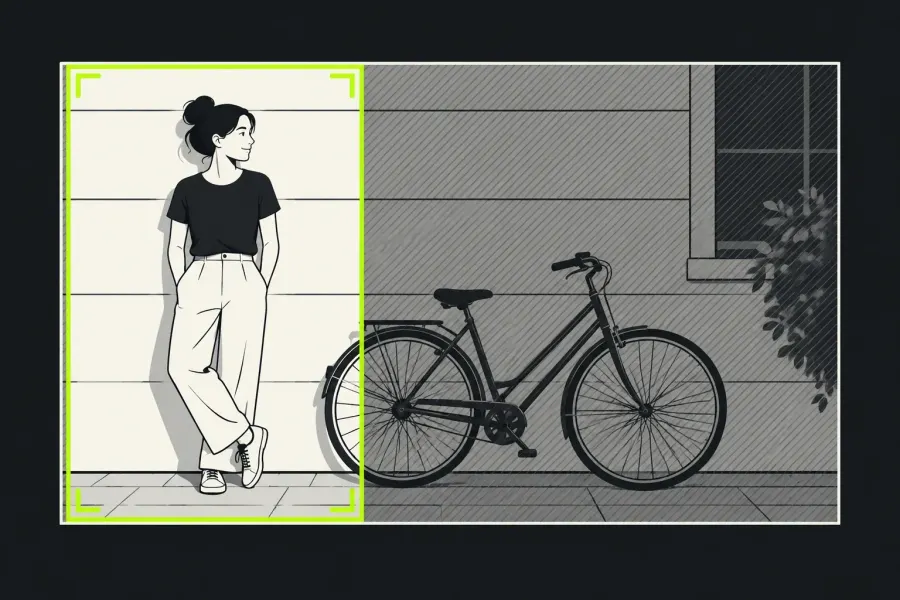
To crop a shot in Lightworks, select its clip and add Reframe or the transform effect available in your build. Use blanking to hide unwanted edges, then Scale and Position to compose the remaining picture. Set the delivered file dimensions separately at export.
There are three different jobs that are often called “resize.” Crop or blanking hides part of the visible picture. Scale changes how large the source appears inside the frame, while Position moves it. Output resolution changes the dimensions of the file you deliver. Decide which of those jobs you actually have before touching the effect controls.
Use this example as a decision test: a wide shot has a person near the left edge, but the delivery frame is tall and must remove empty space on the right. You can preserve the whole wide picture with bars, fill the tall frame and lose more of both sides, or recompose the shot so the person remains visible. None of those choices is the same as asking Lightworks to encode a smaller file.
Choose fit, fill, or one-edge blanking
When the source and sequence shapes differ, choose the compromise per shot. Fit the complete source when losing action is unacceptable; the unused area becomes bars. Fill the destination when the frame must be covered edge to edge; scaling up can remove source edges. Reframe when the subject can be kept inside a new shape with a deliberate composition. The current Transform, Crop, and Reframing guide describes these as different ways to adapt mixed shapes.
For a single unwanted strip, use edge control instead of enlarging the entire picture. In Reframe, Custom blanking lets you set each edge, and Gang Left/Right couples the two horizontal edges. Leave that coupling on when you want matching left and right changes. Turn it off, if it is enabled, when the instruction is specifically “hide only the left edge”; then use Scale and Position to put the remaining picture where it belongs. This is a composition decision, so watch the subject and the full frame rather than judging only the cropped border.
Worked geometry example. Suppose the source is 1920×1080 and the destination is 1080×1920. Fitting the complete 16:9 picture to the destination width produces a picture approximately 1080×608 with unused space above and below. Filling the tall frame instead requires a much larger scale and discards wide source edges. If the destination is already close to the source shape and only a narrow strip is unwanted, independent blanking can remove that strip without turning the entire shot into a punch-in. This is a geometry example; the actual composition depends on which part of the source you keep.
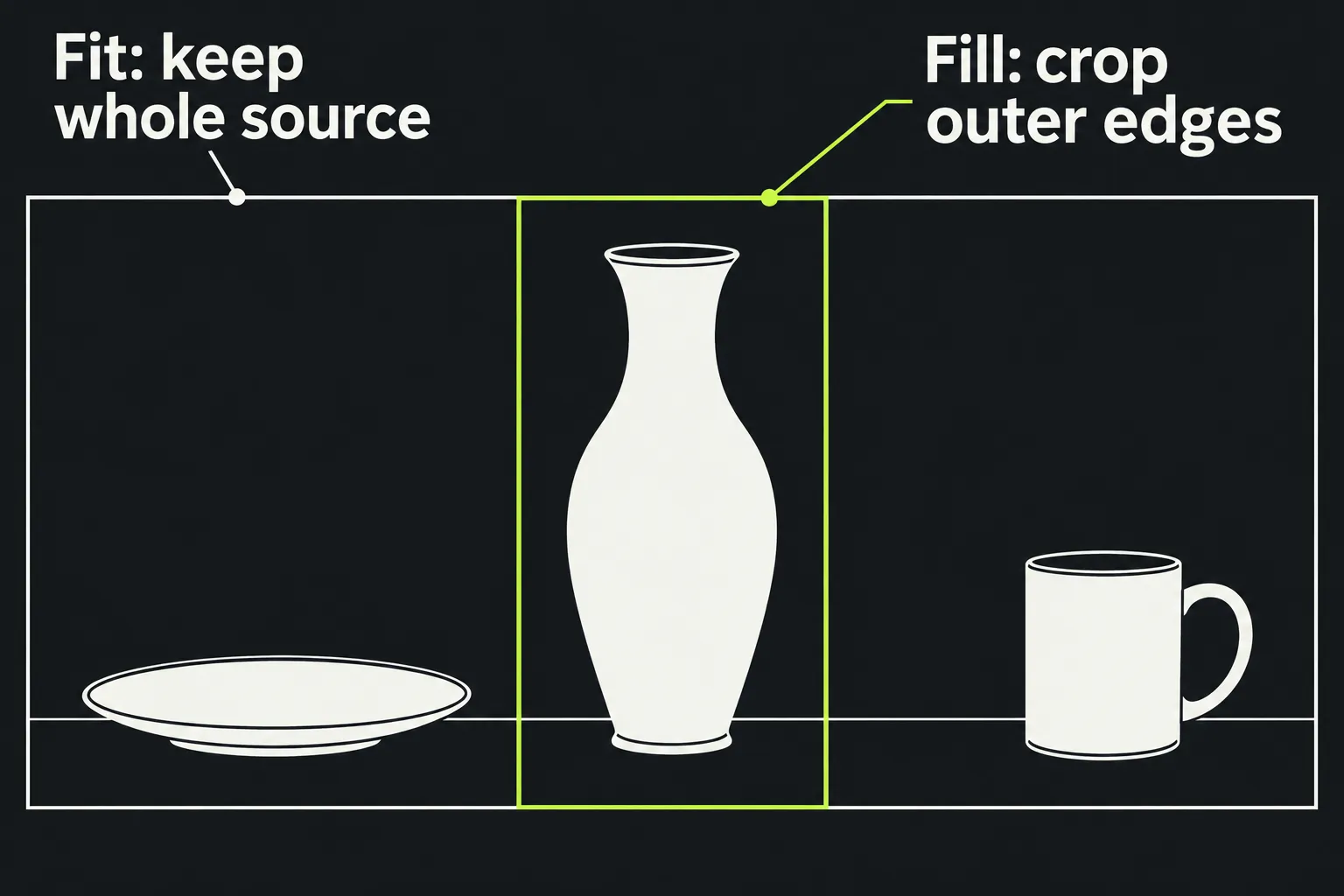
Viewer guides and aspect overlays can help you compose, but the guides are display aids and do not alter the exported picture. An applied Reframe or transform changes the framing that is carried into the output.
Apply the reframe with a reversible setup
- Write down the destination. Record the required aspect ratio and intended output dimensions. If the request says “vertical,” clarify the destination before deciding how much of a wide shot may disappear.
- Keep an untouched comparison. Duplicate the sequence or preserve an unaltered version before experimenting. Lightworks’ sequence-reuse guidance describes a duplicate as a separate variant; use the sequence operation available in your installation and keep the original framing available for comparison.
- Select the correct item. Select the clip that needs the change, or deliberately target a track when the same treatment belongs on a whole track. The Effects Overview explains that an effect is added to the selected clip or track and adjusted in FX Settings. If an adjustment appears to do nothing, check the selected clip, track target, effect bypass state, and routing before changing values.
- Add the framing effect. The label may depend on the release: Lightworks’ 2023.2 release notes call the older DVE effect “Transforms”. In a current effects panel, add the documented Reframe or transform effect, then open FX Settings. An old DVE tutorial may use labels that your installed build no longer shows.
- Make the first fit decision. Start with the least destructive option that meets the brief. If bars are acceptable, fit the whole image. If the destination must be filled, scale until the frame is covered and then position the subject. If only one edge is a problem, use Custom blanking and independent Gang control before making a large punch-in. Keep width and height proportional unless you deliberately need the one-axis stretch that X Scale and Y Scale provide, such as an anamorphic squeeze; stretching is not a crop strategy.
- Inspect the whole shot. A position that works on the first frame can fail as the subject walks, turns, or leaves the safe part of the frame. Scrub or play from the first relevant frame to the last and note where the framing stops working.
Correct a moving subject with a few keyframes
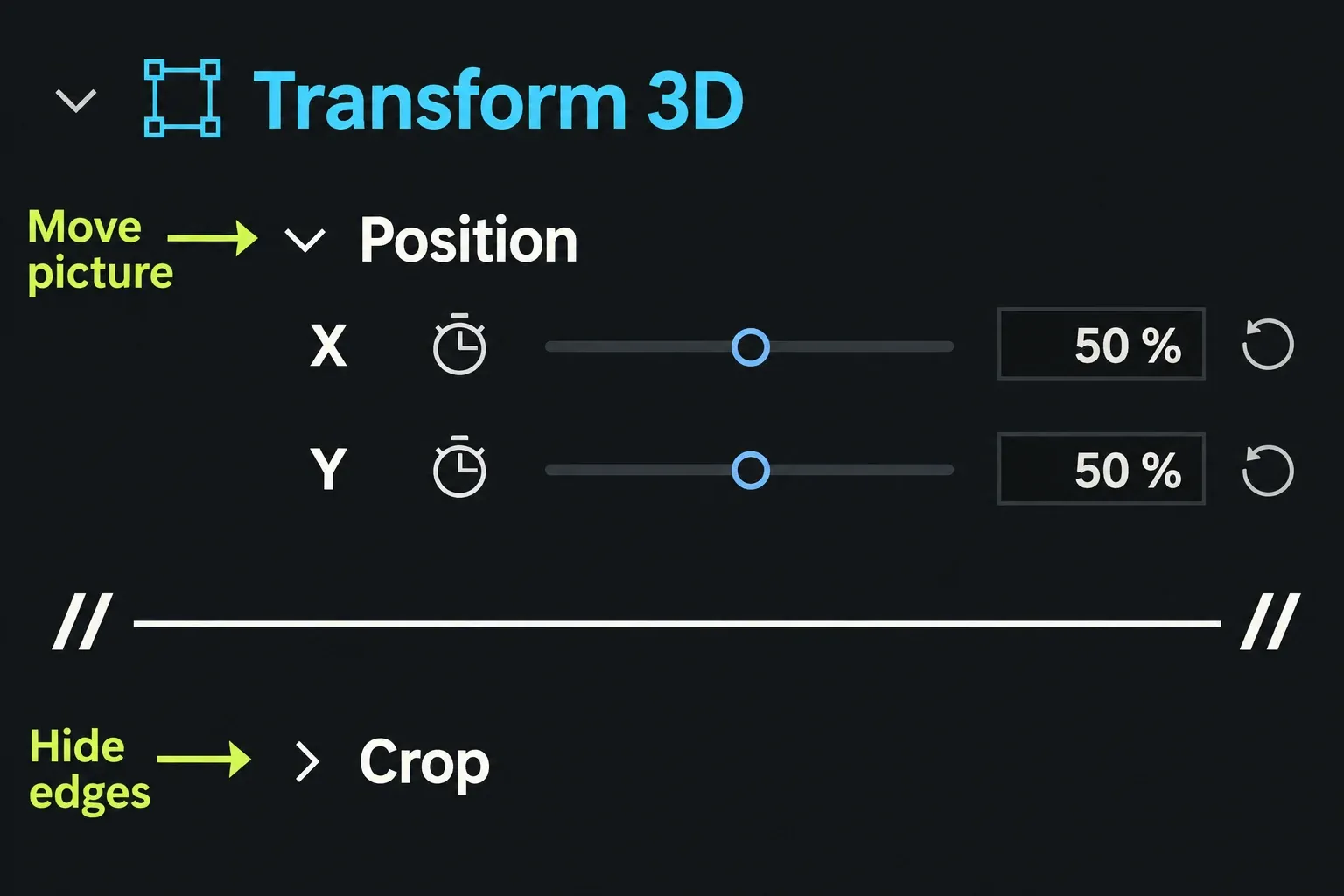
When a static Position cannot keep the subject visible, animate Position (and Scale only if the composition needs it). Lightworks documents the same basic sequence for any keyframable parameter:
- Park the playhead where the first framing should begin.
- Click the parameter’s enable control, shown as a stopwatch, and set Position. That creates the first keyframe at the playhead.
- Move to the frame where the subject’s location has changed and set a new Position value. A second keyframe records the correction.
- Move through the interval between those points. Add another keyframe only where the subject’s path or the composition changes.
These steps come from the current Keyframes and Animations documentation; you set each position by hand, and the subject is not tracked automatically. Use as few points as the motion permits, and review the complete shot after every meaningful change. If the subject still exits the frame, choose a wider fit, accept more of the surrounding picture, or change the crop for that shot instead of forcing an extreme enlargement.
Separate picture framing from output size
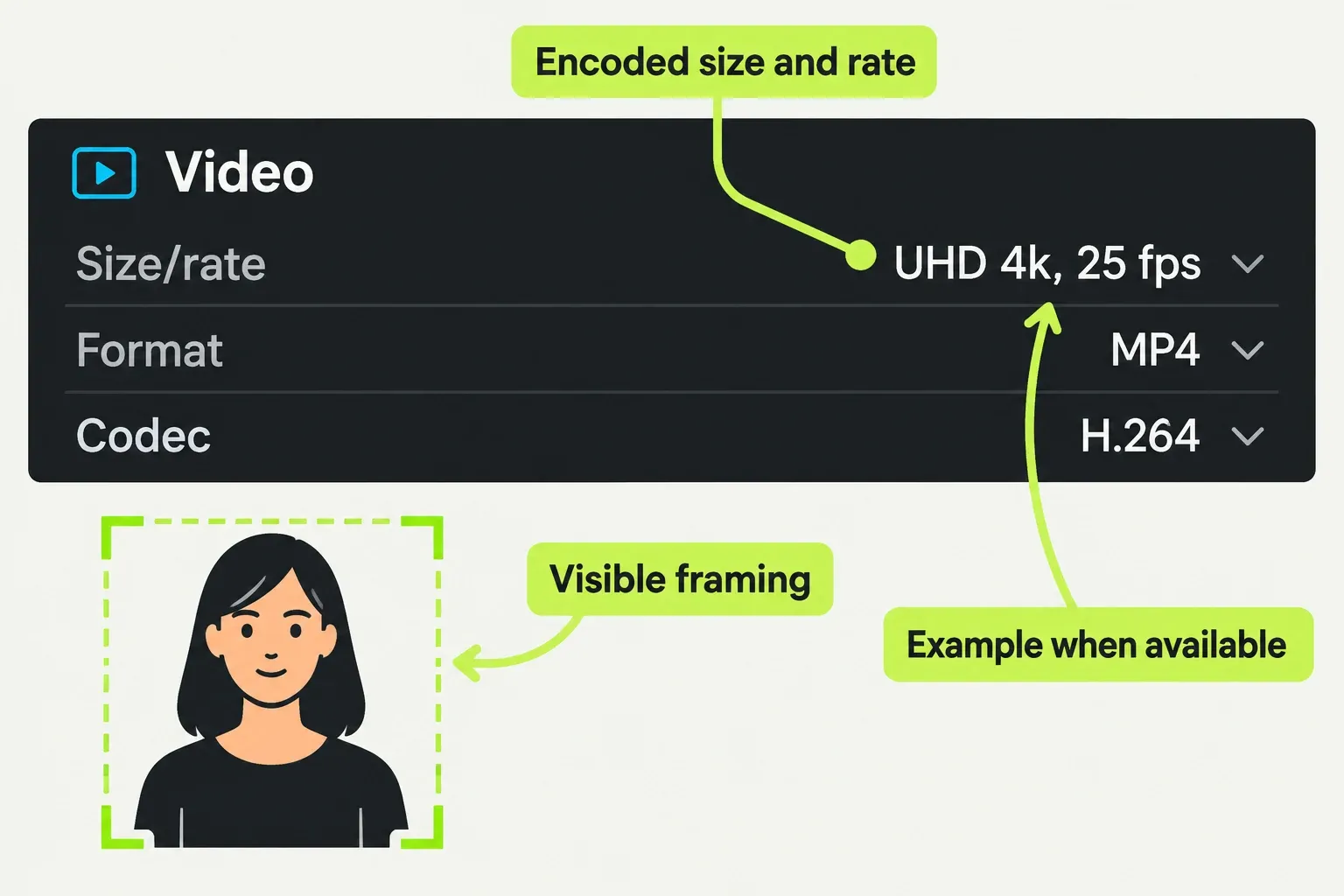
Once the composition is stable, set the delivery resolution separately. A crop can hide edges without reducing the encoded dimensions, and a smaller export can retain the same composition while changing the file raster. The current web and social delivery guidance treats the resolution choice and Reframe composition as separate decisions. Do not promise a smaller file merely because fewer edges are visible.
Export a short representative section or the permitted review file, then check its actual dimensions and play it outside the editor. Look for a subject clipped at a cut, unexpected bars, a stretched face, a soft punch-in, or a crop that was applied to the wrong clip. The published Lightworks export settings guide covers the render and saved-file checks that follow this framing work.
Quick diagnosis when the result is wrong
- Bars remain. Check whether you chose fit or the framing effect is bypassed. Decide whether the destination allows bars before scaling further.
- The subject disappears later. The shot needs Position keyframes, a wider fit, or a different per-shot crop.
- Both horizontal edges move together. Check whether Gang Left/Right is enabled. Turn it off for an independent one-edge adjustment.
- The frame looks right but delivery fails. Check the encoded output dimensions separately from the visible composition.
- Nothing changes. Confirm the selected clip or track, the effect stack, and whether the effect is disabled. Effects are non-destructive, so disabling or removing the effect should return the clip to its underlying state.