Media is offline or cannot be found
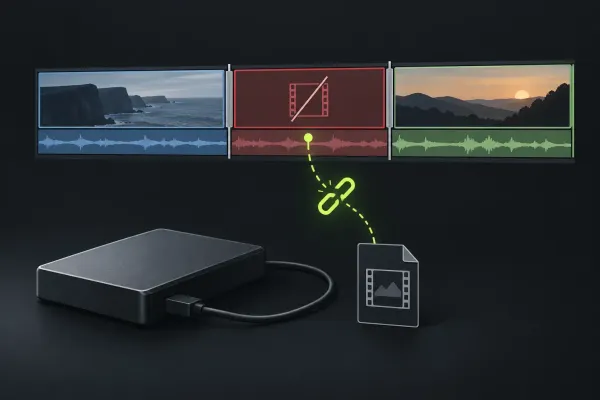
Use finding and reconnecting offline media when a project has lost access to its files. Establish whether the original still exists and where it belongs before changing file paths or replacing media. A known missing file needs a different route from a file that imports but displays incorrectly.
Picture plays, but there is no sound
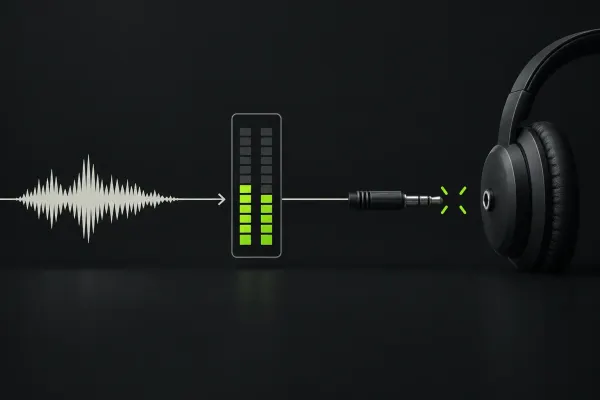
Open the no-audio diagnosis and identify the first silent stage: original file, source viewer, sequence or completed export. Check whether sound is missing from the edit itself or only from what you hear through the current output.
The picture is black
Follow diagnosing black video in Lightworks. Compare the original, imported source, sequence and finished file to locate the first loss of picture. Record whether it affects one clip or the wider sequence before treating every black frame as the same fault.
Playback stutters or runs at the wrong speed
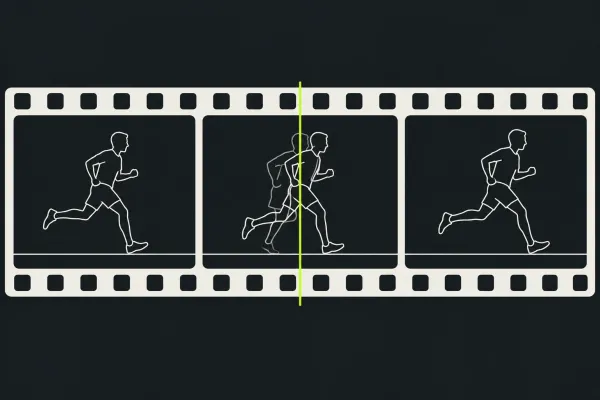
The slow-playback guide separates dropped frames from slowed picture and sound. Use that distinction to choose the next check. Keep a note of what changes the symptom rather than changing proxies, effects, storage and audio output together.
An export stops or reports a failure
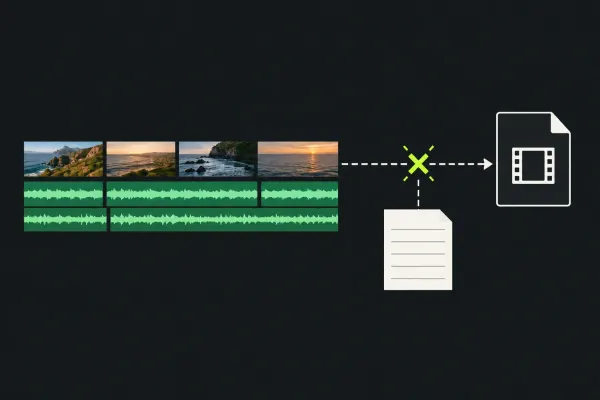
Start with the export-failure guide and the actual task message. Identify whether the job fails to finish, the resulting local file is wrong or the problem appears only during playback or upload. Each outcome points to a different next step.