If Lightworks stutters, make proxies for a few difficult clips and compare the same timeline section. If picture and sound run steadily in slow motion, check playback controls and the audio output device first. Those symptoms need different fixes; changing every project setting at once makes the cause harder to find.
Start with one short section you can replay, then change one thing. The aim is to get a reliable timeline for cutting without quietly lowering the quality of the finished video.
Identify the playback symptom
First confirm that no timeline trim is open; use Close below the sequence viewer or the assigned Join command to close one before the comparison. Playback can move an open trim when Trim when playing is on. With the default keyboard assignments, press K to pause, then press L once to start forward playback. Repeated presses of J or L change transport speed; start with that single forward-play command before diagnosing a slowdown. If you have reassigned keys or used a slow-play command, check the current command in Settings > Keyboard Shortcuts. A transport-speed setting and a segment's Speed are separate from dropped frames. Lightworks documents these controls in its viewer playback guide.
| What happens | Check next | What the comparison tells you |
|---|---|---|
| Motion skips or freezes, particularly on high-resolution footage. | Generate a proxy for the affected clip and select Lowest available. | Smoother playback points toward the cost of playing the original media. |
| A source clip plays well, but its treated timeline section stutters. | Disable one effect, replay, then restore it. | An improvement narrows the problem to that effect or processing chain. |
| The whole application slows during an import, export or proxy job. | Let the background job finish, then replay the same section. | If playback improves, competing work was a factor. |
| Both picture and sound play continuously at the wrong speed. | Check normal transport playback, then compare another audio output. | A device-specific change deserves an audio-device investigation. |
| Only one phone or screen recording misbehaves. | Inspect that clip's format and frame-rate information. | It calls for a clip-specific check before changing the whole project. |
If one timeline segment is slow but its source clip plays normally, check whether its segment speed was changed. If you want to create slow motion deliberately, the LWKS forum's segment-speed instructions cover that editing task. Retiming a clip is not a fix for a timeline that cannot play smoothly.
Compare one section, with one change
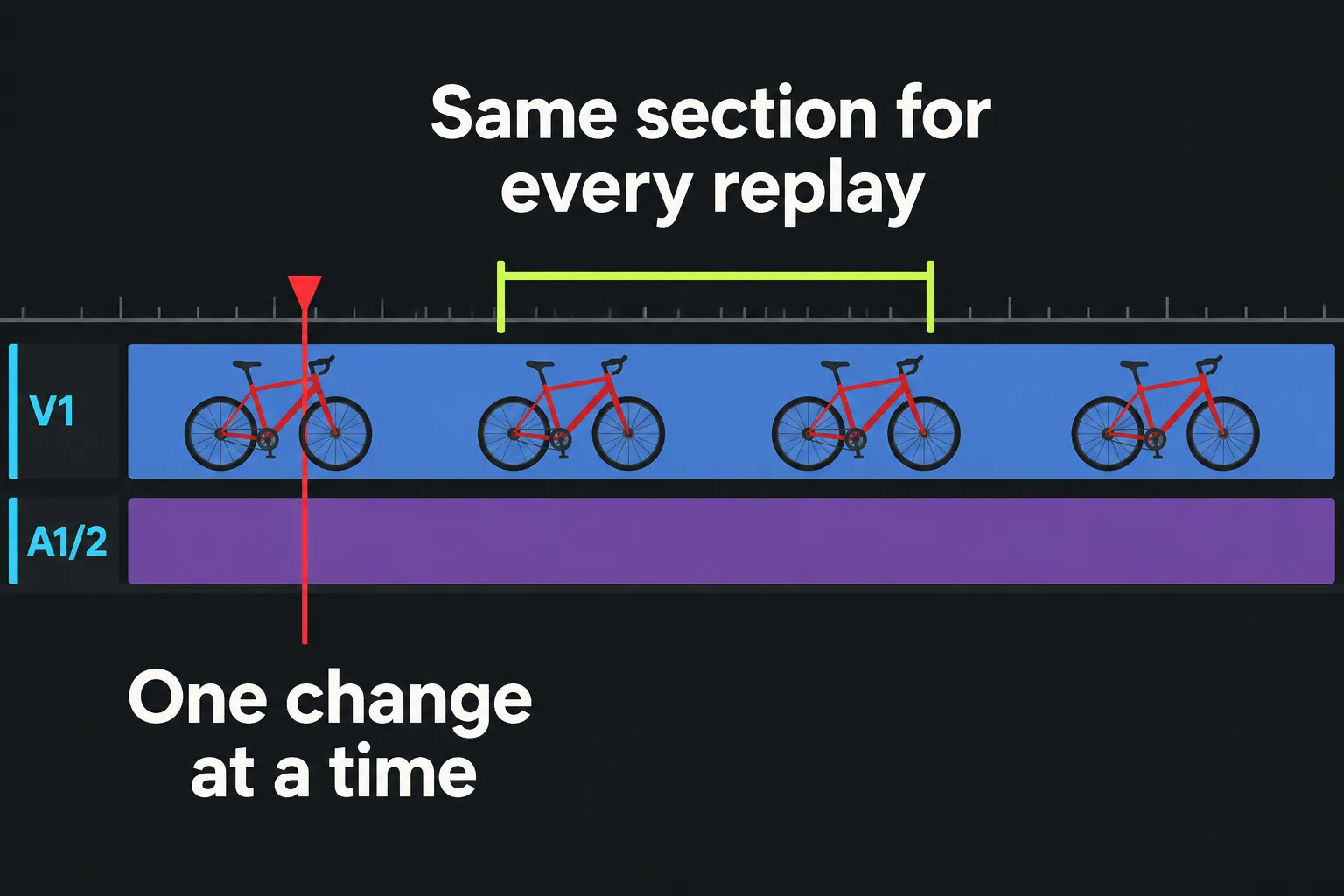
Pick a brief range that reliably shows the problem. Note the clip's codec, resolution and frame rate, its drive location, any effects, and the current viewer quality. Keep that range for every comparison. A simple shot on one side of the timeline tells you little about a layered, graded shot on the other.
Replay the range before changing anything. LWKS notes that a second pass can play more smoothly after caching. Record whether the hesitation occurs only on the first pass or persists on every pass; otherwise, caching can look like a successful settings change.
Keep a small comparison record: write down the Lightworks version/build, the sequence and range, the clip's format/frame rate, viewer quality, active effects, and whether a background task was running. For each trial, record one changed condition and one observed result—stutter remained, stutter eased, or symptom changed to slowed picture and sound. Restore the previous setting before moving to the next trial. The record is not a measure of any universal performance gain; it keeps the conditions that make your own comparison meaningful.
Open the project settings panel's Tasks page. Imports, transcodes, proxies and exports run in the background and consume resources. Let heavy jobs complete, close other demanding applications, and replay. The Tasks display shows job status and progress, so you can separate active work from a persistent playback problem.
Make proxies for demanding media
A proxy is an easier-to-decode copy linked to the original clip. It lets you keep making the same cuts with lighter media. LWKS recommends proxies for high-resolution footage, camera RAW, heavily compressed H.264/H.265 and other media that struggles during playback.
- Select a few affected imported clips, right-click, and choose Make Proxy.
- Wait for generation to finish in Tasks. Replaying while the proxy job is still running adds another workload to the comparison.
- In the viewer's Quality menu, choose Lowest available. This uses proxy media where it exists.
- Replay your chosen section. Switch to Highest available to compare the original when it is online, then return to the setting that makes cutting responsive.
Automatic lets Lightworks choose when to use proxies. For diagnosis, an explicit quality choice is more useful: you know which representation you are comparing. Project-wide Playback Media Quality is on the video page of project settings. These options and the generation steps are described in the current Lightworks proxy workflow.
If Make Proxy is unavailable, check whether the clips already have proxies or pending generation. Stills, audio-only clips and offline media cannot have proxies generated; very short clips can also be excluded by the project's proxy type. Reconnect missing originals using the media-offline checks before trying again.
If proxies do not help, hold off on generating them for the entire archive. Continue with effects, storage and the individual clip. Proxies reduce media-decoding demand; they will not tell you which part of your system caused every slowdown.
Reduce effect and RAW processing load
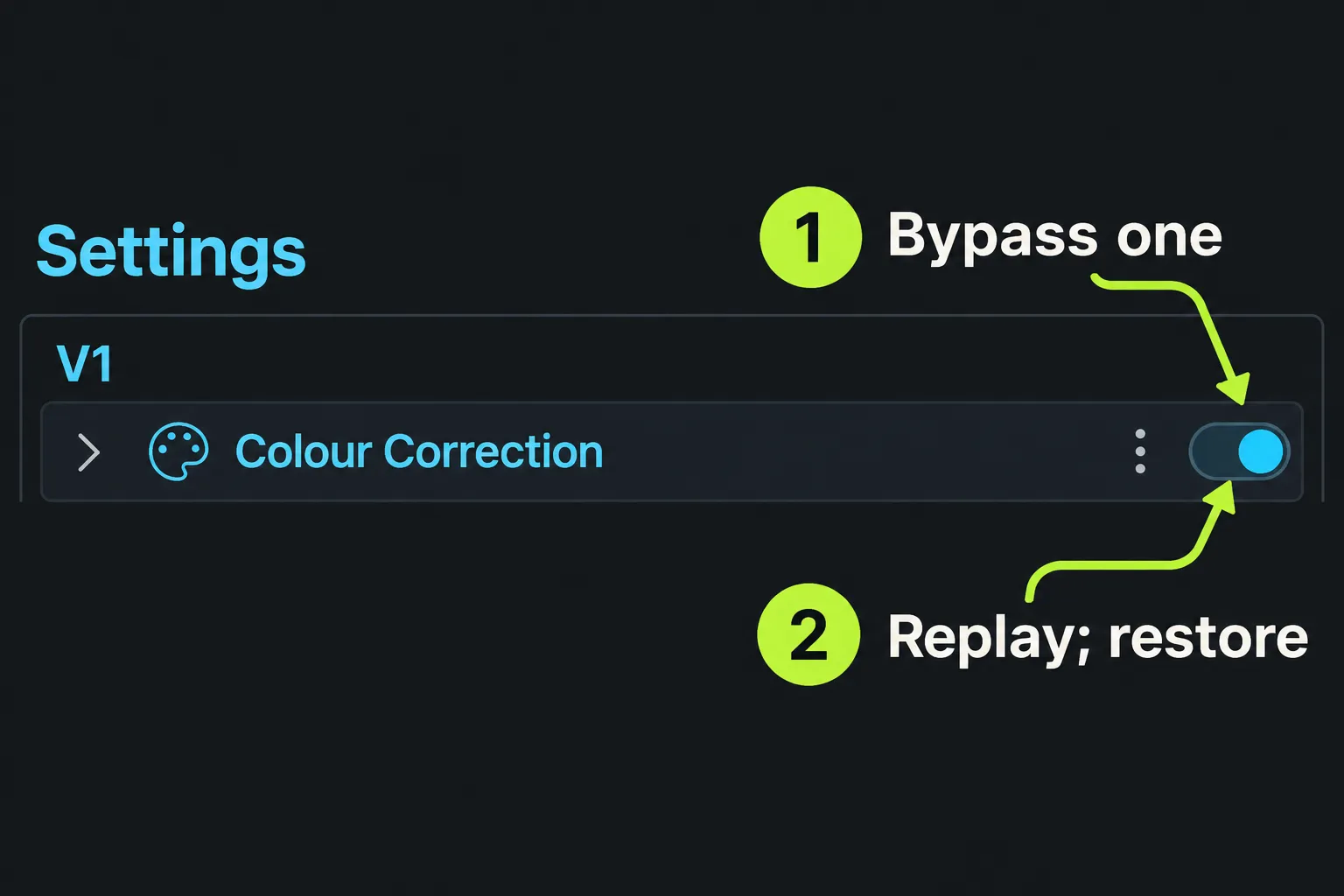
When the problem starts only on treated shots, open the affected clip's effects settings and disable one effect. Replay, then enable it again. Disabling an effect preserves its settings, making it a better diagnostic step than deleting and rebuilding the treatment.
Check GPU Precision on the output page of project settings. Write down its current value before changing it. LWKS documents 8-bit processing as the faster editing option and 16-bit for grading and final rendering. Compare the same section at 8-bit, then restore the intended finishing precision before judging the grade or exporting.
For R3D or BRAW footage, lower decode quality can reduce editing load. Configurable R3D and BRAW clip settings require Pro, according to the current media-format documentation. Record the original decode setting and restore full quality for finishing. If those controls are not available in your edition, use the proxy route instead of looking for a missing menu.
Check storage and one bad clip
Confirm that the media drive is connected and has free space for proxies, imports and renders. Several video streams demand sustained throughput; LWKS's storage guidance favors fast local SSDs for active projects. That is a reason to inspect where the material lives, not to move every file during diagnosis.
Do not drag linked originals into a new folder as a quick fix. Create Link To Media depends on the existing file location, and moving the source can take the clip offline. For a new import from a removable card, Copy Media To Project avoids that dependency. Our MP4 and MOV import guide explains the choice and why the codec inside the container matters.
If a single phone or screen recording also drifts out of sync, check Apply VFR correction in the project's video settings. The documented purpose of VFR correction is to compensate for variable-frame-rate sync drift. It is not a general cure for every stuttering clip. Keep a copy of the original before deciding that conversion is necessary.
When picture and sound both run slow
A slow, distorted soundtrack alongside steadily slowed picture can be a different problem from dropped frames. In a 2023 LWKS forum report involving Lightworks 2022.3 on a Mac, the user reported normal playback through laptop speakers and wired headphones, but slow-motion playback through two Bluetooth headsets. A reply pointed to changes in the default device's sample rate. This is a specific reported case, not proof of a current bug affecting every Bluetooth device.
If your symptom matches, compare playback through built-in speakers or a wired output. Lightworks lets you choose an Audio output device in the Project Browser's Settings > Hardware group, or follow the system default, as described in application preferences. If changing the output restores normal playback, include both device names and the OS audio configuration in a support report. If playback is silent instead, follow the no-audio diagnosis.
Finish with originals online
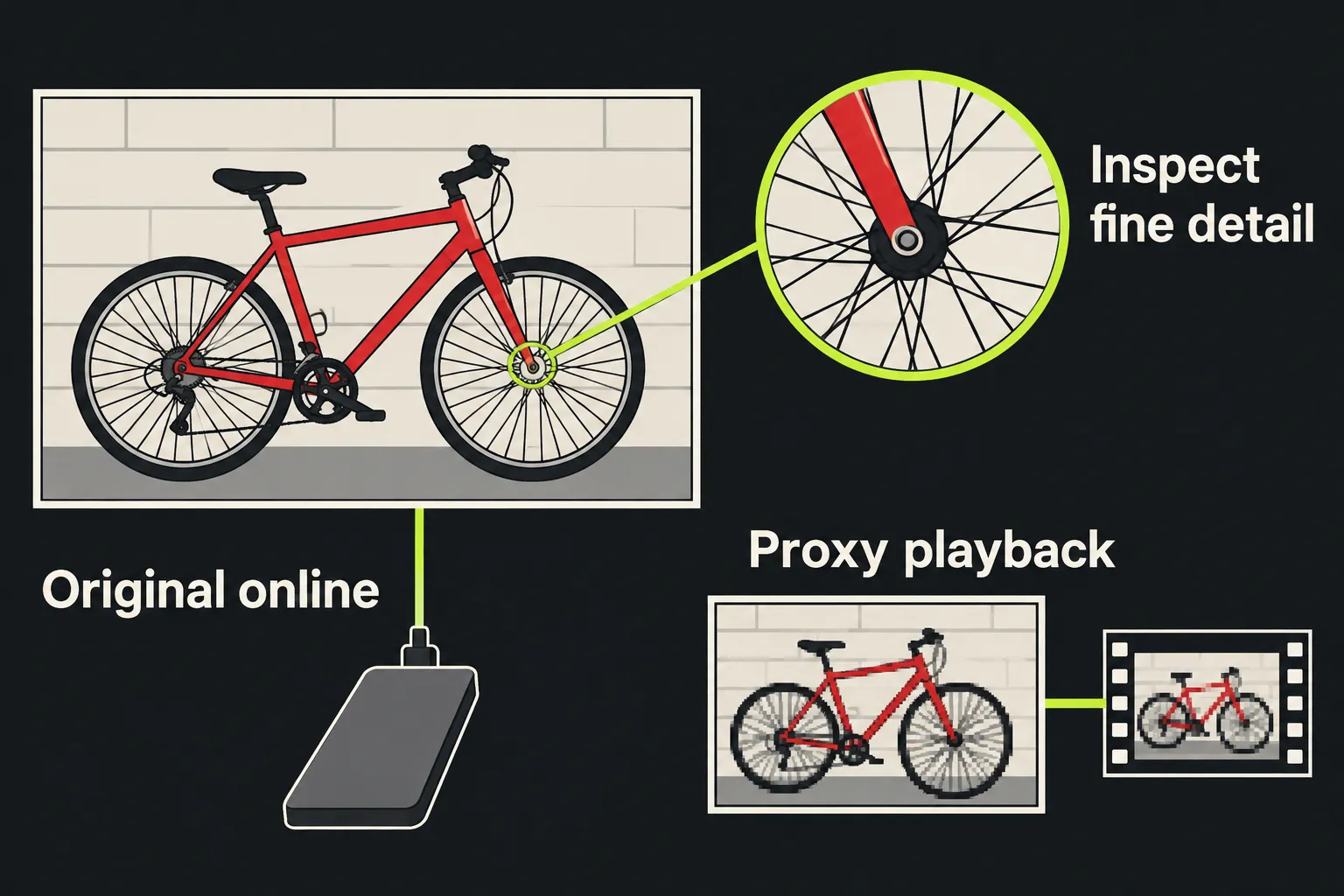
Before delivery, restore any GPU precision, RAW decode and effect settings changed for diagnosis. Use Highest available to inspect focus, fine detail and the grade, and confirm that the original files are online.
Lightworks normally exports from the original media even when you edited with proxies. There is an important exception: the proxy guide warns that offline originals allow export to fall back to available media. Reconnect or relink the originals first. A smooth proxy preview is no guarantee that your delivery will use full-quality source files.
If none of these comparisons isolates the problem, ask LWKS support. The official troubleshooting guidance asks for the symptom, media format, version and system information. Include the drive location, affected time range and results of each comparison too. “This clip still stutters with a finished proxy and no active Tasks” is a much stronger starting point than “Lightworks is slow.”