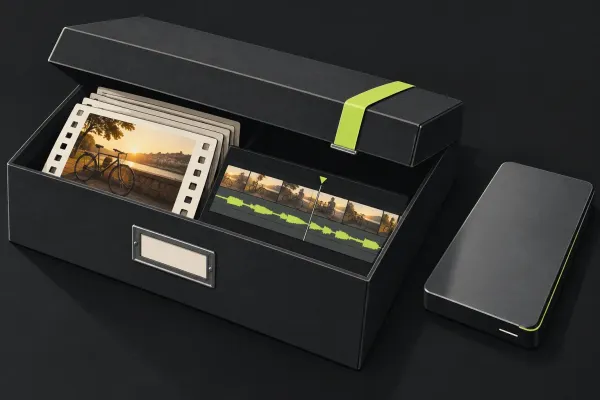
Back Up and Restore a Lightworks Project
Choose the right archive contents, preserve camera originals, restore without replacing live work, and check the recovered project before a system move or cleanup.
Read the guideStart with a short video you can finish. Import a few clips, choose the useful moments, put them in order and export a file you can watch outside the editor. That gives each new control a purpose.
The beginner route below connects the first cut to the next decisions: how to handle media, where to make a trim and what to keep when you back up the project. Already stuck on a specific symptom? The Lightworks troubleshooting hub is a better starting point.
Keep the first project small enough that you can follow it all the way through. A complicated opening, a long music edit and a polished title can wait until the basic sequence makes sense.
Follow the beginner Lightworks tutorial with a few clips. The aim is to understand the route through the editor: selecting source material, building the sequence, balancing sound and checking an export. Finish that route before expanding the project.
If importing feels uncertain, use the MP4 and MOV import guide. Then work through cuts and trims when you need to change a shot. These are different decisions: getting media into the project and changing which part the edit uses.
Use the export hub when the cut is ready to leave Lightworks. Choose the guide for your output question, then check the resulting picture, sound and duration.
Before moving the project or cleaning up storage, read backing up and restoring a Lightworks project. Decide what you need to preserve and how you will check the restored copy. Keep that decision separate from exporting a video for someone to watch.
Open a full walkthrough below. For a particular cut, sound or export decision, use the neighbouring task hubs rather than repeating the whole beginner project.
Choose the right archive contents, preserve camera originals, restore without replacing live work, and check the recovered project before a system move or cleanup.
Read the guide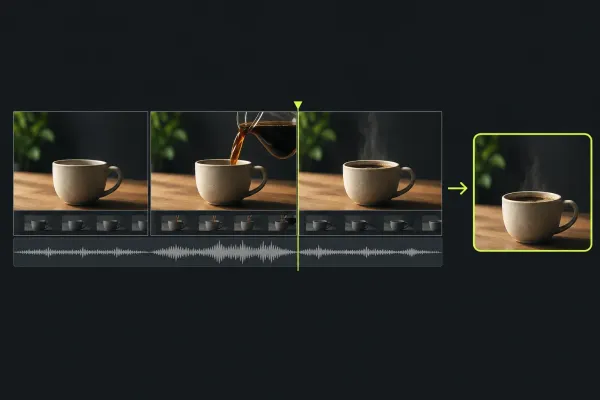
Make one short video from start to finish: import three clips, choose their useful sections, build the timeline, balance sound and check the exported file.
Read the guide