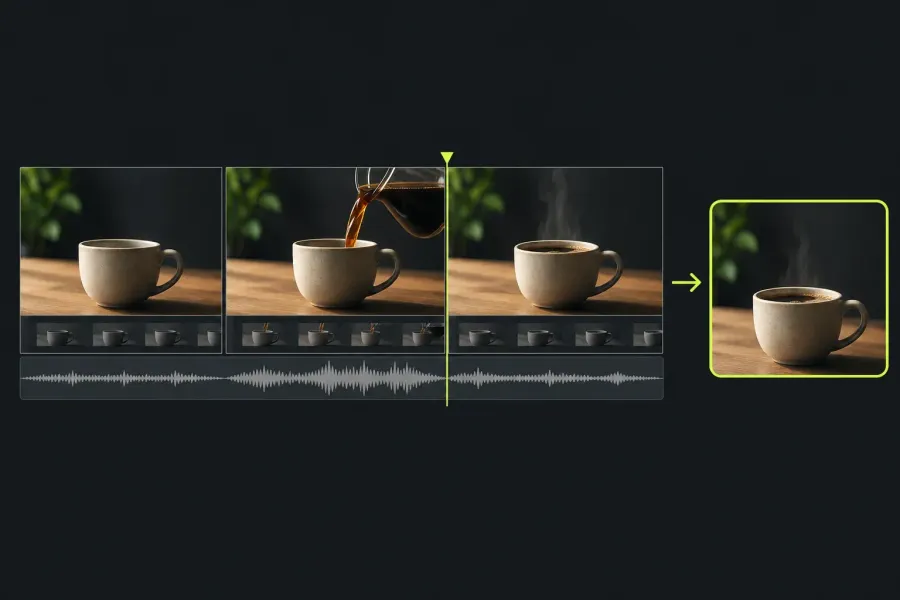
Make one short video all the way through before exploring effects. For this first Lightworks edit, you will import three clips, choose useful sections, join them into a sequence, adjust a cut, balance the original sound, and inspect a local exported file. The checkpoints show you what each action changes, so you can correct a mistake before the next step.
This walkthrough uses the workflow in the current Lightworks Quick Start guide and its related documentation. It describes the fixed workspace and default keys. Installed builds and custom layouts can have different labels, so check each name against your own screen rather than assuming it matches the documentation.
Prepare a small edit you can finish
Choose three replaceable clips with sound, preferably with the same frame rate. Keep your originals in a separate backup before importing. You need Lightworks already available, enough space for copied media and the output file, and a place to save that output. Installation, unusual codecs, and complex mixed-rate projects are separate jobs; if a practice file will not import or play correctly, use the media import checks first.
Practice example: imagine three shots of making coffee: A_Cup, a cup on the table; B_Pour, coffee being poured; and C_Finish, the finished cup. Plan to use roughly three, four, and three seconds respectively. Those lengths add up to an exercise of about ten seconds; they are planning figures for your own practice rather than timings from an edit made for this guide. Use whatever footage you have; the sequence of actions matters more than the subject.
Create the project and import the clips
- In the Project Browser, click Create Project, enter a name such as First_Coffee_Edit, and click Create.
- Open the Import panel with F1, Ctrl+I on Windows/Linux or Cmd+I on macOS, then browse to your practice folder. The current import guide also describes the Import button and right-click Import route.
- Select the three files and inspect the import method before clicking Import.
Choose Create Link To Media when the files already live on editing storage that will stay connected. It references their current location. Choose Copy Media To Project for a camera card, USB stick, or another location that will disappear: it creates working copies in project media storage. The import guide explains why a linked clip goes offline if its file moves or its drive disconnects. Copying takes time and disk space, so let it finish before removing the source drive. If the files come from a camera card, protect a separate copy of its full folder structure first. Verify the imported copies play before reformatting that card.
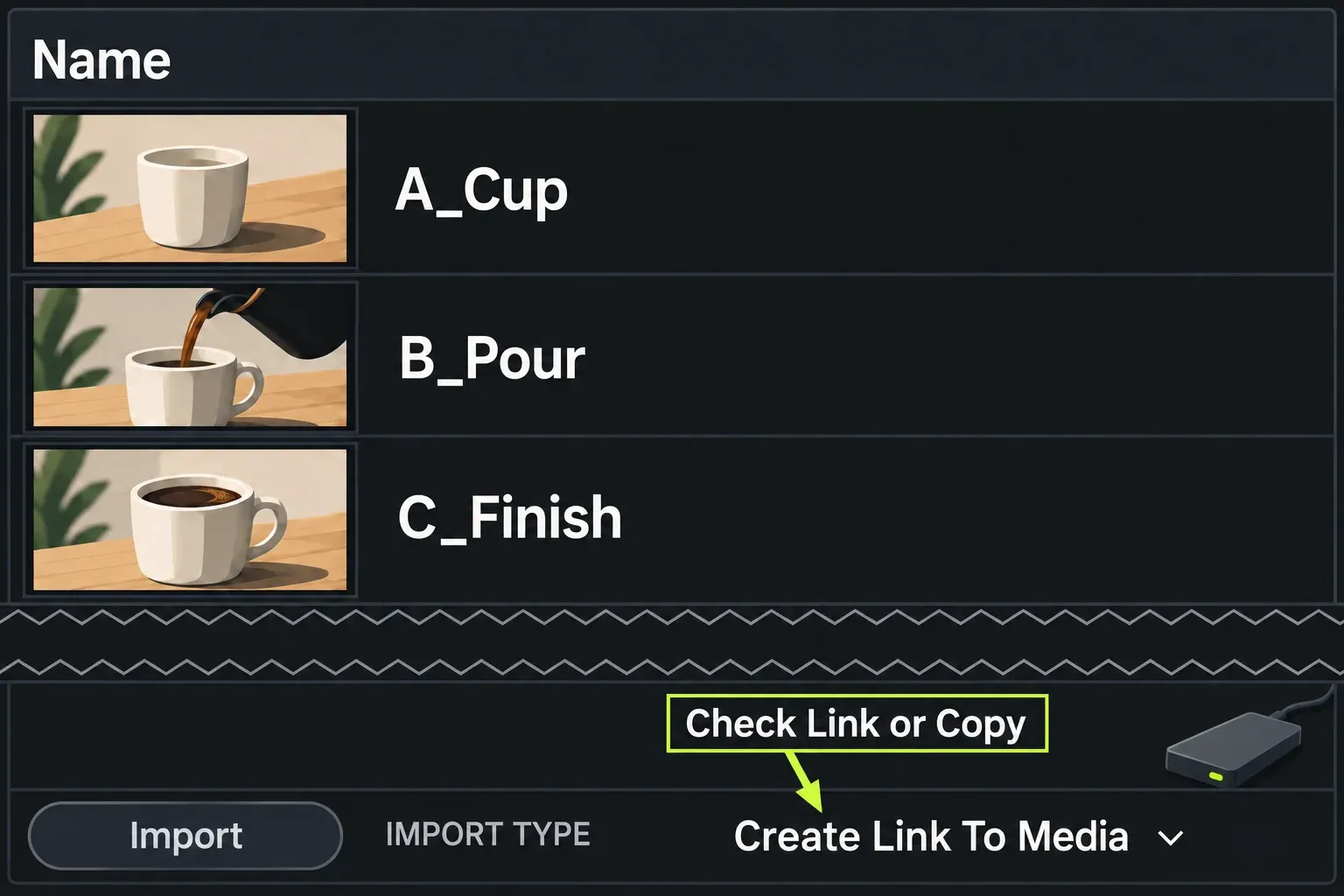
Import and autosave solve different problems. Import makes clips available to the project; Lightworks's continuous saving preserves edit decisions. Neither is a substitute for a separate backup of camera originals. If linked footage later disappears, start with the media offline checks, rather than rebuilding the edit.
Checkpoint: the imported clips appear in the Content Manager. Double-click A_Cup and play it. Confirm that the source has usable picture and sound before assembling the sequence.
Know whether you are looking at a source or the sequence
A source is the single clip you opened. A sequence is the assembled edit on the timeline. Playing a source is a review action; it does not add that clip to the sequence.
The documented viewer headers use blue for source and red for sequence. In a stacked layout those two jobs share one viewer area; a dual-viewer layout puts them side by side. For this exercise, use Edit, or choose an Edit Dual Viewer layout if that makes the distinction clearer. The Layout Chooser opens from the chevron beside the active layout name. Choose a built-in layout there instead of resetting your workspace.
Watch both positions: the source playhead chooses the end of the material you want, while the sequence playhead chooses where it will land. Moving one does not mean you have moved the other.
Mark A_Cup and insert the first shot
- Double-click A_Cup in the Content Manager and confirm that you are working in the source viewer.
- Play or scrub to the beginning of the useful action. Press I to mark its start.
- Move the source playhead to the intended end—roughly three seconds later in the practice example—and stop there. Without a separate Out point, this is mark and park. You can use O for an explicit Out point instead. The Quick Start lists these default marking keys; custom keyboard assignments can change them.
- Check the source video and audio tracks that should participate, and the destination tracks in the sequence. The Track Target buttons use V1/A1-style labels. In the sequence, no lit targets is the default, with all unlocked tracks included; clicking a target narrows the destination setup. Include all the source audio you want. Monitor and mute change the output, not the destination of an edit.
- With the initial empty sequence ready, click Insert to place the marked source section in it.
The basic editing guide describes source and sequence track targeting. Insert adds material at the sequence playhead and pushes later material along. It is different from Replace, which overwrites at that position without lengthening the sequence.
Checkpoint: A_Cup now occupies a segment on the sequence timeline, with its included audio below the picture. The current Quick Start says the sequence playhead advances to the end of that insertion. Look for that destination position before the next shot. If you only see the source playing and no segment appears on the timeline, the edit has not reached the sequence. Check the source range, destination playhead, and enabled tracks. A locked destination track cannot receive the edit.
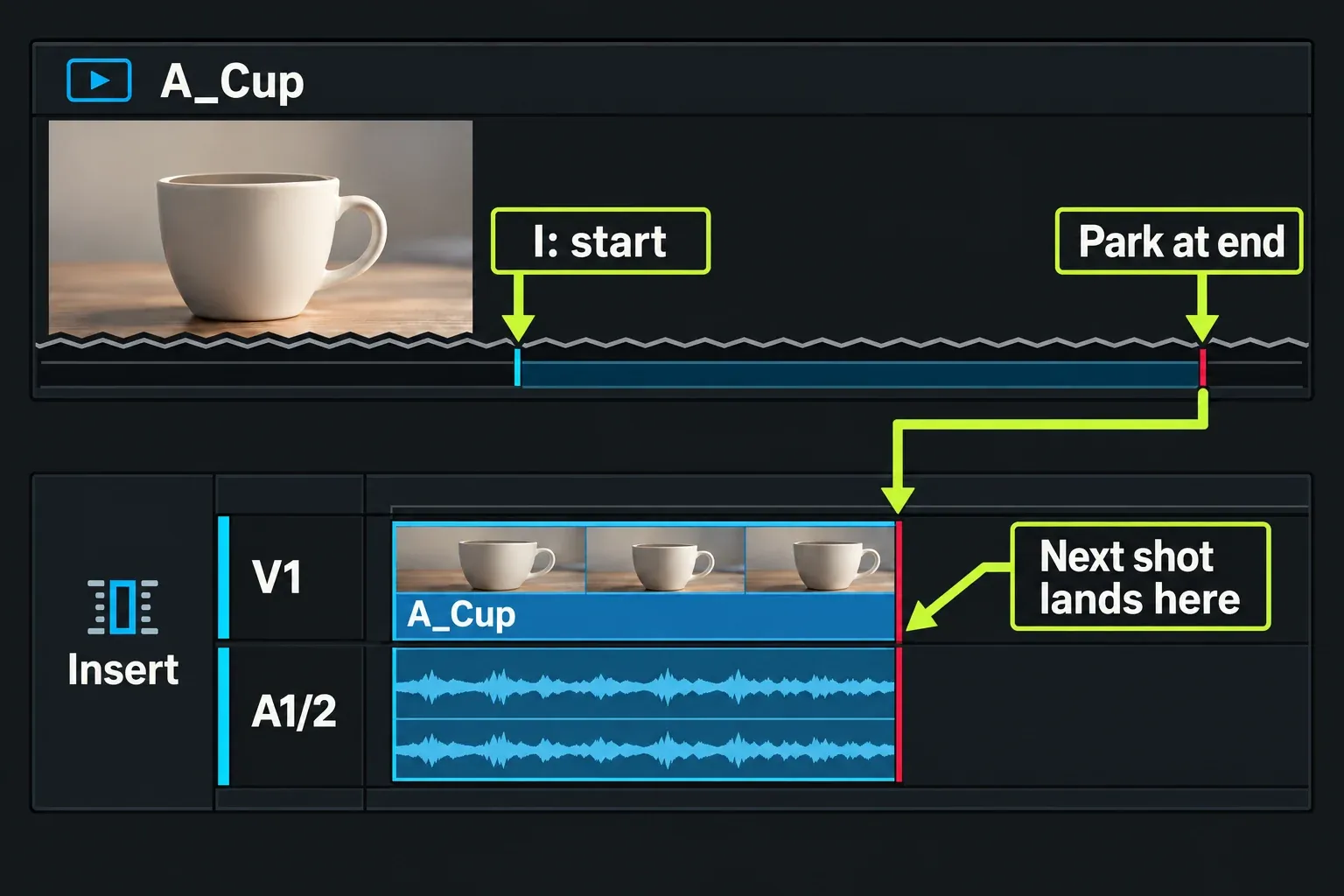
The first clip in a new Auto sequence establishes a compatible output format. The sequence guide explains that first-clip behaviour, so begin this exercise with a clip that matches the frame rate you intend to deliver.
Add B_Pour and C_Finish, then review the cut
Open B_Pour as a new source, mark its useful start, and park at its end. Check that the sequence playhead is at the end of A_Cup, then Insert. Repeat for C_Finish at the end of B_Pour. In the practice example, the timeline should read A_Cup → B_Pour → C_Finish, with approximately three, four, and three seconds of selected material. If a shot appears before the previous one, check the destination playhead instead of importing the file again.
Move to the beginning of the sequence and put the pointer over the timeline. Press Space to play the sequence—the Quick Start specifically distinguishes timeline playback from reviewing a source. Check the order, joins, sound, and ending. Unwanted black between shots or a long empty tail is a timeline problem to resolve before export, not a reason to change the output codec.
If the practice B_Pour shot leaves a pause before the action, shorten that pause at its join with A_Cup:
- Turn Sync on in the timeline toolbar's Trim group. A one-sided trim then ripples later material and closes up the edit. Keep Clip Link on in the toolbar's Behaviours group so linked picture and sound trim together. The timeline tools guide locates these controls.
- Check the amber Track Sync strips beside the track targets to see which other tracks will move. Locked tracks and tracks left out by Alt-narrowed sync stay behind. If another participating track has no black to absorb the change, it can give up media at the trim point; the current troubleshooting guide warns about this content loss. In the three-shot exercise, look over the included picture and sound tracks before you trim.
- Move the pointer close to the beginning of B_Pour at the join until the trim cursor appears. Aim at B_Pour's start if that is the pause you intend to shorten, rather than A_Cup's end. Click and hold, drag to adjust the edge, then release to finish that drag trim.
- Replay across the join. Check that the pause is shorter, no gap remains, and picture still agrees with sound. Inspect any sync indicators before continuing.
You can extend a shot only within the footage that exists; trimming cannot create missing action. If the change is wrong, use Ctrl+Z on Windows/Linux or Cmd+Z on macOS to undo. The cut and trim guide covers the different trim subjects and ripple behaviour.
Keep straight cuts for this first delivery. A dissolve needs unused frames on both sides of the join, which adds another condition before you have checked the basic edit. Once the three shots play in the right order, continue with sound.
Balance the sequence audio
Click the Audio layout tab. If it is not among your active tabs, use the Layout Chooser beside the current layout name and choose Audio. The mixer documentation places the full audio mixer in that layout.
Check what the mixer is controlling before touching a fader. The documented mixer can follow whichever source or sequence has focus, so open its settings menu and set the Audio Mixer option to Sequence for this exercise before playing the sequence from the timeline. That way you balance the assembled edit instead of accidentally changing the source clip you last reviewed.
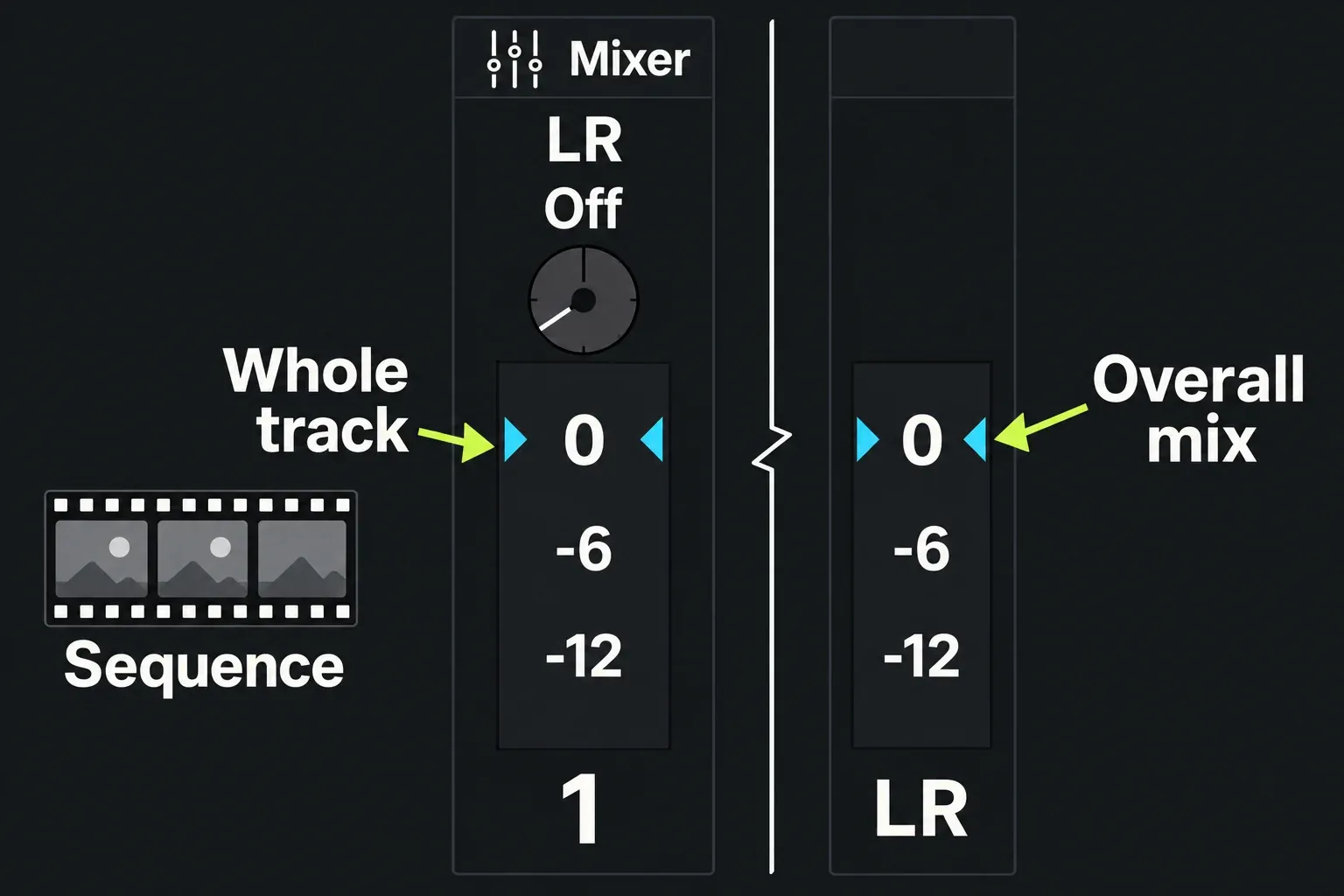
A mixer fader changes the level of its whole track. If A_Cup, B_Pour, and C_Finish share that track, moving the fader changes all three. To bring one louder shot closer to its neighbours, adjust that segment's level on the timeline first:
- On the relevant audio track, turn on Keyframes in its track header. A level line appears over the audio.
- For a segment with a flat level line and no intermediate nodes, click its start level node, then Ctrl/Cmd+click its end node to add it to the selection. Check that only those two nodes are selected. Drag them vertically together: down for a quieter shot, up for a louder one. Keep their times unchanged so the line stays flat. The audio timeline guide documents editable segment endpoints and moving selected nodes together.
- Play through both joins and listen again. Check each audio channel you included; do not assume adjusting one channel corrected a stereo pair. For this practice edit, aim for consistent sound without introducing a fade or an automation lesson.
Now set the overall track balance in the mixer. Where the documented automation mode controls are available, use Off for this first adjustment rather than Write, Touch, or Latch. Drag a track fader to set that track's contribution to the mix. Solo can help identify which track carries a sound, but restore temporary solo and mute states before reviewing the complete edit.
The LR master represents the combined output. Balance individual tracks first, then set the overall level while watching LR; LWKS advises keeping the master out of the red. Listen across both joins for sudden level jumps. This first exercise can use the sound already in your footage—adding music, recording a voiceover, and writing automation are useful later tasks.
Export the whole sequence to a local file
Return to the completed sequence and make sure it is loaded on the timeline. Open the timeline's side menu using its toggle, then choose Export; the timeline tools guide lists Export in that menu. Use the full panel for this first delivery so you can inspect what will be rendered.
- Check the export source. The current documentation describes a Source List that can contain sequences, clips, or subclips. Note the actual name of the finished sequence on the timeline and find that same name in the Source List; the project name First_Coffee_Edit can differ from it. A single A_Cup source clip would export that item, not your three-shot edit.
- Check the range. Choose the whole item for this exercise, rather than a marked section. A marked range is useful for a later preview, but it can omit the beginning or ending of your first delivery.
- Choose an offered target and resolution. MP4 is the documented default for general delivery. Use the format and resolution your active licence actually offers; do not assume every Free installation has the same target list. Check the selected preset's settings rather than trusting its name.
- Check the media and destination. Keep the originals online. Use a clear local name, such as First_Coffee_Edit_v1.mp4, and a folder you can find afterwards. Do not reuse the name of a source file.
- Start the export and wait for completion. The Quick Start names the control Start. If Start opens a save dialog, choose your recorded folder and filename there. Export runs in the background, so a closed panel does not mean the file is finished.
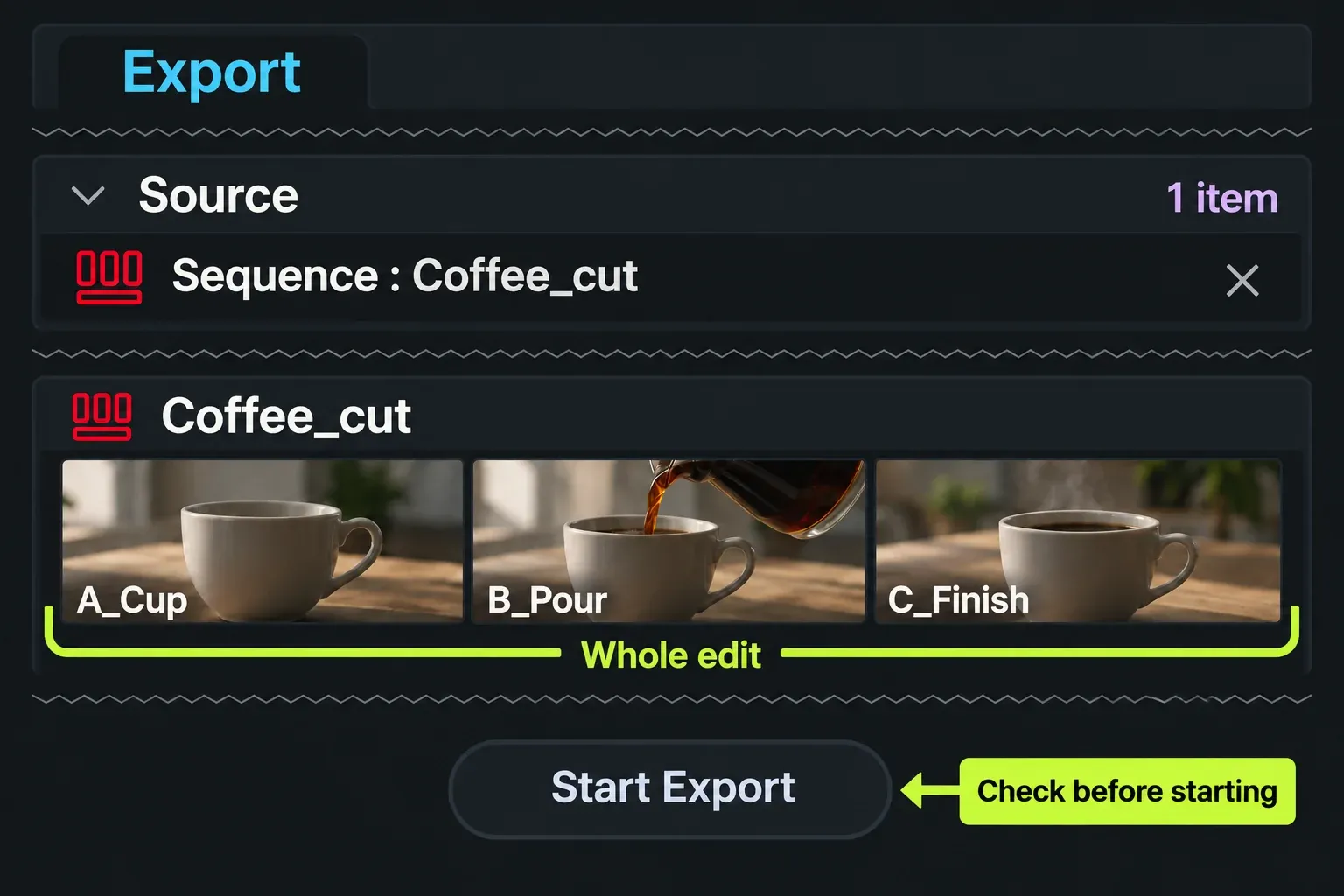
The Export overview explains source selection, ranges, presets, and licence-dependent formats. A right-click preset can be configured to auto-start; that is why the full panel is a better first check than an unfamiliar one-click preset. The proxy guide also warns that offline originals can make export fall back to available media. For this first master, reconnect originals before delivery.
For progress, open project settings from the settings icon beside the project name, then go to Tasks. The Tasks page reports running jobs and its Tasks Log records completed work. If the export reports an error, keep that message and resolve the indicated problem before treating a partial file as finished. The full export workflow covers further delivery choices.
Check the file you will share
When the task is complete, open the destination folder you selected, find First_Coffee_Edit_v1.mp4—or the name you chose—and open that file in another video player. Does it start with A_Cup, pass through B_Pour, and finish with C_Finish? Is the duration close to the sequence you just reviewed, including any trim you kept? Listen at the beginning, both joins, and the end. Only this playback of the saved file confirms what you are about to share.
If the file contains only one shot or the wrong section, return to the export source and range. If the timeline itself is silent, use the timeline audio checks before re-exporting. If the local file matches the intended sequence, you have completed the first editing loop. Keep the project and original media together for your next change; the exported movie does not replace the editable project.