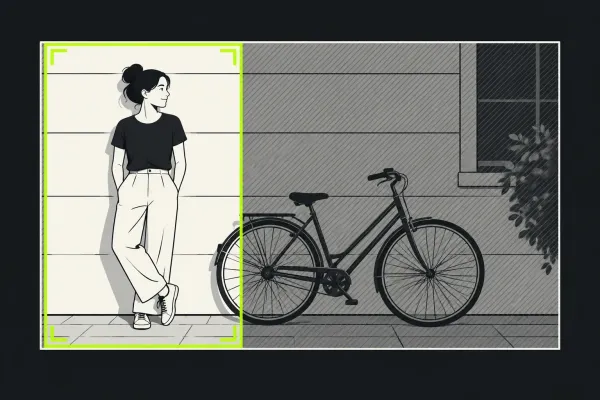
Crop, Resize and Reframe a Lightworks Video
Crop, scale, position, and reframe video in Lightworks without confusing the visible picture area with final export dimensions.
Read the guideChoose the guide for the change you want to make: bring a file into the project, shorten a shot or adjust the timing around a cut. You do not need to repeat an entire beginner tutorial for one edit.
Start with the media if you cannot get a usable source into the project. Start with the timeline when the clip is already there and the question is what should move. For a first project from beginning to end, take the beginner learning route.
Use importing MP4 and MOV media for the decisions around the source file and its storage. Keep the import question separate from the edit you intend to make with the clip. If the original file is already missing, choose the troubleshooting route first.
The cut, trim, slip and slide guide starts with the result you want. Before choosing an operation, decide whether the cut should move, the shot should get shorter or different source frames should appear within the same slot. Include linked sound in that decision.
A silent sequence, black picture or stuttering preview needs diagnosis before more editing changes. Open the Lightworks fixes hub and find the first stage where the symptom appears.
Move to the export guides for output settings and missing resolution options. Keep the required finished file in view: an edit that looks right in the sequence still needs a delivery decision and a check of the exported result.
Decide what must stay fixed. When comparing editing operations, name the part you want to preserve: the overall timing, the cut position, the source frames or the relationship with sound.
Each guide covers a specific editing task. Use its conditions and checkpoints alongside the sequence you are working on; the cards below lead to the full explanation.
Crop, scale, position, and reframe video in Lightworks without confusing the visible picture area with final export dimensions.
Read the guide
Add native text with the documented Lightworks 2020.1 controls, distinguish clip and FX spans, and choose readable styling for Title, Crawl or Roll.
Read the guide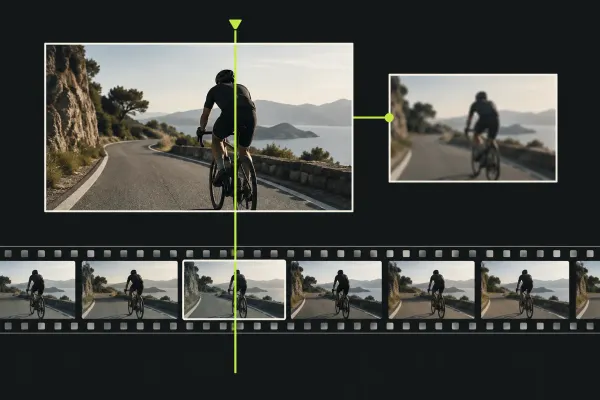
Use Lightworks proxies for smoother editing. Compare the same section, protect originals, check playback quality and verify export with originals online.
Read the guide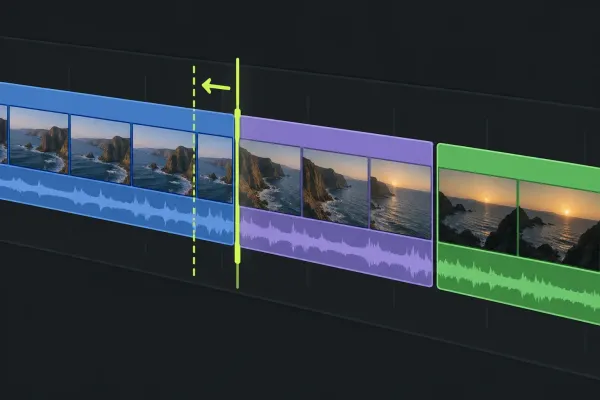
Choose the edit from the result you need: split a clip, shorten an edge, move a cut, slip source frames or slide a shot while keeping timing and linked sound under control.
Read the guide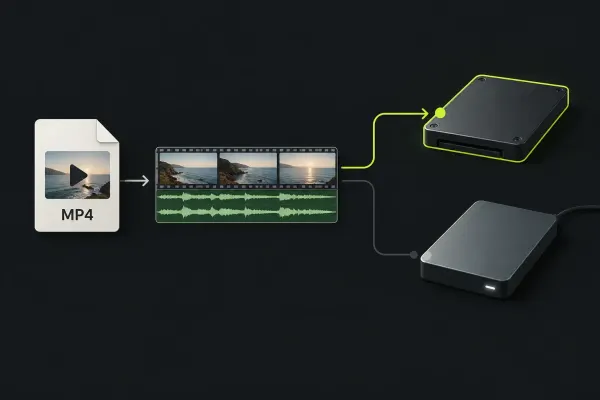
Import MP4 and MOV into Lightworks using linked or copied media, inspect the actual streams, and check one representative file before bulk conversion.
Read the guide