For a stationary label or heading, start with the native Title effect. Choose the part of the edit that should carry the text, add the effect, then enter the wording in its settings. Lightworks also has Crawl for horizontal text and Roll for vertical text; use those when the movement serves the message.
Add and type a fixed title
The exact buttons in this procedure are documented in Lightworks 2020.1. The current guide confirms the general workflow of adding an effect to a selected clip or track and adjusting it in FX Settings, but it does not document the same title-entry panel. Use the version-qualified route below when those controls match your build.
- Open the VFX tab. On the timeline, mark the beginning of the intended title span and park the playhead at its end. The 2020.1 effect procedure uses Mark and Park to select that range.
- Click Add Effect (+). Choose the Text category containing the title effects and select the fixed-title effect. Check the intended target in the dropdown, then click Apply effect. The marked-range procedure inserts the effect into the timeline.
- Park the playhead inside the applied effect and click the Settings tab in VFX. The same manual also documents right-clicking the effect and choosing Effects > Settings from Edit or VFX.
- Type the title in the upper panel of the title settings. In the Font tab, choose a Typeface and adjust Size. These are the wording and font controls documented for 2020.1.
- Play through the selected section. Confirm the words appear over the intended picture, start at the intended point and disappear at the end. If the title covers the wrong span, correct its scope before spending time on typography.
For a second title later in the edit, make a fresh range at that location before adding another effect. Select the new effect when changing its wording; editing the first title's settings will not create a separately timed second title.
Set the title's start and end
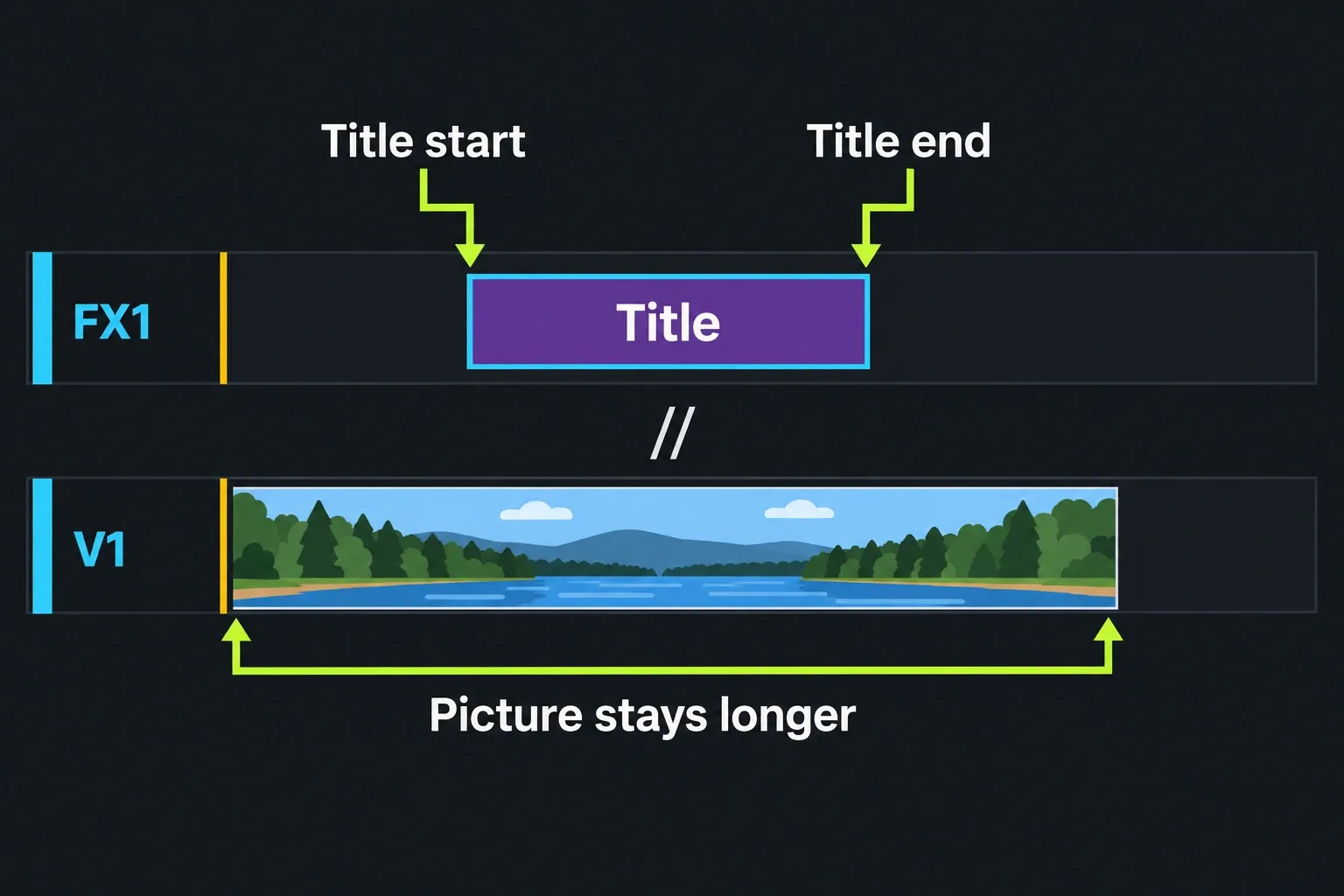
First identify the item carrying the title. A clip effect applies to one timeline segment, while a track effect processes the whole track. A marked range describes the time you selected; it does not by itself identify a standalone FX segment that you can trim independently.
To give a clip-attached title its own timing item, select the clip that carries the effect and right-click it. The current Keyframes and Animations guide documents choosing Expand Effects: Lightworks moves the clip's effects to an FX track, and each effect gets its own segment. If the clip has more than one effect, select the title's segment before changing a boundary. This gives the effect its own trimmable FX segment; whether the title composites correctly across picture cuts is a separate check.
Use that route when the title should have a shorter span than its original shot. For example, expand the effects, select the title segment, and trim its two edges so a label covers only the middle of a long clip while the source clip remains longer. For wording that must continue across cuts, the official 2023 Roll example puts the effect on its own video track above the footage, allowing it to extend beyond the shot below; inspect the composition at each cut rather than assuming Expand Effects supplies that routing.
Once you have selected the title's own FX segment, use the trim controls to adjust its start or end boundary, then close the trim. Watch the trim indicators so that you change the title rather than the picture beneath it.
For a one-sided FX trim, Sync controls whether later material ripples. With Sync off and Sync Off Action at its default, No Tracks Ripple (Drag in Black), shortening leaves black without moving later material. The legacy Only Target Tracks Ripple setting behaves differently. Check the opened title ends and amber sync strips, then confirm the picture and later cuts stayed where intended. The cut and trim guide explains the operations if you also need to change the shot.
Check reading time during playback: read the full wording while the sequence plays at normal speed. If you run out of time, shorten the wording or lengthen the title's span. Position animation and title duration are separate settings: animating position moves the letters, while the title's span decides which section of the edit carries the effect.
Choose motion and readable styling
| Effect | Choose it for |
|---|---|
| Title | Fixed text, such as an identifying label or heading. |
| Crawl | Text moving horizontally across the frame. |
| Roll | Text moving vertically, such as rolling credits. |
I would keep a short identifying label fixed. The viewer needs time to read it while following the picture; movement should have a reason beyond filling the frame.
In the 2023 Roll walkthrough, Font changes typeface and size, and Face changes text color. Position adjusts placement and movement. Shadow and Outline help separate the letters from the picture. The author says most of the demonstration also applies to Crawl and Title; check the controls offered by your chosen effect.
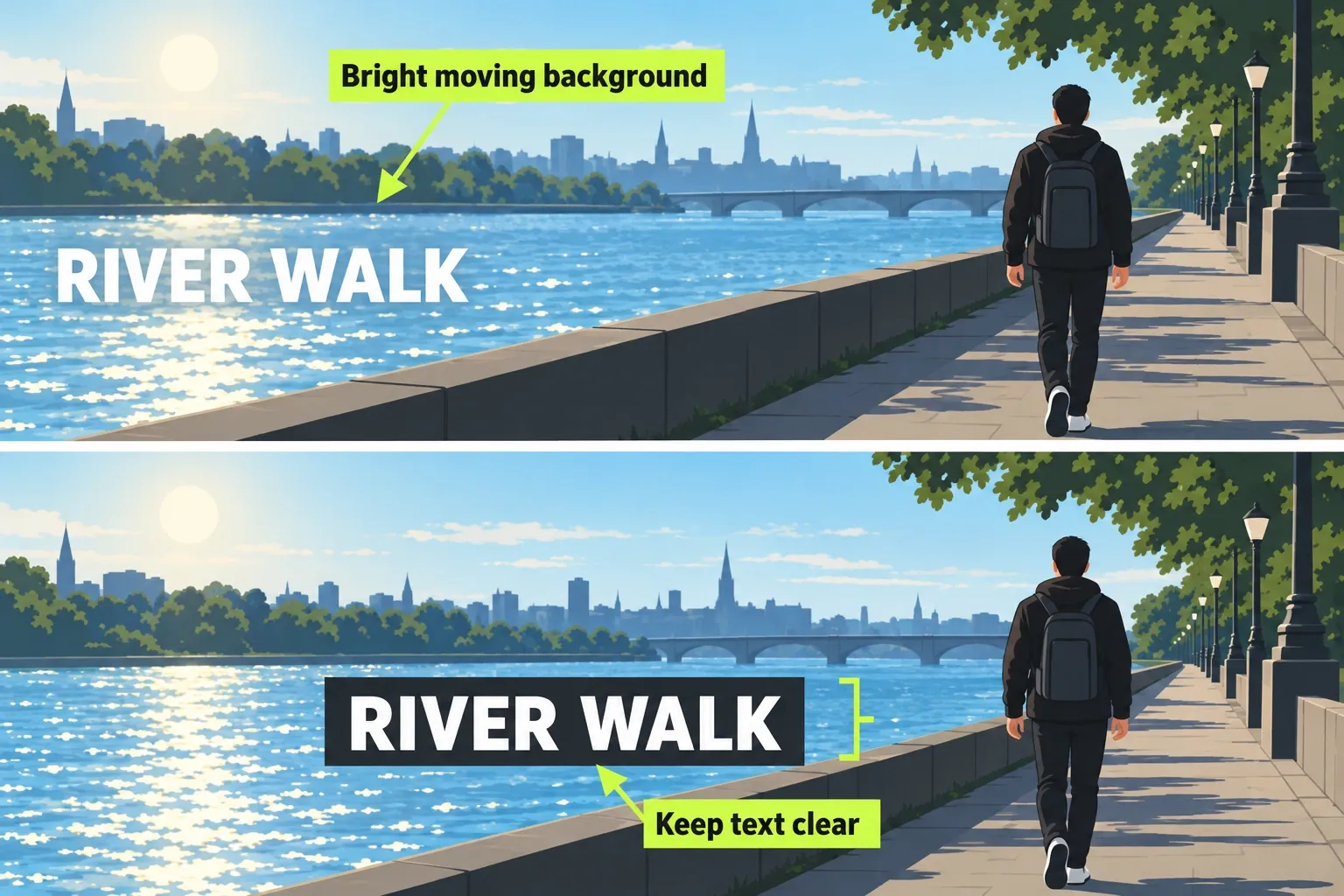
Set the wording before styling it. Place essential text away from the frame edges and keep the subject visible. Check contrast through the whole shot: white letters that read clearly over dark water can disappear when bright foam passes behind them. Move the wording or use a contrasting backing when the picture is too busy for the letters.
Review the title at the size your audience will see, including a phone view for mobile delivery. Leave room for the destination's interface controls. There is no single margin or font size that guarantees readability for every frame and platform.
Restore picture behind the title
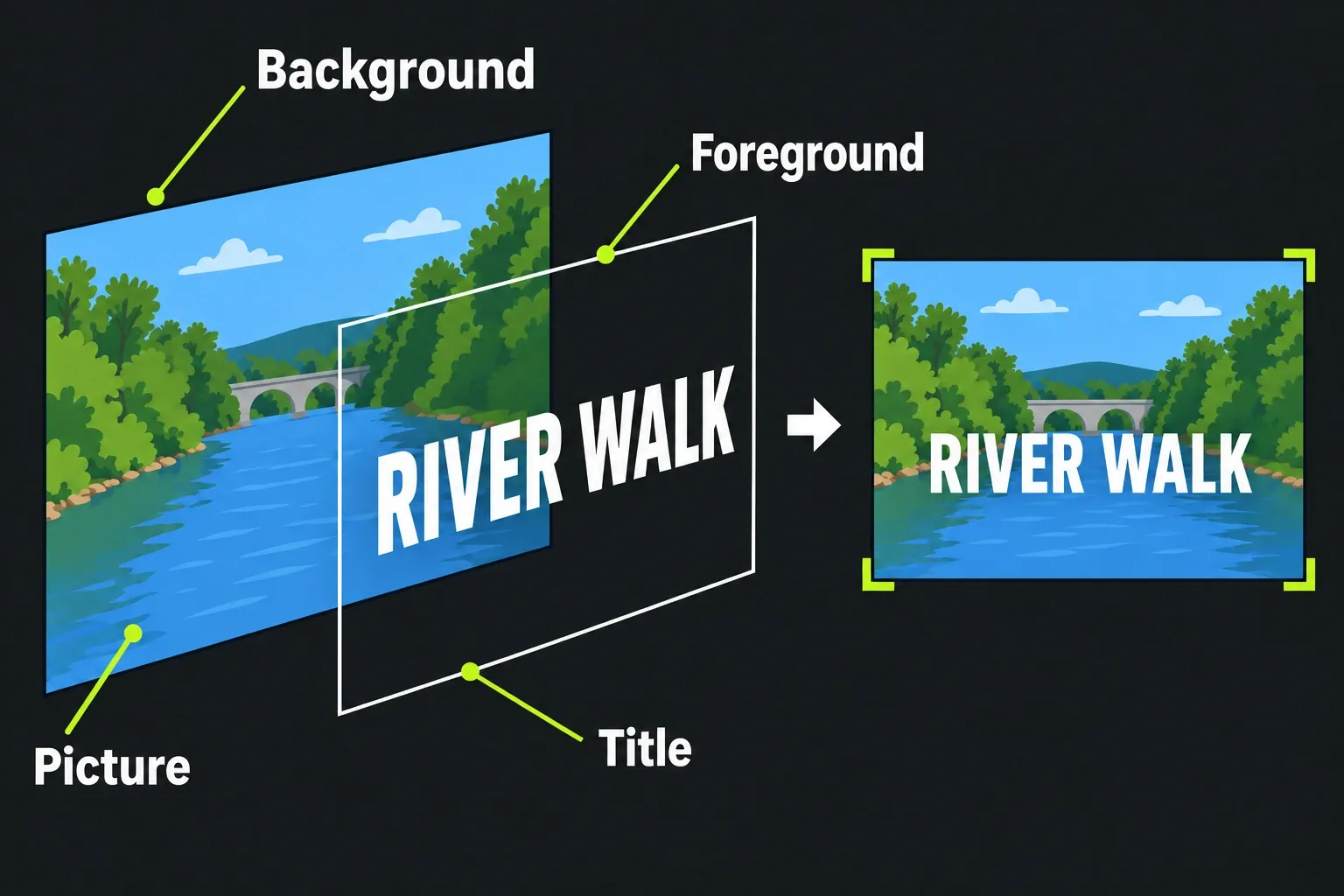
If you intended text over footage but see white text on black, first check that the title occupies the correct span and that the underlying picture is present there. Then inspect the effect's inputs. Video Routing shows image flow through connected effect nodes; a title on an upper track still needs the intended picture in its composition.
In an October 2023 forum report about titles obscuring footage, the user found that the failing titles lacked a link to the video. That points to one possible routing cause; it does not explain every black-background title.
The 2020.1 manual's advanced split-screen example connects the Titles output to Blend's foreground and the picture output to its background. Use that example to understand the two inputs. It is not a required extra step for every basic title, and its split-screen routing should not be copied blindly into a different composition.
Check the tool and the exported text
As checked on 13 October 2026, the Lightworks feature table lists inbuilt titles for Free, Create and Pro, with Advanced Titles for Create and Pro. A basic native label does not require an advanced titler.
If you choose NewBlue TitlerPro, check the component supplied with your plan. The Lightworks plugin requirements list an active Create or Pro licence for TitlerPro and Windows 10 or macOS 12 and later, with 8 GB RAM required and 16 GB recommended. Those plugin requirements are separate from Lightworks’ general platform support; confirm the component version and host compatibility before relying on it for a title job.
Keep font availability in mind when moving an editable project: the 2020.1 title panel lists fonts installed on the workstation. Confirm the same typeface is available on the destination before continuing the edit.
Export a short section containing the entire title and inspect the saved file outside Lightworks. Check its first and last frames, then read it during playback at the intended viewing size. Use the export settings guide if you need to choose the output format and target. If the wording becomes difficult to read over a changing background, fix the placement or shorten the text before delivering the full video.