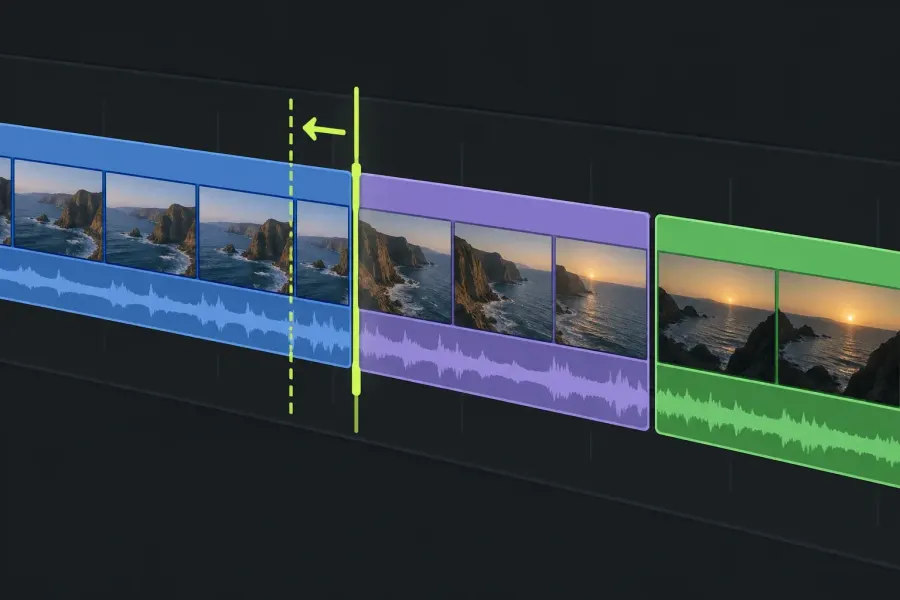
Use the Cut tool to split a Lightworks timeline clip without removing any frames. Use Trim In or Trim Out to change its start or end. Before trimming, decide whether later material should move: Sync controls that ripple.
If a shot only needs to end sooner, trimming its end saves you from splitting it and deleting the tail. If the shot must stay exactly where it is but show a different moment, use Slip.
Choose the result before the command
- Add an edit point: Cut or Split divides the clip. No frames are removed, nothing shifts and sequence duration stays intact.
- Shorten or extend one edge: Trim In changes the incoming start; Trim Out changes the outgoing end. Sync decides whether later material ripples.
- Move a cut without changing sequence length: Move Cut, also called a rolling trim, adjusts both sides of the boundary together.
- Show different source frames in the same slot: Slip changes the clip's source In and Out together, preserving its position and duration.
- Move the whole shot while keeping its content: Slide changes its timeline position and trims its neighbors to make room.
- Take material out: Remove leaves black or silence; Delete attempts to close the removed range. The rest of the track layout can limit how much closes.
The current Lightworks trimming controls separate these operations from ripple behavior. The routes below follow the documented v2026 interface. Keys follow the factory defaults for the standard mapping; your own assignments can differ.
Keep an untouched sequence version or a project archive before experimenting on an important edit. Lightworks saves project changes continuously, so closing the application is not a way to discard an unwanted edit. If you still need to get clips onto a timeline, start with the first-cut tutorial.
Split a clip with the Cut tool
- Open the sequence and make the intended picture and sound tracks visible. Unlock any track you intend to cut.
- For linked picture and sound, leave Clip Link on so the cut includes linked partners.
- Turn on the Cut tool in the timeline toolbar, or press Alt+C in the standard mapping.
- Point at the required frame on the clip and click. The clip is split at that position; nothing is removed or shifted.
- Turn the Cut tool off again, using its button or Alt+C, before returning to ordinary clip selection or dragging.
The Cut tool acts on the clip you point at. Enabled-track targeting and Track Sync do not determine which clip it cuts. Alt+click reverses the current Clip Link state for that click; Shift+click cuts every clip at that position on every unlocked track. Grouped tracks, such as a stereo pair, always cut together.
With Clip Link on, Alt+click gives you a single-clip cut. With Clip Link off, the same modifier brings in its linked partners instead, so the result of Alt+click depends on the current Clip Link state.
For a playhead command, use the toolbar's Split button to add an edit at the playhead. Check the current editing tools and your Track Targets first: with no targets lit, edits use the default track setup. Lock tracks that must be excluded. Search Settings > Keyboard Shortcuts to check your assigned key. Old tutorials can use different layouts and assignments.
If the tools are missing, check Show Edit Tools in Timeline settings. The current toolbar guide says this is on by default in both Fixed and Flexible layouts and remembered separately for each. Narrow windows can collapse tools into drop-downs.
After splitting, inspect links before moving the new pieces. Splitting also divides the remembered link group: the part after the cut becomes a clip in its own right. Chain icons identify clips with link partners when Show Clip Links is enabled in Timeline settings. Do not assume that every new piece still selects with the audio you expect.
Trim the start or end of a shot
Trim Out changes the outgoing clip's final frame while leaving the incoming clip's source start unchanged. Trim In changes the incoming clip's first frame while leaving the outgoing clip's source end unchanged. Pick the source edge first; whether later clips move is a separate decision.
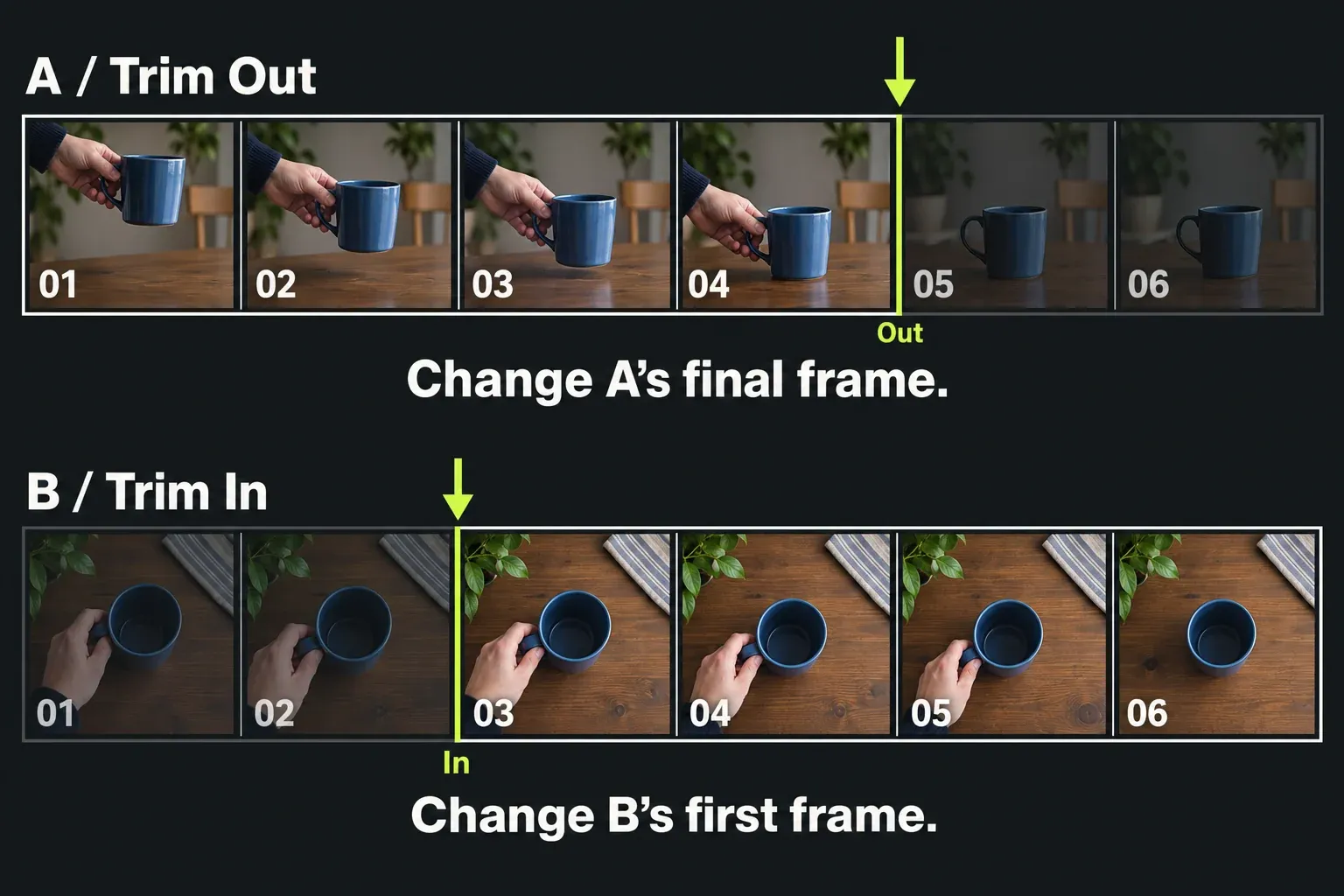
- Choose the edge to adjust. Hover near the clip's start or end until white brackets appear on that side.
- Click to open the trim. The edge curls away from the cut, and the active brackets identify what will be trimmed. Check the intended side before dragging.
- Set Sync for the result you want, then adjust the edge while watching the sequence viewer. Check Sync Off Action if you expect no ripple: its default is No Tracks Ripple (Drag in Black); the legacy Only Target Tracks Ripple setting behaves differently. Use the trim material indicators to see movement in seconds and frames.
- Close the trim by clicking the cut point, choosing Close below the sequence viewer, or pressing Tab. Play across the revised cut.
These cues and closing controls come from the current trimming workflow. If a click does not open the trim, check Click To Unjoin (Trimming) on Timeline settings' Behaviour tab. With that option off, use click-and-drag or deliberately open the trim with a keyboard command.
For a keyboard trim, check the Track Target buttons before opening the trim, position the playhead near the relevant cut, and use W for Trim In or E for Trim Out. With no targets lit, Lightworks chooses the top clip under the playhead plus its audio; lit targets choose the tracks to trim. A mouse click identifies the edge directly, with linked partners included when Clip Link is on. Check the opened brackets on every affected track.
Control ripple and linked sound
For an ordinary picture-and-sync-sound trim, leave Clip Link and Sync on, then inspect the opened ends and amber sync strips. These controls answer different questions:
- Clip Link: does the clicked clip's linked picture or sound participate? It determines which clips a mouse cut or trim affects.
- Sync: does a one-sided trim ripple later material? With it on, later material moves to close or make space. With it off and Sync Off Action at its default, No Tracks Ripple (Drag in Black), shortening leaves black and lengthening uses adjacent black. The legacy Only Target Tracks Ripple choice instead ripples targeted tracks. The factory toggle is the key above Tab; check your installed mapping.
- Track targets and sync strips: targets choose whose media is trimmed; other tracks can still move to stay in sync. The slim amber strip beside each target shows which tracks will follow. Alt-clicking a target narrows both targeting and sync to the chosen tracks. Before opening a trim, clearing the last target restores the default setup. During an open trim, turning a target off makes that track trim black instead; joining restores the earlier target setup.
- Lock: should a track remain completely untouched? A locked track cannot be cut, trimmed or moved along by sync.
The current troubleshooting guide warns of a content risk on other tracks: if a track has no black to absorb a trim, it can give up media at the trim point to stay in step. A locked track, or a track left out by Alt-narrowed sync, stays behind instead. Check the amber strips and the content of every affected track.
Example: shorten the outgoing shot by one second
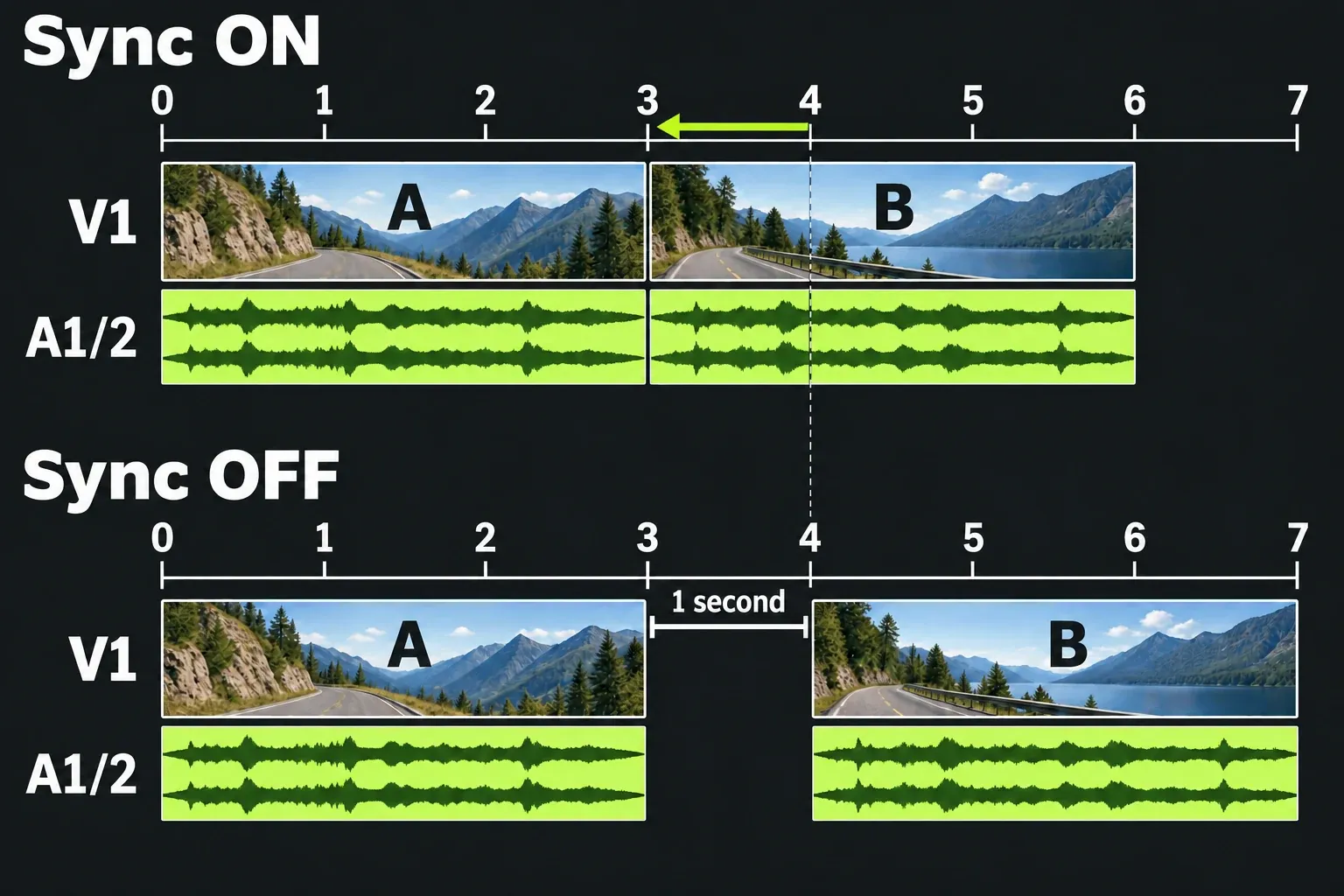
Imagine two adjacent picture clips, A followed by B, with linked sound on unlocked tracks. Leave Clip Link on and click the outgoing end of A to trim A together with its linked sound. In this example you want to remove one second from A, while keeping the source frames already chosen for B.
With Sync on, shorten that edge while watching the viewer and movement indicator. B moves one second earlier to meet the new end of A; the linked sound included in the trim follows the same change. With Sync off and its default No Tracks Ripple (Drag in Black) action, the same shortening leaves B at its existing position and leaves one second of black or silence between the shots. Close the trim and check the boundary, sound and new sequence duration.
Now consider a separate music track. If it participates in sync, Lightworks can use black on that track to absorb the adjustment. If there is no suitable black, the documented fallback can consume music at the trim point. Inspect the music itself as well as its later timing. A locked track stays untouched and can therefore fall out of alignment with the revised picture.
With Sync off and the default No Tracks Ripple action, a one-sided trim does not ripple later material. Move Cut, Slip and Slide preserve sequence length, so Sync does not change those operations.
Turning a Track Target off is different from locking the track: an untargeted track can still move to maintain sync, while a locked track stays where it is. If sound must follow a changed picture duration, locking that sound track stops it following.
Roll, Slip or Slide without rippling later scenes
For a cut that feels too early or too late, use Move Cut rather than changing only one side. Check Track Targets, park at the boundary and press U in the standard mapping. Drag the open trim, or use the arrow keys to nudge it while watching the viewer, then choose Close or press Tab. The outgoing end and incoming start move together, preserving sequence length. If using playback to change a trim, check Trim when playing: with it off, playback only inspects frames.
Slip (Y) is for a shot that occupies the right slot but shows the wrong moment. Slide (T) is for a shot whose content is right but whose position needs changing. The routine is close to Move Cut: check Track Targets and the playhead position, open the command and inspect its brackets, then drag or nudge while watching the viewer. Close it and check the new boundaries. Before opening a keyboard trim, no lit targets means Lightworks chooses the top clip under the playhead plus its audio.
The Slip and Slide definitions make the difference clear: Slip moves source In and Out together; Slide preserves the shot's content and length while trimming its neighbors. Neither pushes later scenes down the timeline. Available source frames and surrounding clips still limit the adjustment.
For example, in a three-shot sequence, you could Slip the middle shot to reveal a later gesture while keeping its duration. You could Slide that same shot to begin earlier while keeping the gesture it already shows. Choose the operation according to the result you want before opening more trim points.
Remove a section and choose what happens to the gap
To take out a timeline range, mark its start with I and its end with O, check Track Targets and locks, then choose Remove or Delete. With no targets lit, keyboard edits use every unlocked track. To act on a whole segment instead, use its right-click Remove or Delete command and check which linked clips will be included.
Remove leaves the range empty; Delete closes the removed range where the track layout permits. Delete does not guarantee that the whole sequence becomes shorter: every track closes by the same amount, so less black on another track limits the close, and no black there means nothing closes.
If black remains, distinguish Delete gap across all tracks from Delete black segment. The first closes available black through the sequence and can be unavailable when another unlocked track has material across the gap. The second removes black only from that track, which can shift it relative to picture or sound elsewhere. Do not close a gap in dialogue merely because it looks empty.
When the trim does not do what you expect
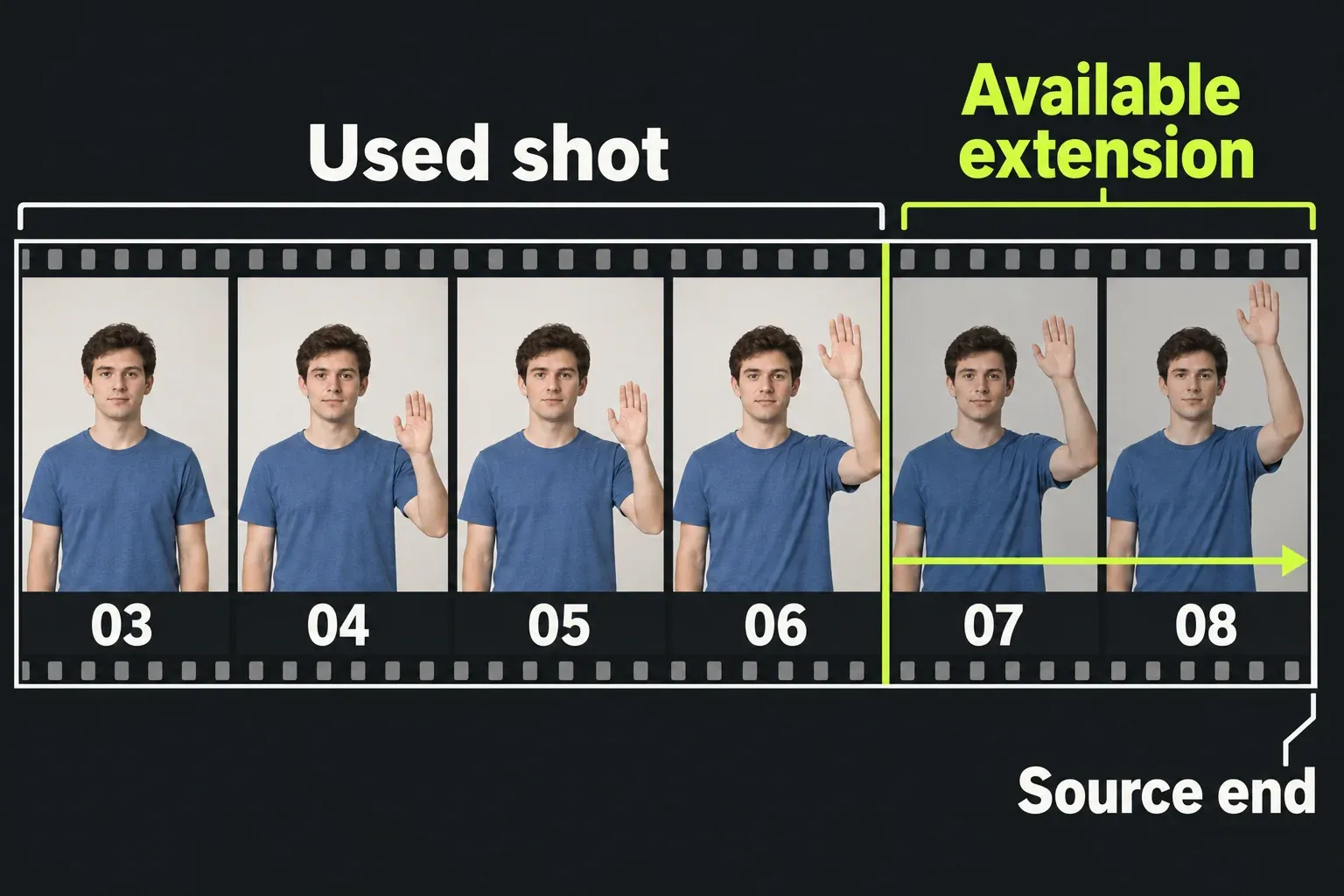
The clip will not extend: it may have reached the end of its source footage. Watch the yellow material indicator; the current trimming guide names the warning Trim limit. Moving an edge cannot reveal frames the source does not contain.
The edge moves in the opposite direction: check Click and Drag - Natural Trim and Unjoin - Natural Trim in Timeline settings. The current guide describes these as two toggles that change how dragging looks; they do not change which material gets trimmed. Watch the actual edge and frame before continuing.
The trim stops at its neighbor: that is the documented default collision behavior. Turning on Allow Trims To Overwrite Segments in Timeline settings lets the trim run over the next clip. Save it for a deliberate replacement rather than a first trimming exercise. These constraints are covered in the source-material and trim-collision guidance.
More clips select than intended: check whether the Selection tool is active. It selects the clicked clip and everything after it; it is not the generic way to leave the Cut tool. Turn the Cut tool off directly, and inspect the selection before dragging.
After an edit, check the new boundary, any black or silence, sequence duration and picture-to-sound alignment. Sync indicators report offsets between linked clips from the same source, so a missing indicator tells you nothing about whether unrelated music or effects stayed aligned. Undo an unintended result with Ctrl+Z or Cmd+Z before making more changes. Once the timing is right, follow the export guide to deliver the intended sequence.