If Lightworks has no audio, check where the same section stops being audible: the original file, the source viewer, the sequence, or the completed export. Inside the editor, inspect the intended mix’s Mute/Solo controls and LR master before changing the output device. This follows the current troubleshooting guidance to check mixer mutes and solos, then the audio output device.
Keep the edit intact and change one setting at a time. A visible waveform, a moving meter and a file containing an audio stream answer different questions; none alone proves that sound reaches your headphones.
Choose the silent stage
Use a section where speech, music or another sound should actually be audible. Compare the exact file and the same moment, using speakers or headphones that work in another application. Then follow the branch that matches your observation:
- The original is silent outside Lightworks: start with the file and its audio streams. Do not repair the sequence yet.
- The original plays elsewhere, but the source viewer is silent: check media availability, the Source mix and import compatibility.
- The source viewer plays sound, but the sequence does not: check audio placement and the intended Sequence mix.
- The sequence sounds right, but the completed file is silent: compare the export target, marked range and actual output file.
The control names below follow the current Lightworks documentation, which includes redesigned v2026 headers and a unified mixer. Older builds can behave differently. If a named control is absent, record your installed version and layout rather than applying an older forum recipe to a different interface.
Check the original and media availability
Open the exact original in a suitable player you already have. If it plays with sound, you know that this player can reproduce audio from that file through the selected device. You do not yet know whether Lightworks can decode the same stream.
If it is silent, check the player’s volume and selected audio track, then try a second suitable player if available. Silence in both still does not prove that the recording contains no audio stream: the selected stream may contain silence, decoding may fail, or the listening path may be wrong.
An existing media inspector can separate stream presence from playback. Lightworks’ Info panel exposes source format, codec and audio-channel properties. For a file outside the editor, an already-available ffprobe can use the documented ffprobe -show_streams -select_streams a INPUT command to show only identified audio streams; replace INPUT with the exact file path, using your shell’s normal quoting if it contains spaces.
- A successful inspection identifies audio: a stream exists, but that alone does not confirm audible samples or correct playback.
- A successful inspection finds no audio streams: check whether this is the intended recording or whether its sound was recorded separately.
- The inspector fails or is unavailable: the stream question remains open. ffprobe returns a positive exit code when it cannot open or recognise the input; an error is not evidence of a soundless file.
Next, confirm that the imported clip’s media is online. With linked media, moving a file or disconnecting its drive breaks the reference. The media-management guide recommends reconnecting the drive or restoring the original path, then refreshing; moved media may need relinking. Restore availability before adjusting the mix.
A waveform can remain useful as a display of analysed material, but it is not a current playback test. Lightworks analyses waveforms after import, while offline clips retain their edit information. Check availability and play the section instead of assuming that a waveform guarantees usable sound.
Compare Source and Sequence deliberately
Open the imported clip in the source viewer and play the known-audible section. Open the mixer from the Audio layout. In the current unified mixer, the settings menu’s Audio Mixer option offers Source, Sequence and Auto Switch; by default, it follows whichever subject has focus. Pinning the mixer to Source or Sequence makes the subject explicit while you diagnose it.
Choose Source for the source-viewer check. When checking the edit, load the intended sequence and choose Sequence. Clicking another viewer while Auto Switch is active can leave you reading a different mix from the one you meant to inspect.
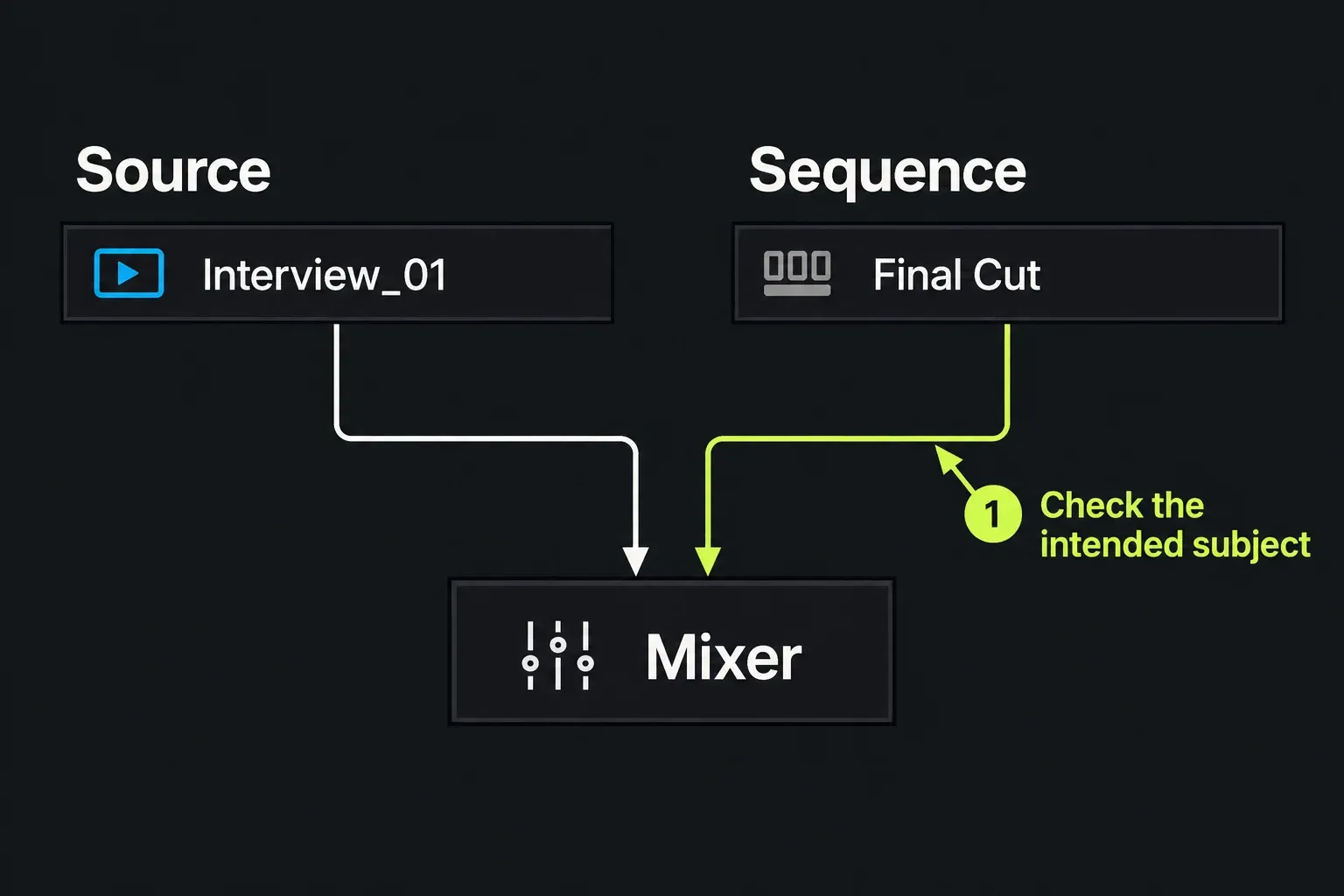
If the source plays but the sequence is silent, locate the corresponding section on an audio track in that sequence. An imported clip in a bin is not the same as audio placed in the edit. Check whether the intended source sound was included and whether the playhead is over that sound rather than an empty interval. The media-import guide explains how to inspect the actual file and its imported contents when the expected sound never arrived.
Inspect the audio track’s Monitor control and the mixer’s Mute/Solo state. Mute silences a track, Solo isolates it, and these controls stay in step with the timeline Monitor buttons. Correct an accidental mute or solo individually, then replay the same section. Preserve deliberate choices elsewhere in the mix.
Do not use the lit A1/A2 tab as a sound check. In the current headers, that tab is the Track Target, which chooses the tracks an edit uses. Editing targets and Monitor/Mute/Solo are separate controls. Older advice to “enable A1 to hear it” needs its original version context.
Read the track and LR meters together
Keep the intended Sequence mix selected and play the same known-audible section. Watch the relevant track meter and the corresponding LR master. The LR strip controls the overall mix level and provides the final-output reference; movement on an individual track is a different observation from activity at LR.
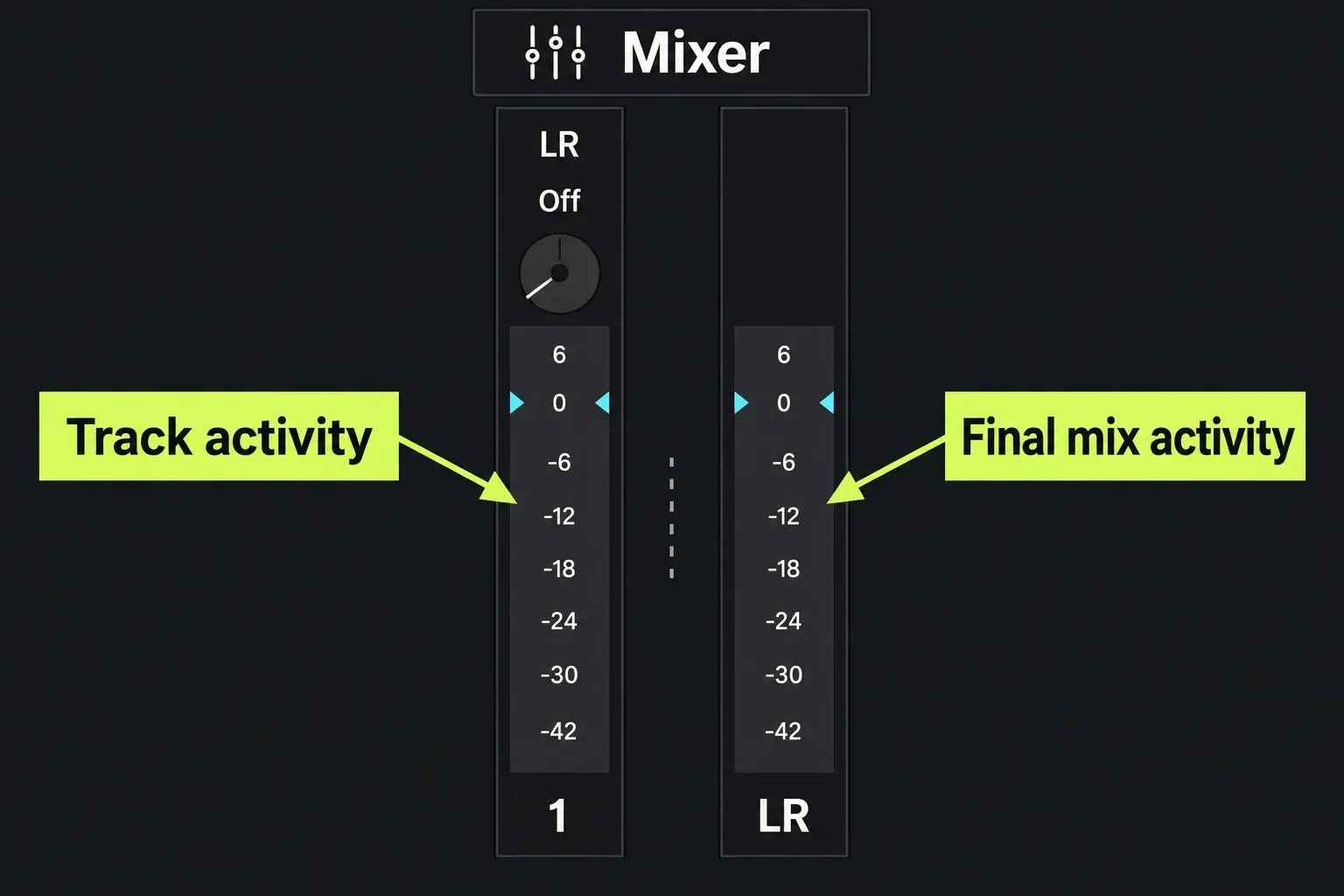
- The track meter moves, but LR does not: inspect that track’s contribution to the intended mix: Mute/Solo, its level, existing automation and the master level. Do not start by boosting the speakers.
- The relevant track and LR both move, but you hear nothing: check the output device and system listening path next. This narrows the search; it does not prove that the file contains audible samples or identify a single cause.
- The relevant track shows no activity: revisit the section, source sound, placement, media availability and mix state. An inactive meter alone cannot distinguish missing audio, decoding trouble and an intentional silent section.
If the meter you need is not visible or its subject is uncertain, leave that observation unresolved. Expand or open the documented mixer view available in your build and verify its subject; do not force a yes/no diagnosis from an unrelated display.
Where your build provides mixer automation, record the existing mode and levels before touching faders. Use Read to inspect existing automation: it follows stored moves, and manual fader overrides are not written. Write, Touch and Latch can write automation during playback, so they are not neutral modes for exploratory fader moves. Keep intentional automation and return temporary diagnostic changes to their recorded state.
Check whether a stored level change explains silence at that particular moment. Avoid resetting every fader or raising gain aggressively; neither identifies an unavailable source or wrong playback device. The current Fixed-layout mixer provides three independent mixes alongside LR. If you use such a setup, inspect the track’s contribution to the intended LR output with the controls for your build; the track’s own meter cannot confirm that routing.
Check the output device separately
The documented application route is Project Browser → Settings (cogs) → Hardware → Audio output device. This setting chooses where Lightworks plays sound or follows the system default. Select the intended speakers, headphones or interface; the device names depend on your system.
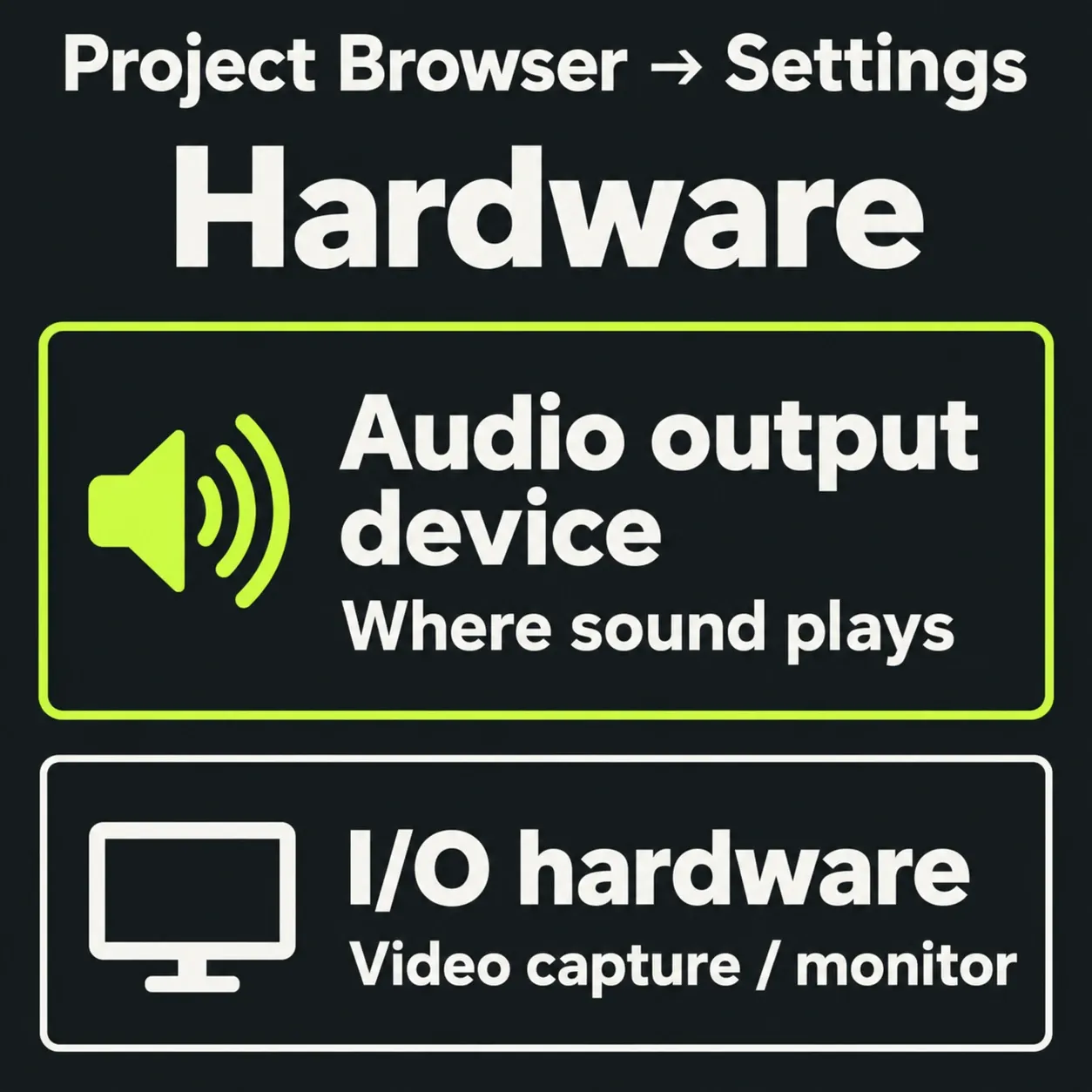
Record the previous selection, change only the relevant output choice, and replay the same section at a safe listening volume. Confirm that another application can play through those same speakers or headphones. Its success verifies that application’s path; Lightworks still needs to be directed to the intended output.
A grey I/O hardware field is a different observation. That setting concerns video hardware for capture and monitor output, rather than the Audio output device selection. A microphone/input choice is also a separate question from hearing an existing sequence.
If selecting the correct output restores playback on the same section, the monitoring path was involved. If it does not, keep the Source/Sequence and meter observations rather than declaring the device or codec responsible. Note whether the failure started after connecting headphones, changing an interface, moving the project or updating the application; that context matters in a support request.
Compare preview with the completed file
A completed export can help distinguish editor monitoring from file playback, provided you compare the intended sequence and the same section. Check the export source explicitly: Lightworks can export a sequence, source clip or subclip, and it can export either the whole item or a marked section.
- Select the intended sequence and a range that contains known-audible material. There is no useful fixed duration if the chosen range itself is silent.
- Keep the intended Sequence/LR mix and confirm that all originals used in the range are online. The proxy guide warns that offline originals can make export fall back to available media.
- Record the destination and filename. Wait for the export to complete and check its status; the Tasks page and Tasks Log distinguish running work from completed jobs.
- Open that exact completed file, not an earlier version, in a suitable player. Compare its sound with the same section in the sequence and, if needed, another suitable player.
This check tells you what happened in the selected range, not across the whole delivery. Before exporting the full sequence, confirm that every original used by that sequence is online, and check the full completed file rather than treating a successful sample as proof of the entire master.
The file is audible while the editor preview is silent: usable sound reached that completed file and player. Return to the editor’s monitoring/device branch instead of treating the recording as soundless.
The sequence is audible while the file is silent: check the chosen source/range, export mix and file/player observations. Inspect audio-stream presence separately if necessary; a probe that finds an audio stream still cannot confirm audible content. If the export failed or was aborted, use the export-failure guide to isolate the failing step; that is a different problem from a completed but silent file.
When codec and build details matter
If the original plays elsewhere but remains silent in the Lightworks source viewer after the media and monitoring checks, collect the container, audio codec, channel layout, installed build, operating system and licence. An .mp4, .mov or .webm extension alone does not answer the codec question. The import guide documents a case where the container imports but a stream inside uses an unsupported codec; it also qualifies codec availability by platform and licence.
Version-specific evidence can explain why generic advice fails. In a November 2025 APAC-audio discussion, Lightworks staff identified the codec and described improved support in 2025.2; the user reported that the update restored sound. That is a dated, file-specific report, not proof that 2025.2 is today’s latest release or that every silent import needs that update.
Convert only after you have identified a compatibility problem. Preserve the original, confirm the intended target format against your build and plan, and assess picture quality, HDR, timing and sound together. A changed wrapper or a restored soundtrack alone does not show that the replacement is correct. The import guide’s container and stream checks cover that decision without treating every silent file as a remux job.
Take persistent, build-specific failures to support before rebuilding the sequence or altering preferences. A 2025 discussion about older Windows builds and MixerBypass contains reported registry repairs under particular installation histories. It does not justify deleting registry values as a general no-audio step.
Give support a useful failure description
Record the results that separate the branches: original-file playback, source-viewer playback, sequence playback, intended mixer subject, track/LR activity, output selection and exact completed-file playback. Include the failing time range, media format, build, OS, licence and device, plus the change that preceded the failure.
The current Settings menu has an Information section with access to system logs. The vendor’s escalation guidance asks for the action, result and media details when requesting help on the forum or through the user portal. Keep the project and original media intact so the failure can be investigated; a list of observed stages is more useful than “no audio” followed by several unrecorded resets.