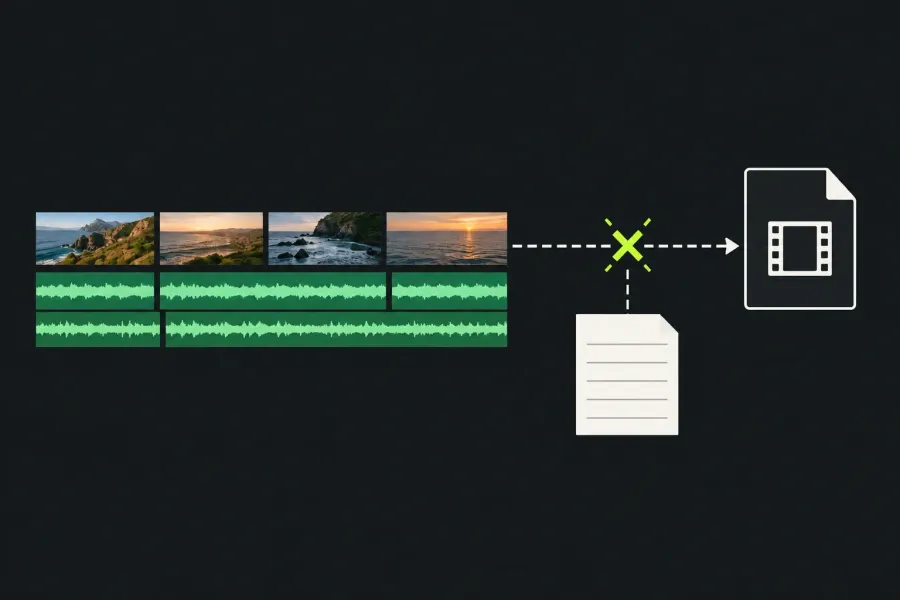
When Lightworks says an export failed, start with the task record rather than changing the codec, deleting media, or retrying the whole timeline. Read the job state and exact error, confirm the intended sequence, range, original media and destination, then make one controlled comparison. That order helps you distinguish between a missing source, an inaccessible destination, a repeatable timeline region, or a file that was rendered but is being judged in the wrong player or upload step.
The exact error controls the next check. The names and layout of panels depend on the installed build; record that build before asking for support.
Read the task before you retry
Exports run as background work. Open the project settings panel and go to Tasks. A job that is running, pending, or paused is not the same as a failed job, and an empty destination folder while the job is still active does not mean nothing will be written. The current Tasks documentation explains the status view and completed-job log.
- Read the selected item and note whether it is the intended sequence, a clip, or a subclip.
- Record the exact error text, the task state, the reported progress, and the destination filename. Do not turn a percentage into a timeline timecode.
- For completed work, open Tasks Log. For a failure, keep the error shown by the task or results window; check the log if it also contains that job. Record the wording before changing a setting.
- If you must cancel, read the confirmation carefully. Aborting a task discards that render, and an option to abort all tasks can affect unrelated background work.
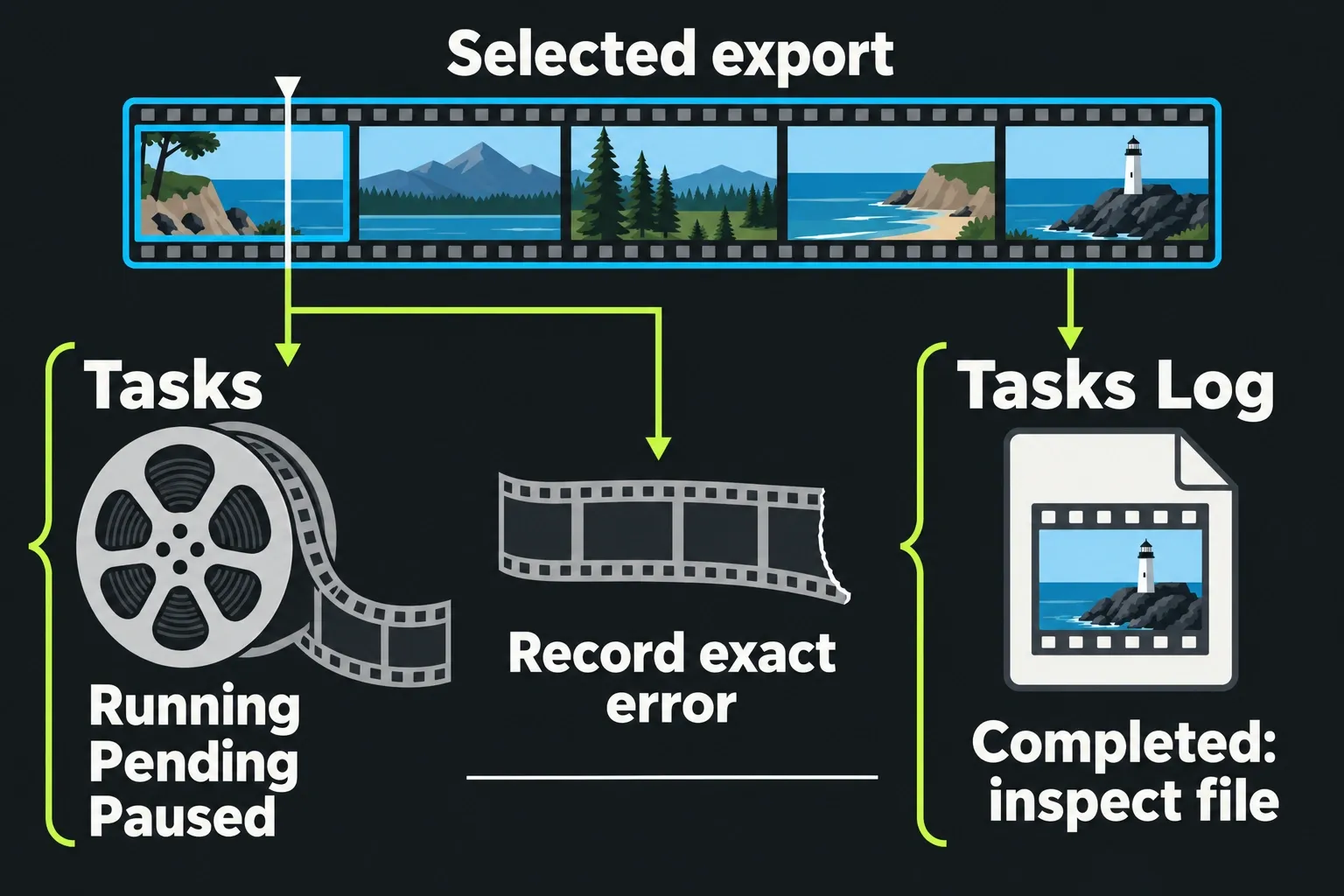
A generic message is still evidence: it points you towards a controlled comparison of stages, although on its own it does not identify a bad clip.
Protect the cut and check originals
Before removing an effect, replacing a source, or changing a sequence, preserve a rollback point. Lightworks continuously saves project work, but that is not a portable copy of the camera files or an earlier edit state. In the Project Browser, right-click the project and choose Archive. Include the local and linked originals needed for recovery; proxies are optional. Check the completion result for offline-media warnings. The archive guide says omitted files must be brought online and the archive updated before it has full coverage.
Make the diagnostic changes in a separate copy. In the documented 2022.3-style interface, right-click the sequence viewer or timeline and choose Make → Copy; keep its sequence format unchanged for this comparison. The current guide confirms independent sequence copies but does not name a current copy-menu route. If your build has different controls, use the archive instead: return to Project Browser, choose Restore Project, select the archive and accept the offered restore to a new project while the original still exists. Work on the sequence in that restored project and keep the original intact.
Keep the original media active when freeing space; do not delete the only camera copy to make a render fit. If a source moved or its drive is disconnected, reconnect it or use the documented media-management relink workflow before repeating the same export.
Proxy playback is a separate clue. A sequence can remain easy to view while a full-resolution original is offline. The proxy documentation warns that export can fall back to available media when originals are offline, so check the originals when the goal is a full-quality master. Do not call every proxy preview a failure; record which media is actually online and what the task reports.
Match the source, range, target, and destination
A wrong source or leftover mark can look like a failed export. In the combined Export panel described for v2026, check the source list against the sequence name on the timeline. In other builds, confirm the queued item and range in the export controls available to you. The documented export controls allow sequences, clips, subclips, whole items, and marked timeline sections; choose the one that matches the file you intend to deliver.
- Source: remove an unintended clip or subclip and keep the finished sequence in the list. A loaded viewer does not prove that the right item is queued.
- Range: decide whether this comparison uses the whole item or a marked section. A leftover mark can create a short file that looks like a render failure. If a preset is configured for Auto start, open the full panel and make these checks before selecting it.
- Target: select a format and codec that the installed licence actually offers. A missing option is a question about the build or licence; it does not show that an already-started task failed.
- Destination: choose a writable local folder and a new filename. Keep the source, preset, range, and destination recorded so a second test changes only the variable you intend to compare.
- Space: check the relevant destination and working drives. The current task guide recommends freeing space or choosing another destination; it gives no universal free-space quota or fixed temporary-folder rule.
A shorter, accessible local path can be a useful comparison when the error explicitly names access or writing. That comparison does not show that all non-English paths are forbidden. Likewise, do not disable security software, run the editor as administrator, rename temporary files, or install a beta as general remedies. If a recorded permission rule blocks the destination, resolve that specific rule while keeping the project and source files safe.
Use one controlled comparison for a repeatable failure
Once the task and pre-flight checks are recorded, choose the comparison that matches the symptom. Keep the source, permitted preset, destination, and filename pattern fixed unless that variable is the one you are testing.
If every range fails very early, export a short, simple section or an independent small sequence with the same available target and a distinct filename in the accessible local folder. This comparison can separate a destination or general render-path problem from something in the original cut. An early failure can still involve the first video, audio, title, or effect, so timing alone does not rule out timeline content.
If the failure follows one region, work on the sequence copy or in the separately restored project. Compare two overlapping ranges around the suspect join, keeping enough of the transition and nearby handles for the effect to remain meaningful. Divide the interval again only when the same failure repeats. Bypass or replace one copied suspect item after the region is narrow enough to justify that test, and save each output under a distinct name.
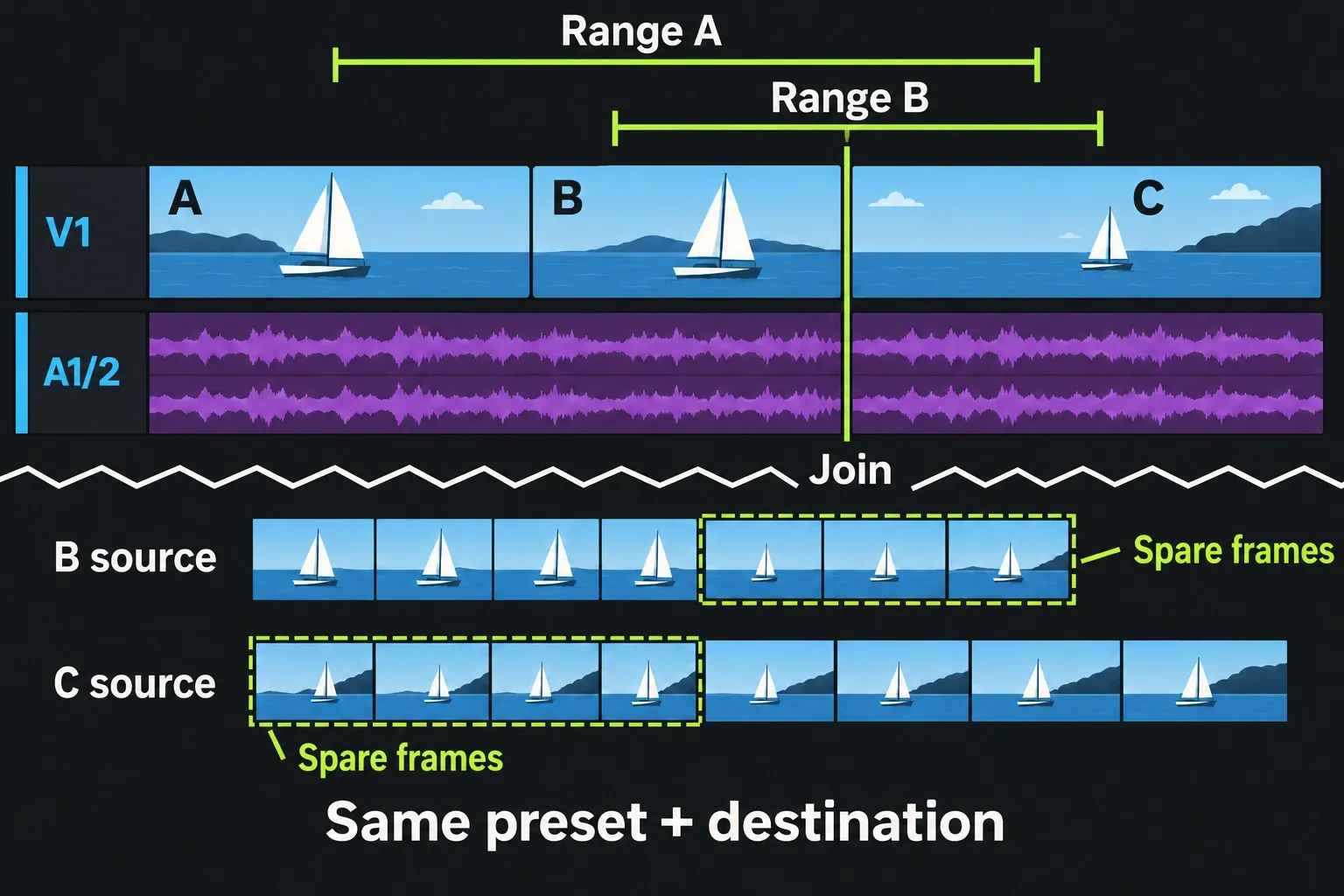
If both halves export while the whole range fails, keep that result, but note that it has not identified a bad clip. Duration, task state, resource use, or the changed boundaries remain possible explanations; return to the full-range evidence instead of forcing a diagnosis.
| What you observe | What it narrows | Next check |
|---|---|---|
| Task is running, pending, or paused | Job state, not yet a confirmed failure | Read the selected item and wait for the recorded result; do not judge an empty folder early. |
| Log names an offline or missing original | Source availability | Reconnect or relink the expected original, repeat the same export, and compare the task record. |
| Every short range fails early | Shared target, destination, source, or first item | Use an independent short sequence with the same target and local destination, but a distinct filename. |
| Failure repeats near one transition | A region or item, subject to the same-settings comparison | Compare overlapping ranges on a sequence copy; keep the transition and nearby media in both. |
| Task completes but file looks wrong | Source/range, file compatibility, or delivery stage | Check expected duration and source, then use a compatible second player before changing the edit. |
Separate a render failure from a file or upload problem
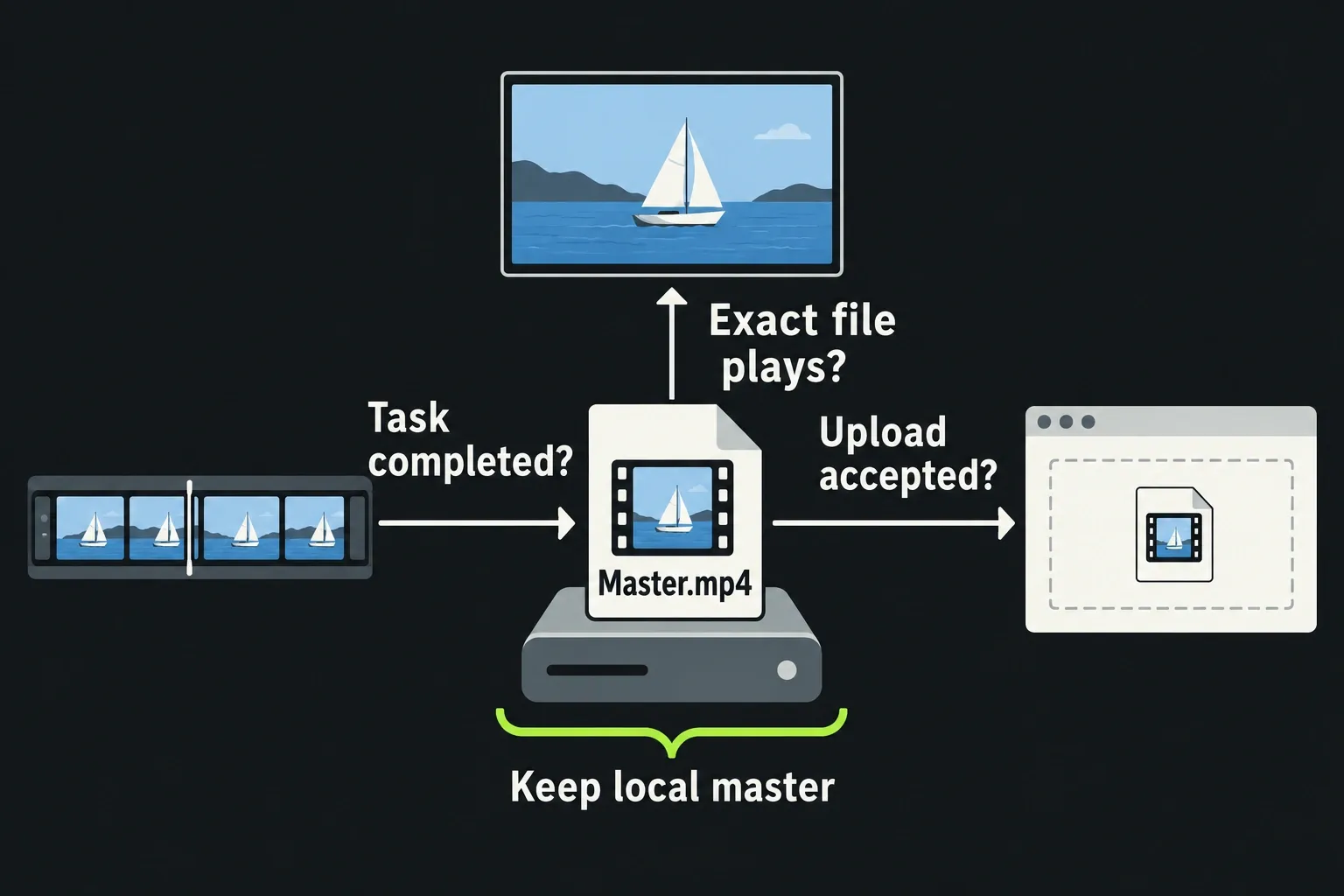
A file on disk is evidence of an output attempt, not proof that the intended export succeeded. First compare the completed task with the source list and expected range. Then check the file's opening, ending, duration, picture, sound, and sync in a player that supports its codec. A second player can reveal a compatibility difference; keep both observations instead of declaring the streams malformed from one playback error.
Tiny or truncated output together with a failed task warrants another export diagnosis. When one player rejects a complete local file, especially one that plays correctly in another compatible player, the next check is compatibility. If the file plays correctly but fails during upload, the problem belongs to the delivery service, authentication, or network branch. An HTTP or upload error alone does not diagnose the local encoder. Keep the local master while you investigate the separate upload step; the delivery documentation covers checks for a completed file before sharing.
Use the site’s export settings walkthrough for format, resolution, and quality choices after the failure stage is understood. This page is about locating the break, not replacing a full export-settings guide.
Escalate with a reproducible support packet
If the same controlled comparison still fails, stop multiplying changes. Save the exact error and task record, then note:
- Lightworks build, operating system, licence or plan, and export format;
- the selected source, marked or whole range, preset, destination, and available free space;
- whether originals were online, whether proxies were involved, and whether an independent short sequence behaved differently;
- which comparison ranges were tried and what each task recorded.
The Application Settings → Information area documents where system information and logs are available; those system logs are separate from the per-export Tasks Log. The Lightworks troubleshooting guidance asks for the action, media format, version, and system details. Share an archive only when support requests it and only after checking which media it contains.
A release note can explain a narrowly matching error. For example, the release notes for build 2025.1-152194 record a fix for an export that could not locate an audio encoder. Compare the exact error and installed build before treating that entry as relevant; it is not a general fix for an unspecified Failure message.
Final checks
- The task state and exact error are saved before retries.
- The intended sequence, range, available target, destination, and original-media state are recorded.
- Diagnostic changes use a separate sequence copy or restored project; the archive includes the required local and linked originals, with offline omissions resolved.
- Each comparison changes one variable and uses a distinct filename.
- A completed task is checked against the expected source, duration, picture, sound, and sync.
- Player rejection, upload rejection, and local render failure remain separate findings.
- A persistent generic error has a build-specific support packet rather than a pile of uncontrolled changes.