
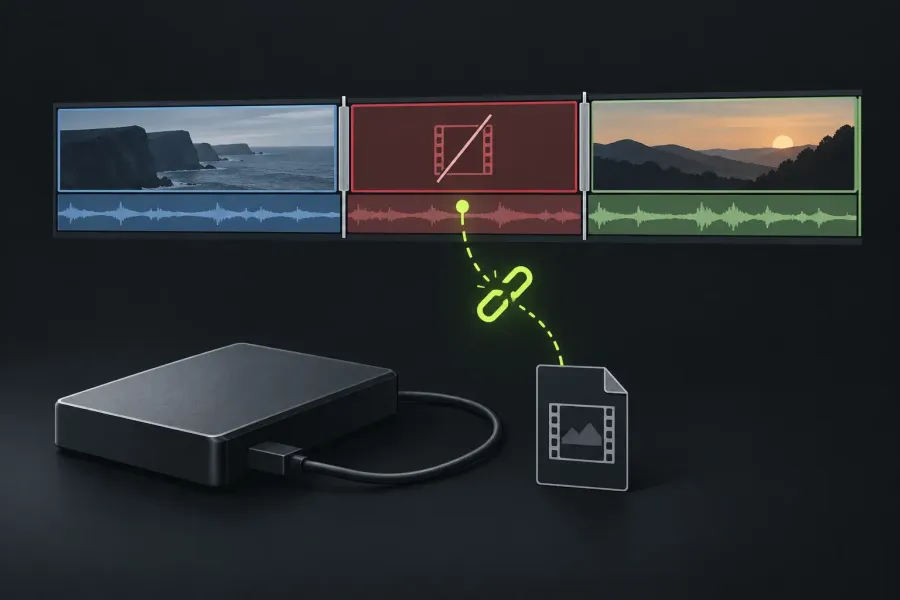
If Lightworks shows Media Offline, first find out whether the original file is unavailable, has moved, or has been deleted. I'd reconnect known storage or restore the known original path before changing links, because that's the documented first recovery route. If the correct file now lives elsewhere, Relink can reconnect the existing clip while keeping its edit decisions. Offline clips retain their edit information; the warning alone doesn't mean your sequence has been erased.
The clip in your project and the media on disk are separate things. I'd recover the file connection for the clip already used in the edit rather than import another copy: a fresh import is a separate project item, and an online copy to view doesn't show the existing timeline references have been repaired.
Choose the branch that matches what is missing:
- The file or drive is unavailable: restore storage access or recover the file from a backup. Relink needs an available recording to point to.
- The correct file is readable in a new location: reconnect the existing clip with the appropriate Relink route.
- The clip or sequence was deleted inside the project: check Restore Items. That is separate from recovering a physical media file.
Keep the existing edit intact. Before changing file references or restoring project items, preserve the separate recovery point below.
Protect the edit and available files
Leave the offline clips, bins and sequences in place while diagnosing the problem. Do not delete them, clear media, or reorganise more folders to make the warning disappear. A relink to the wrong take can look successful while changing what the edit shows.
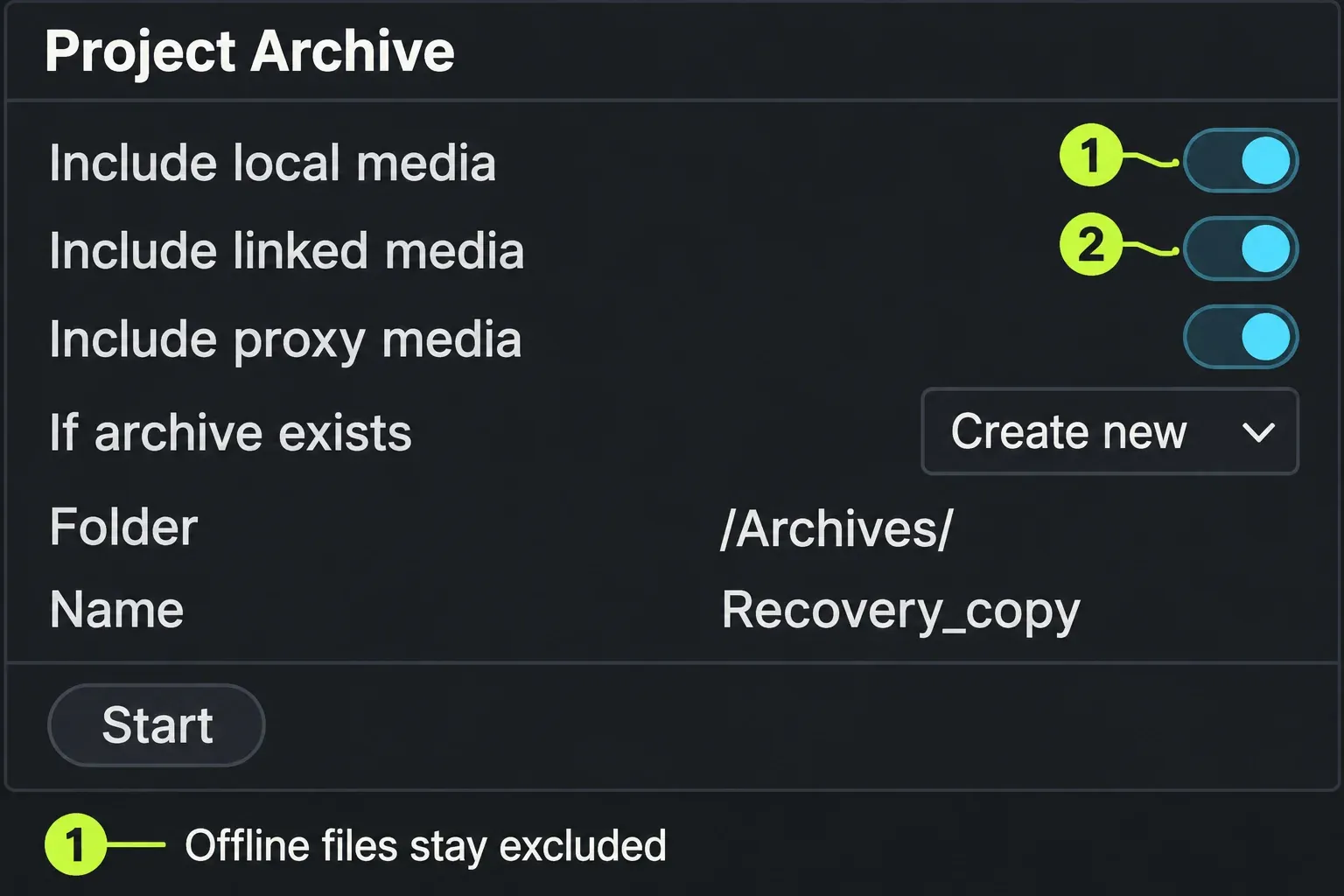
Make a separate project archive before changing references. The documented Project Browser archive route is:
- Right-click the project in the Project Browser and choose Archive.
- Choose a destination and archive name that keep your previous backup intact.
- Choose the media to include, then choose the overwrite behaviour. Use New for a separate recovery point rather than overwriting your only older archive.
- Check the calculated space and click Start. Let the archive task finish and review its outcome.
These actions depend on permissions and project type. Archive can be unavailable while a background task is running. Preserve your existing backup if you cannot make a new archive yet; an unavailable action is not a reason to delete the project.
Choose local media and linked media where needed, with proxies separately if you want them included. A logs-only archive contains project data and needs separate access to the media. An archive made during this fault also excludes media that is offline. Record those omissions: this archive protects the available work, not the missing bytes. Keep camera originals and any existing media backup safe.
Identify which file the clip needs
Check how the material entered the project. The current import methods distinguish linked files from copied media:
- Create Link To Media references the file where it lives. Nothing is copied, so a moved folder or disconnected drive breaks that dependency.
- Copy Media To Project copies the file into the project's media storage. The project no longer depends on the original import location, but it still needs that managed copy.
- Generated media, such as proxies, renders and automatic import conversions, lives in Lightworks' managed media area. The media-management guide treats it separately from linked originals.
If a linked drive disappeared, reconnecting it is a sensible first check. If the project used a managed copy and that copy is missing, finding the old camera card does not by itself restore the managed file connection. Establish which file is unavailable before changing anything. Neither import method replaces a separate backup of your camera originals.
Do not use the clip's display name as the only clue. Renaming a clip inside Lightworks does not rename its file on disk. Your bin might say “Interview opening” while the camera file has another name. Use actual import records, backup records, camera-folder organisation or a known earlier location to establish the expected filename and path.
For available media, right-click the clip in a bin and use Reveal to open its file in the operating system's file browser. Reveal proxies opens proxy media instead. Each action is disabled when there is no corresponding file on disk to show. Reveal can confirm an available file's location; it is not a locator for missing media or a guaranteed display of its former path. Use it for inspection, without moving or renaming managed files.
Restore storage access first
In the operating system, check the actual storage and file before attempting a match:
- The drive or share is absent: reconnect the known device or restore access to the known network location. Confirm the required folder is accessible under the account running Lightworks.
- The file is listed: confirm its contents are available and readable. A directory entry is not enough if the storage service has not made the contents available locally. This is a storage-access check; it doesn't prove that a particular cloud service caused the fault.
- The file has moved: note its actual new path and whether its filename or extension changed. Preserve that file while deciding whether to restore the original path or relink.
- The physical file is gone: look for a backup that contains it. Relink cannot recreate erased video or audio, and a project record cannot supply the missing contents.
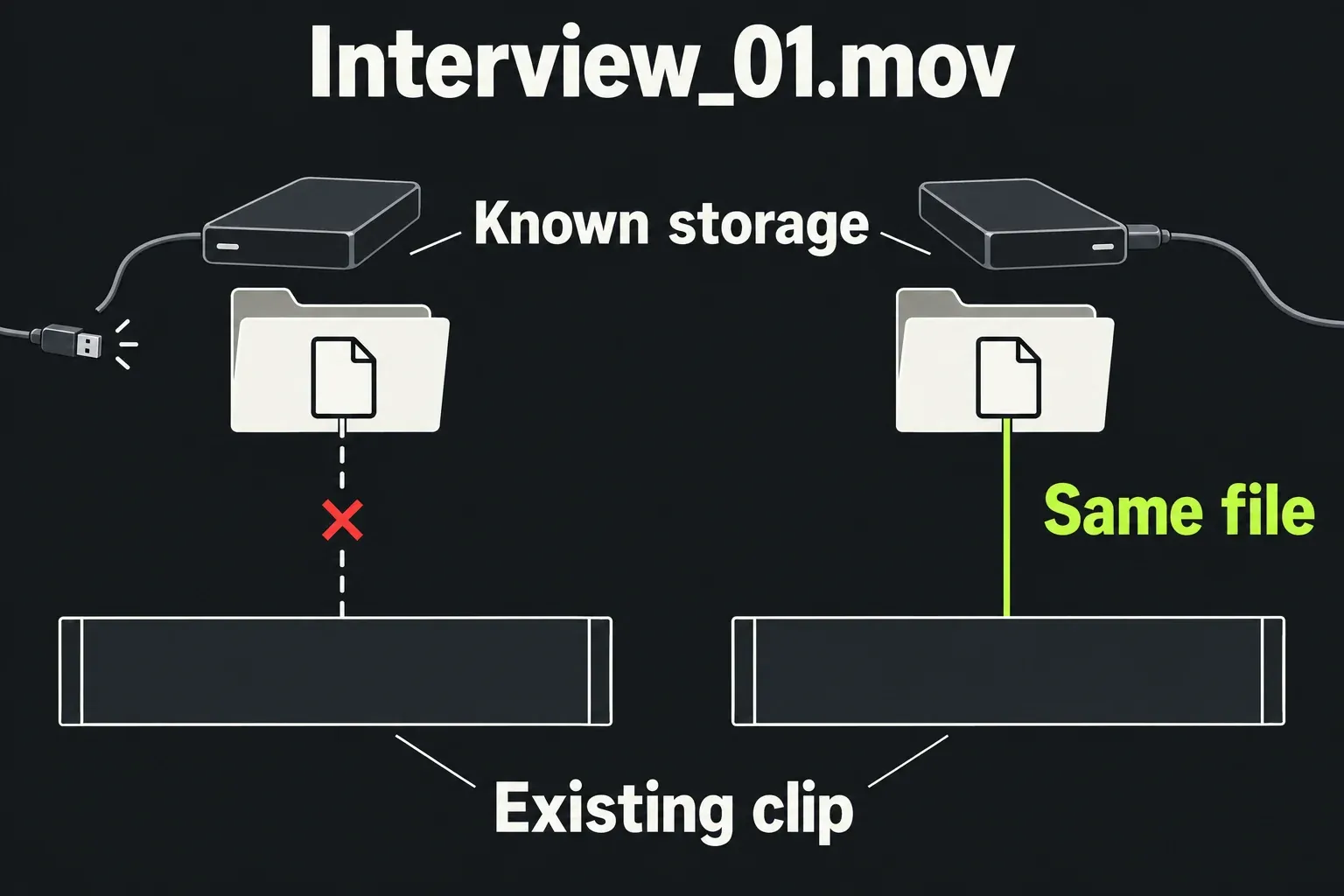
If you know the previous linked location, the first recovery approach is to reconnect its drive or restore that original path. Keep the surviving copy safe and do not overwrite another file merely because it has the expected name. Then inspect the existing source clip and its edited uses; if it remains offline with the correct file accessible elsewhere, use the Relink branch below.
Work from a path established by your import records or backups. Reveal is useful for available media but does not provide a guaranteed former path for a missing file. If the original path is unknown, retain the edited clip and identify the available recording before relinking.
After storage access returns, inspect the existing clip and its use in the sequence. What matters is whether the intended frames and sound are available again, not just whether the file browser can list the drive.
Find a Relink route that matches your build
Use Relink when the correct, available media is now in another location or has a changed filename. The Relink tool repoints existing clips while retaining their edit decisions. That is the purpose of this branch; a fresh import is a separate project item, not confirmation that the edited clip now points to it.
For the entry shown in the forum demonstration in a Lightworks 2026.1 discussion, select the source clip in the Content Manager, right-click and choose Media Files → Relink Media.... The detailed Relink guide connects that menu to strict matching, recording identity and edited-range checks.
Older interfaces may expose different labels. The vendor's 14 July 2023 moved-media tutorial gives the following route; use it only when your controls actually match:
- Right-click the existing offline clip.
- Choose Media → Relink missing.
- In the file chooser, navigate to the correct moved file and select it.
- Confirm with Okay, then check the existing clip and its edited sections.
Use those steps only when the same controls are present: the tutorial doesn't name a build, and its date doesn't prove menu parity with your installation. I'd start with one known clip and evaluate the result before a wider recovery.
The current demonstration establishes the entry menu, not every search-folder, candidate and confirmation control for a moved original. If those controls are unclear, keep the known file and existing edit, record the build and ask LWKS for that specific step. Do not guess an Apply control, rename a healthy source to force it offline, or substitute Conform.
Verify the file before widening a match
My default is the narrowest match that describes the change, because a wrong candidate is easier to spot before it replaces the media behind an edit. The documented strategies are exact filename, ignore extension and filename-stem matching; in Lightworks 2026.1 the on-screen criteria run from strict to permissive as Exact Filename, Ignore Extension, Ignore Known Suffixes and Ignore Any Suffix.
- Unchanged full filename: start with exact filename matching. Moving
Interview_01.movto another folder does not require ignoring the extension. - Changed extension: ignore-extension matching can be relevant when the intended file has changed format. A matching basename still needs a content check.
- Changed name or several candidates: Ignore Known Suffixes covers recognised endings such as
_proxyor_v2, while Ignore Any Suffix is deliberately loose, so check what it found before you accept it. Where several files match, choose Use Newest, Oldest, Largest or Smallest only when that rule identifies the right file. Stop if you cannot distinguish the candidates.
Interview_01.mov is just an example filename. Two folders can contain files with that name from different shoots. A same-named file can also be a shorter transcode, another take or a version with different audio. Choose by identity and coverage, not by whichever result appears first.
Compare the candidate with your original records and the sections already used in the edit. The Info panel's technical properties include duration, timecode, frame rate, dimensions, codec and audio channels. Keep it on the intended source when reading them. Existing metadata is a clue to what the project expects; it does not prove the candidate's contents are identical.
- Check distinctive frames near the beginning and end, plus the moments used at sequence cuts.
- Compare duration and source timecode where available. The replacement must contain the frames used by the edit, including material needed around transitions.
- Listen to the relevant audio and check the required channel layout. A matching picture does not mean the original sound is there too.
- After relinking, review the affected cuts, trims, transitions and picture–sound sync in the existing sequence.
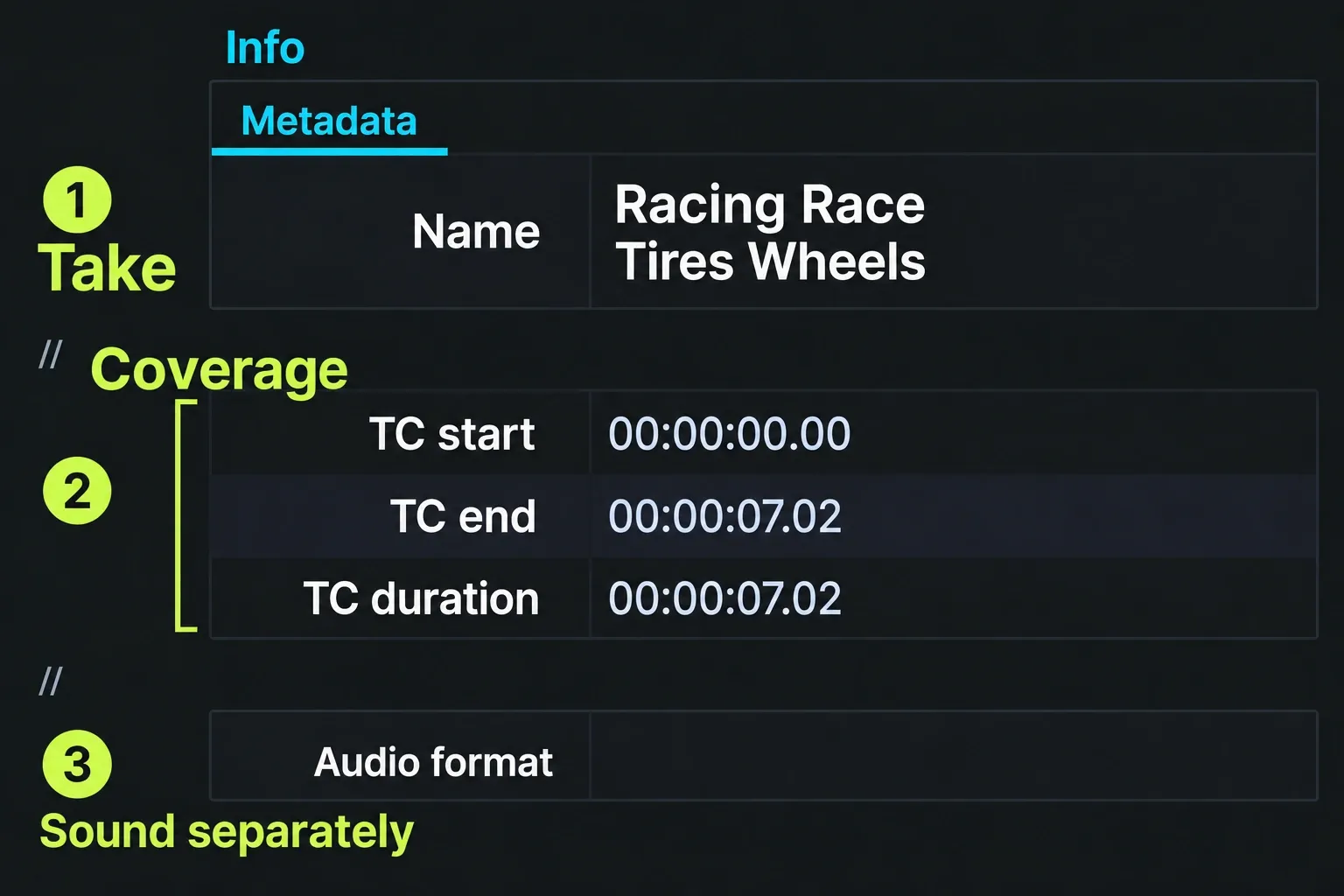
If the candidate changes timing, duration or sound, do not treat a disappearing offline label as acceptance. Keep the protected original edit and resolve the mismatch before processing more clips. Relinking preserves edit decisions; those decisions still need the correct material behind them.
Separate deleted items from deleted media
If the clip or sequence was removed from the project rather than merely going offline, the appropriate recovery may be different. In the Project Browser's project-card menu, Restore Items opens recovery for deleted items when undelete is enabled. It can recover project clips, bins or sequences; it does not recover deleted physical files.
For missing media bytes, use a surviving original copy or a media-inclusive archive containing the required file. The archive restore rebuilds project data and media only if that media was archived. A logs-only archive or an archive made while those files were offline cannot replace them. File recovery outside Lightworks is a separate storage problem.
Conform is another distinct operation. The Conform tool replaces material across a sequence or marked region with alternative versions available in the project, using its source and matching rules. I'd keep it for a planned finishing replacement; it isn't a substitute for an unknown Relink command. For that separate task, use Create New Version to preserve the original cut and read Conform Results; unmatched segments remain as they were and are reported.
Confirm originals before delivery
A visible proxy, thumbnail, waveform or retained metadata is not proof that the original file is available. The proxy guide warns that export can fall back to available media when originals are offline. Before delivering a master, confirm every original used by the full sequence is online, meaning accessible to Lightworks, including both local and linked media.
For the per-source inspection, use the original-media checks before master export: Reveal the referenced file, verify its identity, inspect the used source ranges and then judge the new export. One successful recovery check does not clear other recordings later in the cut. Once the files are back, make or update a media-inclusive archive and confirm the previously missing files are included; retain earlier recovery points until the project and media are usable.
When the correct file still stays offline
If the right file is accessible but the clip remains offline, preserve the evidence instead of reinstalling or repeatedly reimporting the project. Check whether the file plays outside Lightworks in a player that supports its format. The troubleshooting guide uses this as a check for files that will not play; success in another player still does not guarantee Lightworks support.
A renamed or newly supplied replacement may use a different codec even when its extension looks familiar. Codec availability depends on platform and licence. If the failure concerns a replacement file's contents, the media-import guide explains the container and stream checks. Do not convert an entire media set before establishing which specific file or stream is the problem.
For a persistent failure or an unfamiliar Relink interface, provide the details requested by the vendor's forum or support-ticket guidance: what you did, what happened, media format, version and system information. Include the existing clip's name, known original path if you have one, actual new path, filename or extension changes, and whether Reveal is available. State whether the physical file is readable, what matching controls are shown, and which frames or audio differ. Keep private paths or footage private when sharing publicly; offer the necessary material through the appropriate support channel.
The next action should follow the failed check: restore storage access when the bytes are unavailable, resolve the candidate identity when matches are ambiguous, or obtain the correct build-specific command route. Keep the existing edit until you have verified the intended file connection.