
Start by reconnecting the original drive or restoring the original path. An offline clip still holds its edit decisions, so bringing its media back online is the least invasive fix. If the file has moved, relinking points the existing edited clip at an available media file while keeping those decisions. Identify the correct recording first: a matching filename on its own doesn't mean you have the right shot.
In the 2026.1 Windows discussion below, the clip-menu entry is shown as follows: select the source clip in the Content Manager, right-click and open Media Files → Relink Media.... A moderator shows that menu in the 2026.1 discussion linked below. Before accepting a match, check the recording and its used ranges; the old clip-menu route remains a fallback only for an interface that actually shows those older labels.
Preserve the existing edit before changing links
An offline clip still holds its edit information; Lightworks cannot currently find the media needed for its picture and sound. The official media-management guide separates that missing reference from the edit decisions. Keep the original project records and source files while investigating. Deleting the offline clip would remove the very item you are trying to reconnect.
Make a rollback point before changing links. A Lightworks archive can include project logs and media, with separate choices for local media and linked files. Keep a new archive alongside the last known good backup. Read any offline-media warning: unavailable files cannot be included, so an archive made now cannot replace a backup of missing originals. Bring those files online and update the archive when they become available.
Record one affected clip's name, the expected recording and its last known file location. Note whether the problem began after a drive was disconnected, a folder moved, a filename changed or a project transferred to another computer. Each one is a lead to check, and none of them proves a particular failure on its own.
Check file access before replacing a reference
The import method tells you which file location matters. Create Link To Media references the original without copying it; Copy Media To Project stores a copy in project media storage. For a linked clip, reconnecting the drive that holds the original may be enough. For copied media, the project's stored copy may still be unavailable even if the camera card is intact.
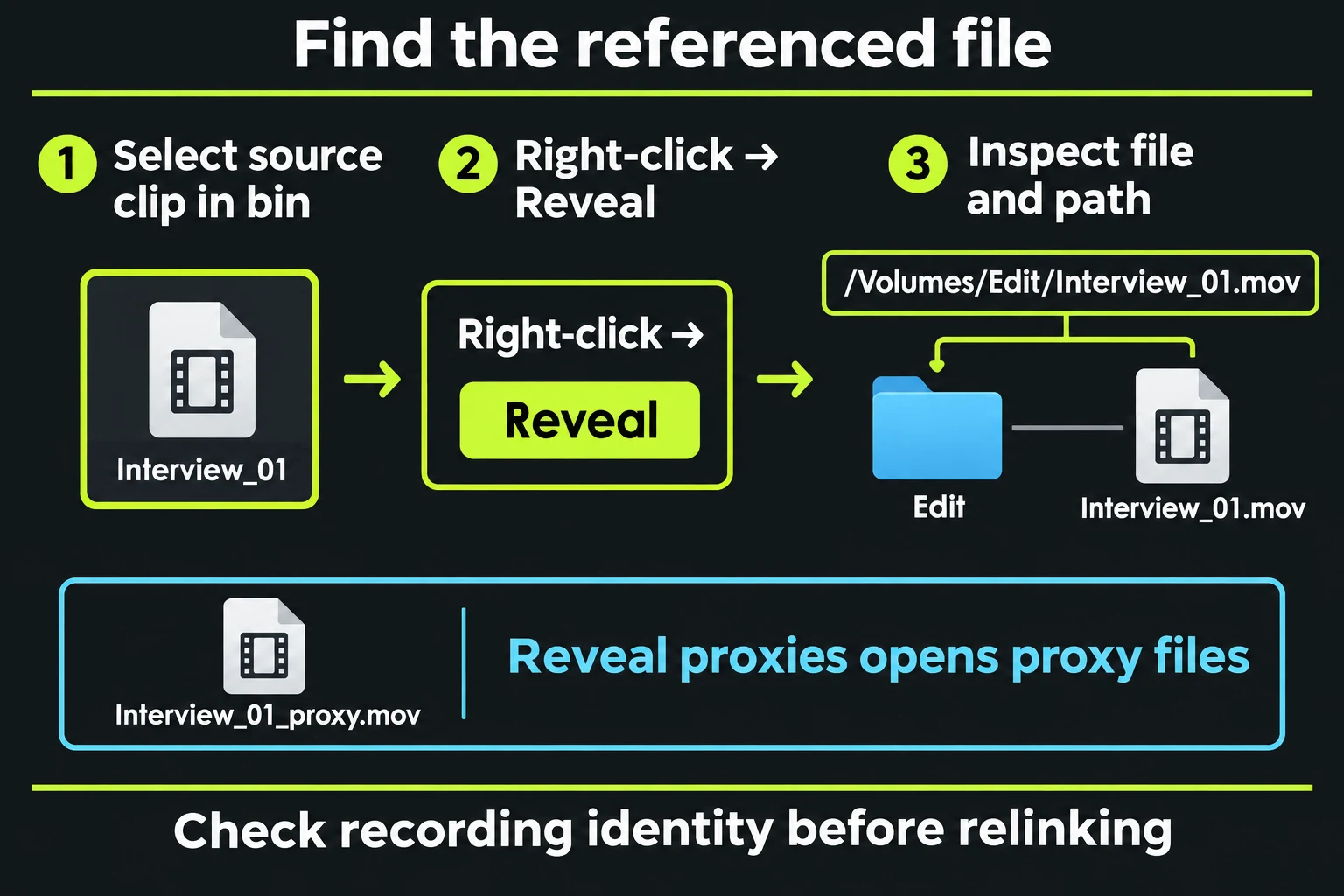
For a clip in a bin, right-click and choose Reveal to open its referenced media in the operating system's file browser. Reveal proxies opens proxy media separately. The commands are greyed out when there is nothing on disk for that command to show. Inspect the actual file and folder: Reveal can expose a proxy or an alternative source that was imported as a clip, so it does not by itself certify a camera original.
If Reveal cannot locate the needed media, find the expected recording on its original drive or backup. Check that the full file is available locally, not just a cloud listing or a similarly named folder on another disk. Compare identity and timing before changing the existing reference.
I'd restore the original drive connection or original path first, because it avoids replacing a reference unnecessarily. Check the same source and its timeline uses afterwards. If it remains offline but the full file is available at a new location, use Relink with that known location and the matching checks below. If no copy of the file survives, relinking cannot recreate its bytes; recover the original or a backup first.
If you have not yet established whether this is a file-access problem, follow the wider Lightworks media-offline diagnosis before choosing replacement media.
Choose a matching strategy without guessing the recording
The current Relink documentation describes the matching strategies. In Lightworks 2026.1, Relink's criteria run from strict to permissive: Exact Filename, Ignore Extension, Ignore Known Suffixes and Ignore Any Suffix. They help you find candidates, but none of them turns a filename into a unique recording identifier.
| Strategy | What it matches | What to check |
|---|---|---|
| Exact filename | The full filename. | Start here when the same file moved to another folder and kept its name. Check that another camera card does not contain the same filename. |
| Ignore extension | The name without requiring the same file extension. | Use only when a changed format is intentional. A file with the same base name and a different extension still needs recording and timing checks. |
| Ignore Known Suffixes | Recognised endings such as _proxy, _hires, _v2 or _4K. | Confirm whether the match is the original, a proxy or another version, since they can share a name once the suffix is ignored. |
| Ignore Any Suffix | Any trailing _token, such as _v1 to _final. It's the loosest criterion. | Inspect what it found before you accept it. The Use Newest, Oldest, Largest and Smallest choices pick by file property, not by recording, so stop when more than one file could be the required recording; do not choose the first result merely to clear the offline message. |
For example, suppose Interview_01.mov moved from a disconnected edit drive to a new media folder. I'd search on the unchanged full name first, since the file kept it when it moved. If you intentionally made Interview_01.mp4 as an alternative version, ignoring the extension can locate a candidate. It doesn't tell you whether that version includes the same beginning, ending, audio or source timing.
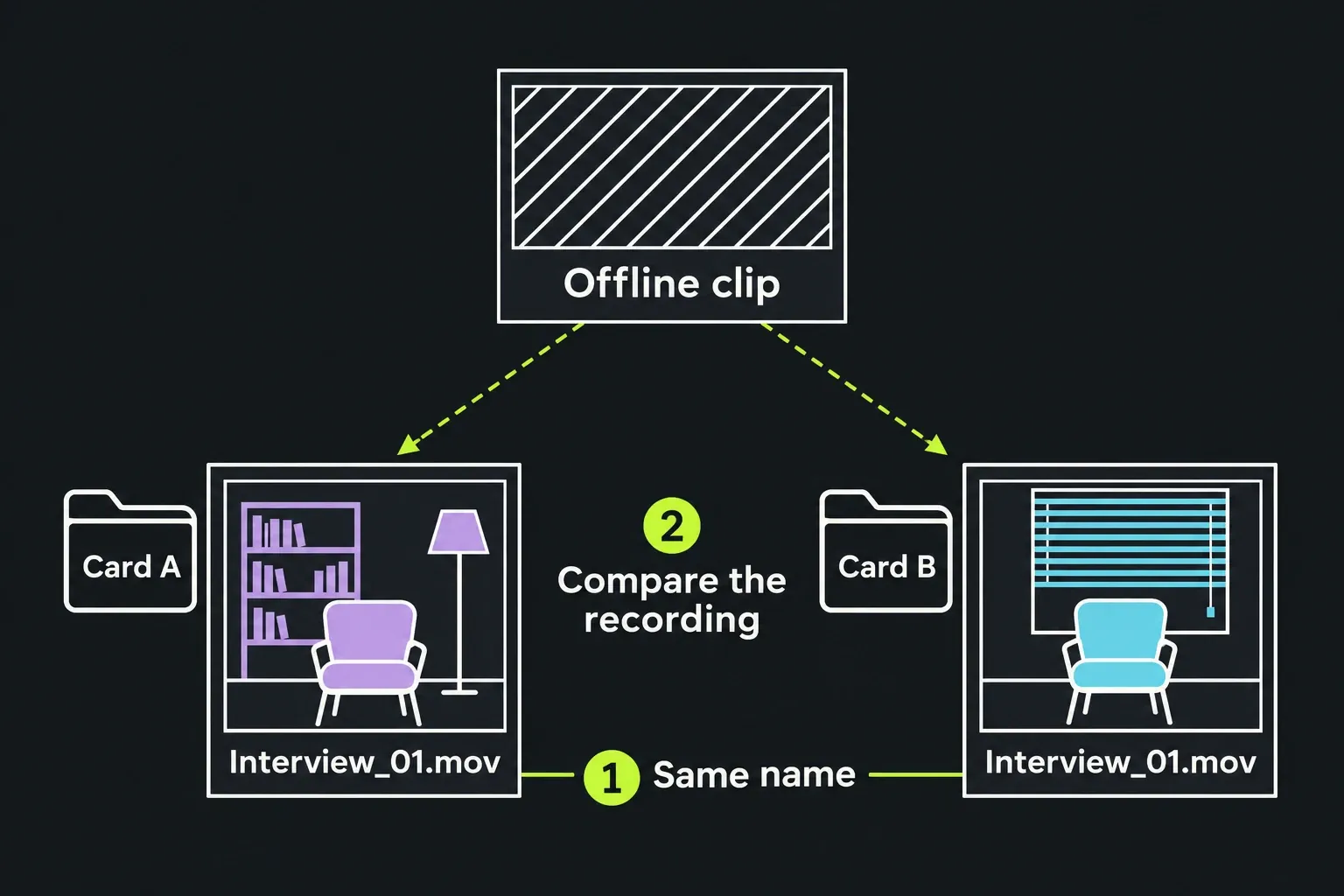
Two camera cards may each contain Interview_01.mov. Check which card and folder each file came from, and compare the recording itself before proceeding. I wouldn't broaden the match while the identity is uncertain: that only makes a wrong link easier to accept.
Open Relink from the clip menu
In a 2026.1 forum discussion, moderator briandrys shows the current entry: select the source clip in the Content Manager, right-click, then choose Media Files → Relink Media.... Start with Exact Filename when an unchanged original has moved; use the broader criteria above only for an intentional, verified alternative. Check the full recording and every used interval before accepting a replacement.
The official 14 July 2023 missing-media tutorial gives this route. It predates the Relink tool that Lightworks 2026.1 adds, so use it only if your installed interface exposes the same controls:
- Right-click the existing clip that needs its media reconnected, then choose Media → Relink missing.
- In the folder popup, browse to the known relocated file and select that clip. The recording checks in this guide help you decide which file that should be.
- In that matching interface, confirm with okay as the tutorial describes, then inspect the reconnected source and its edited uses before continuing.
The current demonstration confirms the entry menu; it does not show every search-folder, candidate and confirmation control for a moved original. Use the help for your installed build if those steps are unclear rather than selecting an uncertain replacement. Do not rename a healthy file to force it offline. Conform performs a different task and is not a substitute for an unfamiliar Relink panel.
If your menus differ, the Settings → Keyboard Shortcuts catalogue can help you discover commands and any assigned keys. A command listed there still isn't a confirmed Relink launch or confirmation procedure. So I'd follow the help for the installed build, or ask official support for that build's route, before changing any references. The support details to collect are below.
Verify the source and every affected edit
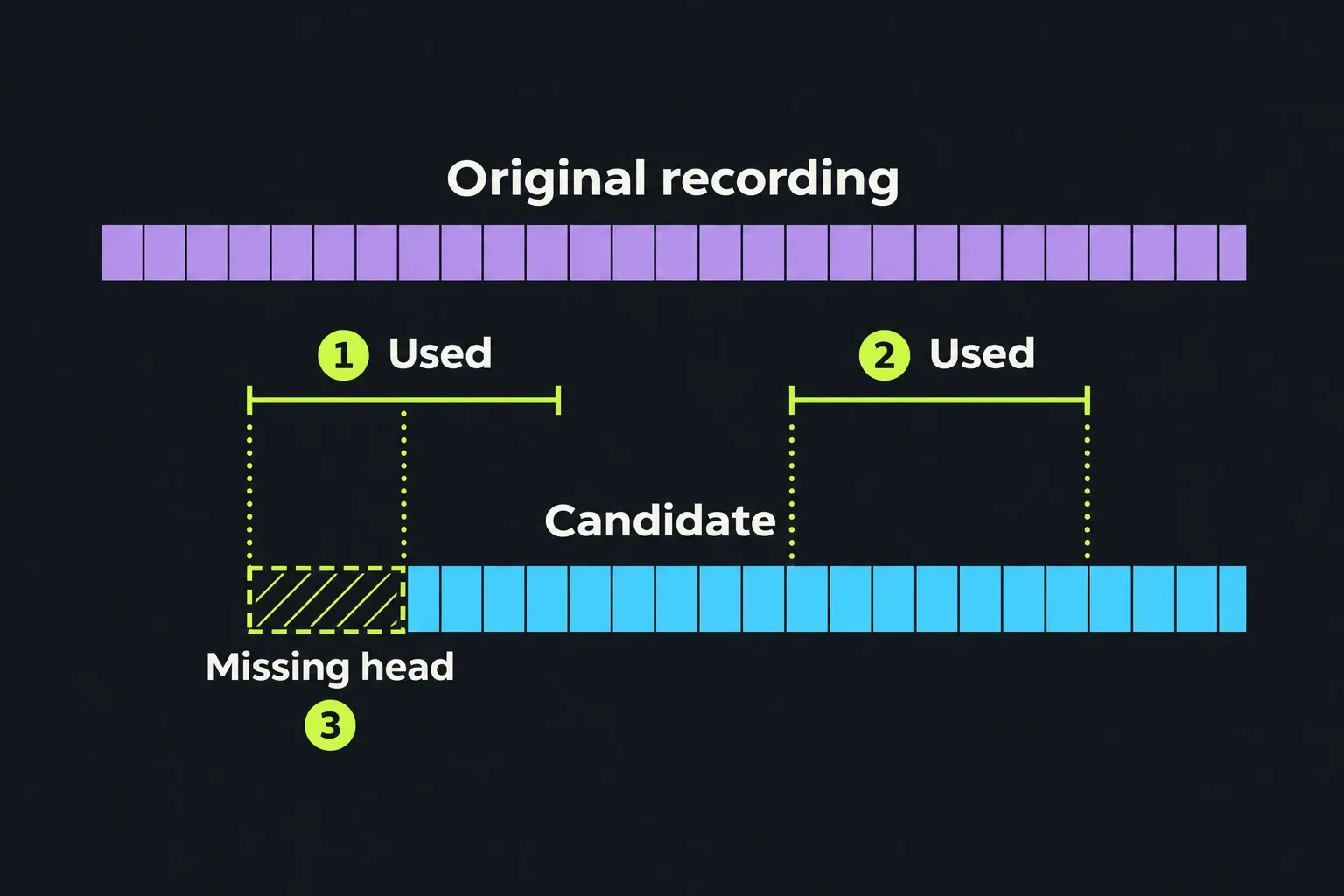
A returning picture is only the first check. Compare the intended recording with distinctive frames near its beginning and end, then check the actual sections used in your sequence. A replacement can contain the right scene while starting later or omitting the tail your edit needs.
- Recording identity: check recognisable action, slate, people or framing against what the edit requires. Use the card/folder context to distinguish files that share a name.
- Timing and extent: compare duration and available start/end timecode. Verify that every used source range exists, including material needed around trims and transitions. Equal durations alone do not prove equal content.
- Picture and sound: check framing, aspect ratio, audio content and sync at more than one point. When an intentional alternative format has different dimensions, judge it against the intended replacement rather than expecting identical pixel sizes.
- Edited uses: play across each affected appearance and its joins. Check other sequences that use the clip, and inspect the remaining offline items separately. One successful match does not mean the whole project is repaired.
The Info panel's Source metadata includes duration, start/end timecode, dimensions and audio-channel properties. Make sure it is showing the intended source item before comparing values. These properties narrow the check; the picture, sound and used ranges still need inspection.
If the result is the wrong recording, stop before extending the same choice to other clips. Keep the known good project backup and originals available while correcting the reference. I'd rather leave a clip visibly offline than accept an uncertain match that looks plausible in one frame.
If no replacement is found or the route is unclear
Return to one affected clip and one known file. Confirm the complete filename, including its extension, the actual path on the connected drive, and how the media was imported. If a different-format candidate is intentional, establish that it is the same recording before considering a broader matching strategy. Do not rename a batch of files to make the names appear to agree.
Keep the old edited record. Importing a file again may create a new project item, but that alone does not tell you whether the existing timeline references have changed. Likewise, restoring a deleted log is different from recovering media: Restore Items recovers deleted project logs, not deleted media files.
For an unresolved match or unfamiliar controls, collect the Lightworks version and system information from Settings, the exact actions taken, the resulting message, media format, import method, expected filename and available path. Include whether the file is accessible outside Lightworks and whether several candidates share its name. The official troubleshooting guide directs persistent problems to the Lightworks forum or a user-portal support ticket, with version, system and symptom details. Ask for the entry, candidate selection and confirmation steps for your exact build.
When the job is Conform or project restoration
Relink is for reconnecting media references. Conform replaces sequence material with alternative versions drawn from the project while preserving edit placements. Do not reduce that distinction to “one clip versus one sequence”: the current timeline guide explicitly allows sequence-level Relink as well as Conform.
If your real task is a finishing pass with alternative project media, the Conform guide recommends Result → Create New Version to preserve the original cut while you inspect the replacement. Check the Conform Results report for unmatched segments. Those are Conform controls, not instructions for opening Relink.
Moving an entire project to another computer is a separate packaging task. Restoring an archive rebuilds its bins, sequences and any included media; a logs-only archive still needs the media separately. Once the intended project and files are available, use the same recording and edited-range checks before treating the move as complete.