
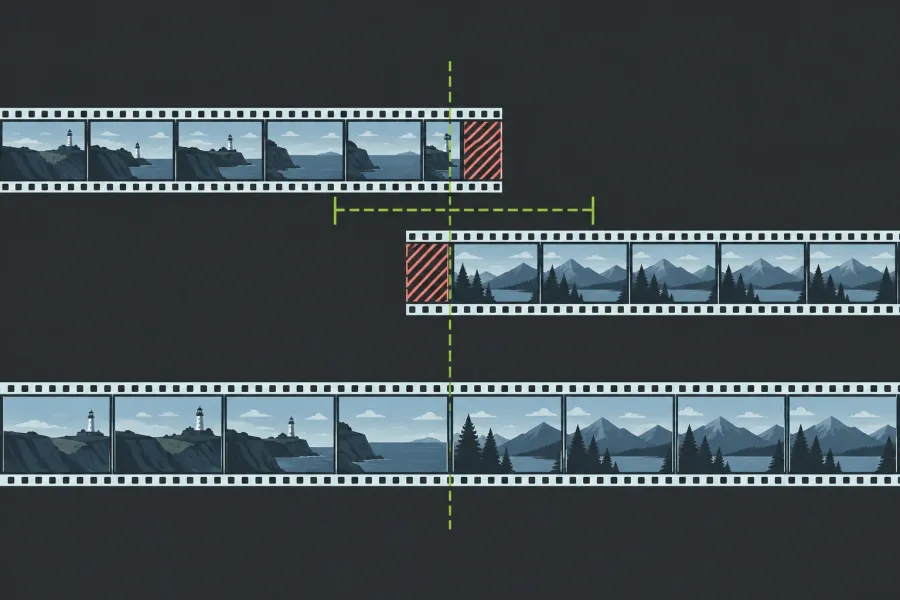
When Lightworks refuses a transition because there is not enough media, check the intended cut, the named track, and the source material around the two used clip boundaries. Long clips that touch on the timeline can still lack the overlap a dissolve or audio crossfade needs. If usable spare frames exist, I'd retry with a shorter request that fits them; if they don't, the choice is between trimming to reserve source and keeping the plain cut.
Keep a copy of the sequence before changing the cut. Find which side lacks usable source first, then make one deliberate retry. A warning that no transition was added is a different starting point from a transition that was accepted at a shorter duration.
Check the cut and the source boundaries
Note the warning's exact wording and the affected track, then look at that join closely enough to see whether the two intended clips meet. If you find a gap or an intervening fragment, inspect what it contains before editing it. Removing material just to add a transition can change content or timing.
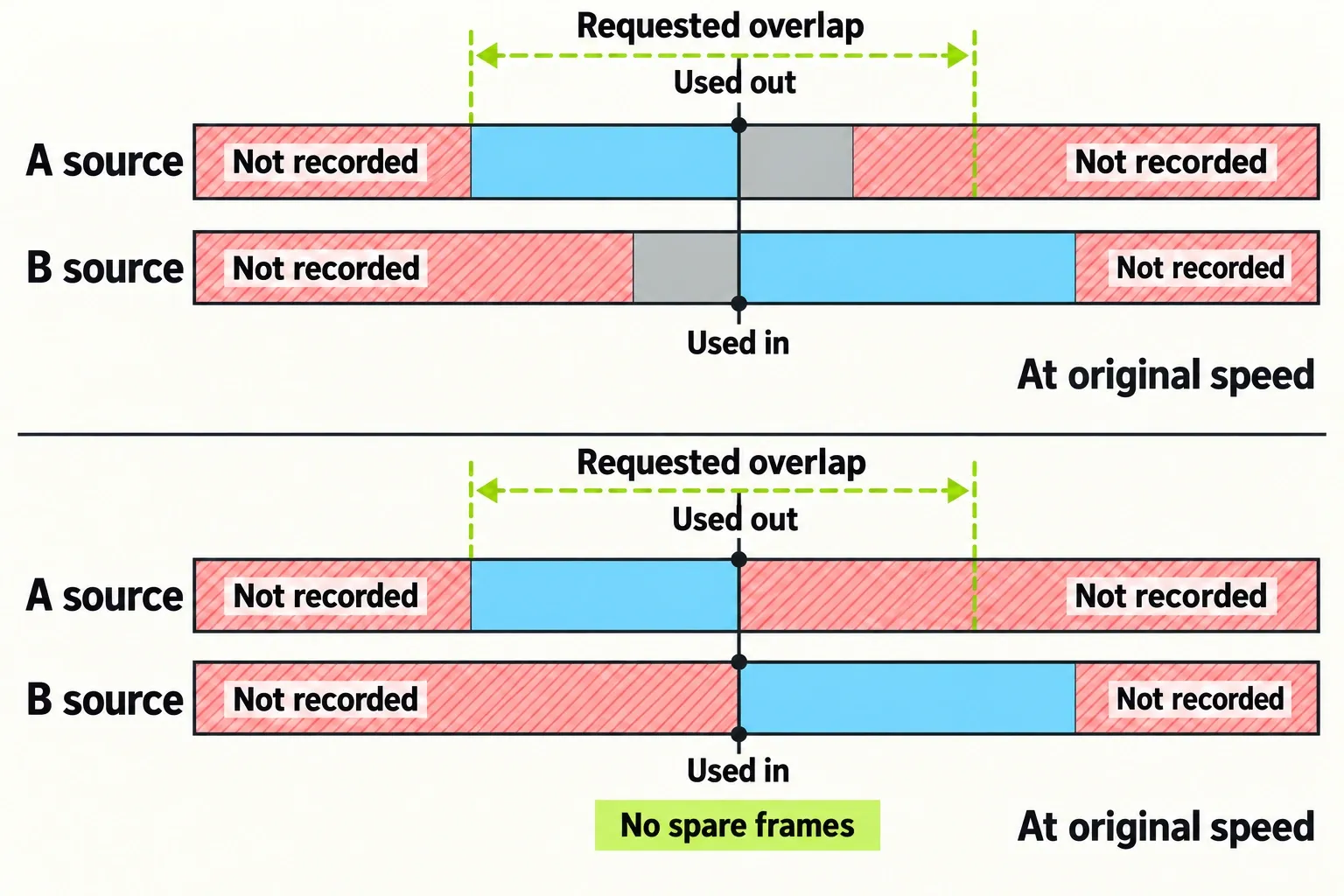
For a dissolve using spare source at its original speed, the outgoing clip needs recorded picture after its used out point, and the incoming clip needs picture before its used in point. The video transition guide describes these spare frames. The clip length you see on the timeline doesn't tell you how much of this reserve exists.
- Check the outgoing source. Open the original source clip and locate the last source frame used at the cut. Look beyond that frame in the recording: is there usable picture left, or have you reached the source end?
- Check the incoming source. Locate the first source frame used in the next segment and inspect the recording before it. Does suitable earlier picture exist, or does the source begin there?
- Check the material's usefulness. Spare frames containing an unwanted camera move or action from the wrong moment may technically exist but still make a poor overlap. If the warning names an audio track, inspect the corresponding sound boundaries separately.
Use the original source positions, rather than assuming the sequence clock identifies them. Lightworks preserves source timecode and source start/end information. Where your interface displays source timecode, use it to locate the used frames in the source viewer. If you cannot identify the original or its used boundaries reliably, keep the edit unchanged and use the report at the end of this guide.
The two cases below show unused recorded picture around the current cut. Slowing existing material to occupy more time is a different case; it does not add previously recorded source frames.
Why version and creation route matter
The current video KB says Lightworks reduces the duration to fit insufficient spare material, and reports refusal if there is no room on that track. That's the documented Lightworks 2026.1 workflow; 2025.2 and other ways of creating a transition can behave differently.
In a moderator FAQ last edited in November 2025, briandrys describes a V2025.2 exception: some butted segments without a full overlap can receive an overlap by slowing existing media within the proposed transition by 50%. The same passage says material that doesn't meet its criteria needs another approach, but it doesn't spell out those criteria. So not every zero-handle cut will qualify, and I wouldn't force a speed change to get there: slowing media stretches existing frames instead of adding recorded source.
When a transition does get added, inspect its duration and motion before assuming it used spare source at the original speed. This evidence is about video only and says nothing about automatic shortening or retiming for an Audio Crossfade.
Retry the picture transition on the intended cut
If suitable spare picture exists, choose a shorter duration that fits the intended edit, or an alignment supported by that material. In the documented video procedure:
- Make Edit active and right-click the intended video cut between the two clips.
- Choose Transitions and the effect, such as Dissolve.
- Choose its position and length. Centred here straddles the cut, From here runs forward from it, and To here runs backward to it. Moving the overlap changes which source positions it uses; it does not create new recorded picture.
- Click Add, then inspect the result on that cut.
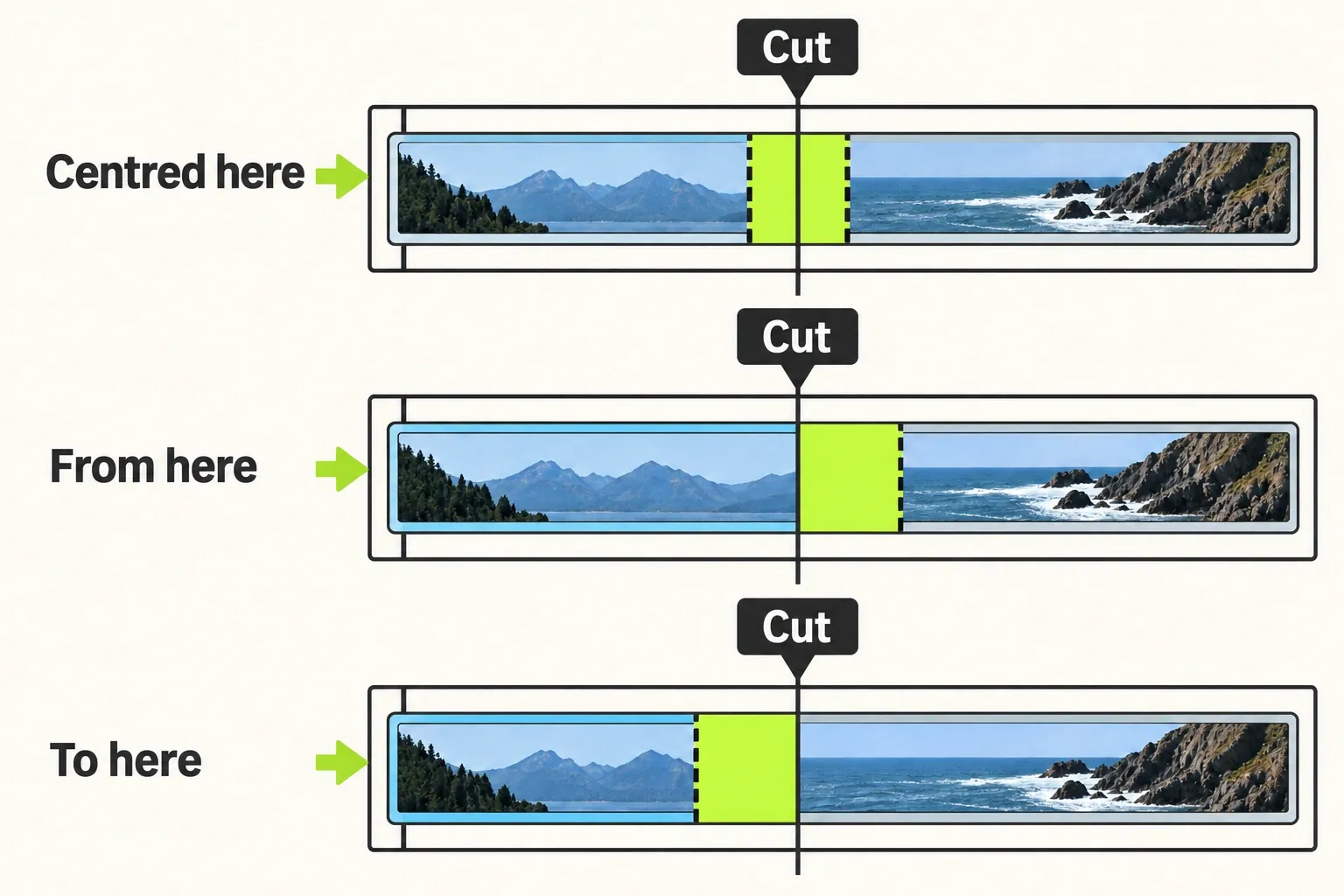
Use this route when those controls match your interface. If the dialog refuses again, note which track and side it names and return to the source check. I wouldn't switch among insertion methods just to suppress the warning, because a different route doesn't create the missing source. If the transition appears but is shorter than requested, judge its real length and how the result looks.
Retry the audio crossfade separately
A successful picture dissolve does not supply missing sound. The official Fixed/Flexible-layout instructions, marked 2022.3 onwards, require sufficient material on both audio clips and describe an insufficient-media popup. The current audio guide confirms an Audio Crossfades panel that can apply across several tracks; it does not independently specify every older dialog label.
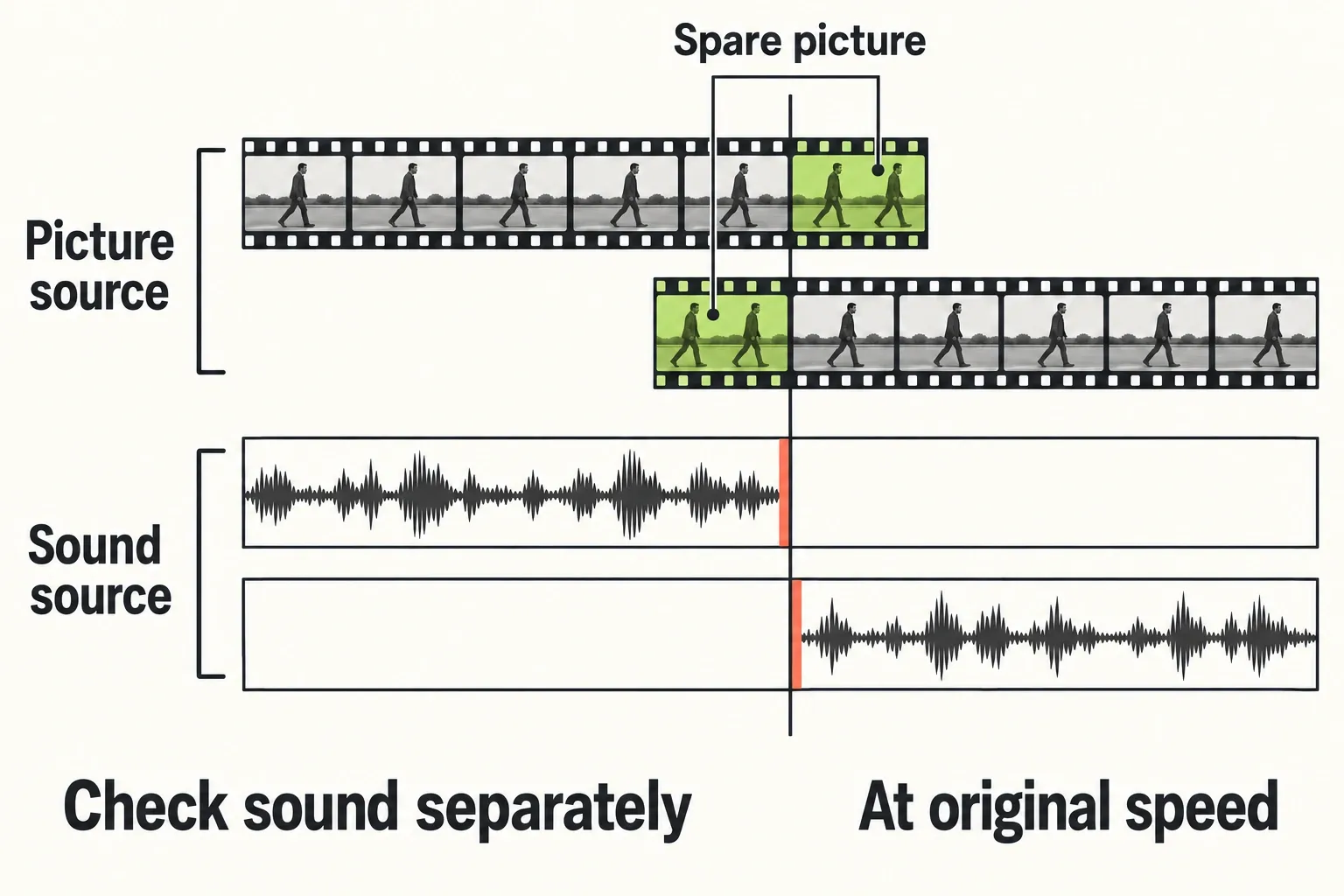
When your interface matches that documented audio route, work on the actual sound cut:
- Right-click the intended audio-track cut and choose Cut Commands → Crossfade.
- Choose Centered Here, From Here, or To Here relative to the park position. Set Length in frames, or select Seconds if that unit is offered. Choose a shorter request only where the available sound and desired join support it.
- Click Add. Check which audio tracks received the crossfade, then listen through the join.
If those controls are absent, use the documented help for your installed build; do not substitute the video dialog's labels. If the audio warning persists, return to the sound's source boundaries. Listen for a cut-off word, doubled sound, click, or level dip after any accepted change.
Reserve source only if the edit can change
Even when there is no unused source at the current join, you may be able to reserve some existing recorded material by using less of it in the edit. That means changing the shots' used ends, not extending the recording. I'd only do this when losing that visible action or sound is acceptable, since the reserve comes out of what the viewer currently sees and hears.
On the sequence copy, note the original cut position, used boundaries, and a later timing reference. Before trimming, check Clip Link, Sync, track targets, and locks. In the current trimming guide, a mouse trim opens the clicked end and its linked partners when Clip Link is on. Track targets do not isolate a linked mouse trim: confirm every opened end before moving it.
For a one-sided trim, Sync on normally moves downstream material to close or make space. With Sync off and Sync Off Action at its default, No Tracks Ripple (Drag in Black), shortening leaves black and lengthening uses adjacent black; the legacy Only Target Tracks Ripple setting behaves differently. Locked tracks stay behind, and Alt-narrowed sync can leave other tracks behind too. Check the amber Track Sync strips before and during the trim. There is also a content risk: the current troubleshooting guide warns that a track without black to absorb the change can give up media at the trim point to stay in step. Neither targeting nor a sync toggle makes the trim safe on its own.
- Shorten the required used side. Hover near the outgoing end or incoming start until white trim brackets appear. Check they identify the intended side and linked clips. Click the intended cut point to open the trim, or use click-and-drag if Click To Unjoin is disabled. Drag, or use the step controls, to choose an earlier outgoing out or a later incoming in. If using playback to move an open trim, first check Trim when playing: with it off, playback inspects frames without changing the trim. Confirm the displayed source frame and affected timing rather than relying on a drag direction: trim direction settings can differ.
- Close the trim. In the documented interface, click the cut point, click Close under the sequence viewer, or press Tab. Check the two intended clips still meet and that the intended source reserve now exists. If an unwanted gap or neighboring edit change appears, restore the copy instead of deleting more material to hide it.
- Check content and sync before retrying. Play the changed shots and their sound, then check the later timing reference. Sync indicators report offsets between linked clips from the same source; their absence does not prove an independent music bed or narration still lands correctly.
If the revised edit preserves the action, sound, and intended timing, retry the relevant transition once with a duration supported by the new boundaries. If it compromises the edit, restore the original. The cut-and-trim guide covers broader trimming decisions; a requested dissolve is no reason on its own to move the cut.
When to keep the cut or choose another shot
If you can't reserve suitable source without losing necessary content, I'd keep the plain cut or choose another take or cutaway rather than give up necessary content for a dissolve. A deliberate single-clip fade is another editorial choice, but a fade eases one clip in or out, while a transition joins two. It changes the meaning of the join rather than repairing the same dissolve.
After an accepted change, play before, through, and after the edit with picture and sound. Check the actual transition length, motion, continuity, audio, and downstream timing; review that region again in the final exported file. An added effect only clears the first checkpoint; the playback and the exported file tell you whether the result is usable.
If a refusal remains despite clearly identified suitable source, record the exact warning, build, operating system, creation route, track, effect, requested alignment and length, source identities/used boundaries, and whether linked audio is involved. Include what the one meaningful retry changed. Lightworks' support guidance asks for the action, result, media format, version, and system details through the forum or user portal. Send that record there, so the issue gets investigated as a specific case instead of a guess at a universal source-limit rule or a software bug.