
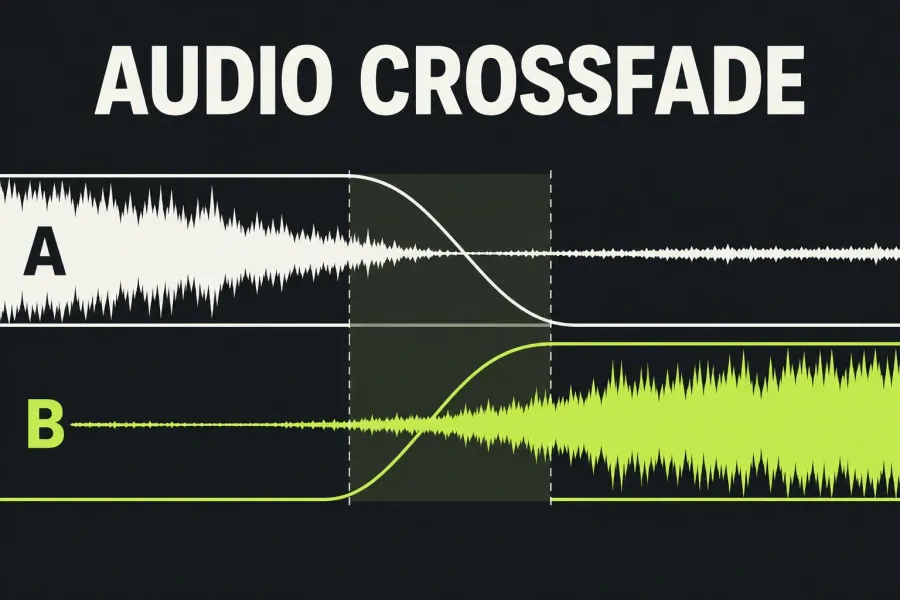
To add an audio crossfade in Lightworks, park the playhead on the cut, right-click that cut on the audio track and choose Cut Commands > Crossfade. Pick the placement, set Length and click Add. The crossfade blends the end of one audio clip into the start of the next, so both clips need spare sound beyond the cut.
For a run of joins, the Audio Crossfades panel adds crossfades across several tracks at once. Audio effects no longer work on a marked region, but audio crossfades still use marks, so check your In and Out marks before a batch. I'd still do the first join by hand: it tells you which length suits the material before you repeat it everywhere.
Crossfade two clips or fade one edge?
Use a crossfade when the outgoing sound should blend into the incoming sound. Use a fade when you want one clip's sound to ease in or out, such as bringing a music cue in or ending it. If a plain cut already sounds right, I'd leave it alone: adding an effect doesn't improve a join by itself.
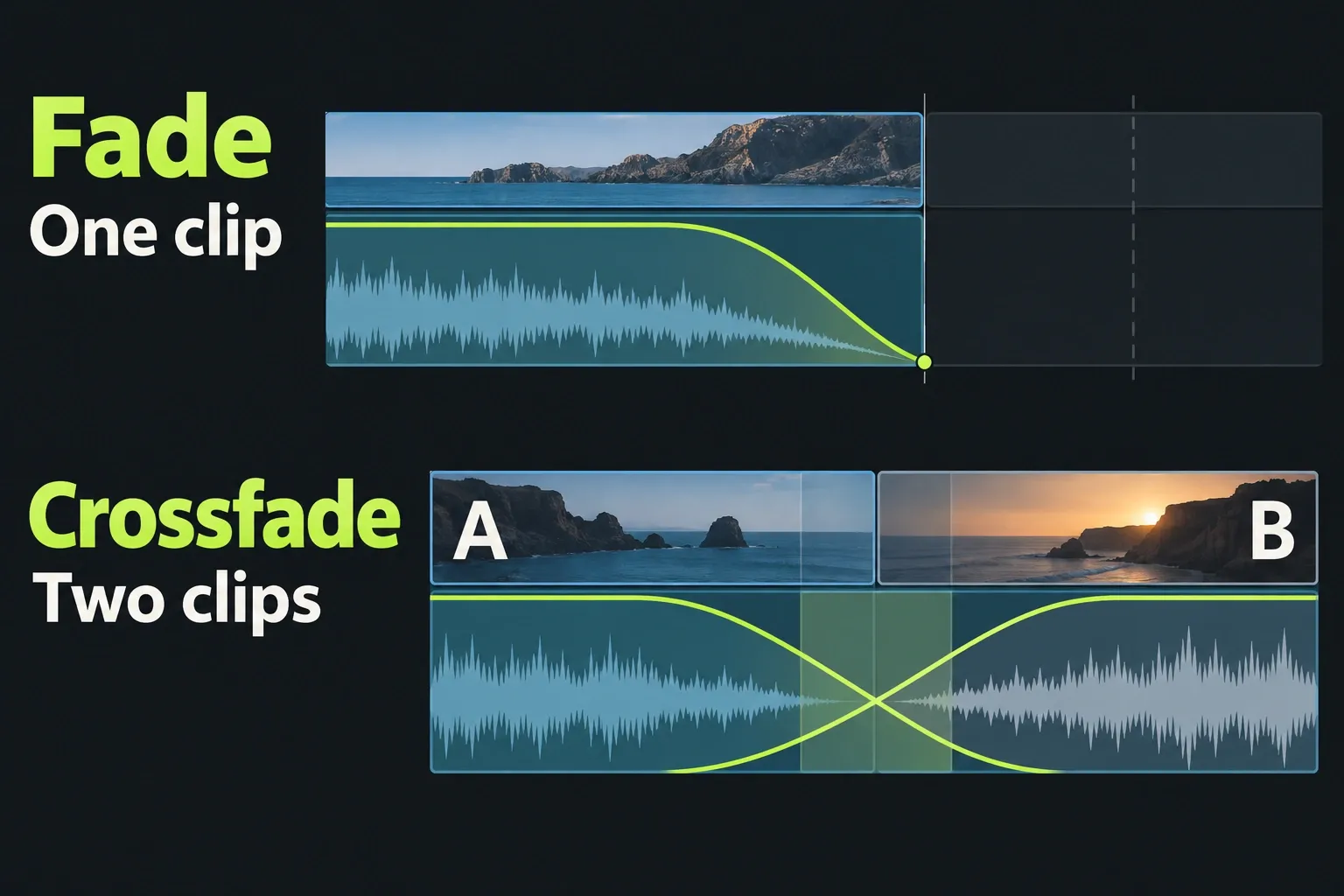
For a single-clip fade, the current audio guide describes timeline fade handles that set duration directly. To fade out audio, adjust the duration and play through the end of the clip. Listen for the last word or note as the level falls; shorten or lengthen the fade until the ending fits the edit. Right-click a fade handle to choose Exponential Fade, Equal Power or Linear, or choose None to remove that fade.
Prepare the intended audio join
Open the correct sequence and locate the boundary between the outgoing and incoming audio clips. I'd listen through the unchanged cut first, since the fix depends on what's there: an unwanted click, a sudden room-tone change, or a clean break that belongs in the edit. Decide that before adding a transition, and keep a restorable version before changing an established sequence.
Check which tracks you intend to edit. For audio-only work, the current guide says to target the audio tracks and lock or untarget the picture tracks. Keep existing protection deliberate. Untargeting and Lock have different effects: an untargeted track can still move to hold sync, while Lock keeps it out of the edit. I prefer Lock over plain untargeting when the picture must not shift at all. Playback mute and solo are separate again. Confirm the intended audio context if the tool is set to affect several tracks: the current Audio Crossfades panel can add transitions across more than one track at once.
If a fade handle will not move, inspect Lock. Fades still play on a locked track, but cannot be dragged. Do not turn on Keyframes merely to get around that protection: the same guide says doing so unlocks the track. Decide what may change and restore the intended protected states after the edit.
Add the crossfade from the cut
These steps follow Lightworks' older audio transition guide, and the current transition guide uses the same right-click, Length and Add pattern in the Edit tab:
- Open the sequence and select the Edit tab.
- Park the playhead exactly on the cut you want to blend. Placement is measured from that point, so I park first and right-click second.
- Right-click the cut on the audio track, then choose Crossfade under Cut Commands.
- Choose Centered Here, From Here or To Here (see the placements below).
- Set Length in frames, or switch its unit dropdown to Seconds.
- Click Add, then play through the join.
When several tracks need the same blend, the Audio Crossfades panel saves the repeat work. I keep the right-click route for the one join I'm judging by ear.
Place the blend at the cut
The audio steps measure the three placements from park, and the current guide describes the same options relative to the cut. Park on the cut and the two readings agree:
- Centered Here: the blend straddles the cut, half on each clip.
- From Here: the blend starts at the cut and runs forward.
- To Here: the blend runs backward from the cut and ends there.
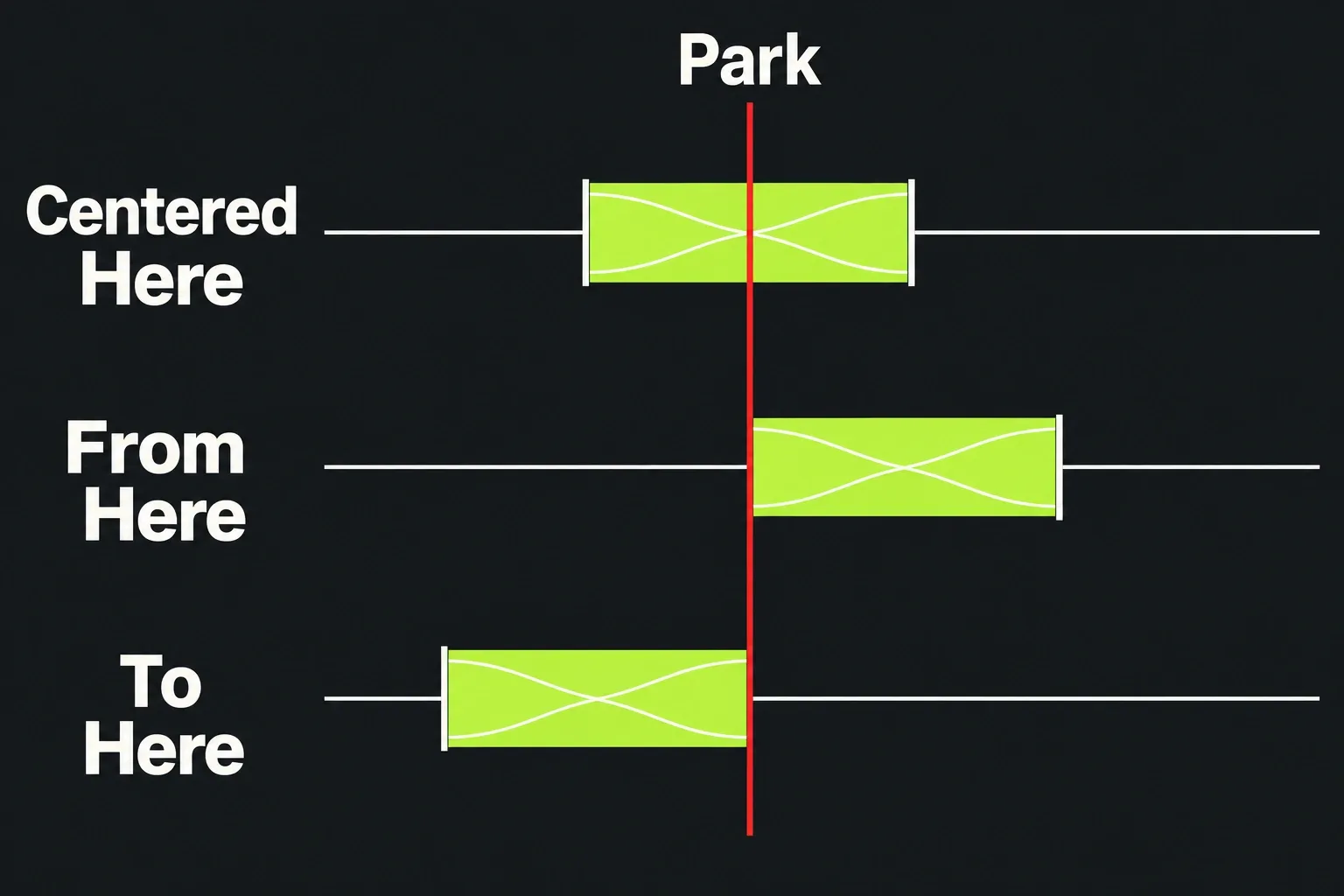
Centered is the usual choice. I switch sides by where the spare sound is: From Here when the outgoing clip has sound left after its out point, To Here when the incoming clip has sound before its in point. Placement says where the blend sits and Length says how long it runs, so change one at a time and you'll hear which change fixed the join.
Choose length from the sound and source material
Imagine joining two portions of an interview. The outgoing clip ends a spoken word, and the incoming clip starts the next thought; both have some room tone around those words. The useful blend may sit in that quieter material. A longer overlap could bring both voices into the same moment, so listen for doubled syllables and whether the sentence remains understandable. The example shows what to listen for; it doesn't prescribe a transition length.
For a click at a speech cut, my starting point is an overlap short enough to keep every word intact. Judge the result by ear from there. An ambience or music join may need a different duration, so skip any fixed number borrowed from another tutorial. If the proposed blend swallows an important consonant, repeats a word or changes a beat, reconsider the length, placement or the join itself.
Both clips need spare sound beyond the cut: the outgoing clip past its out point and the incoming clip before its in point. If Lightworks reports insufficient media, check Length and placement, then listen through the join after each change. A crossfade that is too brief may leave a click audible, and no setting can supply sound beyond a source boundary.
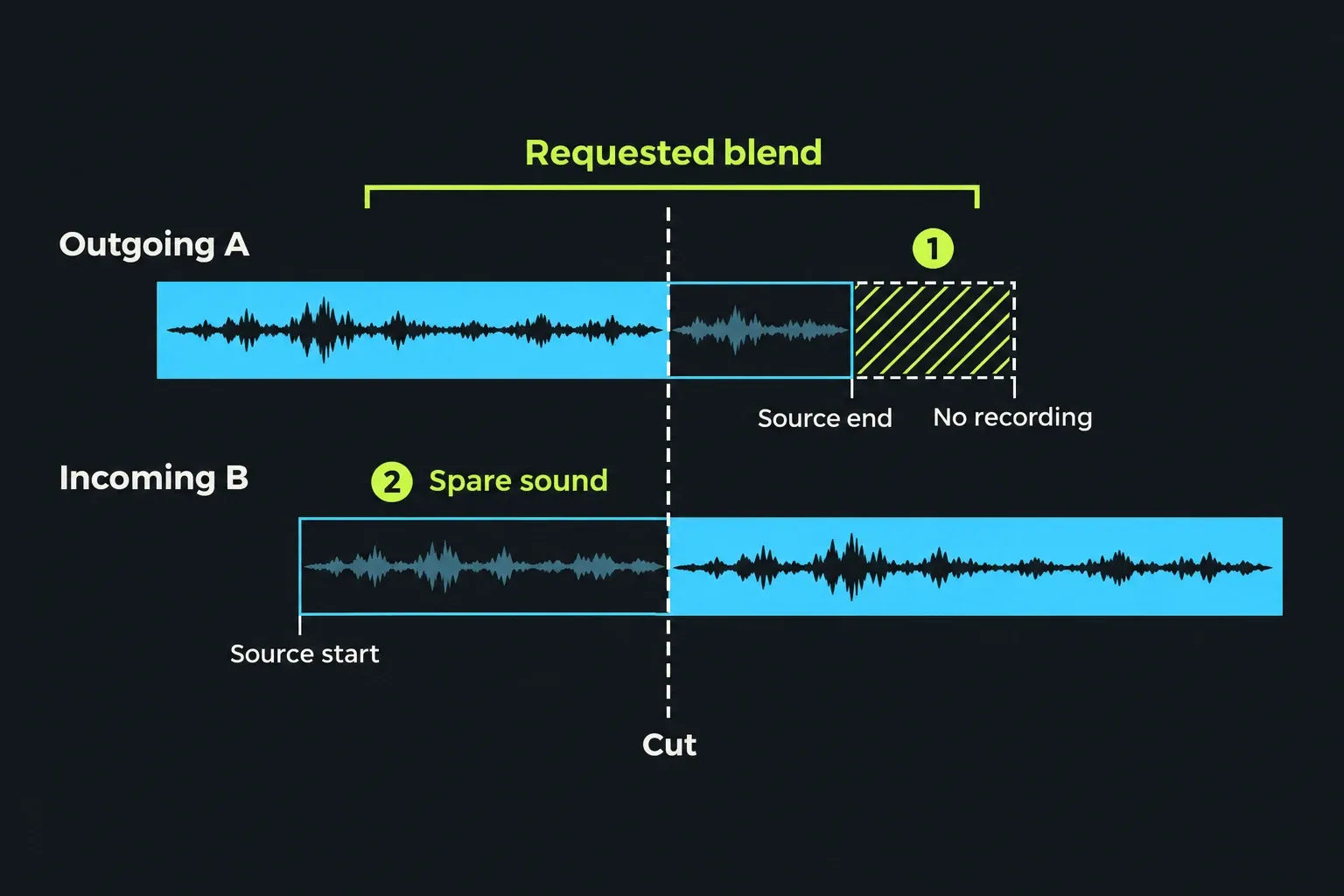
When the warning persists, I'd protect the useful words first. Trim a few frames off the clips to free spare sound, switch to the placement whose side has room, or keep a plain cut.
Listen to the join and the full mix
Play from before the transition through its end while watching the picture. Check speech intelligibility, a dip or swell in level, overlapping words, repeated syllables and the change in room tone. Compare it with the unmodified join using your preserved edit. Keep the version that serves the scene.
Then restore the intended playback mute and solo states and listen with the rest of the sequence. Judge the transition under music and other sound, and inspect whether the intended tracks and picture were affected. If audio has been trimmed or moved separately, watch the sync indicators as well. Before delivery, review the complete exported file as a separate final step.
A visible transition alone doesn't show what the audience will hear. If you hear nothing, diagnose the Lightworks playback path before treating silence as a crossfade failure. If the command or result stays unclear, keep the restorable edit and send support the build, layout, targeted tracks, park position, duration and exact warning.