
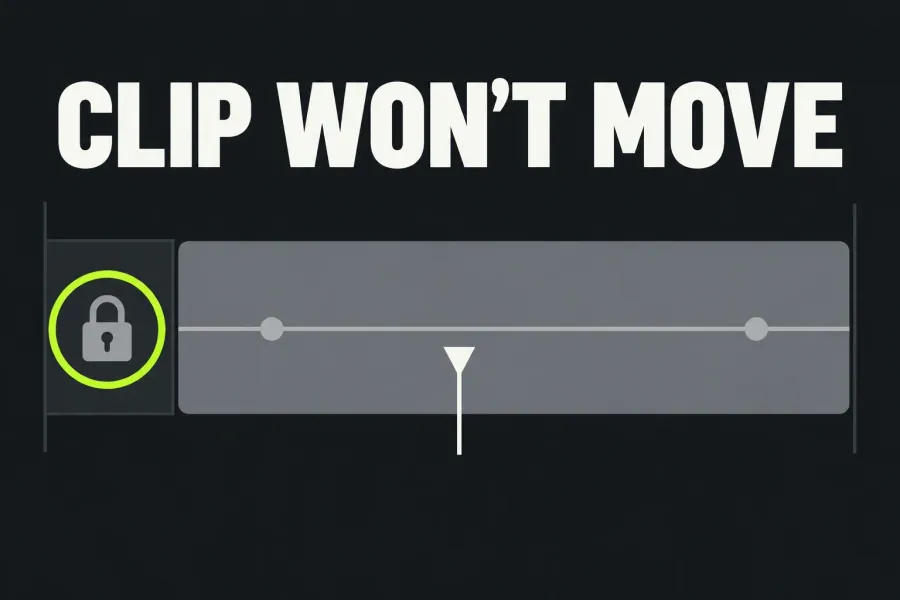
If Lightworks plays the sequence but will not let you move or trim an existing timeline clip, check the intended track's Lock, close any open trim, and check what your click or drag is acting on. A locked track, a cut tool and an audio node produce different symptoms, so I'd name the state before changing mouse preferences or the project. If none of the three fits, check custom mouse actions and the older audio-level switch next.
In Lightworks 2026.1, Keyframes leaves trimming, dragging, clip selection and fades available. It does not lock the whole timeline. The older Toggle audio levels editing control does have a documented movement restriction, but that remedy applies only to builds before 2026.1. Match the controls on your screen before following that branch below.
This guide concerns clips already on the sequence timeline. Bringing a source clip out of a bin, recovering offline media and fixing silent playback are separate jobs. Work through the branch that matches the response you can see, then retry the intended action.
Check the track Lock without unlocking everything
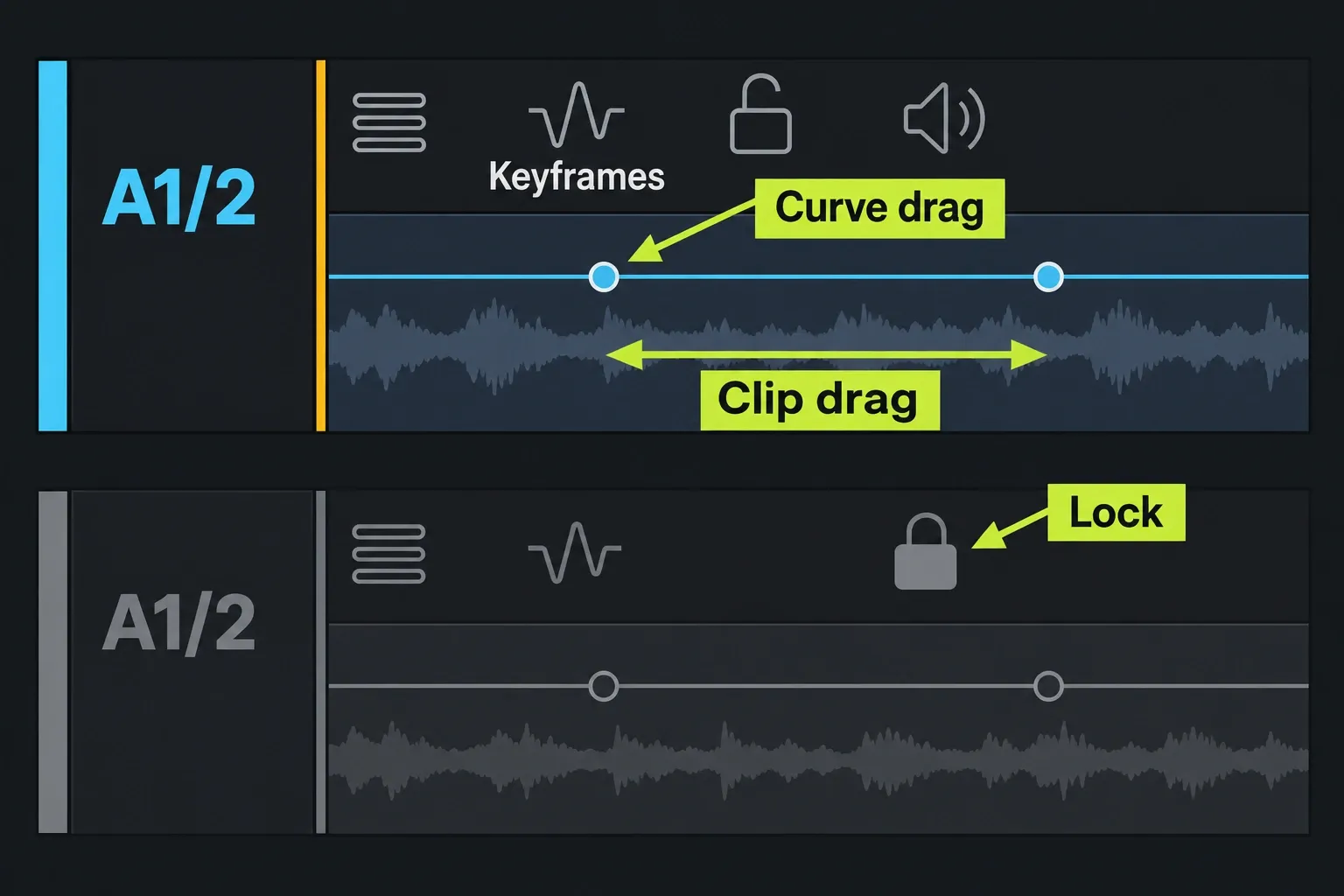
If nothing on one track can be selected, moved, cut or trimmed, inspect its Lock control in the track header. LWKS's v2026 track-header guide says a locked track accepts no edit, trim, cut or selection. Its audio levels and fades can remain visible while their handles cannot be dragged. So a visible line doesn't mean the track is editable.
Unlock the track or group you intend to change, keeping unrelated finished work protected. The same guide states that a plain header-button click toggles that track and its grouped tracks, so check the partners as well. I'd leave the master Lock control and modifier-click shortcuts alone for this diagnosis, because they can change protection beyond the one track being checked.
Keyframes is not a safer substitute for checking Lock. Turning Keyframes on unlocks the track, and locking the track turns Keyframes off. Decide whether this track needs curve editing or protection. I wouldn't turn keyframes on across the sequence just to make clips respond, since that unlocks every track it's switched on for.
Targeting and monitoring answer different questions
On the documented v2026 headers, the V1/A1 track-state button determines targeting, while Monitor handles picture visibility or audio mute. Neither means the same thing as Lock. An untargeted track can still be shifted to maintain sync; a locked track is excluded from that movement.
If a keyboard trim affects the wrong tracks while a mouse trim works, check targeting. The trimming guide distinguishes a mouse click that names its own clip from keyboard trims aimed at targeted tracks. Targeting every track is not a remedy for a failed mouse drag. Set the targets needed for the operation, and keep Lock protection deliberate.
Close an open trim before trying to move the clip
When you click near a cut, Lightworks can open a trim. The brackets and unjoined clip edge tell you that you are adjusting a cut point. If dragging changes which frames are shown inside the clip, or moves a boundary while the clip itself stays put, first check whether that trim is still open.
Use Close below the sequence viewer, click the cut point, or press the default Tab shortcut to rejoin the cut. Use the visible Close control if your keyboard mapping differs. Once the trim closes, try ordinary segment selection again; the guide states that closing returns you to normal editing.
For moving a clip, select its body and drag the selected segment, keeping away from its edges and any automation line. The current selection instructions use a click for a segment, Ctrl/Cmd-click for individual additions and Shift-click for a range. Check what is highlighted before moving it: Clip Link can include associated picture or sound.
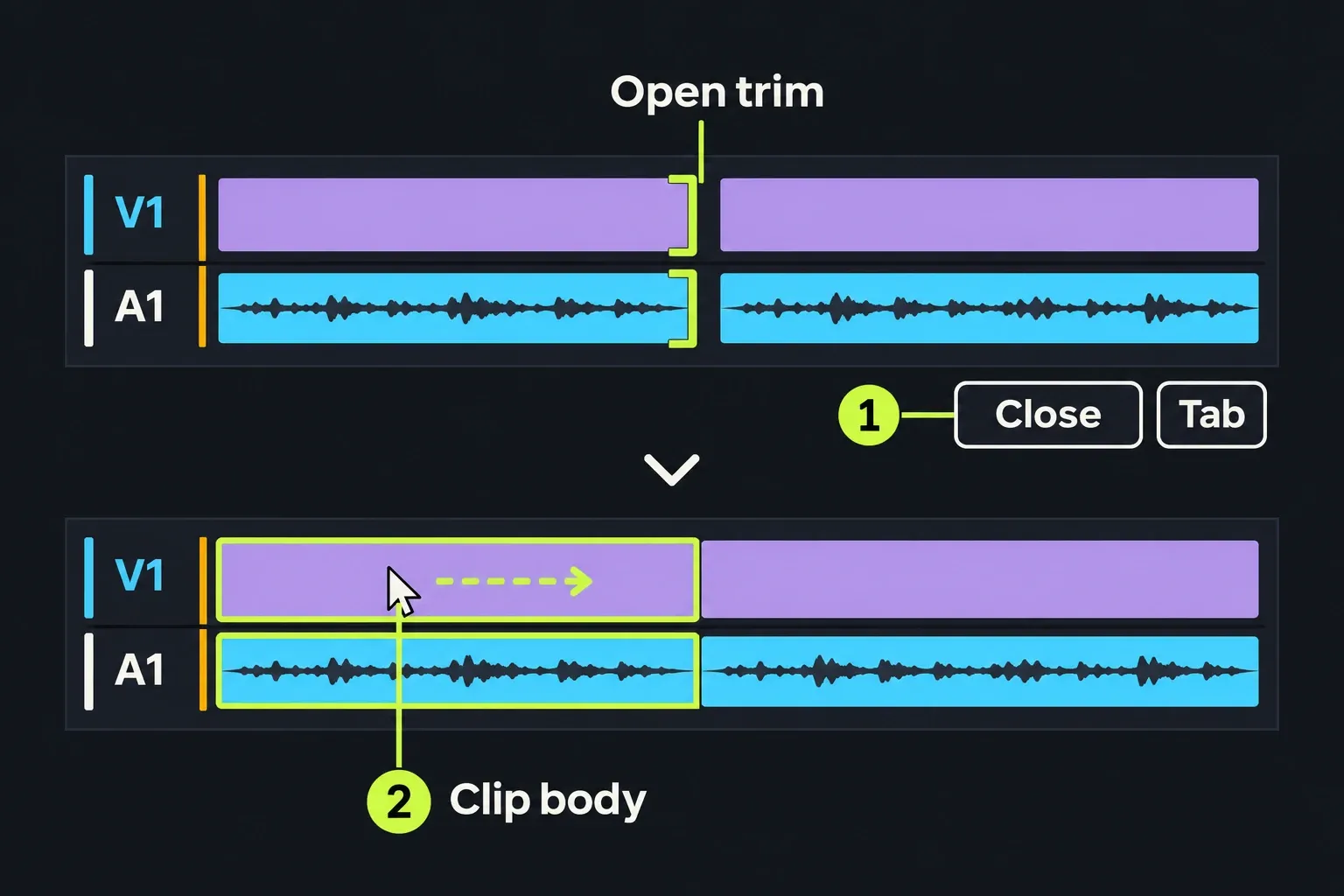
If you repeatedly open trims by mistake, the documented Click To Unjoin (Trimming) setting on the Behaviour tab controls whether a cut-point click opens a trim and is on by default. Close the accidental trim first. Change that preference only if you want a different editing habit. One accidental trim doesn't call for it, or for a workspace reset.
Check the active tool and the drag zone
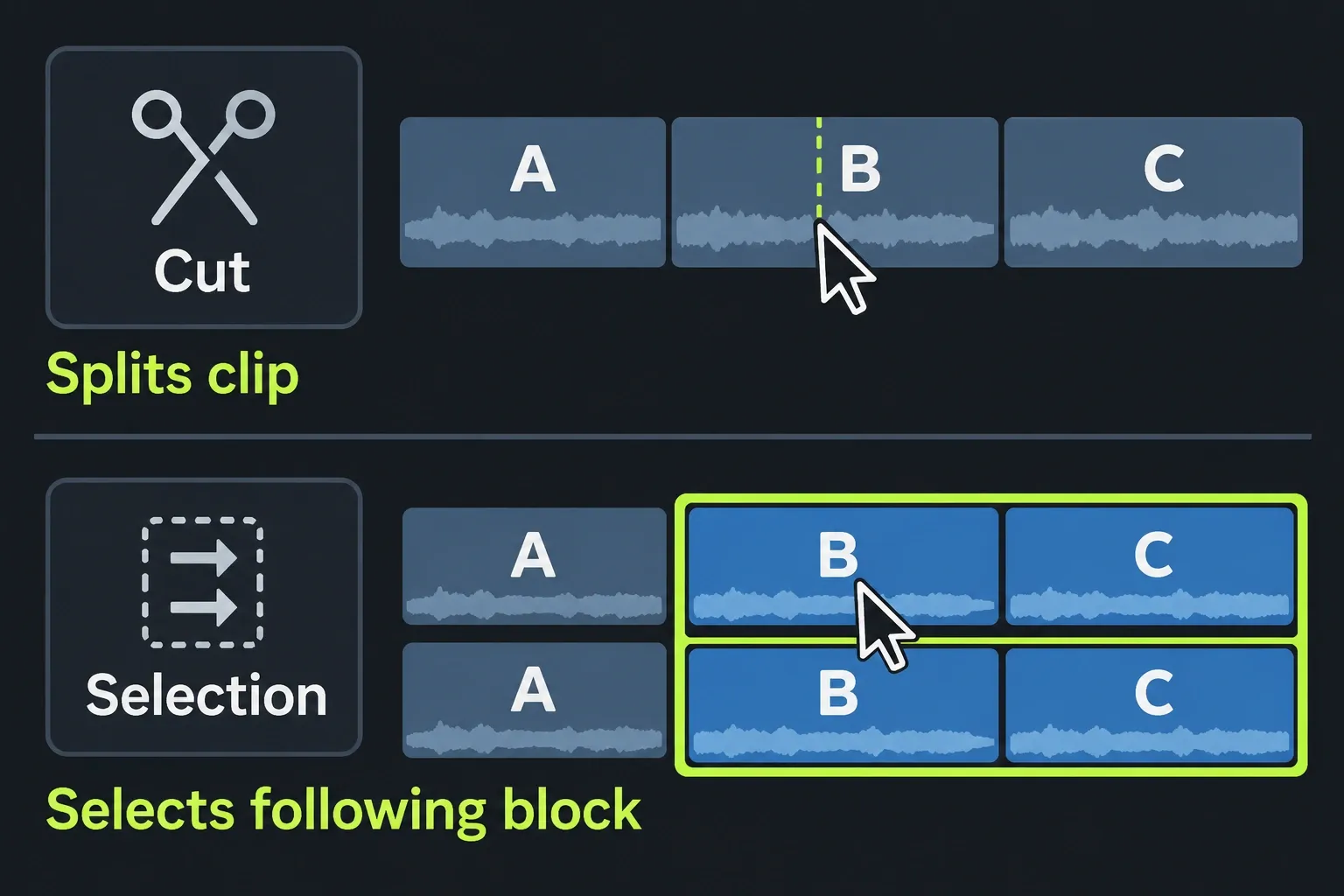
A click cuts or selects a large block
If a click splits the clip, check whether the Cut tool is active. Leave that tool before trying ordinary selection. If the click selects the clip and everything after it, check the dedicated Selection tool instead: it selects blocks of the sequence, with Shift-click taking the material before the clicked clip. It is not the ordinary single-clip pointer.
That block selection can span every unlocked track. Before dragging, inspect the selected extent and leave the block tool if you wanted one segment. Changing audio levels or targeting will not turn that tool into a single-clip selection.
The audio line moves but the clip does not
With Keyframes on, a drag over a node or between nodes works on automation. The timeline graph owns only the band around its line and nodes; ordinary clip editing remains available outside it. Move the pointer to a clear area of the segment body, select the intended material, then drag there to relocate it. Use the edge deliberately when you mean to trim.
You can leave Keyframes on while cutting the sequence. If the job is changing audio levels, turn it on for the relevant track and work on the level line instead. Show Audio Levels can keep lines visible on all tracks, but each track still needs Keyframes enabled to edit them. A visible line, editable curve and unlocked track are distinct states.
Inspect custom selection and mouse actions
If the track is unlocked, the trim is closed and your pointer is clear of the curve, but clicks do not select the segment as expected, inspect Timeline settings. The current guide places settings across Appearance, Behaviour and Actions tabs, with Actions assigning timeline mouse combinations. Check the assignment for the movement you intend, especially if it was customised.
There is a useful limit to the older forum advice. In a June 2024 selection problem, the user reported accidentally disabling clip selection; restoring it solved that reported problem after the audio-level switch and Close had not helped. Replies call the selection setting Selectable Segments under Behaviour and discuss Segment move under Actions.
The current manual confirms the configuration areas but not every row label from that thread, so use those names only where your installation shows them. The replies also separate click selection from movement and trimming and don't present disabled click selection as a universal block on either. Check the specific function and assignment, and note the existing setting before changing it so you can put it back. Do not reset all preferences to repair one mouse action.
Use the older audio-level switch only when it matches
If your timeline has the older Toggle audio levels editing control, the legacy Audio guide explicitly says that enabling it prevents drag-and-drop, timeline movement and trimming. Switch that matching control off and retry a small, reversible move or trim. That is the case where the audio-level mode itself is a documented obstacle.
The page is labelled “2022.3 onwards,” but Lightworks 2026.1 removed that restriction: trimming, dragging, selecting and adding fades now keep working while keyframes are on. A user on v2023.1 confirmed this remedy in May 2023. Another user confirmed Audio Levels Editing as the cause in September 2026, without identifying the installed build. So I'd follow this branch only when the older control is on screen: the reports support it for matching controls, and a recent date doesn't turn the older switch into today's per-track Keyframes behaviour.
Separate a blocked edit from a different editing result
Only extending the clip fails. Check for a source-media limit; the current guide calls the warning “Trim limit”. LWKS explains that a clip can only extend as far as its source media allows. Unlocking the track cannot create additional footage. If selection, movement or shortening works but extension reaches that warning, you've hit a source-handle limit.
The clip moves, but sound follows it. Check Clip Link, which makes linked picture and sound select, move and trim together. That is a decision about what travels together. If the clip moves but replaces neighbouring material, the problem is the placement operation rather than an unresponsive timeline. The cut and trim guide covers the editing mechanics once the controls respond.
Movement works, but playback is silent. The current headers have separate mute/monitor controls. Follow the no-audio checks for that symptom; removing track protection is not an audio-output diagnosis.
Verify the intended change and stop if the state is unclear
Change one relevant control, then try the intended action in clear timeline space. Check the selected clips, their boundaries and linked sound, and confirm that unrelated tracks retain the protection you meant to keep. If the move was only diagnostic, undo the change with the documented Ctrl/Cmd+Z command rather than leaving a test rearrangement in the sequence.
If the same action remains blocked after the applicable checks, stop changing settings at random. Note the exact Lightworks version, operating system, whether the failure affects one track or every track, the active tool, and whether selection, movement and trimming fail separately. LWKS's support guidance asks for the action, observed result, version and system information. Send those details instead of just “the timeline is locked,” and the unresolved issue stays a support case rather than another reason to delete media or reinstall.