
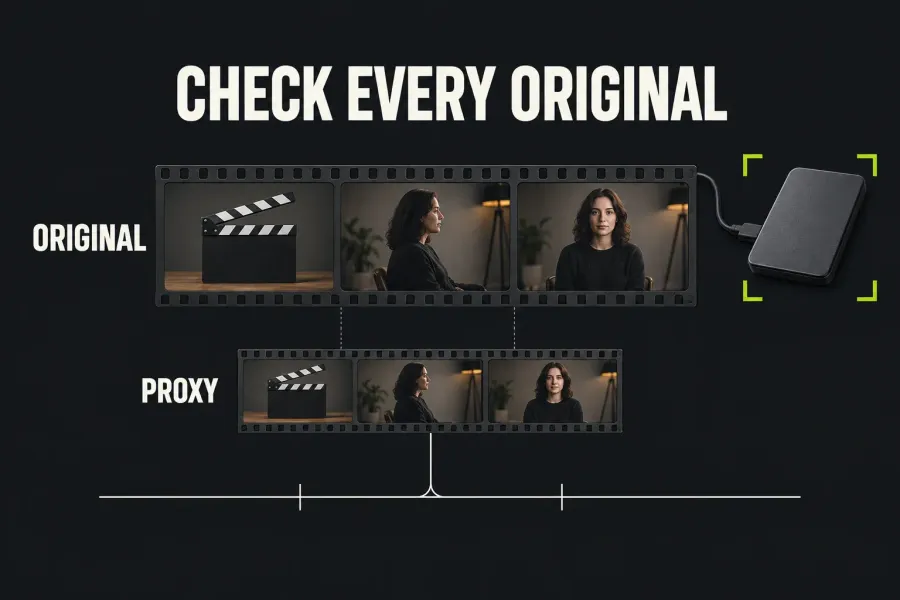
Before a Lightworks master export, check every original used in the chosen sequence and delivery range. Smooth proxy playback does not confirm that Lightworks can read the correct originals for the rest of the cut. Reconnect or relink unavailable sources first; judge export quality with a short sample after that source check.
The LWKS proxy guide warns that offline originals can leave export using whatever media is available. Its warning qualifies the export overview's general description of original-media export. You can't count on an offline project to deliver a usable proxy file, or to stop with a particular warning. I'd resolve the missing originals before exporting a master rather than gamble on either outcome.
The control names here follow the current LWKS documentation. If your installed build shows different controls, follow the instructions for that build.
Check every original in the delivery range
First identify exactly what you intend to deliver. Lightworks can export a sequence, clip or subclip, and either the whole item or a marked section, as described in its export source and range instructions. An availability check for one sequence does not cover a different cut or a longer export range.
- Account for the sources used in that range. Work through the cut and make a source checklist. Include each recording that supplies picture or sound, including short inserts and material near the end. A representative opening shot tells you nothing about whether those other sources are available.
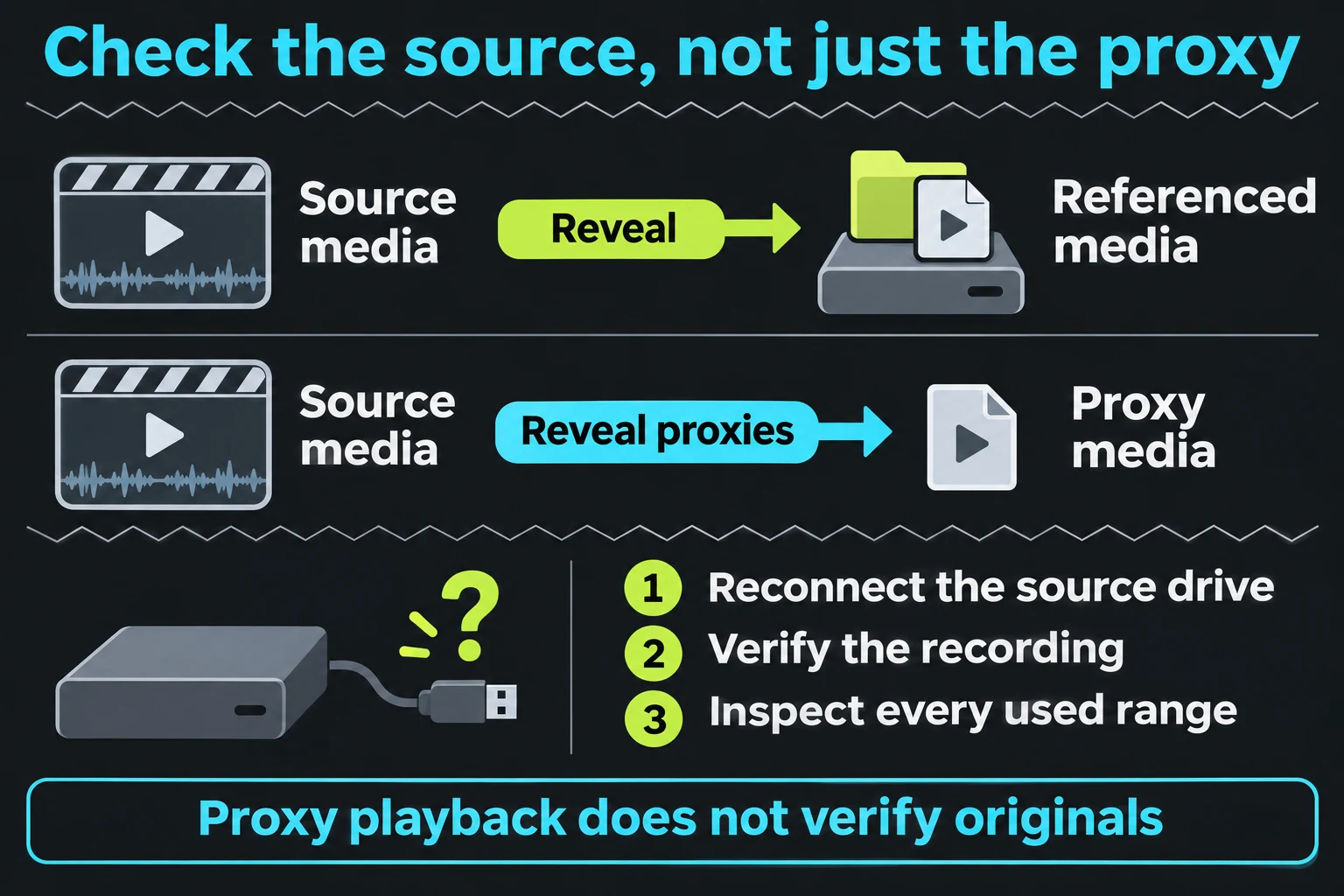
- Inspect the referenced source. Find its clip in a bin, right-click and use Reveal to open the referenced media in the file browser. Reveal proxies opens the proxy separately; a command is greyed out when there is nothing on disk for it to show. Confirm the actual file is the intended recording, then open that source in the viewer and inspect the used picture and sound. Reveal alone does not establish full readability or camera-original identity, particularly if a proxy was imported as an independent clip.
- Confirm the recording and version. Where names or replacements are ambiguous, compare identifying frames, duration, timecode and sound sync. A larger file or higher resolution alone is not enough to identify the correct take. Keep unresolved sources on the checklist until their identity and availability are clear.
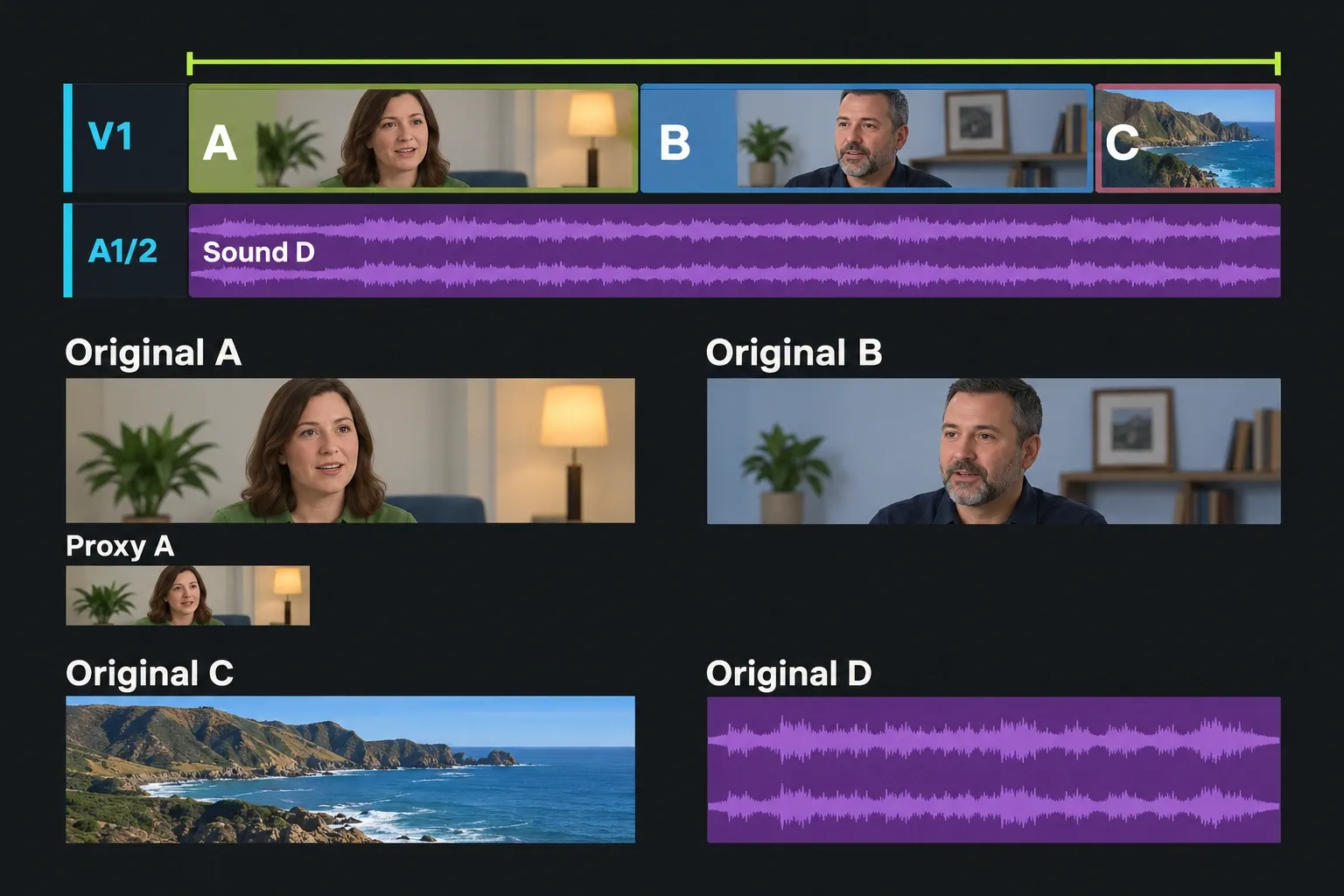
The diagram shows one original/proxy relationship. Apply the availability check to every used source. One good-looking frame, one successful relink or one completed sample leaves the other recordings unverified.
Reconnect existing originals before changing proxies
Start with the original file's location. Reconnect its drive or restore its known path, then inspect the affected source and timeline uses. If the full recording is available at a different location and the clip remains offline, use the confirmed Relink entry and matching checks. The 2026.1 Windows menu shown there is source clip in Content Manager → right-click → Media Files → Relink Media....
| Source situation | Next step | What still needs checking |
|---|---|---|
| The original remains at its expected path, but its drive is disconnected. | Reconnect the drive, make the complete file accessible and recheck the source clip. | Confirm that Lightworks can use this original, then continue through the other used sources. |
| The original exists in a different location or under a different name. | Open the Relink route linked below for your build, starting with an unchanged filename when it is the same moved recording. | Check the replacement's recording and version, especially when several files could match. |
| The original was deleted or is no longer available on the drive. | Look for a separate backup of the original. | Relinking needs actual replacement media; the remaining proxy does not recreate missing camera detail. |
If the original has moved or been renamed, follow the source identification and media relink guide. Do not pick a candidate solely because its name resembles the missing file. After relinking, revisit the affected shots and their sound, then finish the availability check for the rest of the delivery range.
I'd keep the playable proxy where it is until the original is sorted out. The proxy generation rules exclude offline media, so making more proxies can't restore an unavailable original, and deleting a proxy doesn't repair a path either. For intentional cleanup, LWKS specifies Delete Proxy rather than renaming or deleting managed proxy files by hand; that housekeeping can wait until the source problem is resolved.
Use Quality to inspect the picture
The viewer's Quality menu chooses playback media. Its settings serve different viewing needs:
- Automatic lets Lightworks use proxies when needed for smoother playback.
- Lowest available uses proxy media where it exists.
- Highest available is the documented choice for inspecting original-media detail, such as focus or grain, when that original is accessible.
Changing Quality doesn't reconnect a drive, restore a deleted recording or verify the remaining shots, and the setting's name says nothing about whether all originals are online. I'd switch to Highest available only to inspect a source that's already been identified. If you need to create managed proxies for editing, the separate proxy setup guide covers that earlier task.
Check whether the proxy is a separate source
A managed proxy belongs to its original-linked clip. LWKS describes matching timecode and duration with the original, allowing cuts, effects and keyframes to apply to the same frames in either version. You do not need to rebuild those edit decisions just because you viewed the managed proxy.
A small file imported as a normal clip needs a different identity check. In a forum case involving an imported internal proxy, a responder identified the newly imported clip as external proxy media. Check which clip the sequence uses; changing playback quality alone doesn't assign a camera original to an independent source.
The current Relink documentation describes replacement media matched by filename or filename stem, including alternatives with a different format or resolution. In Lightworks 2026.1, Relink's criteria run from strict to permissive: Exact Filename, Ignore Extension, Ignore Known Suffixes (recognised endings such as _proxy and _hires) and Ignore Any Suffix. Because _proxy is one of those known suffixes, check that a match points to the camera original rather than its proxy. Use the route whose controls match your build. A name or stem match says nothing about the take, so I'd preserve a copy before broad replacement work and confirm that each candidate is the same recording with the required frame coverage. Do not change timecode or other identity metadata merely to force a match.
For a sequence-wide replacement using the documented Conform controls, LWKS recommends Create New Version and inspection of the Conform Results report. Matching can use clip name, original filename and other metadata. A report with no unmatched segments still calls for an identity check of the replacements, because matching alone cannot tell you whether those are the takes you intended. This finishing workflow applies to independent source versions; it is not a required switch for every managed proxy.
Inspect a new export after checking the originals
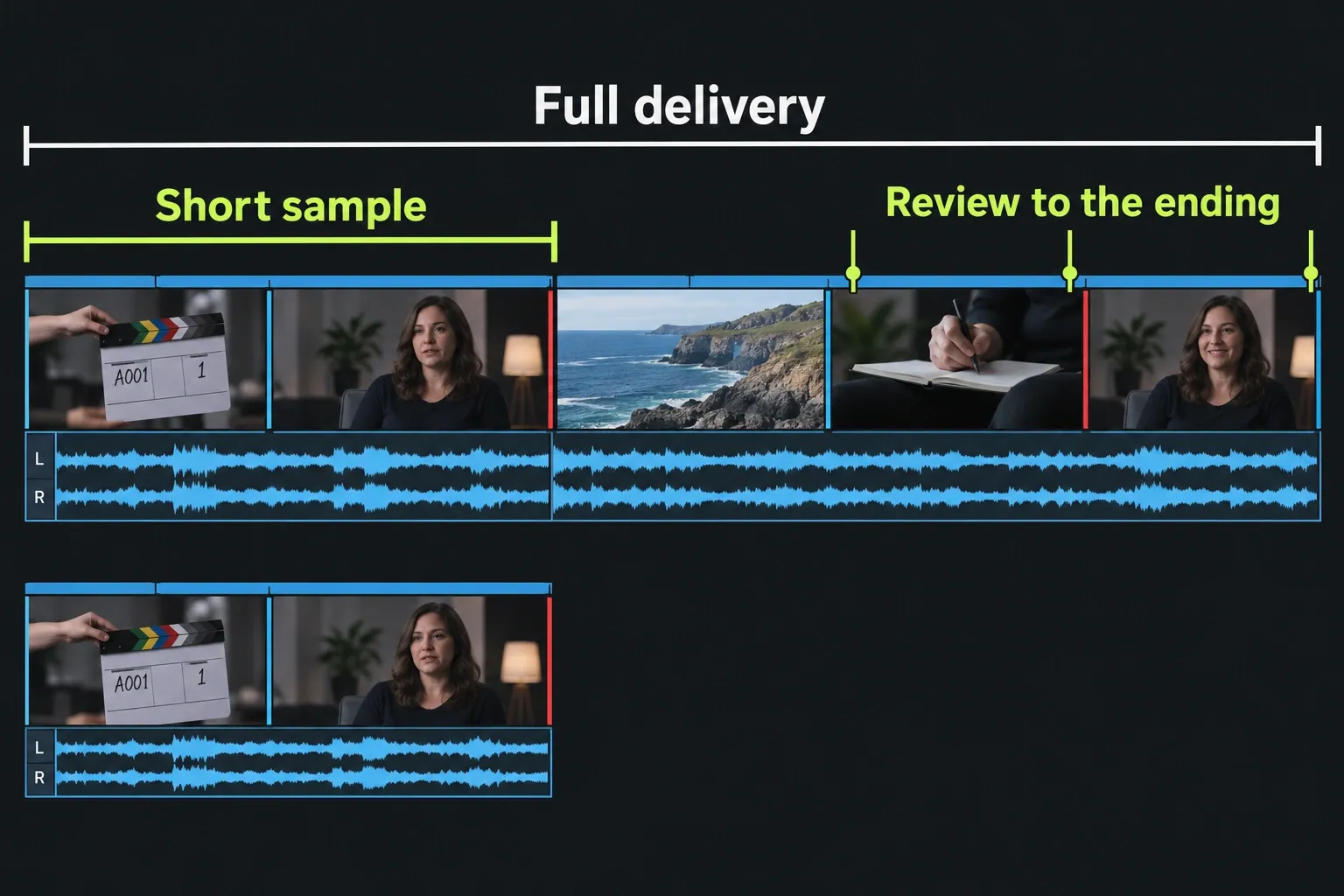
Once every used original in the delivery range is accessible and correctly identified, export a short section with the intended output settings. I'd pick a stretch with useful detail and every shot whose source was repaired, so one sample tests both the output settings and the source fixes. The sample checks delivered picture and sound; it doesn't replace the earlier check of all sources.
- Open the actual new file. Check its destination, name and version so you do not judge an older export. Confirm that it contains the intended section.
- Compare picture and sound. Inspect detail at the file's native display size against the corresponding original frames. Check sound presence and sync, particularly around repaired or replaced sources. Judge the intended delivery size; a downscaled export will not retain every pixel of a larger original.
- Check the complete delivery too. After the sample is satisfactory, export the intended full item or range and review the resulting file throughout, including its ending. A successful short sample cannot vouch for later shots or for the completeness of the full file.
Keep source identity, original availability and delivery settings as separate checks so you change only the part that's wrong. Enlarging a low-resolution source can't supply detail it never had, so if the originals check out and the new file is still softer than intended, review the output dimensions, scaling and quality choices in the export settings guide next.