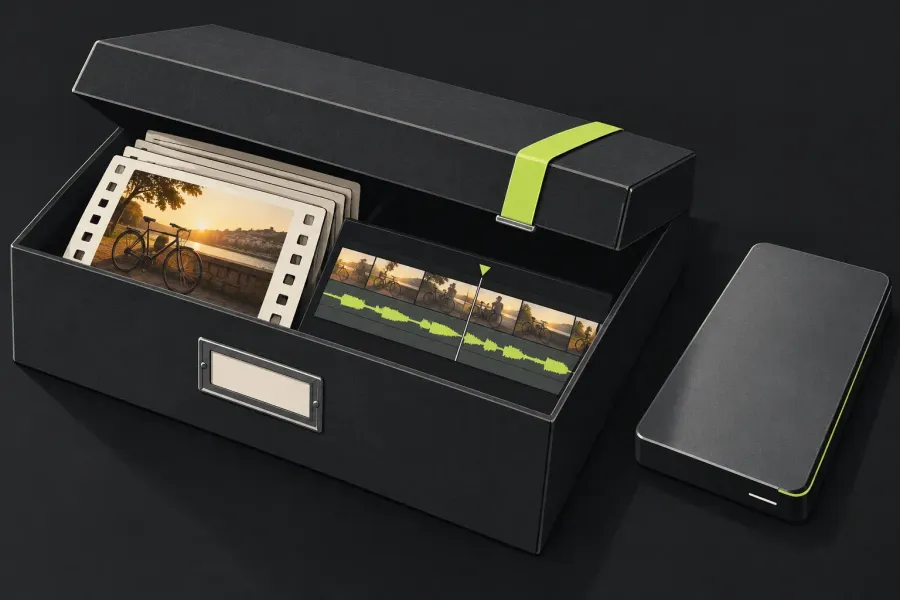
To back up a Lightworks project, create a Lightworks archive and store a copy away from the drive you edit on. Include both local and linked media if the backup must survive losing that drive or move to another computer. A logs-only archive preserves the edit, but it needs the source files separately.
Lightworks saves your work continuously. That protects the current project state; it does not create an independent copy of your footage. Keep camera originals backed up separately, and use an archive for the editable project.
Choose what you need to recover
The current archive documentation distinguishes two content choices:
- Logs only: project data such as bins, sequences, edit decisions and settings. Use it for a compact project-state backup when the media is already protected and will remain accessible.
- Logs and media: project data plus the media you choose to include. Use it for recovery after drive loss, a system rebuild or a handover to another editor.
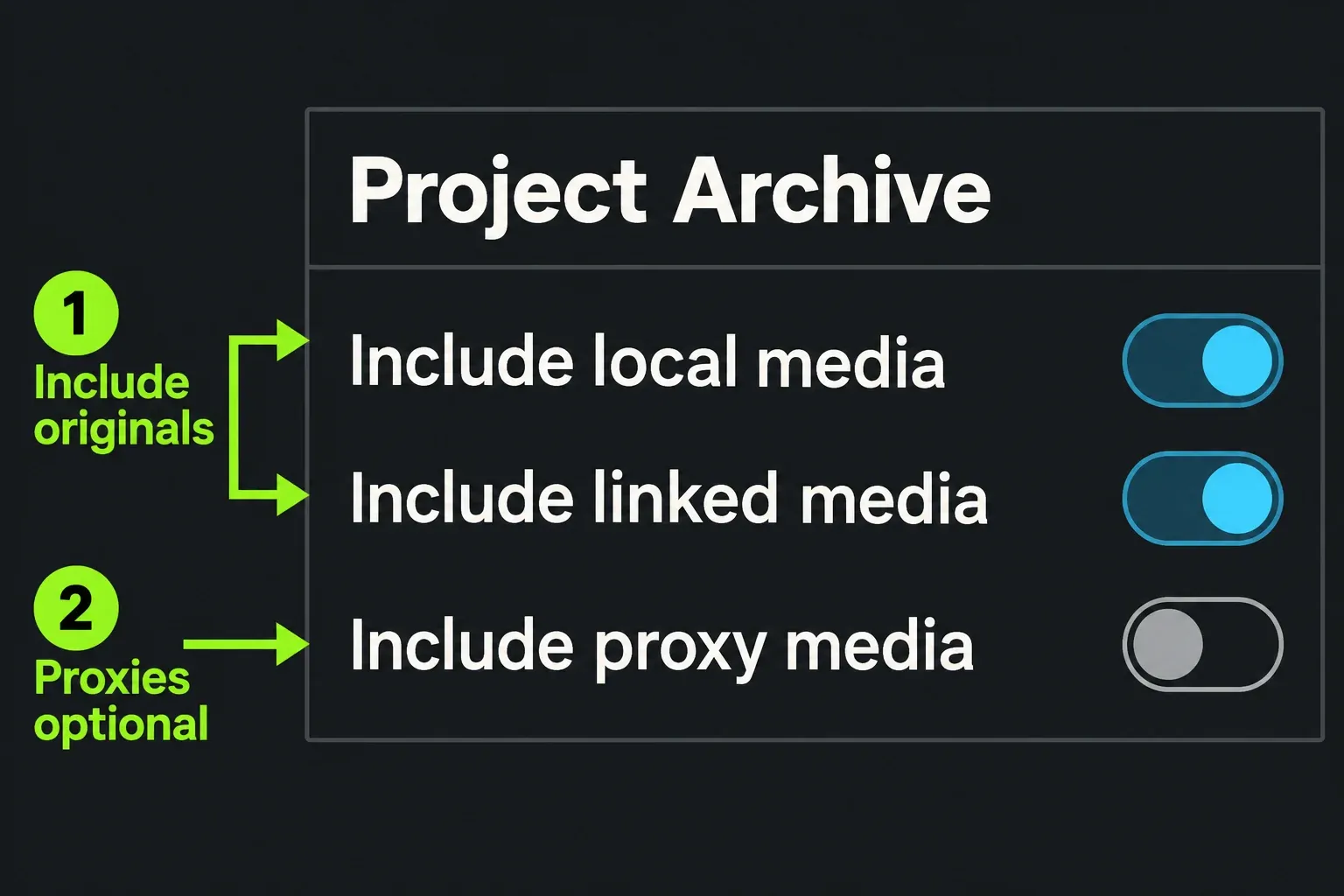
With media included, check the categories individually. Include local media covers files created, copied or stored by Lightworks. Include linked media covers originals referenced at their existing locations. Include proxy media adds generated proxies.
For a backup that can stand on its own, include local and linked originals. Proxies are optional: Lightworks can regenerate them after restoration. Excluding proxies saves archive space, but excluding the originals makes the recovered project depend on media elsewhere.
For example, suppose an interview project links to camera files on an external drive. A logs-only archive can preserve the edit, but it cannot recover those files if the drive is lost. A portable media archive needs the relevant local and linked originals included while they are online. Proxies alone are not a replacement for that original-media backup.
Protect the originals before archiving
Keep at least one separate copy of irreplaceable camera files before reorganizing, upgrading or clearing storage. LWKS explicitly recommends backing up camera originals separately; importing them into a project is not a backup strategy.
Bring missing media online before creating a complete archive, either by reconnecting its drive or by relinking it to the correct file location. An offline clip can retain its edit decisions while its picture or sound is unavailable. The media-offline guide helps identify the missing path without deleting the clip.
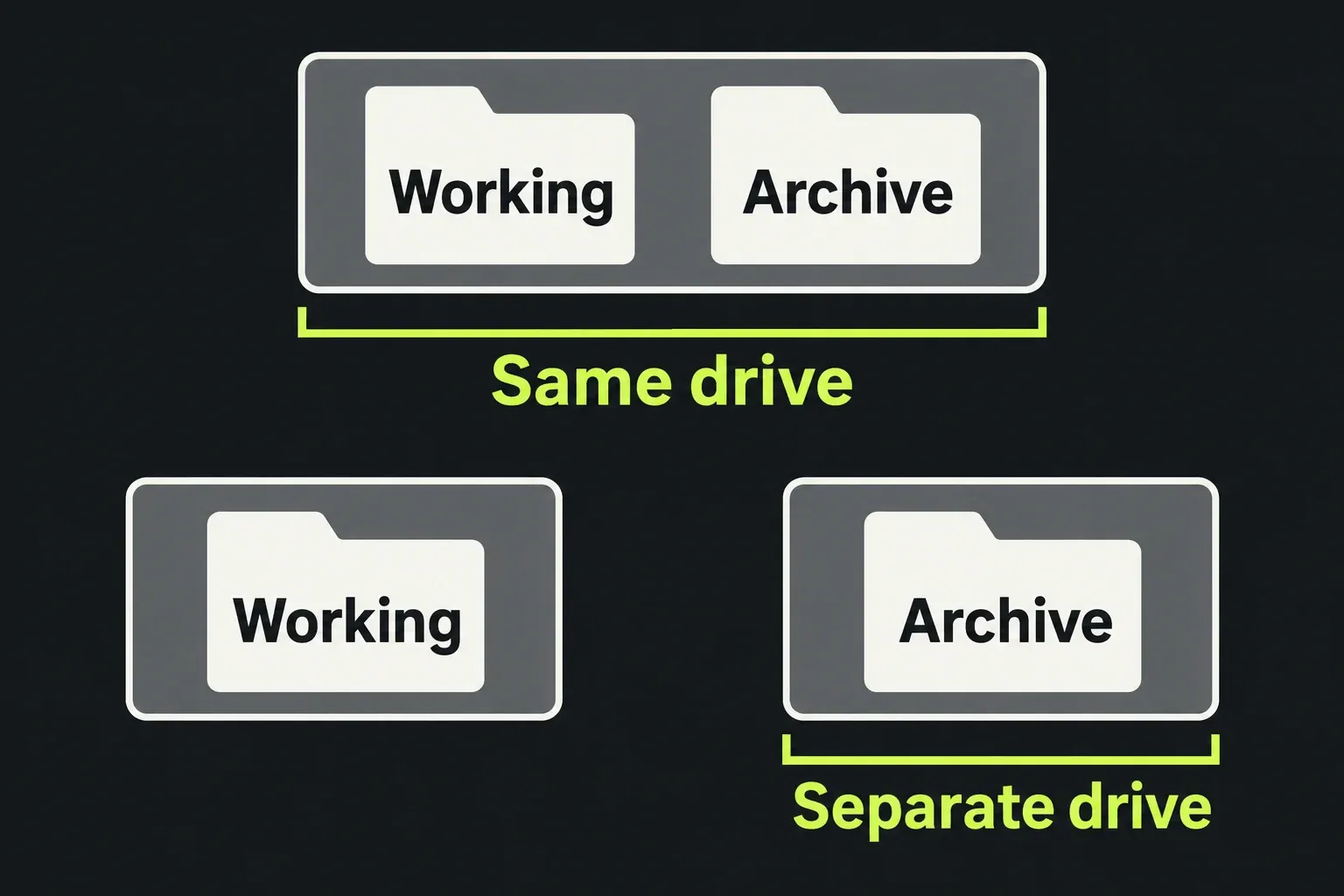
Choose backup storage that is independent of the active editing drive. A second folder on that same drive does not protect against the drive failing. Keep another archive copy off-site or in suitable cloud storage, and retain earlier backups you may need to return to.
Create the Lightworks archive
The steps below use the current Project Browser controls. Older tutorials call the action Make backup and show different buttons; the current project guide uses Archive and Start.
If a background job is running for the project, let it finish first. The project card shows a progress ring, and actions such as Archive can be unavailable until the task completes.
- Return to the Project Browser and identify the project you intend to protect.
- Right-click its project card and choose Archive.
- Choose the destination folder and give the archive a clear name. A name such as
Interview-picture-lock-2026-10-13tells you which edit state it represents. - Choose the media categories to include. For portable recovery, check local and linked media; decide whether you also want proxies.
- Check the overwrite behavior. Choose New to retain an existing archive and create another, or Update for a rolling backup. Use Overwrite only when you intend to replace the older archive.
- Review the calculated space requirement, then click Start.
- Follow the job in Tasks and wait for it to finish before copying the archive elsewhere or treating it as your recovery copy.
You can also create a Lightworks archive from the Export panel. For a complete project backup, the project card's Archive action is the clearer route, because you start from the card of the project you are protecting.
An offline-media warning means the archive is incomplete. LWKS says offline files are not included in the archive. Bring them online and update the archive, then inspect the completion result. Do not erase the source drive just because an archive was created.
Restore without replacing live work
- Keep the existing working project and the original archive intact.
- Open the Project Browser and select the Project Space tab across the top where you want the restored project.
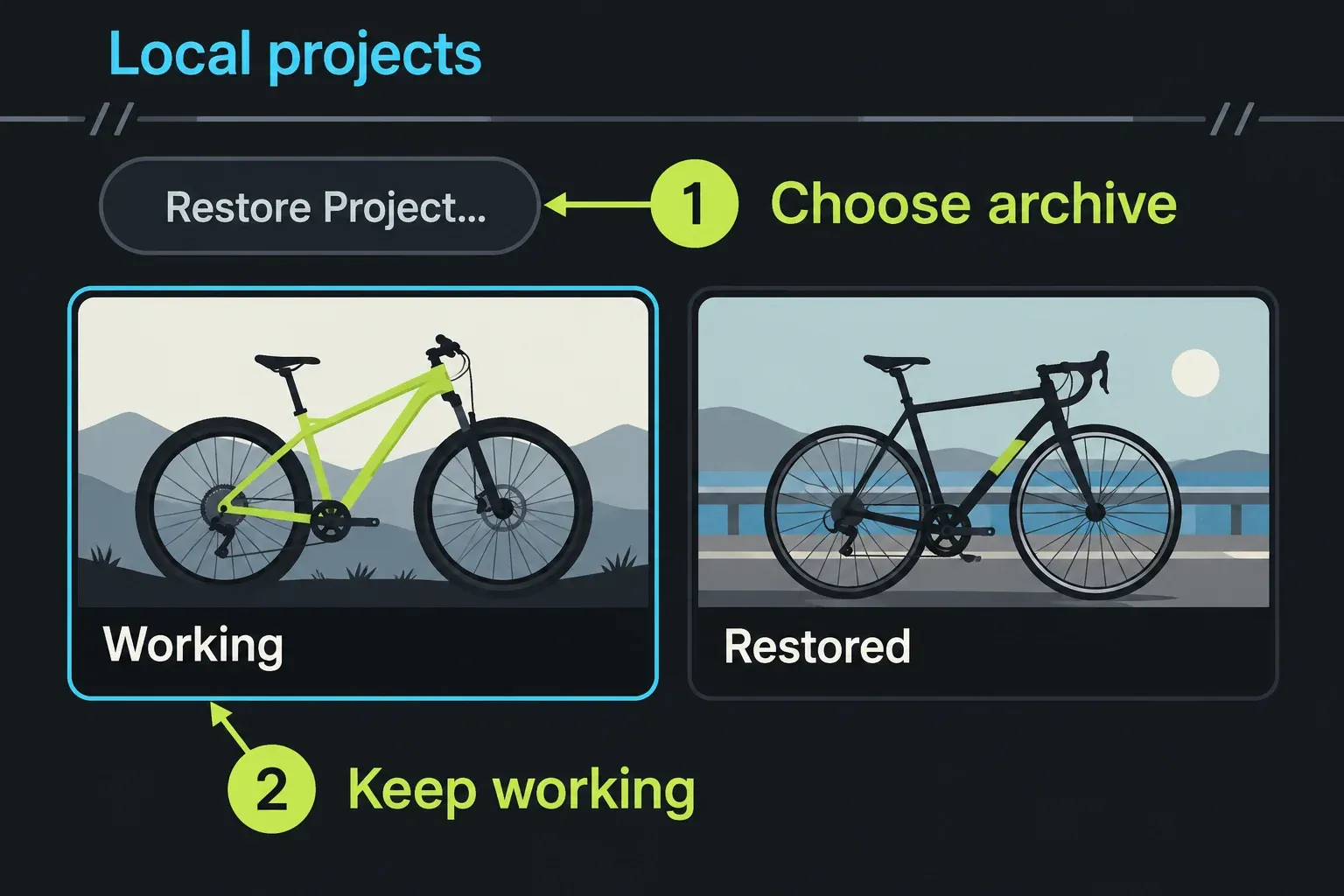
- Click Restore Project, select the Lightworks archive and confirm the restore.
- If the original project still exists, choose the offered restoration to a new project. This lets you inspect the recovered version alongside the working one.
- Open the restored project and its important sequences.
The restore process rebuilds bins, sequences and any archived media. The project appears in the selected Project Space. A logs-only archive needs access to the originals; missing media can be reconnected or relinked once you have located the correct files.
If Lightworks asks to upgrade an older project, preserve the backup first. The documented upgrade creates an independent copy, and edits made in the upgraded version do not appear in the older one. Record which Lightworks build created the archive and which build opens it.
Check the recovered edit before cleanup
Opening a timeline is only the first check. For a transfer or drive replacement, confirm that the restored project works without access to the original editing drive. Use the destination computer, or have the receiving editor check there, while keeping your source drives and backups safe.
- Edit state: confirm the intended sequences, durations and latest revisions are present.
- Media: inspect representative camera shots, graphics and audio, including material from each source drive. Check that the media intended for recovery is online.
- Finishing dependencies: check titles, font appearance, effects and any external tools the project uses. Include a handover note naming required fonts, plug-ins and relevant licence features; a media-inclusion checkbox does not mean the destination has them.
- Delivery: export a short section containing picture, titles, effects and sound, and inspect the file. The Lightworks export workflow covers choosing the intended sequence and output.
Keep the finished masters beside the archive so the recipient has a reference for the intended result. LWKS's archiving strategy recommends retaining deliverables with the project. Separately export application preferences if you need to transfer your setup: preferences can be exported and imported between machines.
Archive restore is not deleted-item recovery
If you accidentally removed a clip, bin or sequence from a project that still exists, the project card's Restore Items function is the relevant recovery route when the undelete feature is enabled. It restores project items, not deleted files on disk. The current project recovery controls keep this separate from Restore Project.
Milestones and old edit-state recovery are a different matter again. A LWKS forum discussion about a failed system move shows the confusion: project folders and milestones were present, but they were not a manually created archive. Do not treat a milestones folder as a portable media backup, or rename internal project files to make them look like one.
If you have only surviving project folders, make a safe copy of those folders and the media before changing anything. Ask LWKS support for a recovery route for your installed version and the files you actually have. Old forum instructions use paths and manual file replacement that should not be applied blindly to a current installation.
Archive at meaningful points: before risky reorganization, at picture lock and at delivery. Keep the previous usable archive until the new one has been restored and checked. This is especially important before deleting a project: project deletion can also remove its managed local media when it is not shared with another project.