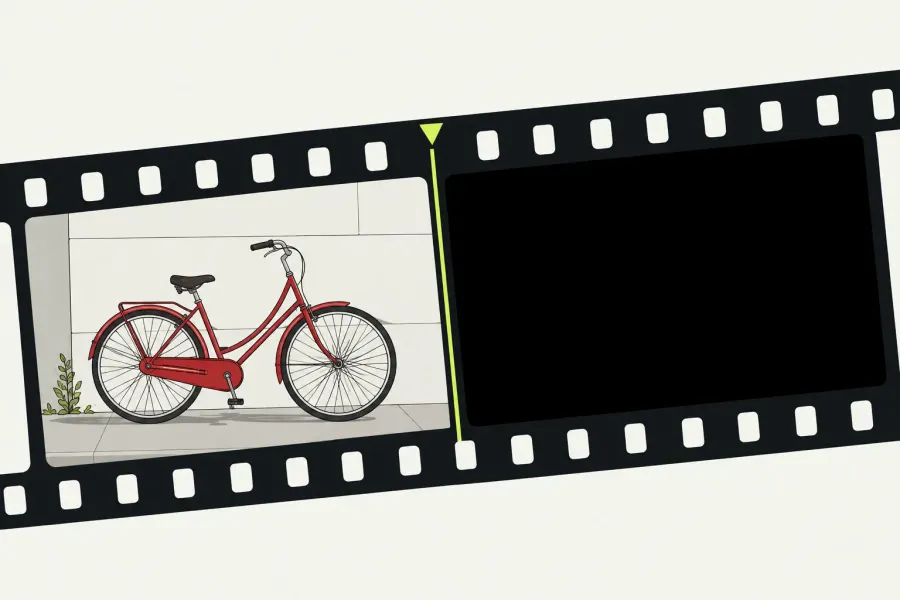
Find the first place the picture turns black: the original file, the imported source clip, the sequence, or the completed export. That tells you what to check next. If the source has picture but the sequence does not, start with video-track visibility and covering layers. If the sequence has picture but the exported file does not, confirm the exported item, range, original media, and playback result before changing codecs.
Keep the original media and project unchanged, and use the separate diagnostic project described in the Sequence section before altering tracks or effects. Compare the same pictured moment, record the state you change, and restore it after the comparison. A black frame with working audio does not identify a faulty video codec or GPU: picture and sound can take different paths.
Find the first black stage
Choose a moment that should contain visible picture. Note the original filename, the source position, and its position in the sequence; these timecodes need not be identical. Compare that content through the stages below. For a short exported section, allow for its different starting point when finding the same moment.
| What you see | Next check | What remains uncertain |
|---|---|---|
| The original is black in one external player. | Open the exact same file in another suitable player and inspect its streams. | One player's result does not establish missing picture, corruption, or Lightworks compatibility. |
| The original has picture; the imported Source clip is black. | Confirm media access, import status, video properties, and the installed build's format support. | Audio, a thumbnail, or a listed video stream does not prove that Lightworks decoded the picture. |
| The Source clip has picture; the Sequence is black at the matching moment. | Check the intended track's Monitor/visibility control, higher layers, and then the relevant effects. | Selecting V1 or V2 for editing does not switch its picture visibility. |
| The Sequence has picture; the completed local export is black. | Verify the actual export source and range, online originals, job outcome, and same-file playback in two players. | The symptom alone does not identify an encoder or render fault. |
Also note the extent: one clip, only a title or effect, every source, the entire export, or just a black tail after the edit. A fault confined to one treated clip needs a different investigation from every unrelated source appearing black.
Check the original and Source clip
First locate the physical file and check that its drive and folder are available. If the clip is offline, follow the media-offline recovery steps before treating black playback as a decoding problem. A remembered thumbnail or waveform does not mean the underlying video is readable now.
Open the original in an external player at the chosen moment. If it is black, try the exact same file in a second suitable player. If one shows picture and the other does not, keep the file and record the disagreement. If both are black, preserve the original and inspect its video stream; that is still more useful than replacing the whole project's media.
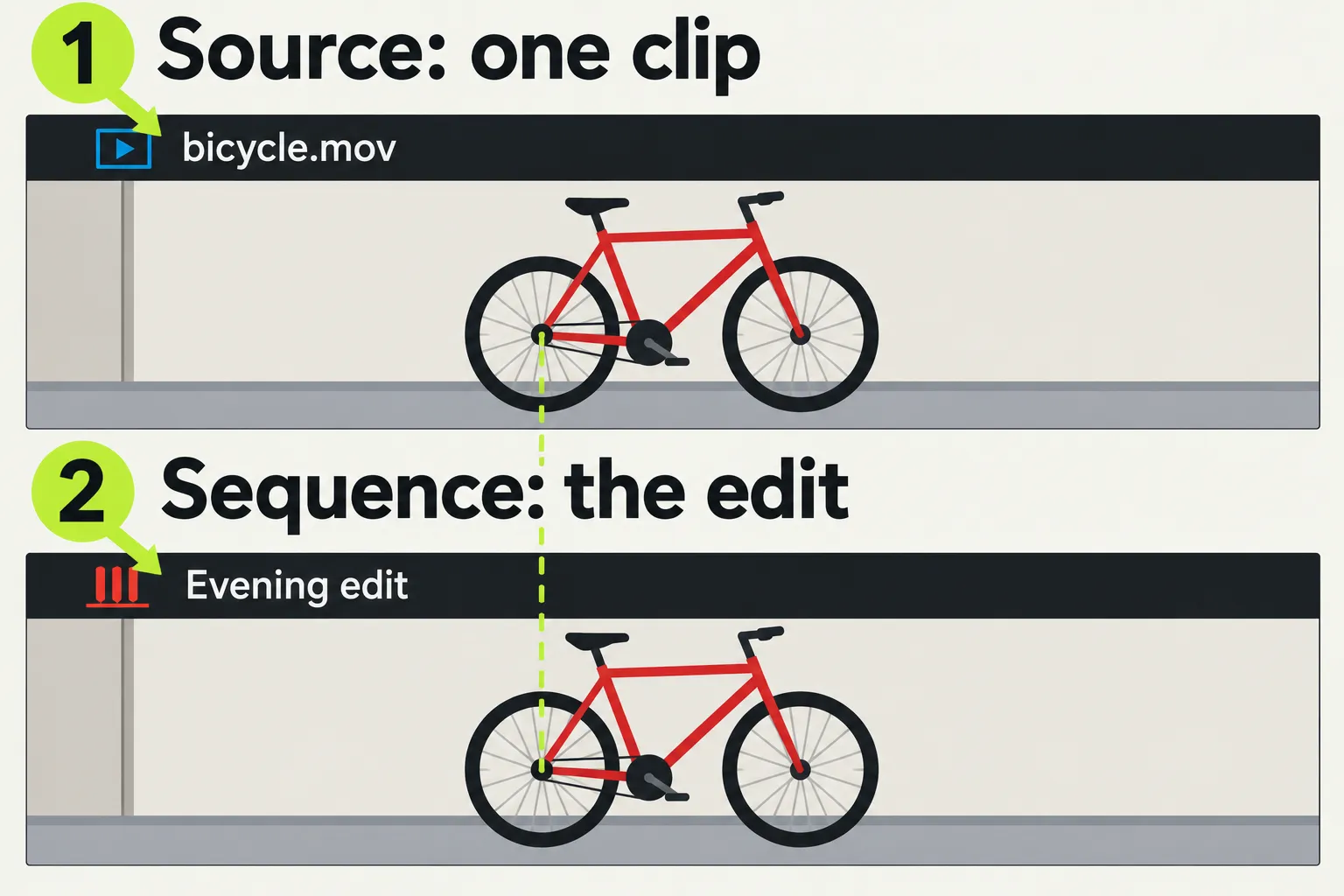
In Lightworks, confirm that you are viewing the intended imported clip in the Source viewer, which reviews a clip rather than the assembled Sequence. Check the item name, not just the panel's screen position: stacked or tabbed layouts can put different items in the same viewing area. The current guide uses a blue header icon for Source and red for Sequence; match the controls to your installed build.
For an imported clip, click the intended source item and check that the Source: name line in Info identifies it, then open Metadata. The current Info guide describes a panel that follows the active item, rather than requiring a Source mode selector. Record format/codec, dimensions, native frame rate, duration and audio-channel layout. These properties identify what was imported, but they cannot confirm successful decoding or current media access.
If you already have ffprobe available, its documented stream and container inspection options provide another way to examine the exact file:
ffprobe -show_streams -show_format -output_format json "input.mp4"Replace input.mp4 with the actual local file path, keeping it quoted. This is a metadata-inspection example, not a conversion command. Read the video and audio stream sections separately. A report that lists a video stream shows the stream is present, but not that its frames will display correctly. A complete report with no video stream means something different from a probe that fails to open or recognise the file; a failed inspection leaves the contents unresolved.
In the current documented Import panel, yellow means automatic conversion is required, while red means the file cannot be imported. A red file can involve an unsupported format, an unlicensed codec, or an incompatible frame rate. Read the Format column and the actual message instead of treating every red entry as a damaged file. Older layouts and installed builds may show these states differently.
LWKS also describes a possible failure in which the container imports but a contained stream uses an unsupported codec. That explains why audible sound can coexist with black video, but it does not diagnose your particular file. Compare its actual video properties with the supported-format conditions for platform and licence, and record your Lightworks build and operating system.
If you have another source that already displays correctly in this installation, inspect it as a separate diagnostic item without replacing the failing clip. If one file works while another fails, the question narrows toward those files or their handling. If every unrelated source is black, widen the investigation to the viewer, application, or system. Neither observation proves a specific driver fault.
Research a targeted conversion only when the failed stream or support condition has been identified. Keep the original, use a separately named copy, and check picture, sound, duration, and sync before considering wider changes. The MP4 and MOV import guide explains the storage-method and stream checks; changing an extension alone does not change the encoded media.
Check Sequence visibility and covering layers
Use this branch when the corresponding Source picture works. Open the intended sequence and park at the matching moment. Confirm there is a video segment there on the track you expect; a playhead over an empty interval can correctly show black.
Before changing tracks or effects, preserve this edit and create a separate diagnostic project. In the current project Archive workflow, right-click the original project's card in the Project Browser, choose Archive, set a distinct destination and archive name, select the local and linked media needed to retain its originals, choose New rather than replacing an earlier archive, and click Start. Wait for successful completion on Tasks. The archive guide warns that offline files are omitted; resolve those warnings before treating the archive as a media backup. A logs-only archive preserves project data but still needs the media separately.
In the Project Browser, select the destination Project Space tab, click Restore Project, select that completed archive, and confirm. With the original project still present, choose the offered restore to a new project. Give the restored card a distinct name such as Black-video diagnosis using its right-click Rename action, then double-click that named card to open it. Open the corresponding named Sequence there and confirm the chosen frame and track/effect states match the original before changing anything. Keep the original project and archive. If you cannot identify a separate restored project or its media is unavailable, stop before altering the edit.
The current track-header guide separates Track Targets from Monitor/visibility. With no targets lit, edits use the default track setup; clicking a V1/V2 target narrows where relevant edits land. A mouse cut or trim can identify its subject directly. None of those targeting choices switches picture visibility: the video Monitor control separately shows or hides the track in the output, including mixed exports.
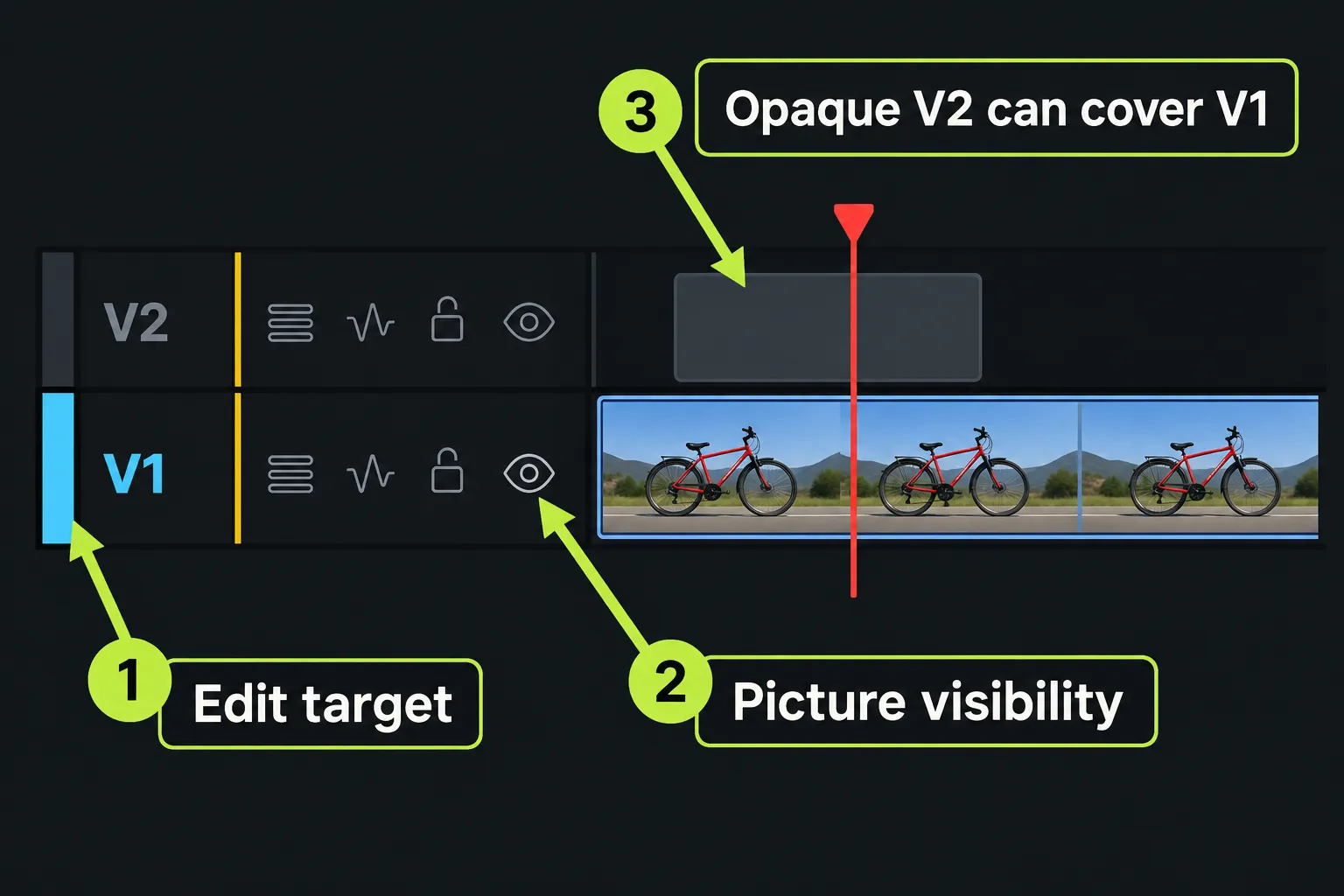
- Record the current track states. Note which video tracks are visible, any grouped tracks, and which clips overlap the chosen position. In the documented headers, hide/mute is red. Do not use that colour as a substitute for identifying the actual Monitor control in your build.
- Check a hidden intended track. If its picture is hidden, use that track's Monitor/visibility control to show it and compare the same frame. A normal click can also affect grouped tracks, so include their states in the record. Avoid master resets or modifier clicks while isolating one change.
- Check what sits above it. Higher-numbered video tracks sit above lower ones. A visible, opaque clip on V2 can cover V1 where the clips overlap; a transparent title or an empty V2 interval does not automatically cover the whole picture. Temporarily hide one suspected covering track, compare, and then restore its prior visibility.
If enabling the intended picture or hiding an upper layer reveals the expected frame, you have found an output-state or coverage issue to correct deliberately; the source file itself has not been repaired or replaced. Restore the diagnostic states, then apply only the intended correction to the working edit and review the affected section. If the frame stays black, restore the states before moving to effects.
Isolate a title, effect, or transform
If black appears only where a title or effect begins, keep the playhead at that boundary and identify the item receiving the treatment. LWKS distinguishes segment effects on one clip from effects processing a whole track. Inspecting another clip's stack can send you in the wrong direction.
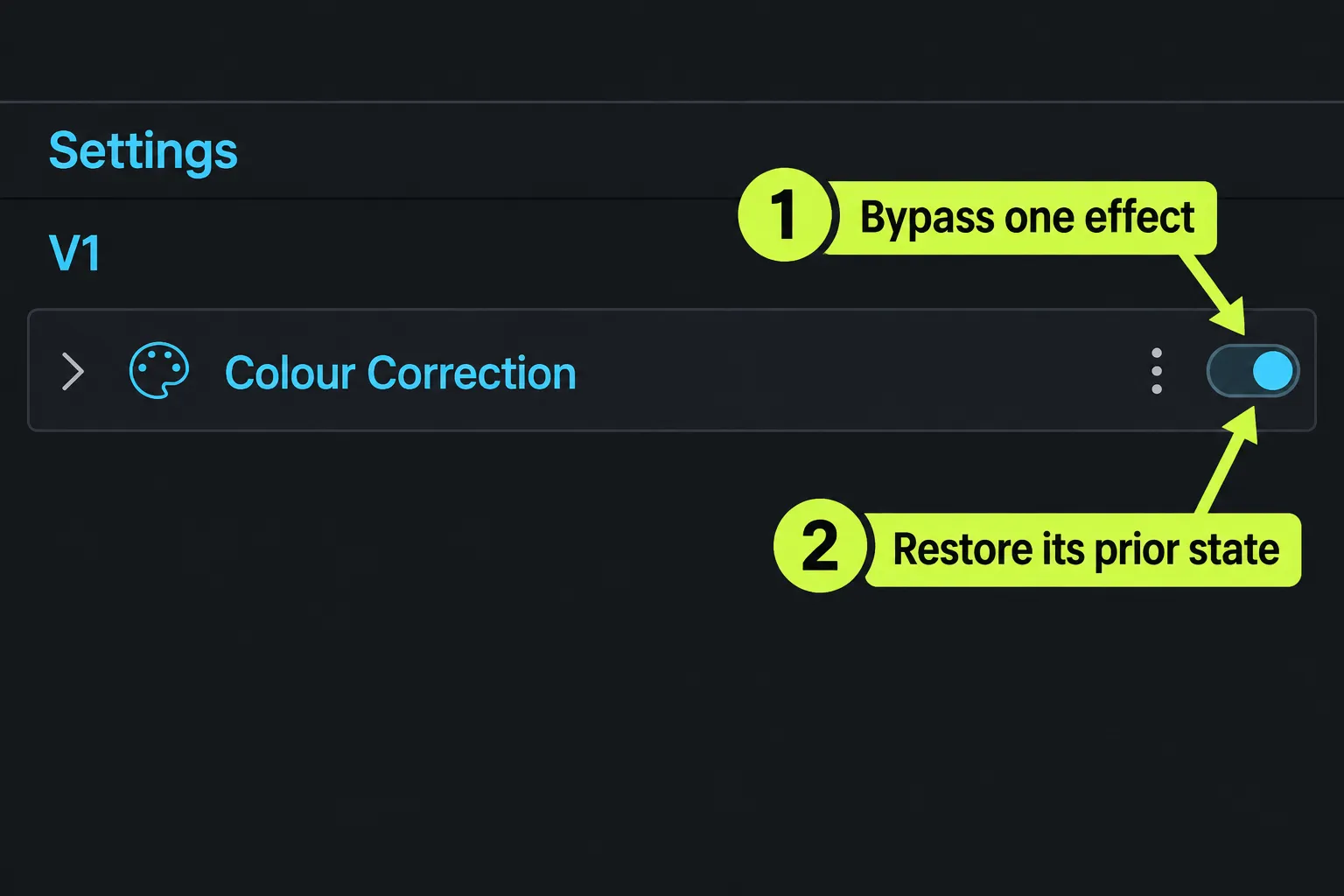
The Effects guide calls the adjustment area FX Settings or Effects Settings and describes disabling an effect while retaining its settings. In that diagnostic project's sequence, if you can identify the documented enable/disable control for your installed version, record the selected item, stack order, values, and prior enabled state. Disable one suspected effect, compare the same frame, and restore it. A changed picture identifies that effect's contribution to this combination; it does not mean the whole stack should be removed.
If you cannot identify the panel or toggle in your version, use the linked guide and seek help for that exact build and effect before changing the stack. Preserve settings and routing; complex Video Routing is a separate investigation.
For a known transform or crop, inspect the parameters already applied to the affected item. Position moves the picture, Scale resizes it, and crop hides its edges. Compare a suspected setting only when its control and restoration are clear. Include keyframed values at the failing time, not just the beginning of the clip. Viewer framing guides are display aids; an applied transform or Reframe changes the picture exported.
A 2024 forum discussion about text blacking out video concerns that user's title and routing setup. It is a reason to inspect the affected treatment, not an instruction to delete a video track. Keep useful picture, titles, and their timing while narrowing the cause.
Compare the correct completed export
Use this branch when the intended Sequence displays the chosen picture. Start with a short range containing that moment and retain the visibility, effects, and relevant export settings you are investigating. Choosing a different clean section or changing several settings would answer a different question.
- Confirm original media access. Check that all originals used by the sequence are available to Lightworks, including linked files and managed local media. The proxy guide warns that export can fall back to available media when originals are offline. A proxy preview alone does not show that the sequence is ready for a master export.
- Check the actual source and range. Use the full Export panel to inspect the intended sequence in its Source List, remove unintended queued items from this diagnostic export, and confirm the chosen start and end. The Export guide allows sequences, clips, subclips, whole items, or marked sections; the visible viewer alone is not a reliable record of what you queued. Avoid selecting an auto-start preset before reviewing this.
- Save a distinct local file. Record the destination and filename, plus the offered format, codec, resolution, and rate. Keep the previous output. Available export targets depend on the licence; check what your installed build offers and do not assume a preset leaves the relevant settings unchanged.
- Wait for the job outcome. Read progress and the Tasks Log in the project's settings. Resolve a failed, aborted, or unfinished job before treating a leftover file as the completed result. Open the exact file from this job, not an earlier render with a similar name.
- Compare the same file in two players. Find the same pictured moment, accounting for the exported range's start. Record picture, sound, duration, and where black begins. If needed, use the earlier stream-inspection route to identify the output's video stream and dimensions; metadata still does not prove usable decoded frames.
If one player shows picture and another shows black, retain that file and investigate playback compatibility. If both show black despite the corresponding Sequence having picture, keep the exact source-list, range, media-access, settings, and task details for the output investigation. That evidence supports the next comparison without assuming the encoder is at fault.
After correcting the identified problem, review the affected sequence and produce the intended full deliverable. Inspect the completed full file, including its beginning, changed sections, end, and audio; a successful short range does not prove the rest is correct. If the local file works but an uploaded version does not, investigate the platform's processing separately.
Black tail and persistent problems
If picture ends correctly and black appears only afterwards, compare the sequence's end and export range with the intended ending. Look for video gaps, an out point beyond the last picture, or audio and titles that deliberately continue. Decide whether the deliverable needs that interval before adjusting its range. Do not close gaps across all tracks or delete trailing material merely to remove black: that can alter wanted timing.
A 2016 thread about black after the footage illustrates this different symptom. Its old shortcuts and duration advice are not a guide to current controls. Likewise, the reported restart outcome in a 2021 Lubuntu black-video discussion is one user's result, not a universal repair or proof of a GPU cause.
For a persistent fault, report the first failing stage, whether it affects one or all sources, the exact file and pictured moment, source properties, track/effect state, completed export settings and job result, and player names and outcomes. LWKS asks for the version number and system information from Settings when seeking support. Include GPU/driver details when relevant to that investigation instead of changing drivers on the strength of a black frame.
This route addresses unintended black picture content. A black application window at startup, deliberate black video, or a monochrome effect needs its own instructions. If picture is restored but sound is missing, continue with the audio diagnosis at the silent stage.