Learn these Lightworks shortcuts first: Space for play/stop, J/K/L for reviewing footage, I/O for marking a range and Ctrl/Cmd+Z for undo. I'd hold back the trim and clipboard commands until the operations behind them make sense. A long key list doesn't help much if you can't tell whether a key will move the playhead or alter the edit.
The tables below follow the documented standard layout for Lightworks 2026.1. Your installed build, chosen keyboard layout and custom assignments can differ. Ctrl/Cmd means Ctrl on Windows/Linux and Cmd on macOS only where that notation appears; Redo has a separate Mac combination.
Check your mapping before borrowing a shortcut
In the Project Browser, open the Settings cogs menu and choose Keyboard Shortcuts. Search for the action you want, then read its description and the Command, Category and Key columns. I'd run this search before borrowing any shortcut. It shows the assignment in the installed build rather than a guess from another editor's keyboard.
This matters even with official references. The older Lightworks keyboard PDF assigns Alt+C to Add Audio Crossfade, Alt+M to Move Track and Alt+V to Fit to Fill. The current standard-layout table assigns those combinations to the Cut tool, Selection tool and Voiceover panel. If your command search agrees with the older list, follow your installed mapping; do not combine the two lists into one cheat sheet.
The current shortcut guide lets you choose a keyboard layout at installation or later in Settings. Whichever layout you picked, confirm its bindings in the panel before following any shortcut table, the standard defaults below included.
Playback, frame steps and jumping between cuts
Start with the playback and navigation assignments with no trim open. If a trim is active, join it with Tab before using this navigation table. During an open trim, the arrows move the trim one frame, or ten with Shift; playback can also change it when Trim when playing is on.
| Task | Standard key | Result to look for |
|---|---|---|
| Play or stop | Space | Toggle playback. |
| Review backwards / forwards | J / L | Play in that direction; press again for faster speeds. |
| Stop playback | K | Stop without choosing another playback direction. |
| Inspect the previous / next frame | Left / Right Arrow | With no trim open, move the playhead one frame. |
| Move ten frames | Shift+Left / Shift+Right | With no trim open, move the playhead ten frames backwards / forwards. |
| Step while using the J/K/L keys | K+J / K+L | Step backwards / forwards one frame. |
| Jump to a cut | A / S | Go to the previous / next cut. |
| Go to the ends | H / ; | Go to the start / end. |
Check which material you are reviewing: the source viewer shows a source clip, while the sequence viewer shows the edit. A frame in the source is not necessarily the frame at the sequence playhead.
For a larger preview, the standard table assigns F11 to fullscreen on the current monitor, F12 to the secondary monitor and Shift+Return to exit fullscreen.
Arrow keys move the playhead; comma and period can move a clip
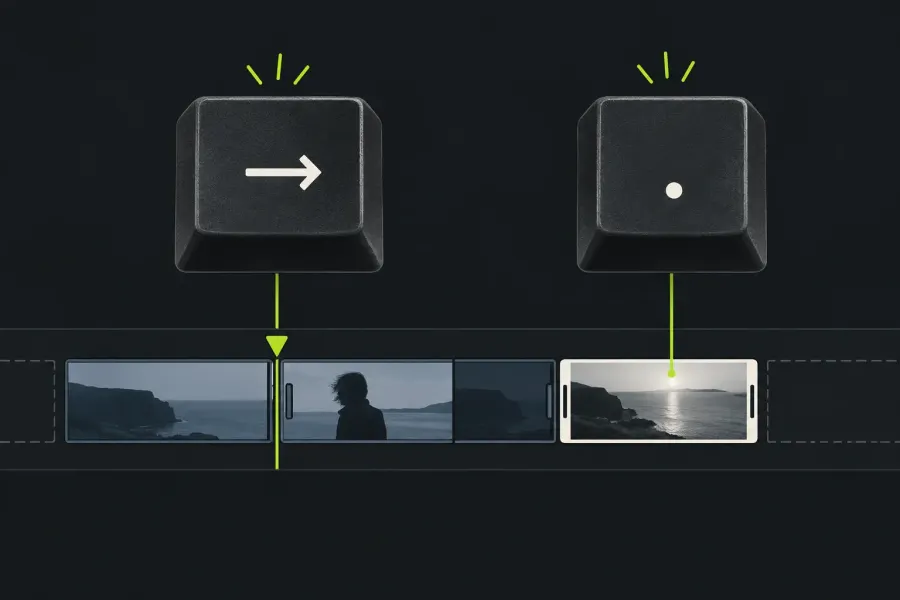
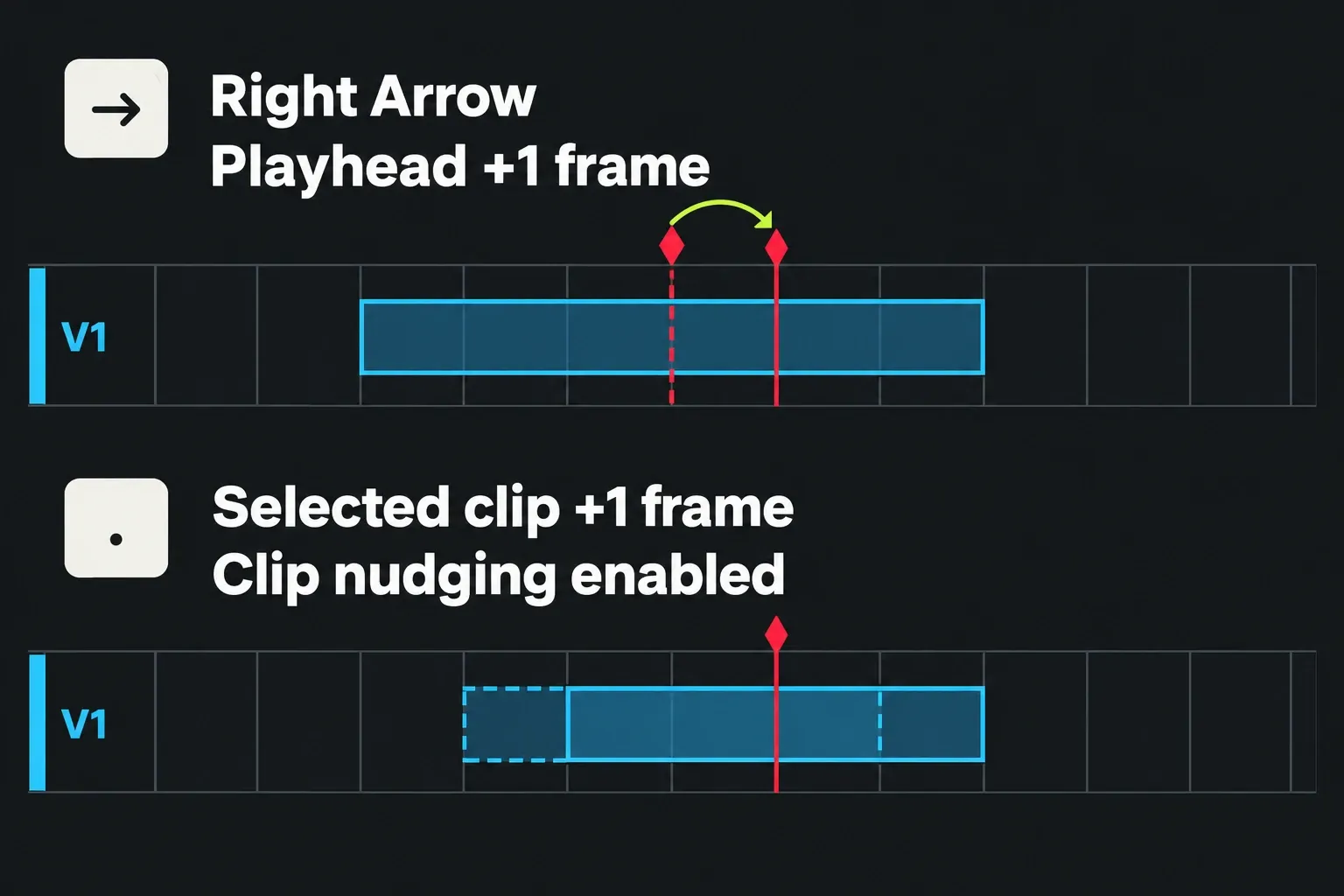
Imagine an isolated clip with space on both sides and no trim open. To inspect its next frame, press Right Arrow: the playhead advances and the clip stays where it is. To move the clip one frame later, deliberately select its segment and press period (.), with clip nudging enabled. That movement belongs to the selected segment, not the playhead.
The input guide distinguishes these two operations. Comma nudges selected segments backwards; period nudges them forwards. With nothing selected, the current shortcut table says these keys affect the playhead or trim point instead. Timeline settings can also disable comma/period clip nudging. When a nudge does something unexpected, I'd look at the selection and that setting before anything else, because both change what these keys move.
For larger nudges, the standard table lists < / > for ten frames and Alt+, / Alt+. for an amount you type. Check the assigned key in your panel if punctuation differs on your keyboard. If you only wanted to inspect footage and accidentally shifted material, stop and use Undo before continuing the edit.
Marks, cues and clipboard edits
A marked range, a cue and a selected segment serve different purposes. I marks in, O marks out and P clears the range. M adds a cue at the playhead; it does not mark an in/out range. In the standard layout, ] marks the current segment, and [ swaps the playhead and mark.
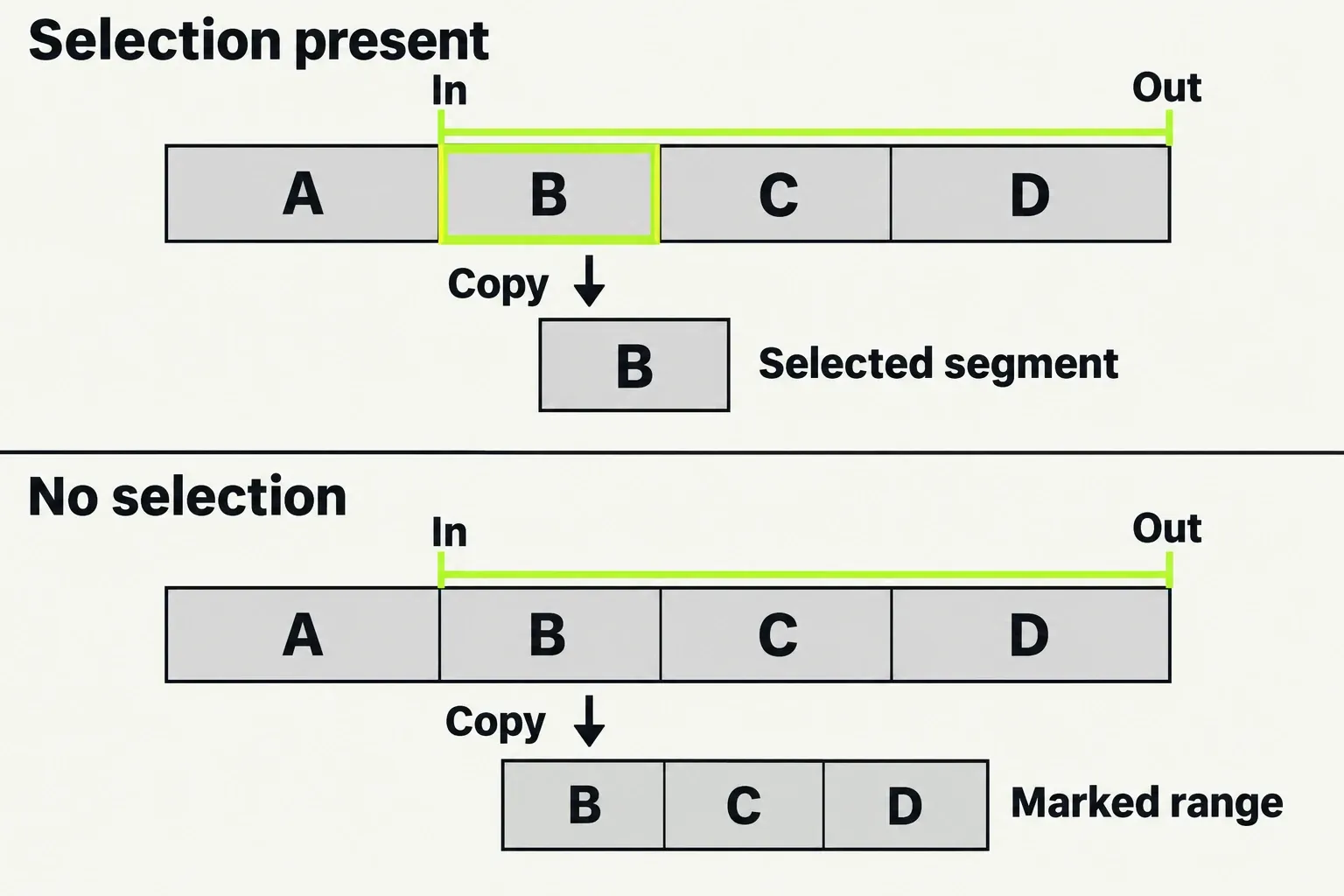
Before copying, check selection. Lightworks documents that Copy uses selected segments when a selection exists, and the marked region when it does not. For example, if you mark a long passage but leave one segment selected, copying can take that selected material rather than the span you intended. Clear the unwanted selection before copying the marked passage.
| Operation | Standard key | What changes |
|---|---|---|
| Copy | Ctrl/Cmd+C | Copy the selected segments, or the marked region without a selection; leave the edit in place. |
| Cut to clipboard | Ctrl/Cmd+X | Take the marked section onto the clipboard and apply the close-gap edit. |
| Remove to clipboard | Alt+Ctrl/Cmd+X | Take the marked section onto the clipboard and leave a gap. |
| Paste as insert & next | Ctrl/Cmd+V or F | Insert clipboard material at the playhead, make room for it, then move the playhead to the end of the paste. |
| Paste as replace & next | Alt+Ctrl/Cmd+V or G | Overwrite at the playhead without lengthening the sequence, then move the playhead to the end of the paste. |
| Undo | Ctrl/Cmd+Z | Step back through an edit. |
| Redo | Ctrl+Y on Windows/Linux; Cmd+Shift+Z on macOS | Step forward after Undo. |
These clipboard and recovery bindings only make sense with their operation names. Here “cut” means cut to the clipboard; it does not mean “split a clip in two.” The close-gap cut follows Delete behavior: other tracks containing material can prevent the sequence from shortening. A leave-gap removal deliberately preserves empty space.
Paste has another easily missed condition. The clipboard returns material to the tracks it came from; changing target buttons before pasting does not redirect it. Locked tracks stay out. Since an insert also follows Track Sync, I'd check the destination tracks and downstream timing before choosing it, and keep replace for places where overwriting existing material is intended.
Trim commands and the tracks they affect
Choose the edit operation before memorizing its key. The trimming guide distinguishes changing an edge, moving a cut, slipping source content and sliding a clip. These are different changes to the sequence.
| Action | Standard key | Purpose |
|---|---|---|
| Trim In / Trim Out | W / E | Open a trim on the incoming / outgoing side. |
| Trim Previous Out / Trim Next In | Q / R | Open the outgoing side of the previous cut / incoming side of the next cut. |
| Move cut | U | Open both sides together to move the boundary between shots. |
| Slip | Y | Change the source portion used inside a clip while keeping its timeline position and length. |
| Slide | T | Move a clip along the timeline while adjusting its neighbours. |
| Toggle the Cut tool | Alt+C | Switch the tool used to split material. |
| Toggle the Selection tool | Alt+M | Switch the selection tool. |
Before opening a keyboard trim, the Track Target setup chooses the affected media, with locked tracks excluded. With no targets lit, the default chooses the top clip under the playhead plus its audio. Lit targets choose the tracks whose media is trimmed. While the trim is open, turning a target off makes that track trim black instead, and joining restores the targets held before opening. A plain mouse click opens the clicked edge and its linked partners when Clip Link is on. Inspect the opened ends and locks before moving the trim. The cut-and-trim guide covers the longer workflow.
The current track defaults use 1 / 2 to toggle targeting for V1/V2, and 3–9, 0 for A1–A8. Adding Alt toggles video visibility or audio mute. These are not track-lock keys. Track shortcuts follow the track number rather than its vertical position, so moving V1 lower on screen does not turn it into V2.
The master buttons swap the default track setup and your saved setup: Ctrl/Cmd+1 for targets, +2 for keyframes, +3 for locks and +4 for monitors. Shift-click clears a master button's saved setup; inspect the result instead of assuming every track has the same state. Ctrl/Cmd+M toggles Clip Link, and Ctrl/Cmd+L links or unlinks selected clips. The current Toggle Sync factory assignment is the key above Tab. Check your installed mapping, particularly if the physical punctuation key differs.
Change a binding and print your own reference
Remap a few commands you use repeatedly before changing the entire keyboard layout. Preserve your current setup first: Lightworks supports saving assignments to a file and loading them on another machine. For that backup I prefer the save/load facility: an HTML or CSV report serves a different purpose and isn't an importable keymap.
- Open Settings → Keyboard Shortcuts and search for the command. Read its description and existing key.
- Select the command, choose Add shortcut, then press the desired key with its modifiers.
- If Lightworks warns that the key is already in use, inspect the existing command. Choose another combination unless you deliberately mean to replace that binding. A command can have more than one key, so adding an alternative need not mean abandoning the familiar one.
- To clear a binding, select the assignment and choose Remove shortcut. Save the revised assignments when you want to keep or transfer that setup.
Those are the current assignment controls. An older interface may use System Settings → Key Assignments and Add Key, as shown in the earlier customization tutorial. Follow the labels that match your installation.
For a printable cheat sheet, clear the search and category filters if you want the complete list, then choose Create HTML report. For a spreadsheet inventory, choose Download CSV report; its columns contain command, key, category and description. Both reports export the currently filtered view, so a report made while searching “trim” is not your whole keyboard. Label the file with your build, OS and chosen layout, and replace it after changing assignments.
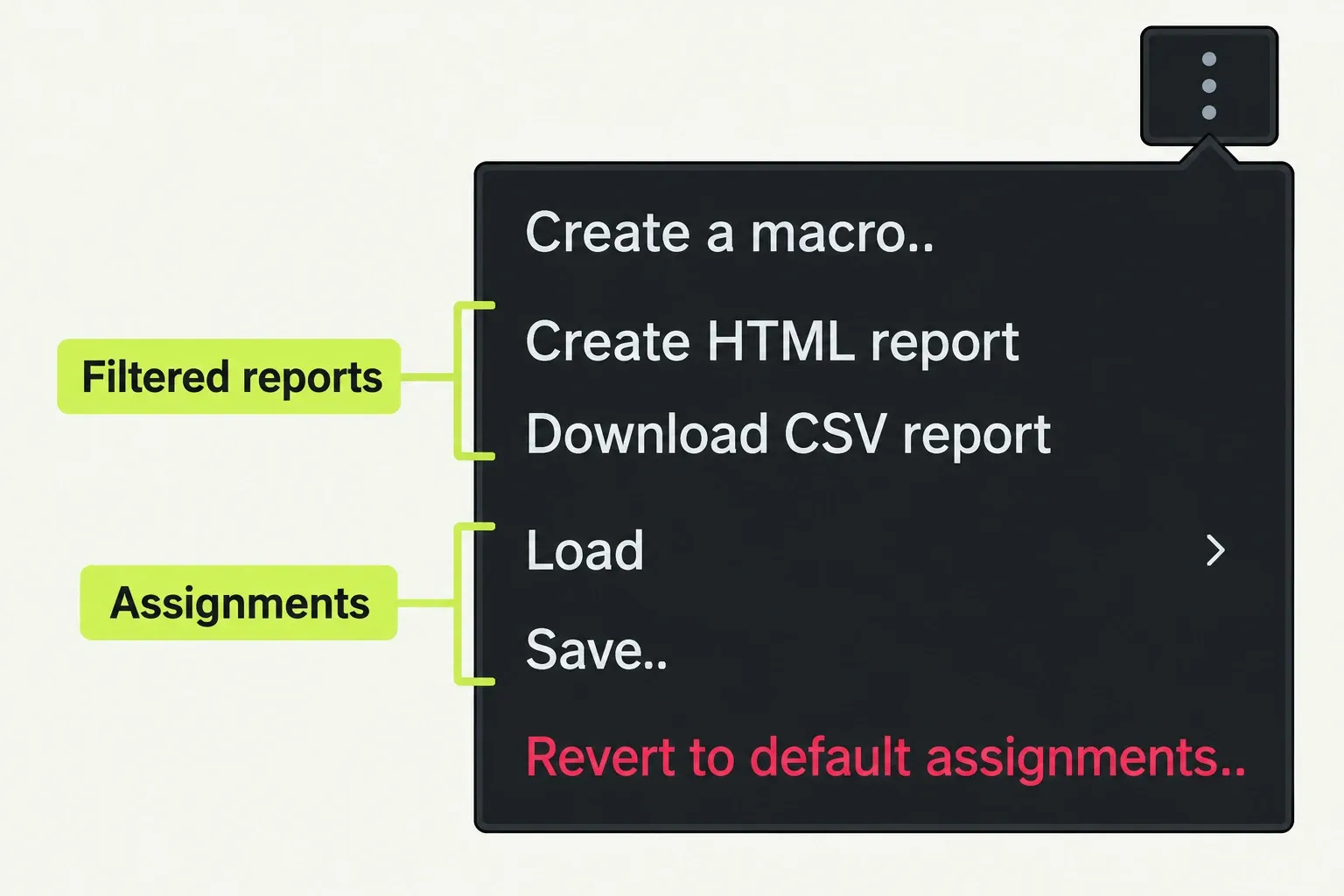
Revert to default assignments resets the keyboard to factory settings. I'd reserve it for a deliberate reset after preserving custom bindings; it's too broad a first response to one missing shortcut.
If a shortcut does nothing or runs the wrong action
Use the symptom to narrow the check:
- A different command runs: search for the expected command in your shortcut panel and read its assigned key. Resolve the mapping mismatch before trying again; the Alt+C/M/V conflicts above show why a tutorial can be misleading.
- Comma or period moves the wrong thing: inspect selected segments, any open trim and the Timeline setting for clip nudging. Join an active trim with Tab before using arrows just to inspect a frame.
- A keyboard trim opens on the wrong tracks: inspect targeting and track locks. A global toggle changes every track, so set the intended states deliberately.
- Copy takes an unexpected passage: check whether a segment selection is taking priority over the marked range.
- Playback shows unexpected material: check whether you are reviewing the source clip or the sequence.
After an unwanted edit, press Undo first and inspect what changed before continuing. A keyboard reference only helps once you know the change each key should make, so if the edit operations are still new, work through a first sequence from import to export before adding more shortcuts.