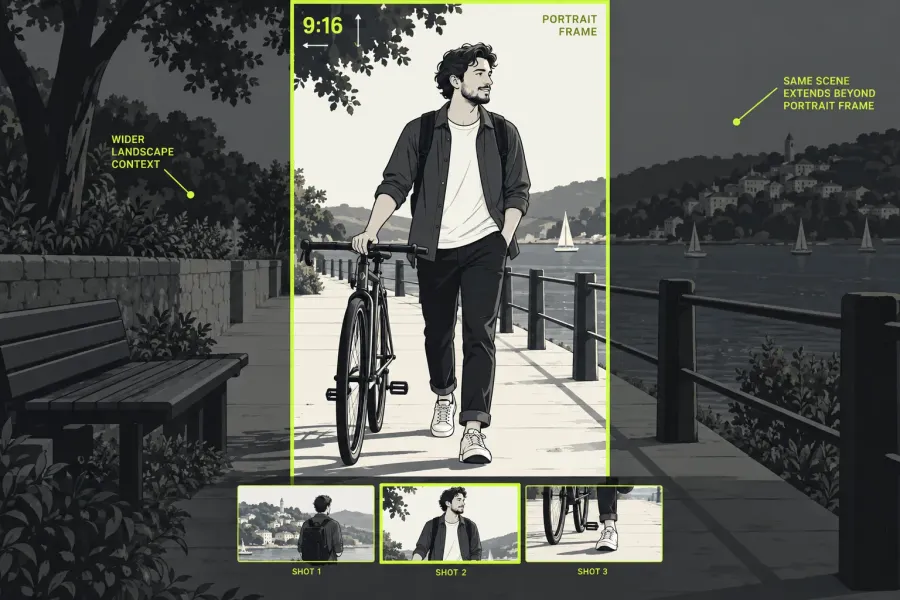
To make a vertical Lightworks video, work on a copy of the landscape edit, reframe each shot for the portrait composition, and choose a permitted portrait export target. Check the saved file’s shape separately: a tall viewer or crop inside a landscape raster does not make the file 9:16.
A vertical cut is a composition job and a file-delivery job. The sequence you edit, the visible picture inside each shot, and the dimensions encoded in the exported file can disagree. Write down the destination, orientation, intended frame rate, and required resolution first. A 9:16 brief means a frame that is nine units wide by sixteen high; the ratio alone says nothing about which platform preset or Lightworks licence option is available.
Keep the landscape edit as your master and work from a clearly named copy. That gives you a safe comparison when a portrait shot needs more crop, more space, or a different treatment. The current Lightworks aspect-ratio guide distinguishes the project (sequence) shape from the export shape, so do not treat a tall viewer or an aspect overlay as proof that the saved file will be portrait.
Before you edit every shot, check that the intended portrait target and resolution are offered by the active build and licence. The Export guide ties formats and codecs to the licence. As checked on 19 October 2026, the pricing table advertises Free export up to 1080p, and the web and social guide describes portrait export and 1080p delivery on Free. The older FAQ still states a 720p limit. If the target in your brief is missing, preserve the landscape edit and confirm the applicable build, licence and delivery options with LWKS before committing to the portrait version.
Choose fit, fill, or reframe for each shot
Mixed source shapes are normal. Decide shot by shot whether the whole picture matters more than filling the phone-shaped frame:
- Fit: keep the entire source visible and accept bars or blanking where the shapes differ. This is useful for a wide group, a product demonstration, or a shot where losing the edges would remove necessary context.
- Fill: enlarge the picture until the portrait frame is filled, accepting that the sides or top and bottom will be cropped. Use it only when the important subject remains inside the retained area.
- Reframe: compose a new view of the shot when the subject, product, or text needs a deliberate position in the narrow frame. This is usually the right choice for a presenter who moves through a wide shot.
Do not stretch a 16:9 source to make it fill 9:16. Stretching changes people and objects rather than solving the composition problem. A crop also discards part of the source, so a larger output number cannot restore detail that was outside the retained area.
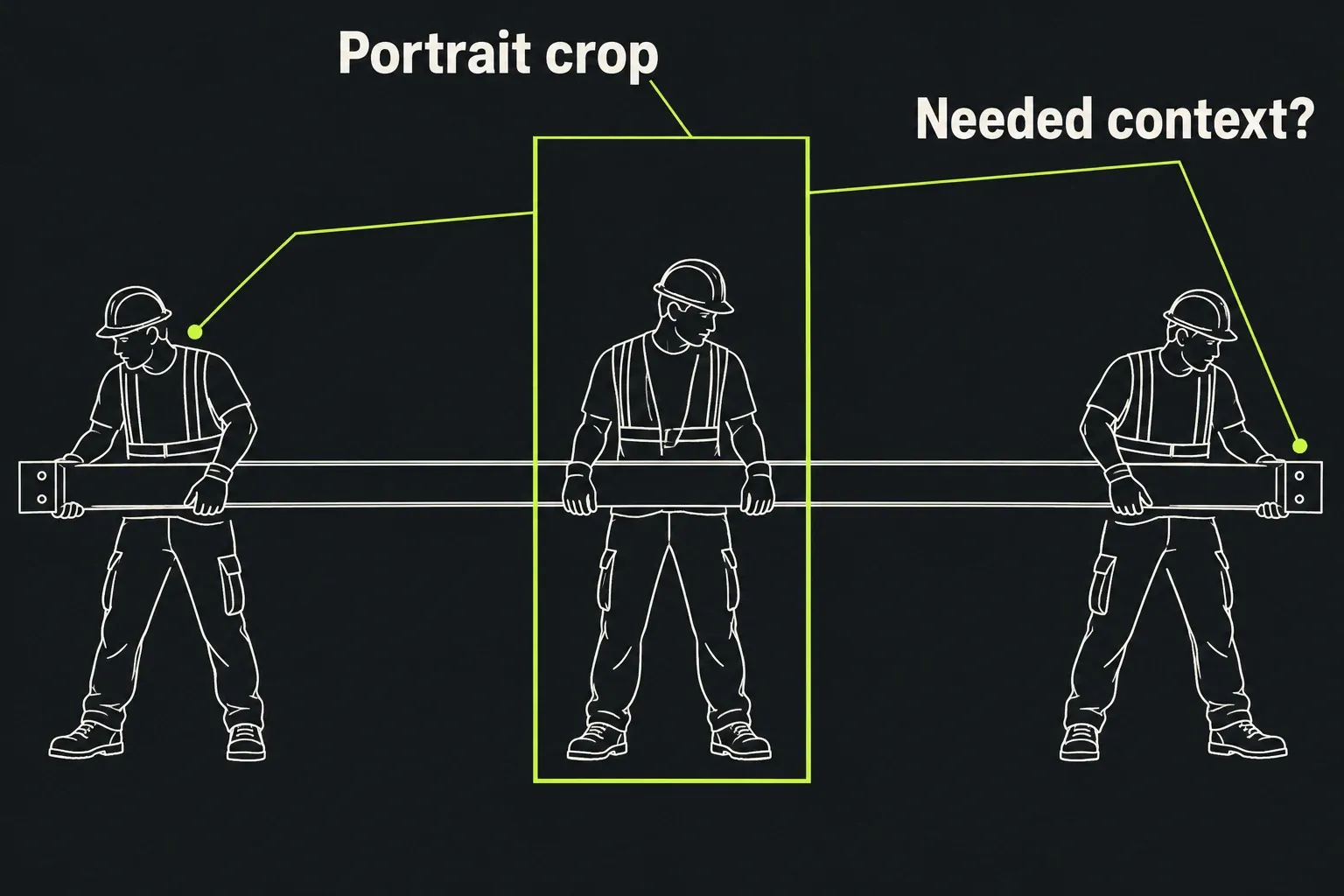
Apply Reframe to one portrait shot
- Open the portrait sequence copy. Start with one representative shot, preferably one that contains the movement or text that makes the delivery difficult. Leave the landscape master untouched.
- Set the sequence’s working shape. In LWKS’s 2023 portrait workflow, right-click the sequence and choose Playback format, then a portrait Social Media format. Use that route when those labels match your build, and confirm that the sequence viewer changes to the intended 9:16 shape. The current interface guide places Format controls on the timeline header, so a newer layout may expose the choice there instead of in the old menu. This sets the working view; the saved export still needs its own shape check.
- Select the clip rather than the whole track. In the Effects panel, add Reframe to the selected clip and open its FX Settings. Lightworks documents clip effects as effects added to the selected item; a track effect processes everything on that track, which is rarely the right starting point for shots with different compositions.
- Choose the portrait frame. In Reframe, choose the required portrait Frame Preset, then use Position and Scale to place the subject inside it while preserving proportions. The current Reframe guide describes Frame Preset and the transform controls, including the difference between changing the picture and merely displaying a guide.
- Set a static starting composition. At the beginning of the shot, check the face, hands, product, and any essential text. If the important content cannot fit without an awkward crop, switch from fill to fit or choose a different composition before animating it.
Repeat this decision for every shot that changes subject, camera distance, or layout. Copying one crop position across a whole edit often leaves the next shot looking empty or cuts off the action. The effect remains non-destructive, so removing it returns the clip to its unadjusted state according to the Effects overview.
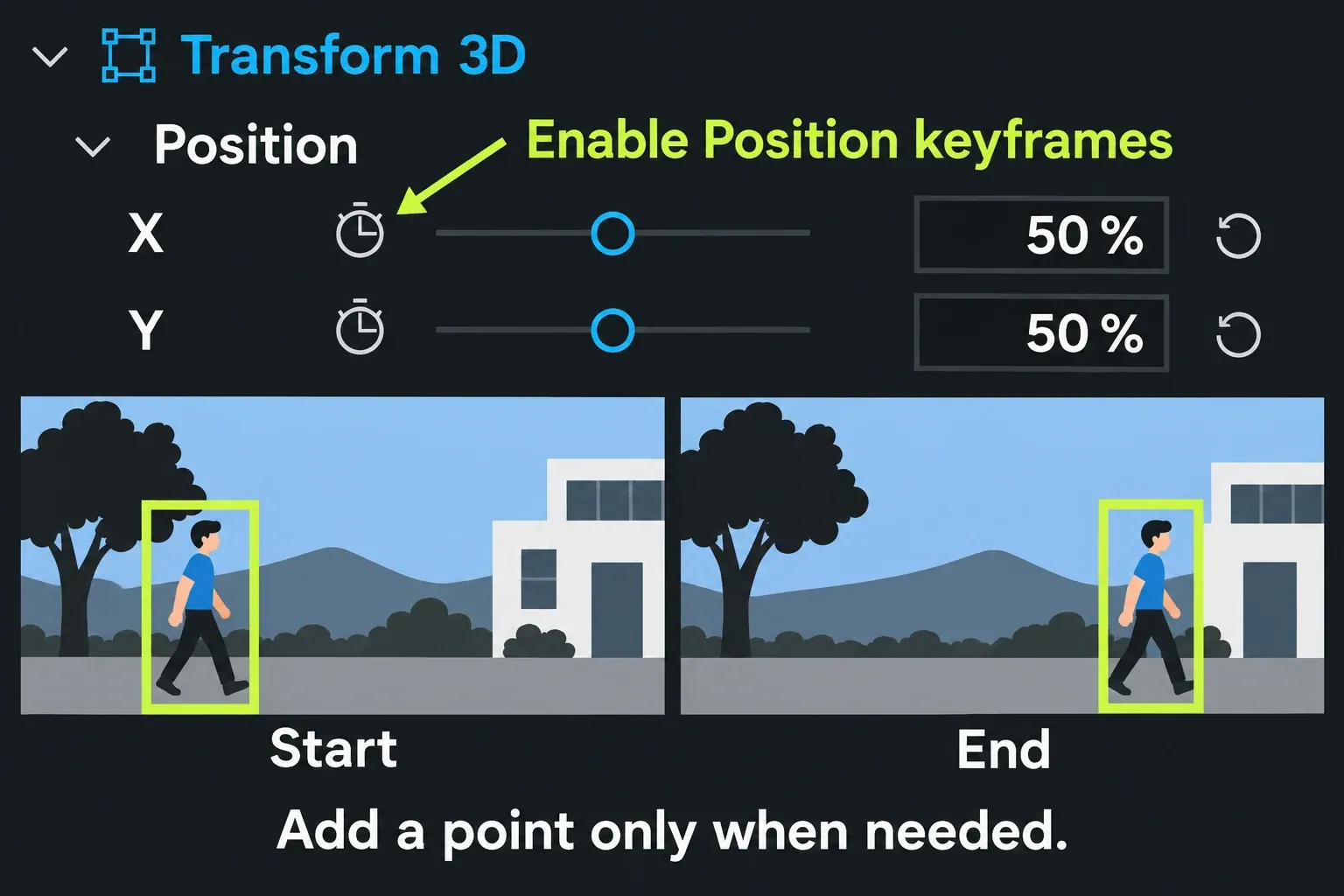
Follow a moving subject with Position keyframes
A single centred crop is enough only when the important content stays in the same place. Imagine a presenter walking from the left side of a wide shot toward the right. Set the portrait frame so the presenter is visible at the start, then move the crop as the presenter travels. This is a manual animation of the Reframe parameters; it does not rely on automatic subject tracking.
- Park the playhead at the first useful frame. In FX Settings, find Position and click its enable control (the stopwatch icon). Set the initial Position value so the presenter and the required context fit the portrait window. Enabling the parameter and changing its value creates a keyframe at the playhead.
- Move to the next decision point. Scrub to the moment when the presenter approaches the edge of the portrait frame, or when the composition needs to change because the camera or subject direction changes.
- Set the next Position. Change Position so the presenter remains inside the portrait frame. Lightworks interpolates the movement between the two keyframes. The keyframe guide explains the playhead, enable-button, and interpolation route.
- Play the whole shot and add only necessary points. Review the movement from the first keyframe through the cut, including the middle rather than only the endpoints. If the path drifts past the subject or the action changes direction, add a turning-point keyframe there. The documented recommendation is to start with as few keyframes as possible (usually a start and an end) and add another only where the motion genuinely changes.
- Check the cut boundary. A keyframe belongs to the selected clip. At the next shot, make a fresh fit, fill, or reframe decision instead of assuming the previous motion path will carry over correctly.
Scale can also be keyframed when the subject must become larger or smaller, but Position is the control that moves the crop across the source. If the movement looks worse after extra nodes are added, remove the unnecessary node and return to the simpler path. A calm two-point move is easier to judge than a chain of guesses.
Protect titles from the frame and platform UI
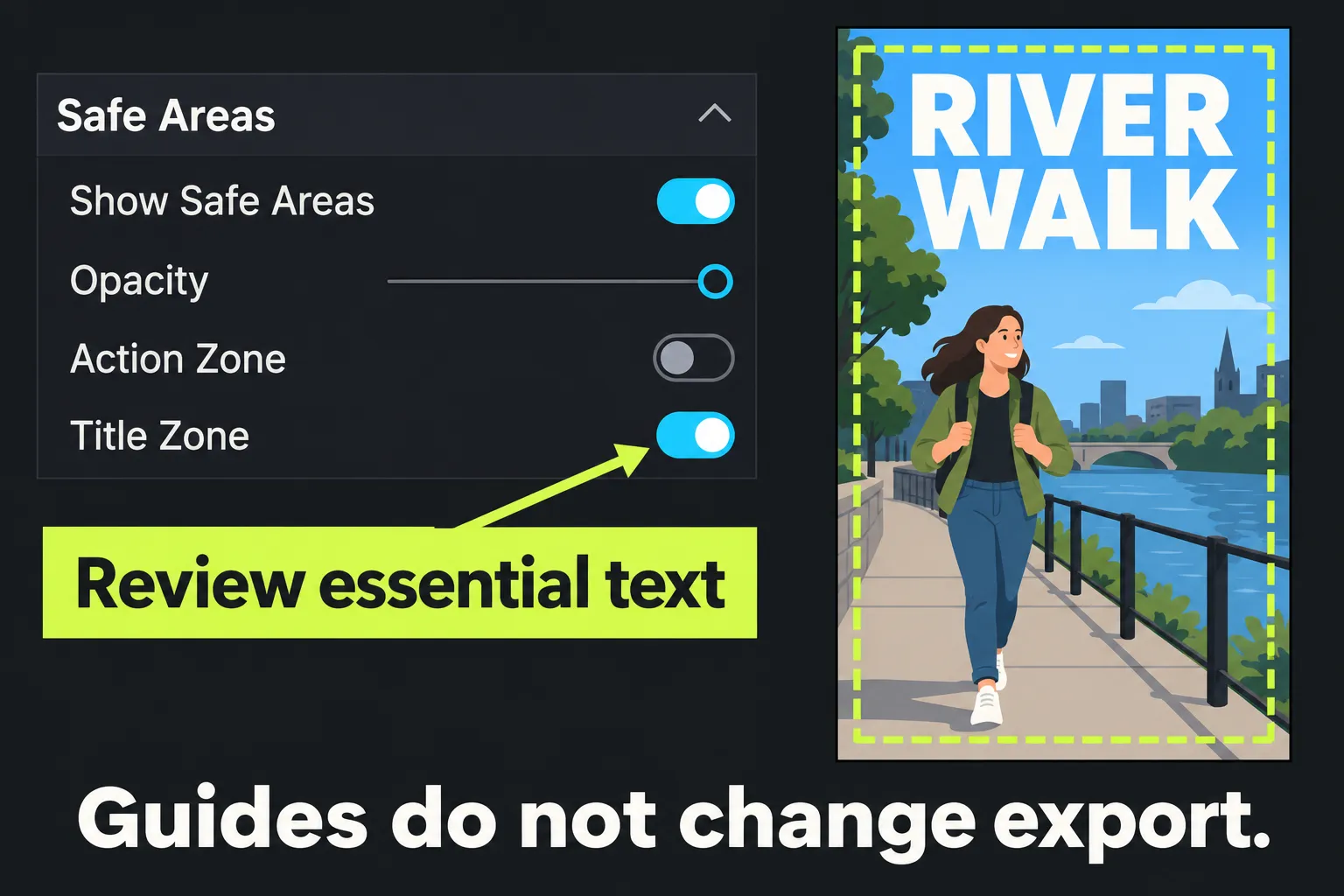
Use the target aspect overlay and the title-safe guidance while composing, then inspect the title at the start, middle, and end of any moving shot. Keep a speaker's face, a product label, and a caption's meaning inside the usable portrait area. Platform buttons and captions can cover different parts of a phone screen, so treat the destination's current guidance as a condition of delivery rather than inventing one universal pixel margin.
Viewer guides and safe-area overlays are review aids: they help you compose without altering the image. Reframe and Transform change the picture that is baked into the export; an overlay left on while editing is not a graphic that will be added to the file. Before the final export, check that nothing essential is hidden, text remains legible, and no guide mark has been baked into the picture.
Choose a permitted 9:16 output and check the file
- Select the intended sequence in Export. Do not export the untouched landscape master by mistake. The Export panel can use a sequence as its source, and the web group provides social targets with a resolution choice when those targets are available to the active plan.
- Choose the available portrait target and resolution. If the brief calls for a 9:16 file, choose the permitted portrait/social target that matches it. A square-pixel, unrotated file with width 1080 and height 1920 is one example of 9:16 geometry, but your plan may not expose that exact option. Do not force a missing option by stretching the picture or injecting rotation metadata.
- Keep the sequence frame rate unless the delivery specification says otherwise. The current web guidance recommends keeping the export frame rate the same as the sequence rather than changing it solely for upload.
- Export a short representative range first. Use it to check the hardest moving shot, the most crowded title, and the intended frame shape before rendering the entire edit.
- Inspect the saved file outside the editor. Confirm that the displayed picture is taller than it is wide for the 9:16 brief, then check the file's width, height, orientation, picture, sound, and sync. The official delivery guidance calls for playback outside Lightworks and a framing check. If the file is landscape, contains an unexpected inset, or has bars you did not choose, return to the source, sequence, Reframe, and export-target checks instead of guessing which setting failed.
For the 9:16 example, the ratio check is width ÷ height = 9 ÷ 16. The numbers describe the saved raster, while Reframe describes the visible composition. Both checks are required before upload.
Diagnose common portrait-delivery failures
- The file is landscape with a portrait picture inside it: check that the portrait sequence copy, not the landscape master, was selected for export. Confirm that the Reframe effect changed the picture and that the chosen target is actually portrait.
- The person walks out of the crop: set Position keyframes at the start and the point where the subject changes location, replay the whole shot, and add a turning point only when the path needs it.
- A face or product looks stretched: undo the stretch and return to a proportion-preserving fit, fill, or Reframe choice. A different crop is safer than distorting the source.
- Bars appear unexpectedly: decide whether the shot should fit or fill, then check the source shape, sequence shape, export target, and player's display aspect. A tall phone screen does not mean every file has to fill every pixel of it.
- The required target or resolution is absent: keep the original edit and resolve the plan, build, or destination requirement. Avoid drawing conclusions about Free, Create, or Pro from one missing preset.
Final portrait-export check
- The landscape master is preserved and the portrait work is on a named copy.
- Each shot has an intentional fit, fill, or Reframe choice.
- Moving subjects stay inside the frame through the entire shot, with only the necessary Position keyframes.
- Titles and captions remain readable inside the destination's current safe area.
- The selected export target and resolution are available under the active plan.
- The saved file is verified as the required portrait shape, with picture and sound in sync.
Once those checks pass, use the Lightworks Guide export-settings walkthrough for the full export operation. Keep the local file you inspected until the destination upload is confirmed.