

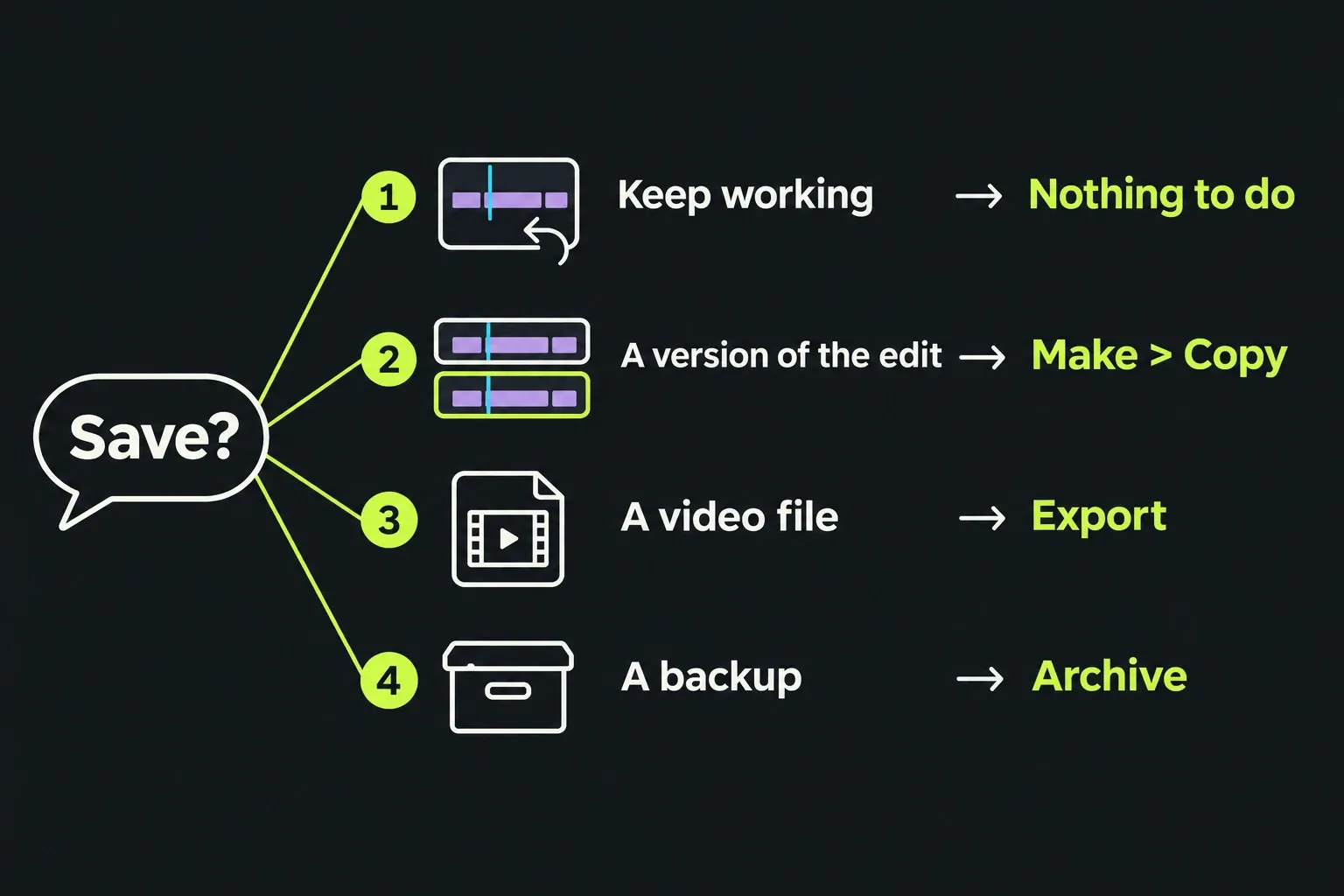
Lightworks saves your work continuously and has no Save command. You can close a project and reopen it from the Project Browser without a manual save, but autosave is not a separate backup against corruption, a failed disk or an unwanted edit. To keep an earlier version, duplicate the sequence; to get a finished video, export it; to protect the project for a move or recovery, make an archive with the media it needs.
Autosave records a bad change as faithfully as a good one. I'd duplicate the sequence before a risky edit and archive the project before an upgrade or move, because they preserve different things: a sequence copy keeps an edit version inside the project, while a complete archive can be stored separately.
| Job | Where in Lightworks 2026.1 |
|---|---|
| Keep working tomorrow | Nothing to do: reopen the project from the Project Browser |
| Keep a version of the edit (Save as) | Duplicate the sequence: right-click the sequence viewer > Make > Copy |
| Save the edit as a video file | Export the sequence |
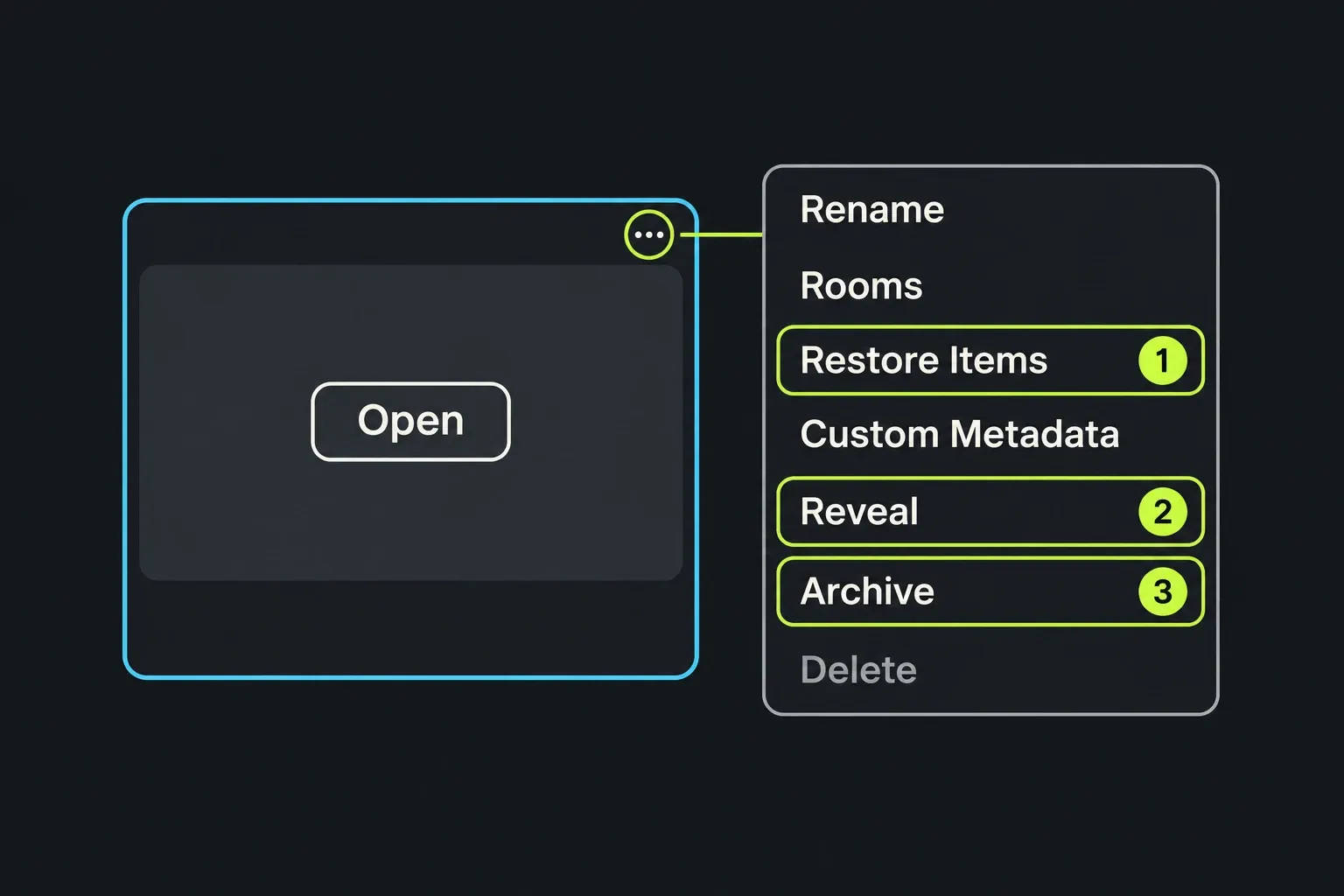
| Make a backup you can move or keep | Project card menu > Archive |
| Find the project on disk | Project card menu > Reveal |
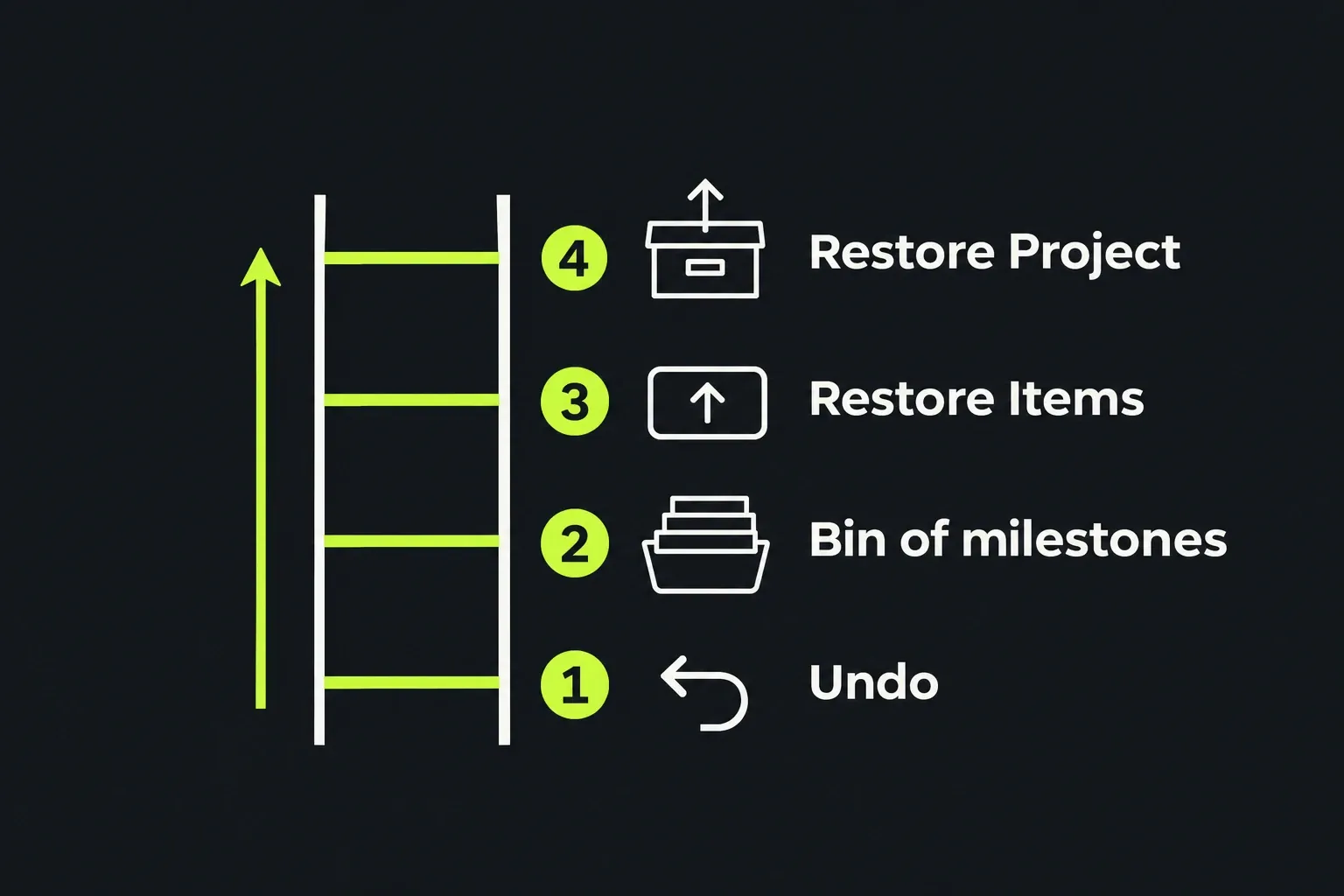
| Step back a few edits | Ctrl+Z or Cmd+Z; redo with Ctrl+Y or Cmd+Shift+Z |
| Find an earlier sequence state | Stop editing first; check undo and available milestones below (menu/retention vary by build) |
| Bring back a deleted clip, bin or sequence | Project card menu > Restore Items |
| Bring back a whole project | Restore Project in the Project Browser, from an archive |
Why Lightworks has no Save button
The Lightworks projects guide says it plainly: there is no Save command, and the project is always up to date. A project holds your clips, bins, sequences, edits, project settings and the information Lightworks needs to reconnect the media later. The older 2022.3 version of the same guide put the interval at every few seconds, and the Lightworks plan comparison lists instant auto-saving on Free, Create and Pro alike, so there is no paid tier that saves differently.
Leaving a project is just as uneventful. Go back to the Project Browser and the project you used last is already highlighted, so pressing Return reopens it. Turn on Reopen last project under User Interface in System Settings, the cogs menu on the Project Browser, and Lightworks opens that project by itself at startup.
One key in the Project Browser deserves respect. Delete or Backspace deletes the selected project card after a confirmation warning, and a deleted project only comes back from a backup or archive.
Where Lightworks saves your projects
The quickest way to the files is Reveal. Hover over a project card in the Project Browser, open the three-dots menu or right-click the card, and choose Reveal to open the project's location in Finder, File Explorer or your Linux file manager. The Lightworks media management guide lists the default data folders:
| System | Default Lightworks folder |
|---|---|
| Windows, fresh 2026 install | C:\Users\%USERNAME%\Documents\Lightworks\ |
| Windows, upgraded from an earlier version | C:\Users\Public\Documents\Lightworks\ |
| macOS | /Users/$USER/Lightworks/ |
| Linux | /home/$USER/Lightworks/ |
The Windows split is new in version 2026. Most older answers, and the 2022.3 guide that still ranks for this question, give only the Public Documents path, which a fresh 2026 install no longer uses. Media that Lightworks copied or created sits in the Material folder for video and the Sound folder for audio, while linked files stay where they were when you imported them. The guide to importing media into Lightworks explains which import method does which.
Projects live in Project Spaces, shown as tabs across the top of the Project Browser. Create Project Space in the settings menu beside those tabs makes a new location, Hide takes a space out of the Browser without deleting it, and Unhide brings one back, even from another drive. The options you see depend on the space type and your permissions; the 2022.3 guide tied a different project folder to an active Pro licence, so check that menu on your own plan before you plan a move.
I'd leave the project files alone once Reveal has shown you where they are. Lightworks itself warns that moving or deleting files by hand can break a project, and the archive tools do the same job safely. If the media has already moved, the fix for media offline in Lightworks reconnects it.
Save as: duplicate the sequence instead
Lightworks has no Save as either, and the closest thing works at sequence level. The Lightworks guide to nested and compound material recommends exactly that for versions: duplicate the sequence and vary the copy. Forum answers have given the same menu path since 2018: right-click the sequence viewer and choose Make > Copy.
- Open the sequence you want to keep safe.
- Right-click the sequence viewer, or open its three-dots menu, and choose Make > Copy.
- Rename the copy with a version you'll recognise later, such as v2 or the date.
- Carry on editing the working copy and leave the named earlier sequence untouched. Keep the source media available for both.
The current sequence guide recommends duplicating a sequence for versions: later timeline edits in one copy do not update the other. A sequence copy does not duplicate the source media or protect the whole project from disk loss. I'd make one before a ripple delete or a new music bed, then keep a separate archive for recovery outside that project.
A Save as for the whole project goes through an archive. Restoring an archive while the original project still exists gives you a second, separate project, and the guide to backing up and restoring a Lightworks project walks through both halves, including which media to include.
Save the edit as a video file
If save means an MP4 you can upload or send, the command is Export, not save. Export sits on the right-click menu of the sequence, its viewer and the timeline. The guide to exporting a video in Lightworks covers the formats and settings, and the comparison of Lightworks Free, Create and Pro shows which export options each plan includes. An export is a finished file, not a backup of the edit: you can't reopen it as a timeline.
Go back with undo and milestones
Stop making new edits as soon as work disappears. Further edits can replace older recovery states. If the application is stable, inspect the existing recovery options before trying changes; if you need support or internal-file recovery, preserve a copy of the project folder first and work from the copy. Do not delete or rename the only surviving project data.
For a recent unwanted change, try undo: Ctrl+Z on Windows and Linux, Cmd+Z on a Mac, with redo on Ctrl+Y or Cmd+Shift+Z. The keyboard shortcuts guide covers the commands. The current troubleshooting guide describes undo as deep; do not rely on an old fixed step count.
For an earlier sequence state, check whether your build offers a milestone bin. The older LWKS milestones tutorial describes one snapshot every ten editing actions and up to ten retained snapshots. Treat that as the tutorial's behaviour, not a guaranteed hundred-action recovery window in 2026.1: the current Projects guide does not specify that retention. The published tutorial calls the command Make > Bin from Milestones; older forum instructions also call it Bin of milestones.
- On builds with the documented milestone command, open the sequence viewer menu and look under Make for Bin from Milestones or Bin of milestones. If it is absent, skip this branch rather than changing internal files.
- Lightworks creates a new bin with one sequence per milestone. They share a name, so switch the bin to list view and sort by modification date.
- Open them one by one until you find the state you want.
- Copy that state into a fresh sequence and work from there.
In a 2025 lost-edit thread, a forum regular warned that new edits could overwrite earlier milestones. Check what is actually present before relying on this route. If the needed state is absent, try Restore Items for a deleted item or restore an existing archive; creating a milestone bin cannot recreate a state that has already gone.
Bring back a deleted clip, bin or sequence
Restore Items in the project card menu opens the recovery panel for clips, bins and sequences deleted by mistake, when the undelete feature is enabled. It restores the Lightworks items, not media files deleted from disk; the projects guide is explicit that those are two different things.
- Return to the Project Browser.
- Right-click the project card, or open its three-dots menu, and choose Restore Items.
- Select the deleted sequence, bin or clip and restore it.
- Find the restored item in the project contents and double-click it to open it.
The Lightworks Short Cuts episode on restoring deleted sequences shows the 2023 version of this panel, with separate tabs for sequences and deleted items. The same command also rescued a sequence that had gone empty rather than been deleted: in the 2025 thread above, the editor restored a 60-minute cut this way after two months of work.
After a crash or a power cut
Restart Lightworks and reopen the project. The troubleshooting guide says sequences are saved continuously, so a crash normally leaves the work intact, and you may be offered the chance to upload logs. If the project crashes again the moment it opens, hold Shift while starting Lightworks to land in the Project Browser instead of the last project. The guide to Lightworks crashing covers the next steps, from logs to the Windows folder check.
A sudden power cut is the harder case. In a 2022 forum thread after an unexpected shutdown, Restore from backups found nothing, and a second user wrote that a blackout had cost them five projects. If you share a project folder with the forum or support, I'd copy the whole folder first and send the copy, because the original is your last untouched evidence.
Deleted projects and version upgrades
Deleting a project is permanent. It can remove the project data and the local media for its clips unless another project shares those files, and only a backup or archive brings the project back. A moderator put it simply in a 2023 thread about a deleted project: without backups the whole project can't be restored.
Upgrades are the quieter risk. When Lightworks 2026 opens a project from an older version, it warns you, then creates a new, independent copy for the current version, and changes you make afterwards don't reach the old one. In early 2026 an editor found Sequence #1 blank after upgrading to 2025.2 with no backup, and got it back only after forum helpers rebuilt it from the shared project folder over about five days. I'd archive every live project before installing a new version, because the archive is the one copy that sits outside both versions. The guide to downloading and installing Lightworks covers the upgrade itself.
Project recovery in forum reports
Fourteen LWKS forum threads about lost or vanished work, posted between 2016 and 2026, were read in full; twelve report how the story ended. Six of the twelve got the work back, one recovered part of it, and five recovered nothing. In four of those five the editor had no manual backup or archive.
| Thread | Date | What happened |
|---|---|---|
| Reload a previous version | January 2016 | Bad edit; restored from automatic backups in the project lobby. Recovered |
| Sequences gone in a student project | September 2018 | No items to restore, no milestones, no backups. Not recovered |
| Empty timeline after a sequence copy | March 2020 | Undo, filters, a renamed milestone file and a project restore all failed; re-edited. Not recovered |
| Crash, Sequence #1 lost | May 2020 | Milestone procedure from an earlier thread. Recovered |
| Five hours of work deleted | May 2020 | Undo and milestones brought back the first two minutes. Partial |
| Corrupt files after a crash | July 2020 | Sequence came back after reopening Lightworks. Recovered |
| Restore to a previous autosave | August 2021 | Bin of milestones, good state moved into a fresh sequence. Recovered |
| Audio deleted past undo | July 2022 | Milestones no longer held it; no backups. Not recovered |
| Edits gone after a shutdown | September 2022 | Restore from backups found nothing. Not recovered |
| Whole project deleted | December 2023 | No backup, nothing to restore from. Not recovered |
| 60-minute edit empty after export | January 2025 | Restore Items from backups. Recovered |
| Blank sequence after the 2025.2 upgrade | February to March 2026 | Forum helpers rebuilt a sequence archive; restored after about five days. Recovered |
| Composite | 2016 to 2026 | 6 of 12 recovered (2 by Restore Items or backups, 2 by milestones, 1 by reopening, 1 by a rebuilt archive), 1 partial, 5 not recovered |
These selected forum reports are not a crash-failure rate or a recovery probability. They show why earlier copies matter: four of the five complete losses had no copy outside the damaged project. I'd use autosave for normal continuity, a sequence copy for edit versions, and an archive stored away from the working disk for project recovery. One does not replace the others.
A saving routine that protects the edit
Let autosave handle normal saving. Duplicate the sequence before a risky change, archive the project before an upgrade or a move, and occasionally restore an archive to confirm that its required media is present. If work vanishes, stop editing first. Use undo for a recent change, inspect available milestones for an older sequence state, or Restore Items for a deleted item; use a working archive for a whole-project restore.