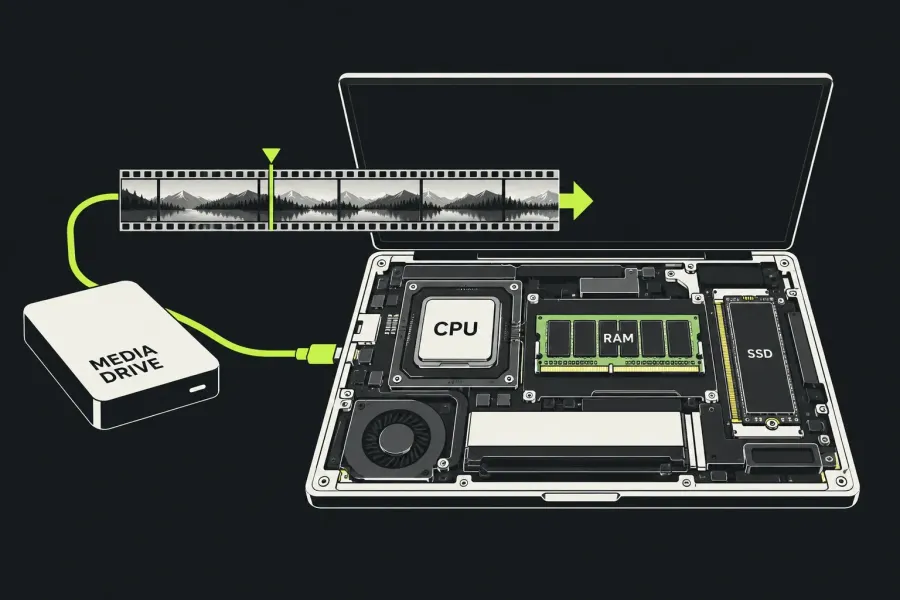
Lightworks runs on Windows, macOS and Linux. The current installation guide explicitly includes Intel and Apple Silicon Macs, plus Ubuntu- and Fedora-based Linux packages. That settles the platform question, but not how smoothly a particular camera codec, multicam edit or title effect will play.
The current Lightworks system requirements list 8 GB RAM minimum and 16 GB recommended, with Windows 10+, macOS 12 Monterey+ and the Linux versions below. Windows and Linux list an NVIDIA/AMD GPU with 2 GB VRAM; the Mac row includes AMD graphics or integrated Apple Silicon. They’re compatibility and planning figures; neither number is a measured playback result for a particular 4K project.
I’d make the decision in three parts: match the computer to the intended installer, account for the media workload, then check any optional plugin separately. A RAM upgrade can’t fix an unsupported installer or supply a missing codec licence.
Supported systems and the installer you choose
The technical specifications list the operating systems below. The setup guide adds architecture and package context. Match the intended build to its release notes, OS and architecture before committing to an older computer; legacy Knowledge Base pages still show lower floors for older releases.
| Platform | Published Tech Specs list | How to use that information |
|---|---|---|
| Windows | Windows 10 and later; Intel 64-bit CPU | The 2026.1.0 download is a single Windows 64-bit installer. Check the chosen build’s own support conditions; the current Tech Specs page no longer lists Windows 8. |
| macOS | macOS 12 Monterey and later; Intel 64-bit or Apple M-Series | The setup guide names both Intel and Apple Silicon and specifies macOS 12.0 Monterey as the minimum for v2026.1, raised from 10.15 Catalina. The 2026.1.0 disk image holds one Universal app with Intel and Apple Silicon code, matching the Tech Specs entry for M-Series (ARM64) Macs, so Lightworks itself doesn’t need Rosetta on an M-series Mac. An optional plugin still needs its own architecture check. |
| Linux | Ubuntu/Lubuntu/Xubuntu 22.04+, Mint 21+, Fedora 40+; Intel 64-bit CPU | The setup guide describes DEB for Ubuntu-based systems and RPM for Fedora-based systems. A Linux build of the application does not mean every third-party effect runs on Linux. |
The current release is Lightworks 2026.1.0, build 58024, announced as the new stable version on 19 October 2026. The download page offers six packages: the Windows 64-bit installer, a macOS disk image, and Linux DEB, RPM, Snap and flatpak builds. The DEB and RPM are built for 64-bit Intel/AMD processors (amd64/x86_64). There is no Windows ARM, 32-bit Windows or Linux ARM package, which matches the Intel 64-bit CPU entries on the Tech Specs page.
Archive your projects before moving from 2025.2. The 2026.1 What’s New notes ask you to back up projects before you update, because 2026.1 adds clip and project information and a project opened there may not open perfectly in an older version afterwards. Settings move to a new location as well, and a setting changed in 2026.1 isn’t shared with older versions. I’d keep that archive untouched until the new version has handled a real edit, because it is the reliable way back to 2025.2 if a plugin or workflow needs the older release.
What the recommended hardware list means
The following numbers come from the same Recommended System Specifications list. It does not name a processor generation, define a reference timeline or publish a playback benchmark for these figures.
| Area | Vendor recommendation | What it does and does not establish |
|---|---|---|
| Processor | Intel i7 / fast AMD chipset / Apple M-Series CPU | A broad CPU recommendation. The product-family name alone cannot compare different generations or predict a codec workload. |
| Memory | 16 GB RAM or higher | The platform cards list 8 GB minimum and 16 GB recommended. The detailed recommendation is 16 GB or higher, without a defined workload; it is not a guarantee for heavy 4K, RAW or layered effects. |
| Graphics | PCI Express NVIDIA/AMD card with 2 GB or higher | A graphics recommendation, not a universal ban on integrated graphics or Apple Silicon. Codec acceleration and optional effects have further conditions. |
| Displays and sound | Two displays at 1920 × 1080 or above; compatible sound card | Two displays are listed as recommended, not mandatory. Confirm that the system can output audible sound through the intended device. |
| Storage | Separate media and system drives; 500 MB installation allowance in the detailed recommendation | The installation figure excludes camera originals, copied media, proxies, renders, exports and backups. Internal or external media drives still need a suitable connection. |
| Connection and accessories | Internet for installation and licence registration; optional Lightworks console/keyboard | The dedicated console and keyboard are optional accessories, not prerequisites for using the application. |
When comparing computers, use the exact CPU and GPU models, available memory and storage path. “i7”, “4K capable” and the amount of graphics memory are too coarse to settle a purchase. A requirements page sets out the documented starting conditions; performance figures need measurements from the relevant machine and timeline.
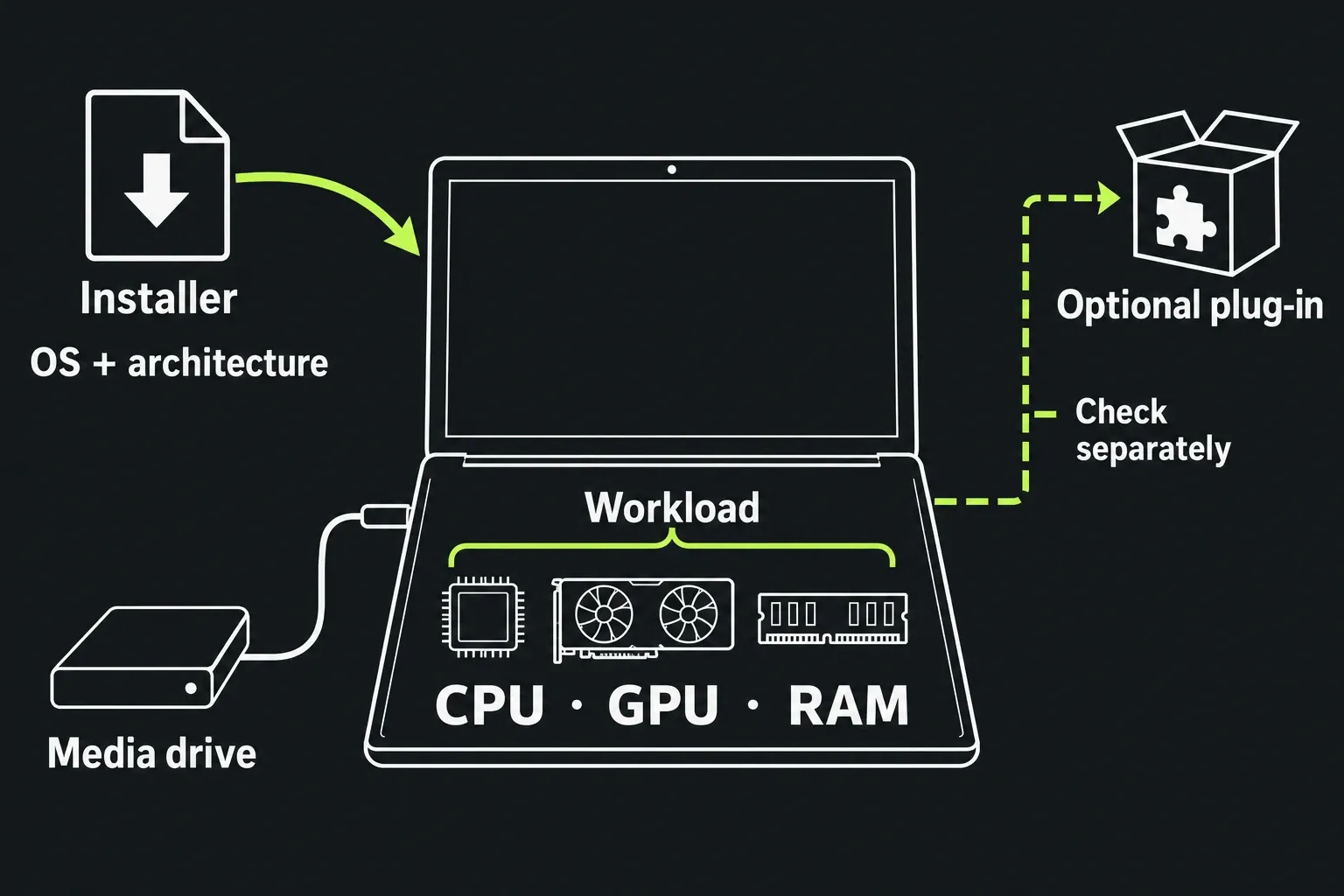
Choose around the media workload
Start with the files you will edit, rather than the resolution of the final upload. A 720p delivery can still be assembled from demanding 4K originals. Resolution, frame rate, codec, simultaneous streams and effects all belong in the workload description.
The official proxy guide identifies high-resolution or RAW material and long-GOP H.264/H.265 as reasons to use lighter editing media. A single compressed clip and several camera angles with titles and correction do not ask the computer to do the same work.
Separate two questions before buying hardware:
- Can the file be imported? Container, codec, platform and licence availability matter. The import guide says codec availability varies by platform and licence tier. MP4 or MOV alone isn’t a complete codec description, and adding RAM does nothing for an unavailable format.
- Can the intended edit play comfortably? Decoding, concurrent media, effects and storage access matter after import. If the files import but playback struggles, investigate the workload and media path before assuming an application compatibility failure.
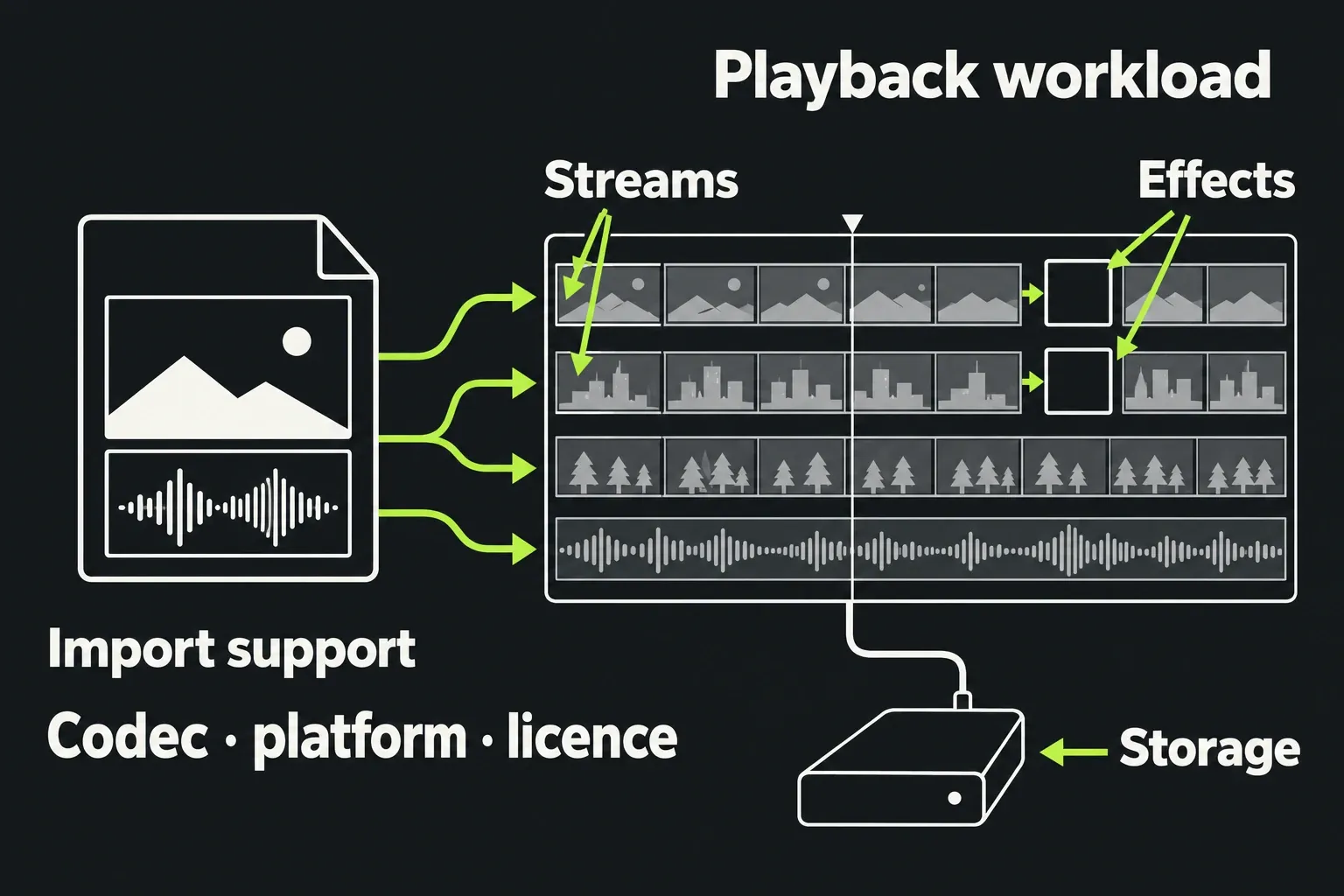
For demanding originals, the Lightworks proxy workflow explains how to use lighter editing media while retaining the original sources. Keep every used original available for final delivery: the official guide says export can fall back to available media when originals are offline. Proxy playback is not evidence that the full-resolution source is online.
For an existing slow edit, use the slow-playback decision guide to separate source decoding, effects and the storage path. That is a more useful next action than shopping from an unverified fixed RAM or VRAM tier.
Budget for project storage, not just installation
The current platform cards allow 400 MB for the Windows installation and 500 MB for macOS or Linux; the detailed recommendation uses 500 MB. Those small figures exclude project media. Plan the project’s storage from the originals you retain, any project copies, generated proxies or renders, output files and a separate backup. The amounts depend on the media and workflow; there is no single multiplier that fits every codec and project.
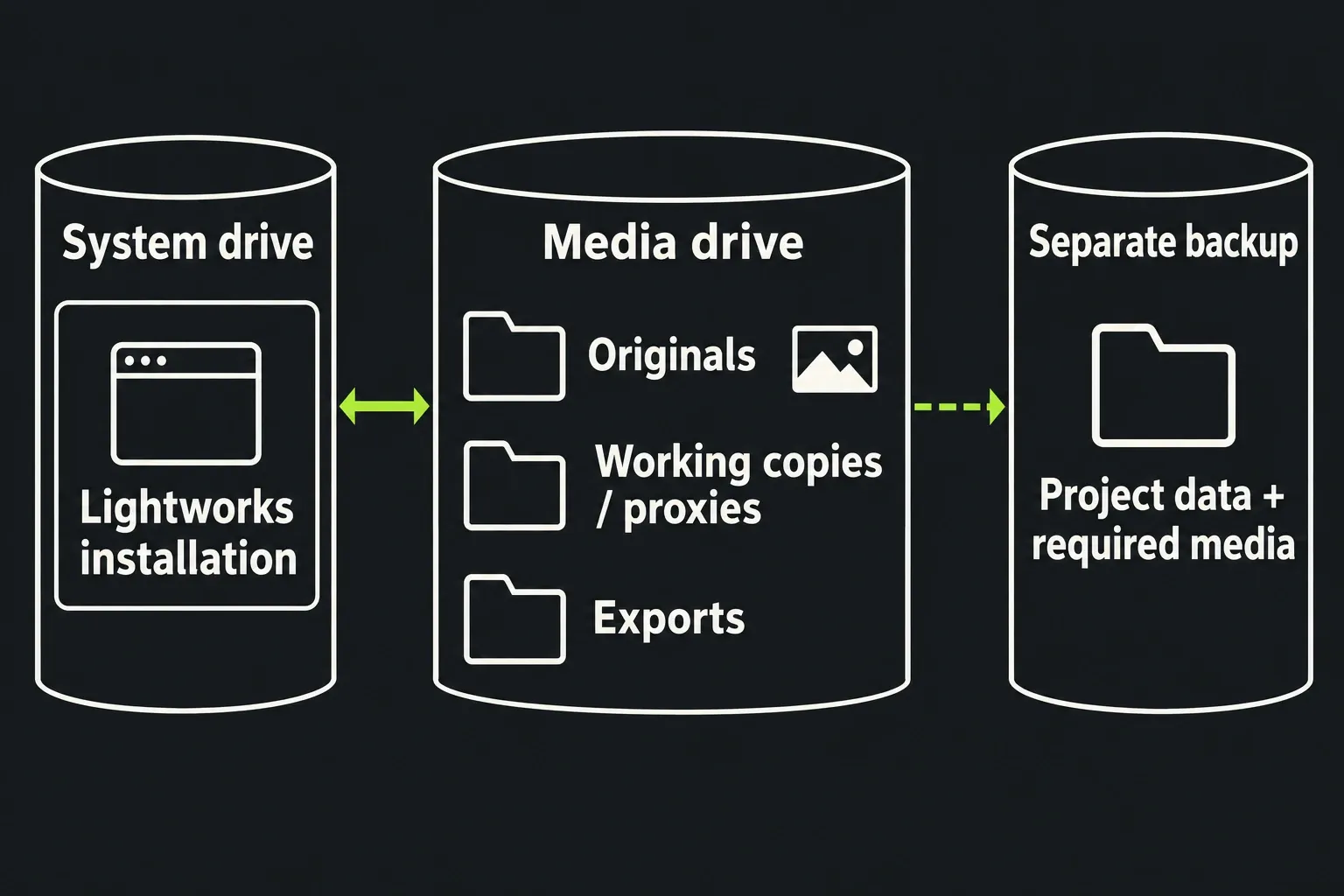
Drive capacity and drive access are different constraints. A large external disk is still reached through its cable, enclosure and interface. The vendor recommends separate system and media drives with enough interface speed, while its performance guide notes that very full drives slow down and processing needs free space. I’d leave working headroom on that drive rather than allocate the last available space to camera files.
If you use linked media, preserve its location and availability. If you copy media into the project, account for the extra copy. Neither choice removes the need for a backup; the project archive and restore guide explains the difference between project logs and included originals.
Integrated graphics and Apple Silicon
The PCI Express recommendation does not mean integrated graphics are ruled out. The official 2025.2 release notes mention Intel-GPU laptops, an Intel-graphics fix and M2 Mac media browsing. Together with the current setup guide’s Apple Silicon entry, they argue against a blanket exclusion, though they promise nothing about performance on a given model.
The same release notes say H.264 encoding can be hardware accelerated with a compatible GPU. Do not translate that into “every GPU accelerates every codec” or assume that faster encoding guarantees faster timeline playback. Check the intended build, codec and acceleration option before treating that feature as a reason to buy a particular machine.
Check NewBlue and other plugins separately
Lightworks application support does not automatically carry over to an optional title or effect component. The separate NewBlue requirements section lists Windows 10 or macOS 12 and later, 8 GB RAM required with 16 GB recommended, and an NVIDIA/AMD GPU with 1 GB VRAM and OpenGL 2.1. Those plugin figures do not replace the application’s 2 GB discrete-GPU requirement for Windows/Linux, or establish Linux availability for NewBlue effects.
For example, the current NewBlue Titler Pro page lists Intel macOS 10.15 and later and Silicon Mac support via Rosetta, along with its own GPU and installation requirements. So on an M-series Mac, Lightworks 2026.1 runs natively while that title plugin may still rely on Rosetta. That product page does not identify the exact component build supplied with a particular Lightworks offer. Confirm the plugin version, host compatibility, licence and architecture together before relying on it for a title job.
I’d identify the specific effect before choosing a workstation, rather than buy around a generic “NewBlue compatible” label. A plugin’s supported platform and licence are separate from the computer’s ability to run Lightworks; the Free, Create and Pro comparison covers the plan distinctions without treating support as an unconditional plugin bundle.
A useful hardware decision
For an existing computer, first establish the OS, architecture and intended installer. Then list the source codecs, simultaneous streams, effects and media storage. If the application is compatible but the workload is heavy, I’d look at the documented proxy workflow and source-storage constraints before treating a hardware replacement as the only path.
For a new purchase, compare exact components against that workload and the optional plugins you need. I’d use the vendor’s figures as the starting point and let the workload decide the rest, because the published list makes no performance promise.