
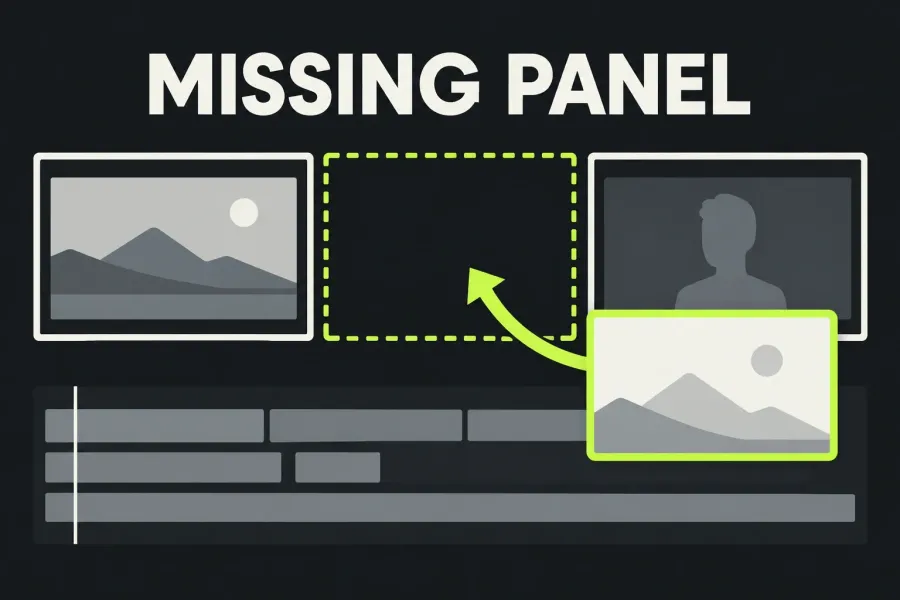
A missing Lightworks tab, a hidden panel and a vanished row of editing buttons need different fixes. In Fixed Layout, start with the Layout Chooser for a whole workspace tab, the panel chooser for one panel, or Show Edit Tools for the timeline's editing toolbar. I'd fix that smallest affected area first and leave Reset for last, because Reset returns the layout's panels to their default positions.
First identify the layout style. Fixed Layout uses task-focused arrangements such as Edit, Effects and Audio. Flexible Layout lets you place panels freely and organise them into rooms. LWKS documents switching styles from the Project Browser's Settings. Use the branch that matches your workspace; a tutorial showing a different style will send you looking for the wrong controls.
Identify what is missing
Look at the part of the interface you still have. One missing control doesn't mean the whole workspace needs repair.
- A whole Edit, Effects, Audio or other layout tab: use the Fixed Layout tab steps below.
- A viewer, mixer or another panel inside the layout: check the task layout and its panel chooser.
- The Navigator column beside the content view: check its toggle next to Import.
- The timeline remains, but Cut, Selection or other editing buttons are absent: check the active layout and Show Edit Tools.
- Tools are scattered across a Flexible Layout room: use Return Tools to Toolbox.
Restore a Fixed Layout tab
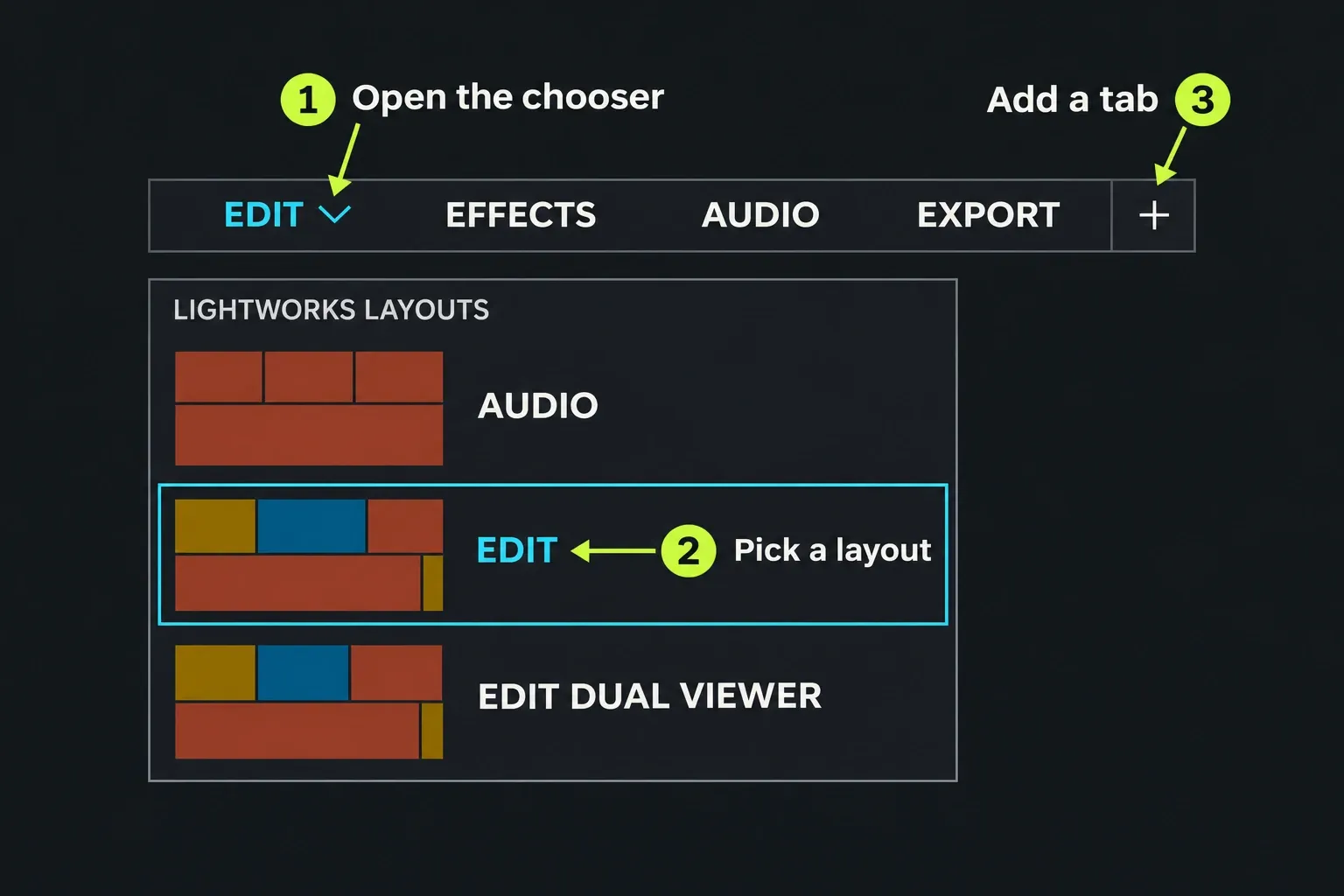
In the interface described by the current LWKS guide, the chevron next to the active layout's name opens the Layout Chooser. The chooser groups the built-in arrangements under Lightworks Layouts and your saved arrangements under Custom Layouts.
- Check the open tabs first. If the layout you need is already there, click its tab to switch to it.
- If it is absent, open the active layout's chevron and find the required layout in the chooser.
- Decide whether to replace the active tab or add another. Selecting a layout that is not already open replaces the active tab; Lightworks displays a notification when this happens. Use the + tab when you want an additional open layout and it is available.
The documented limit is six active layouts, with the + tab shown only below that limit. If you have six tabs, the missing + is expected. Use the active-name chooser to replace one deliberately. Resetting the layout just to get a different tab isn't necessary.
If you previously chose Remove Layout, LWKS says that it removes the tab from view and leaves the layout itself untouched. Look for the layout in the chooser. Once the required tab is active, check the panel inside it; bringing back the tab and showing an individual panel are separate actions.
Restore one panel in Fixed Layout
Start with a layout suited to the tool you need. LWKS recommends Effects for Effects Settings, Audio for the full audio mixer, and Media for browsing and organising material. For cutting with source and sequence viewers side by side, choose Edit Dual Viewer 1 or 2. I'd switch to that recommended layout before rebuilding another one around the task, since LWKS already pairs it with the tool you need.
If the correct layout is active but one panel remains hidden, LWKS documents a panel chooser icon that opens a drop-down list of panels to show or hide:
- Open the panel chooser for the area you are checking.
- Find the required panel in the list and enable it.
- Confirm that the panel appears and provides the view you need. If it does, leave the other layout controls alone.
The chooser's panel list is the useful reference here. If the required panel isn't in that list, return to the task-layout check. Skip the unrelated + control, and don't assume Customise is available on every built-in layout. The save and custom-layout options have their own restrictions, covered below.
Only the Navigator column is missing
The Content Manager has two parts: the Navigator column and the content view showing the selected clips, subclips or sequences. If the content view is present but the Navigator column has disappeared, use the Navigator toggle next to Import in Fixed Layout. Check whether the column returns before changing the whole layout.
Keep the scope clear: this toggle controls the Navigator column. If the Content Manager itself is absent, use the layout and panel checks above. If you can see the panel but a clip reports missing media, follow the separate Media Offline diagnosis; changing where a panel sits does not resolve that different problem.
The timeline is visible, but edit tools are missing
First check which layout is active. The Effects and Audio timelines keep their edit tools off regardless of Show Edit Tools. Trimming, dragging and selecting still work in those timelines. For the full cutting toolbar I'd switch to an Edit layout instead of toggling the setting again in Effects or Audio, where it can't bring the edit tools back.
In the relevant editing layout, open Timeline settings on the timeline header and check Show Edit Tools. LWKS documents that turning it off hides the edit tools while retaining behaviours, timecodes and the side menu. Enable it when you want those editing controls visible. The guide says this setting is remembered separately for Fixed and Flexible Layout, so check it in the style you'll work in.
Two other display details can look like missing tools. LWKS says the tool groups collapse into drop-downs when header space is tight, so inspect the collapsed groups. Show Tool Labels adds names to buttons; it is a different setting from Show Edit Tools. Use it to identify a visible button, not as the command to bring back the entire edit-tool strip.
Once the toolbar is visible, the cutting and trimming guide covers the editing decisions themselves. A visible mixer with silent output is a separate task: use the no-audio checks rather than resetting the workspace to diagnose sound.
Gather scattered tools in Flexible Layout
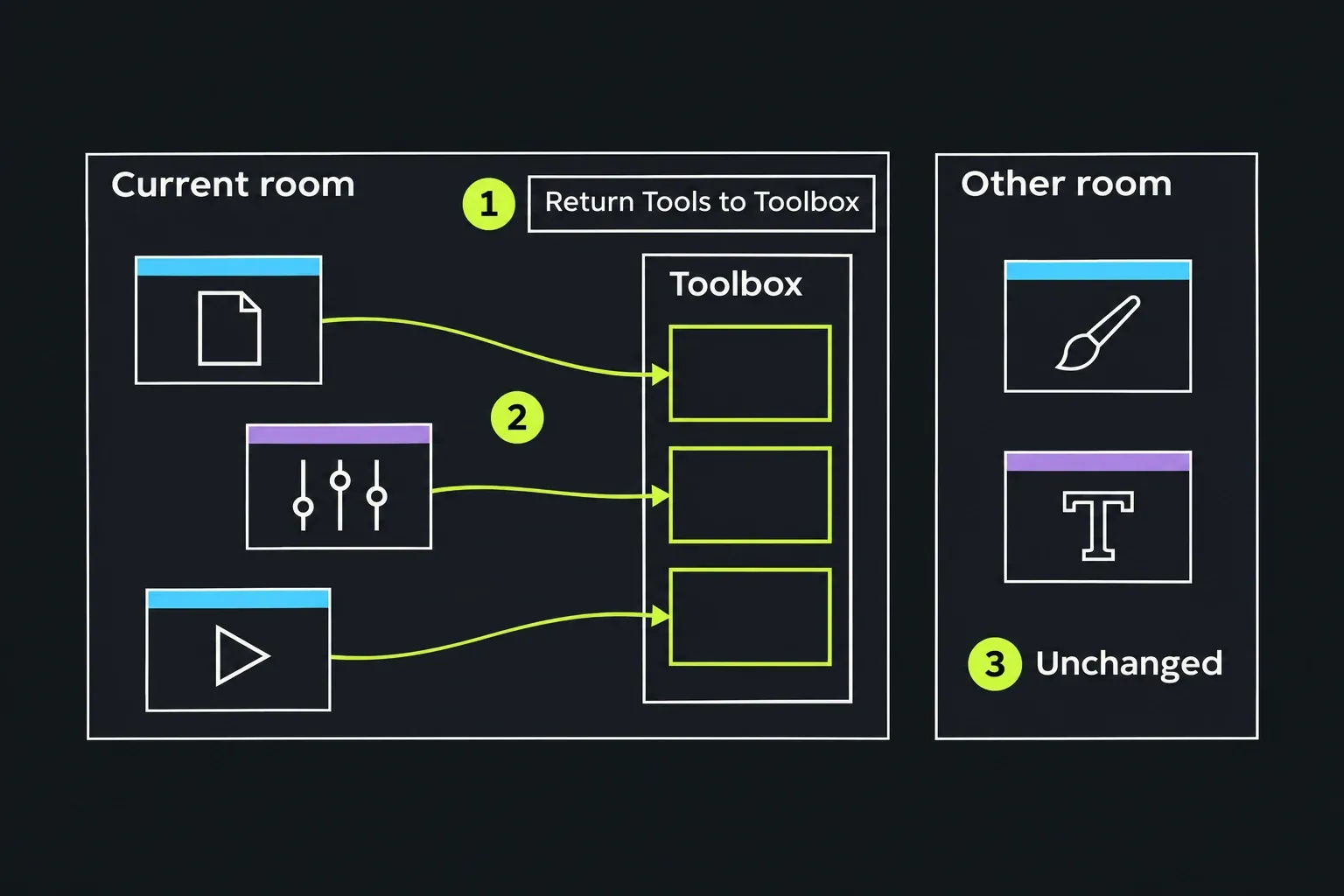
Flexible Layout has freely placed panels and rooms, so use its Toolbox route when tools have been dragged out across the desktop. LWKS gives this Return Tools to Toolbox path:
- Go to the room whose tools you want to gather.
- Open the settings button at the bottom of the Toolbox. It opens UI Preferences.
- Open Toolbox within UI Preferences and choose Return Tools to Toolbox.
The command gathers tools for the current room. Check that Toolbox before looking in another room. It's a recovery route for scattered Toolbox tools only. If a particular viewer or panel is still absent, identify that item and follow the instructions for your layout and build.
Save useful positions before Reset
Consider Reset after the tab, panel and toolbar checks, when the remaining problem is the arrangement itself. First identify the active layout by name and decide whether you need to keep its current panel positions.
Open the Layout Chooser and point at the layout entry to reveal its available option buttons. For a custom layout, LWKS documents Update to save the current panel positions and Customise to edit the layout in the Layout Designer. These are different actions. When the present arrangement is the one to keep, I'd choose Update: it saves the current panel positions, while Customise opens the Layout Designer.
Built-in Lightworks layouts cannot be updated or customised. You can move their panels while using them, but to keep the result, LWKS says to save it as a new layout of your own. Its documented creation workflow uses the Layout Designer: choose New Layout, arrange the required components and save under your own name. The saved arrangement appears under Custom Layouts. If you cannot find the creation or preservation route in your build, stop before Reset and use its matching layout instructions or ask support.
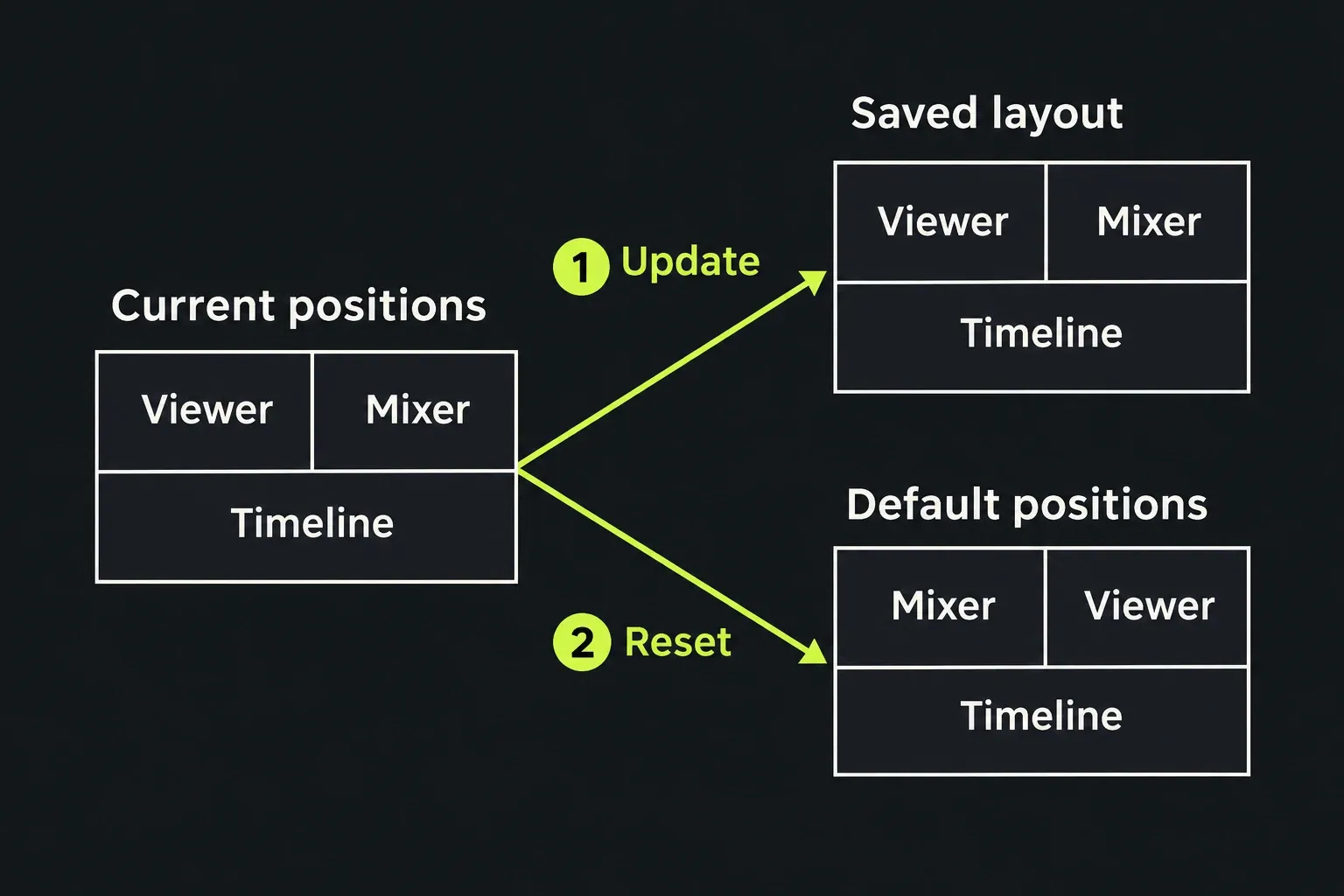
When you are ready to discard the current arrangement, use the available Reset option for the intended layout in the chooser. The current LWKS guide defines it as returning the layout's panels to their default positions. Do not count on it to reload the most recent positions you saved with Update. Afterward, check the specific panel you originally needed; if it is still missing, return to its branch rather than repeating Reset.
When the controls still do not match
The control names above follow the current LWKS knowledge-base guides. If your installed build presents different controls, use documentation for that build instead of guessing a menu path. Record the Lightworks version, operating system, Fixed or Flexible mode, active layout or room name, and the exact missing item when asking for help. Say whether the layout tab, panel area or only the editing buttons are absent; that distinction makes the report much more useful.
Stop workspace troubleshooting when the required interface is visible but the underlying task still fails. A missing source clip, silent audio or an unavailable effect needs its own diagnosis. Relinking files, moving media and reinstalling effects aren't steps in the layout recovery routes above, so take each of those problems to its own diagnosis.