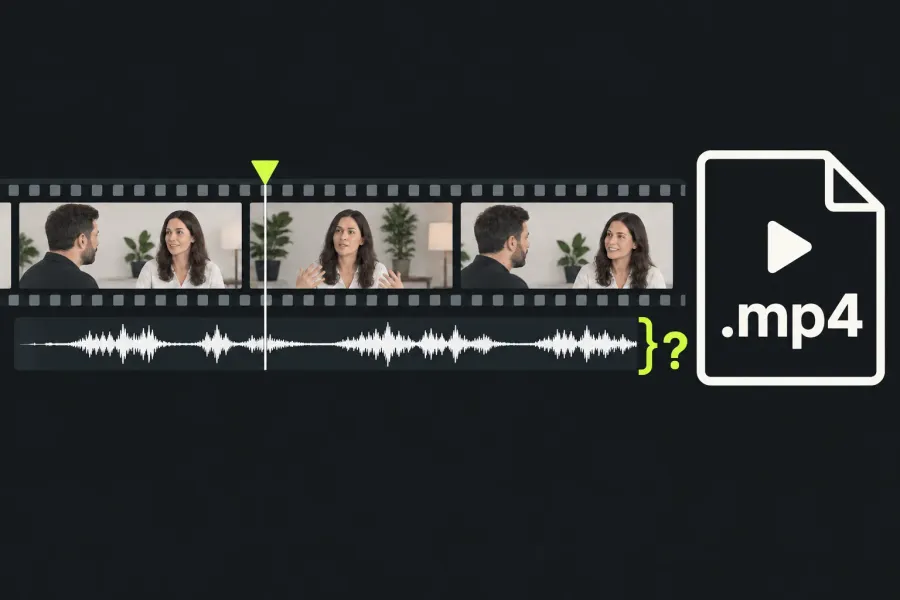
If your Lightworks sequence is audible but its completed local export is silent, start with the cheap checks: every original online, the intended sequence queued and the right range. An offline original or a wrong queued item can make the export use something other than the mix you heard. If those are right, inspect the file and sort the result: no identified audio stream, an identified stream that plays silently, or sound in one player only.
Hearing a clip in the source viewer isn't enough: everything below assumes an audible sequence. If the sequence itself is silent, use the source-to-timeline no-audio checks. If the export task fails or is aborted, use the export-failure checks. A local file that has sound but loses it only after upload is a different delivery problem.
Confirm the originals and one audible range
Keep a restorable copy of the project and its original media before changing the edit. Record the Lightworks version, operating system, licence, sequence name, export target and preset. Choose a short passage with obvious dialogue or music, and note its start and end. Use that same passage throughout the comparison.
Confirm that every original used by the sequence is online, including audio and picture. Lightworks' media-management guidance explains that moved or renamed linked files and disconnected drives cause offline media. Reconnect the drive or restore the file to its original path and refresh; use the documented Relink route if the file is now elsewhere. Preserve the existing edit rather than rebuilding it around a new import.
Audible playback alone doesn't settle whether the originals are online. The proxy guidance warns that offline originals can make export fall back to available media, so I'd run the original-file check before trusting a working preview as the export comparison.
Check the intended sequence mix
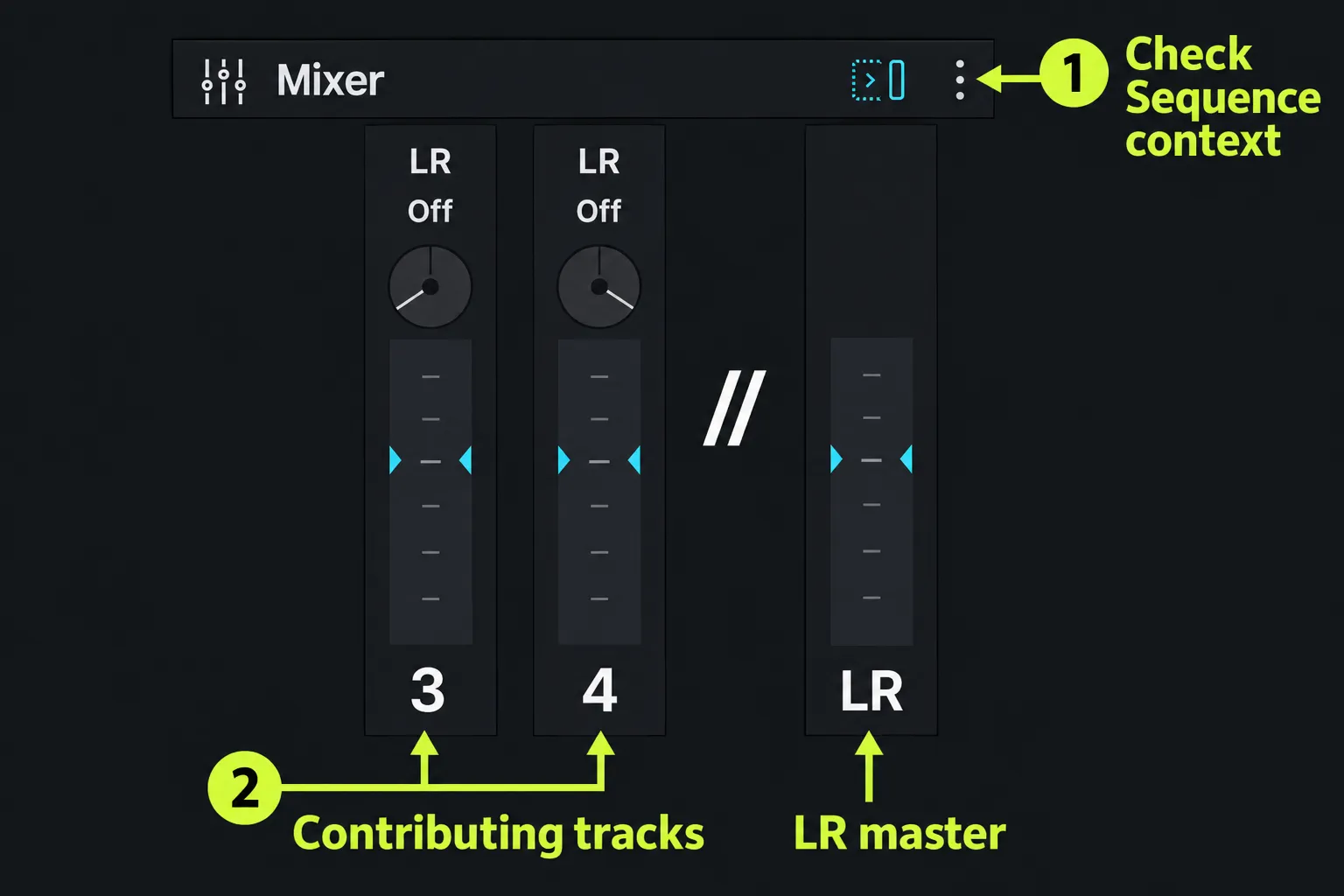
Load the intended sequence and replay the chosen passage. In the current documented Audio layout, open the mixer's settings menu and set Audio Mixer → Sequence where that option is available. This pins the mixer to the sequence instead of allowing source-viewer focus to change what it shows.
Watch the contributing track meters and the LR master while listening. The LR master is the overall mix output. Record the current Mute, Solo and timeline Monitor states before changing them; restore only a state you recognise as unintended. In the documented mixer, Mute and Solo stay in step with timeline Monitor controls. The mixed audio export respects timeline or mixer Mute/Solo states. Options that write each audio track separately still include muted tracks, so those outputs are a different check from the LR mix. Keep deliberate dialogue, music and stem choices intact.
If a contributing track meter moves but LR does not, investigate the sequence mix and its route before another export. The documentation for Fixed layout describes independent mixes plus LR, but that does not tell you which numbered mix an arbitrary export target uses. If you cannot establish the route for your installed version, record the track/LR observations and take them to support. Do not guess a mix selector or turn on every track.
The current track-header documentation separates editing targets from Monitor. Clicking A1 or A2 to target an edit is a different operation from restoring audio monitoring. If your build has different controls, use its documented equivalent and include the build number in the report.
Export the right item and finish the task
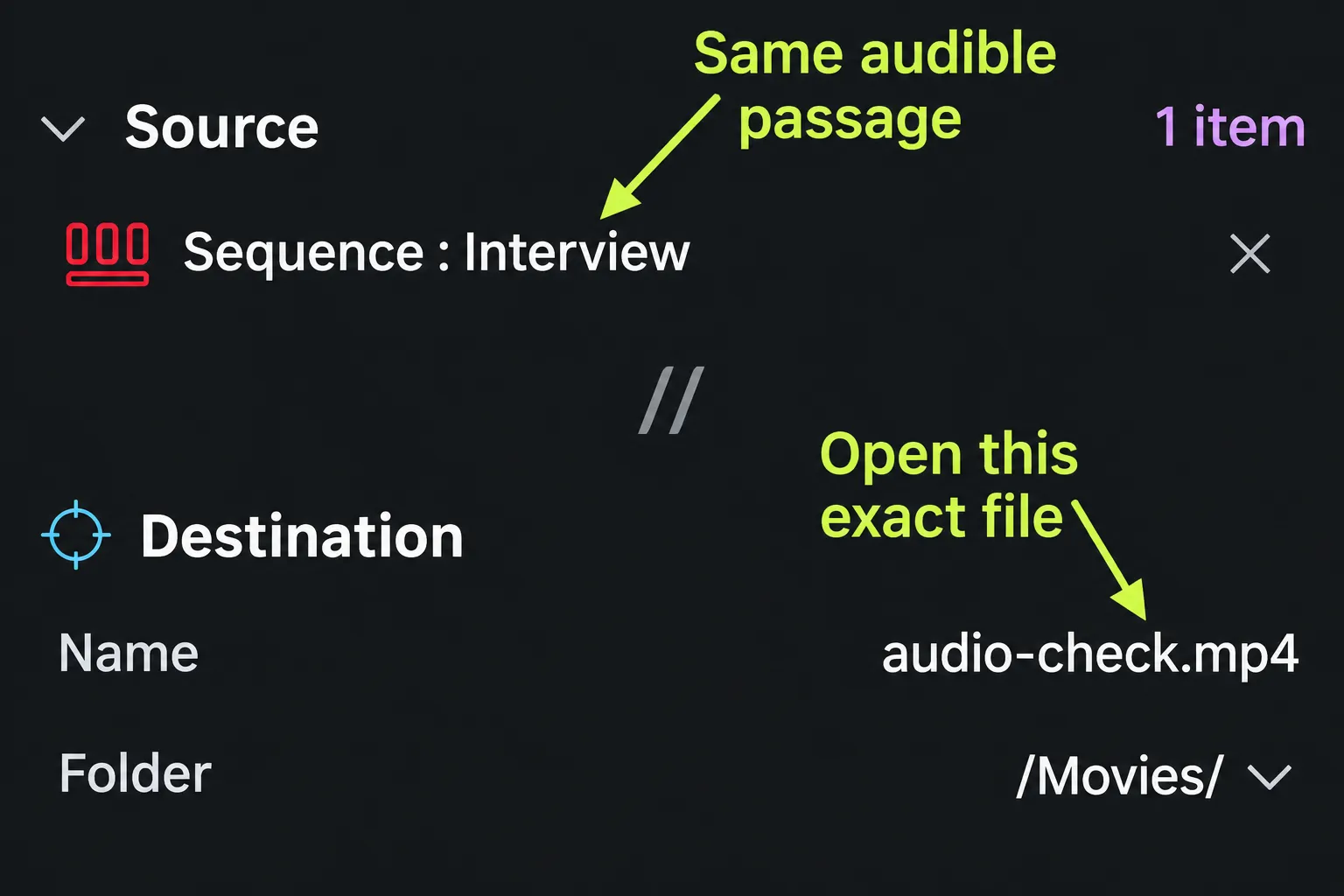
Inspect the entire Export Source list. Lightworks can export a sequence, clip or subclip, and in its documented Export layout, loading an item into the viewer adds it to that list. A source clip or extra sequence can therefore remain queued while you are checking a different timeline.
- Remove unintended entries. If your build shows Clear Export List, use it, then load the sequence you intend to deliver.
- Choose the marked section containing the audible passage. Confirm the sequence name and start/end rather than assuming a whole-item export covers the range you checked.
- Record the selected target, preset, dimensions, frame rate and destination. Give the sample a new name so it cannot be confused with an older export.
- Export that sample without changing the mix. In the Tasks page and Tasks Log, confirm completion, then open the actual newly written file at the recorded destination.
A filename alone doesn't show that the export succeeded, and a failed, paused, running or aborted job isn't a completed silent sample. Resolve a reported task error through the export-failure branch first. For the broader source, range and destination workflow, see the general export walkthrough.
Inspect and listen to the completed file
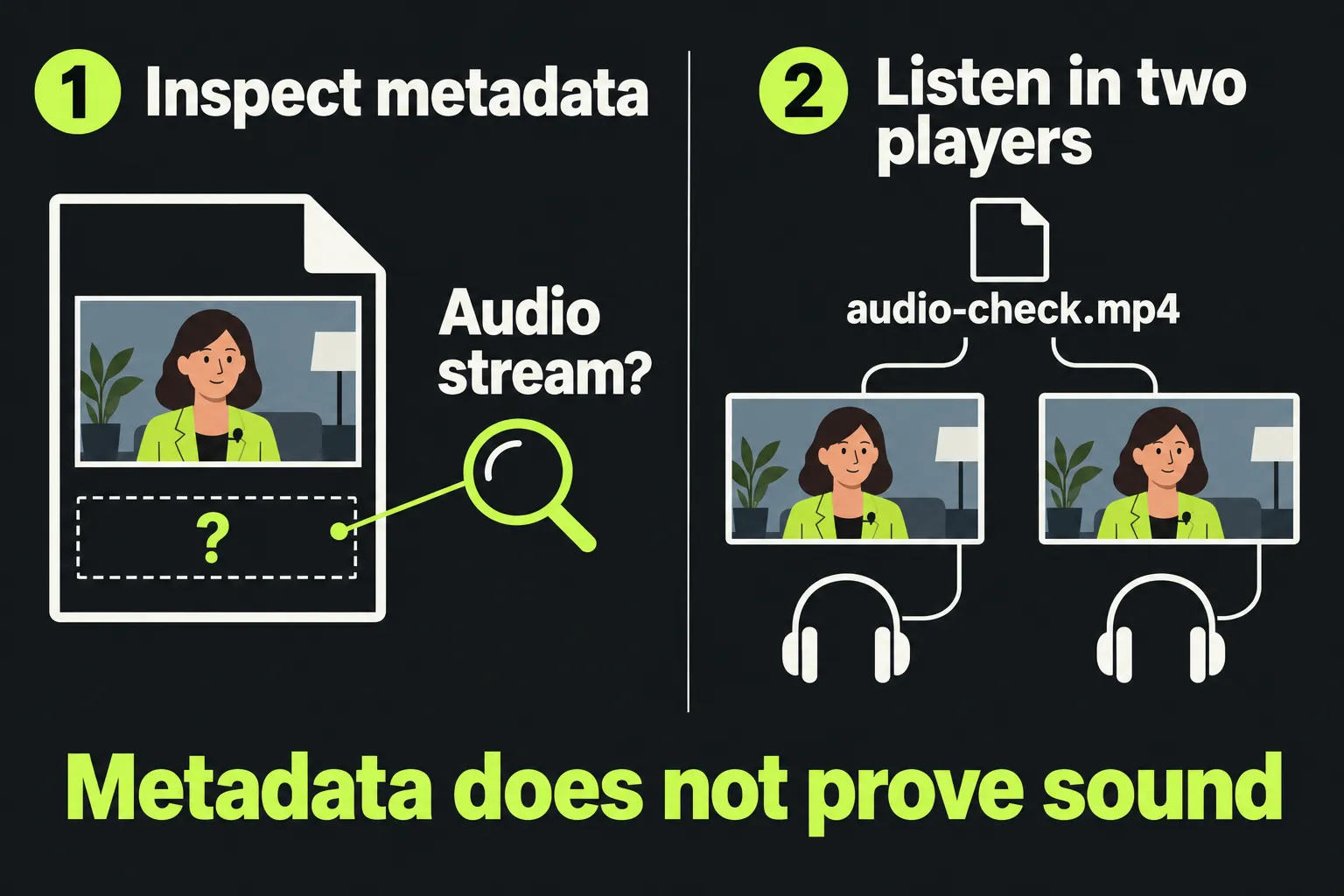
If FFmpeg's ffprobe is already available, I'd start the file check there: its documented audio-stream command can inspect the completed file without rewriting it. Replace the quoted filename with the exact exported file's path:
ffprobe \
  -show_streams \
  -select_streams a \
  "review.mp4"
The ffprobe stream output identifies audio streams in STREAM sections. Record the reported codec and channels when present. A successful inspection with no selected audio stream is different from a command error: an error means the inspection failed and leaves stream presence unknown.
An identified audio stream is only metadata; the samples inside can still be silent. Listen to this same completed file in a second reliable player that is already available. Keep the file and passage identical; note the selected audio track, playback output and mute state where the player exposes them. The Lightworks delivery check requires picture and sound to be checked outside the editor; the second-player comparison helps locate the difference.
Successful inspection identifies no audio stream
The file has no audio stream identified by that successful inspection. Return to the recorded originals, Sequence/LR, source list and range checks. Correct a demonstrated defect, then export the same passage to a new filename. If those prerequisites are already correct, I'd move to the available target comparison below rather than hunt for an assumed “Include Audio” switch.
An audio stream is identified, but both players are silent
Keep this result separate from missing audio: the stream exists, but neither player produces sound from it. Recheck that every used original is online and that the recorded passage is audible in the intended Sequence/LR mix. Then make the bounded target comparison below, keeping that mix and passage unchanged. If it stays silent, keep the samples and report the result as unresolved rather than as an application bug.
The same file has sound in one player
Investigate the silent player's selected audio track, output device, mute state and support for the reported codec or channel layout. The difference points toward the playback path, though not yet to one cause. I'd record the audible result and codec/channel details before touching a sequence mix that already works.
Inspection is unavailable or failed
You can still compare the completed file in two already-available players. Record whether one, both or neither produces sound, while keeping audio-stream presence unknown. If only one player is available, record that limit too. You do not need to install an inspector to continue the documented target comparison or collect a useful support report.
Compare one available delivery target
Lightworks' Export panel offers formats and codecs according to the licence. Its web-delivery guidance recommends MP4 with H.264 for a broadly compatible delivery, using configured system presets. H.264 only sets the video codec here; the audio codec, and whether the result is audible, are separate questions.
If the baseline used a different target or preset: select an available MP4/H.264 system preset for a comparison file. Keep the same sequence, marked audible passage and LR mix. Hold dimensions and frame rate fixed where those choices are available; record any forced differences. Use another filename and verify Tasks completion before inspecting and listening to it.
A whole delivery target or preset can bundle several settings, so a comparison with sound narrows the problem to the delivery path without isolating one audio parameter. Keep both files and their recorded settings.
If the baseline already used that MP4/H.264 preset: retry it only after correcting a proven prerequisite, such as an offline original, wrong queued item, wrong range or unintended mute. With those checks satisfied, skip blind option cycling. Use the optional WAV comparison if available, or stop with the report below.
Optional: compare the same LR mix as WAV
If your Export panel offers it, save the same intended sequence, LR mix and marked passage as a new stereo WAV file, then confirm completion and listen to it. Lightworks' professional-delivery guide says WAV renders the LR mix as stereo or mono tracks. The current plan table lists WAV export under Pro; skip this comparison if the target is absent. I wouldn't upgrade just to run this check: it's optional, and the report below works without it.
An audible WAV alongside a silent MP4 points toward the combined audio/video delivery path or its encoded content, though not to a specific bug. If both remain silent, source, mix, range and exported content still need investigation. Preserve the files and stop rather than altering the working mix repeatedly.
Keep a bounded support case
Stop when the original checks are satisfied and the available comparison still fails. Raising every gain or resetting audio preferences changes a working signal without explaining a missing stream or silent file. Keep the original edit intact and send a concise account of:
- The Lightworks version, operating system and licence; the sequence name and exact passage.
- Confirmation that every used original is online, plus contributing-track/LR and intended Mute/Solo/Monitor observations.
- Each sample's target, preset, dimensions, frame rate, filename and completed-task result; include any reported task error.
- The successful stream result and codec/channels, or the inspection error/unavailable-tool limit; player listening results and WAV result if compared.
The official troubleshooting guidance directs persistent problems to the Lightworks forum or a support ticket through the user portal. Those observations give support a specific point of failure instead of another unexplained full re-export, so keep the same-range sample files for the case and share only material you have permission to provide.