
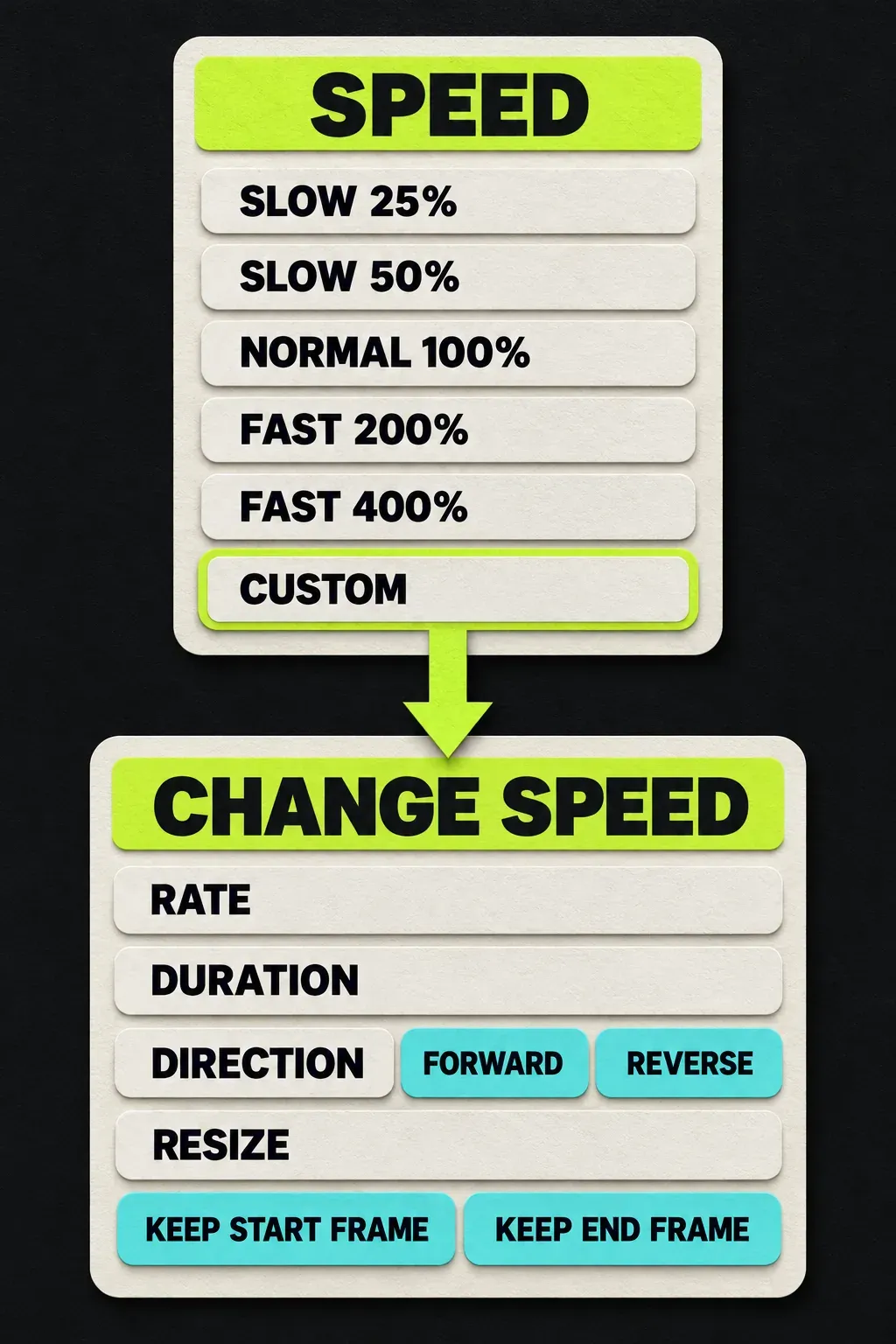
To speed up or slow down a clip in Lightworks 2026.1, right-click it on the timeline, open Speed and pick Slow 25%, Slow 50%, Fast 200% or Fast 400%. For any other rate, a reverse or an exact running time, choose Custom... to open the Change Speed panel. A speed change applies to the whole clip, so split the shot first when only part of it should change.
The presets ripple everything after the clip; the panel can keep the clip's place on the timeline instead. I'd start with a preset for a quick fast-forward or a half-speed moment, and switch to the panel as soon as the cut is timed to music, because the panel is the only place you can stop later shots from moving.
| Job | Where in Lightworks 2026.1 |
|---|---|
| Speed up a clip | Right-click the clip > Speed > Fast 200% or Fast 400% |
| Slow motion | Right-click the clip > Speed > Slow 50% or Slow 25% |
| Any other speed, such as 150% | Speed > Custom... > type it into Rate |
| Fit a shot into an exact gap | Speed > Custom... > type the length into Duration |
| Play a clip backwards | Speed > Custom... > Direction: Reverse, or type a negative rate |
| Keep later shots where they are | Speed > Custom... > Resize off, then Keep start frame or Keep end frame in place |
| Change only part of a shot | Split the clip at both ends of that part, then retime the middle piece |
| Back to normal | Right-click the clip > Speed > Normal 100% |
Speed up or slow down a clip with the presets
The Lightworks speed and retiming guide puts four forward presets on the clip's right-click menu. They apply the moment you click, with no panel to confirm.
- Right-click the clip on the timeline itself, not its thumbnail in a bin.
- Open the Speed submenu.
- Choose Slow 25%, Slow 50%, Fast 200% or Fast 400%.
- Watch the clip change length: the presets resize the clip and ripple the rest of the timeline to match.
- Read the new rate on the segment. Any speed other than 100% appears after the clip's text labels, so a retimed shot is easy to spot later.
The length change is simple division. A 10-second shot becomes 5 seconds at 200%, 2.5 seconds at 400%, 20 seconds at 50% and 40 seconds at 25%. Normal 100% appears in the same submenu once a clip has been retimed, and it's the quickest way back. Every edit in Lightworks can also be undone.
Set an exact speed in the Change Speed panel
Choose Speed > Custom... to open the Change Speed panel. It retimes the clip in three ways:
- Rate menu. The same 25%, 50%, 100%, 200% and 400% presets, plus the speeds you've used recently.
- Typed rate. Any percentage. Below 100% is slow motion and above 100% is fast motion.
- Duration. Type the running time you need and Lightworks works out the rate. A 12-second shot typed into an 8-second duration plays at 150%.
I'd use Duration rather than guessing percentages whenever a shot has to fill a hole or land on a beat, because the panel does the division and the result fits on the first try.
Reverse a clip
Set Direction to Reverse, or type a negative rate: -100% plays the clip backwards at normal speed and -50% plays it backwards in slow motion. Typing a negative or positive number flips the Direction option for you, and the speed guide says reversed clips play smoothly without black frames.
Resize or keep the clip's place on the timeline
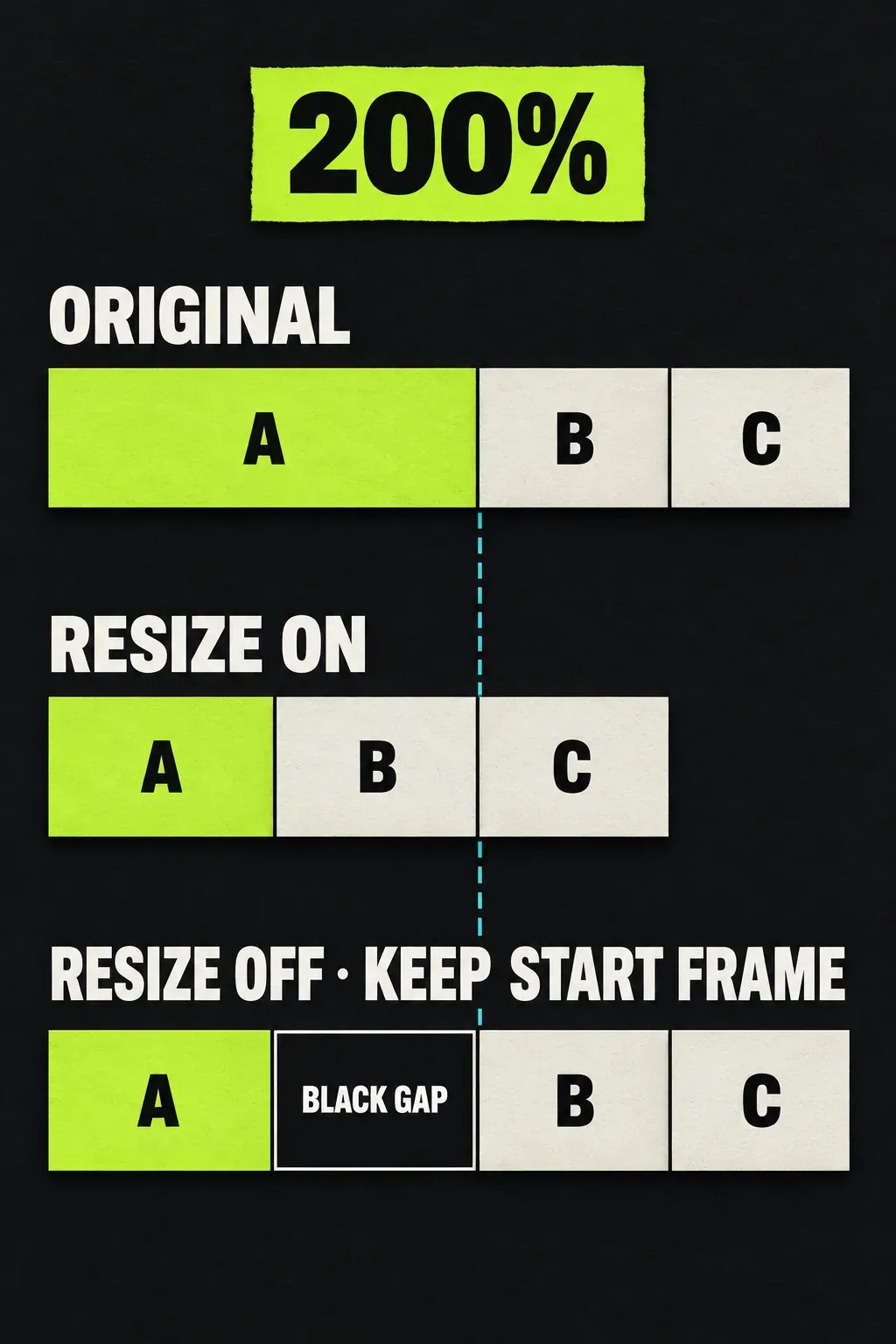
When a speed change makes a clip longer or shorter, the panel's Media options decide what happens around it. This is the setting that separates a quick retime from one that won't disturb a finished edit.
| Setting | Clip on the timeline | Shots after it | Use it when |
|---|---|---|---|
| Resize on | Grows or shrinks to the new length | Move to follow | You're still building the edit |
| Resize off, Keep start frame in place | Keeps its length; the shot starts on the same frame | Stay put | The start of the shot matters, such as an action beginning on a cut |
| Resize off, Keep end frame in place | Keeps its length; the shot ends on the same frame | Stay put | The end of the shot matters, such as a landing before the next cut |
Speeding a clip up with Resize off leaves a black gap where the freed time used to be, and the guide notes that this protects the timing of everything downstream. Slowing a clip down with Resize off keeps its length, so less of the shot fits inside it, and the anchor decides whether you keep its start or its end. I'd switch Resize off once picture is cut to music, because one rippled clip can push every later cut off the beat. The Lightworks 2026.1 release notes sum up the change from older versions: the frame you want to keep is no longer tied to whether the clip resizes.
The older speed controls are still there too. The guide says the legacy controls behind the Advanced button at the end of the timeline are available and unchanged, so a project or habit built on them still works.
Speed up or slow down only part of a clip
Speed belongs to the whole clip, so cut out the section first. PCMag's Lightworks review made the same point in April 2025: you can't select a region to speed up or slow down unless you split the clip.
- Put the playhead where the change should start and use Split in the timeline's edit tools, which adds a cut at the playhead without removing anything. The Cut tool does the same with a click; Alt+C turns it on.
- Split again where the change should end.
- Right-click the middle piece and retime it with a preset or the panel.
With Clip Link on, the Cut tool cuts the linked sound at the same point; Alt+click inverts Clip Link for that click. The guide to cutting and trimming clips in Lightworks covers the Cut tool, ripple and linked sound in more detail. If you change your mind, set the piece back to Normal 100% and use Merge Redundant Cuts from the Clean Up menu in the timeline's Tools side menu, which the Lightworks timeline tools guide says rejoins clips that were split without any other change.
Build a stepped speed ramp
The 2026.1 speed guide describes no speed ramps or keyframed speed, and PCMag listed the same gap in 2025. The workaround is a staircase: split the move into three or four short pieces and step the rate, for example 100%, 150%, 250%, 400%. Each step is a visible change of pace, so put the cuts on frames with fast movement, where a jump in speed is hardest to see.
Keep the sound right after a speed change
Decide what the sound should do before you retime the shot. Speech slowed to 50% or sped to 200% is rarely usable, and the advice in a LWKS forum thread on slow motion and replays still holds: leave the audio at 100% for slow motion, or replace it with music. Audio clips can be retimed too, but the same answer warns: "I don't know whether you'll like what you'll hear." The 2026.1 speed guide doesn't say how linked audio is handled, so check the audio tracks after every retime. For earlier versions, the moderator's guide in the LWKS forum thread on playback speed, freeze frames and reverse warned that retiming audio with the video changes its pitch and said to deselect any audio track you don't want retimed.
- For slow motion and fast-forward gags, drop the original sound under the retimed piece and lay music or effects. The Lightworks guide to syncing video and audio says a music track under a shot isn't out of sync with it.
- To change the picture only, turn Clip Link off with Ctrl+M (Cmd+M on Mac) or Alt+click for a single selection, so the action touches the video without its linked audio.
- If linked sound and picture slip, Lightworks shows a sync indicator on the timeline. Click it to fix the slip, or Shift+click to accept the new positions when the change was intended.
I'd retime the picture and rebuild the sound bed afterwards, because chasing sync on retimed dialogue takes longer than laying fresh audio under a shot that's clearly stylised. The guide to mixing music under dialogue in Lightworks covers levels once the music is in. Phone footage that drifts before you've retimed anything is a different problem: it's often variable frame rate, and the Apply VFR correction project setting keeps audio and video locked.
Smooth slow motion depends on the frame rate you shot
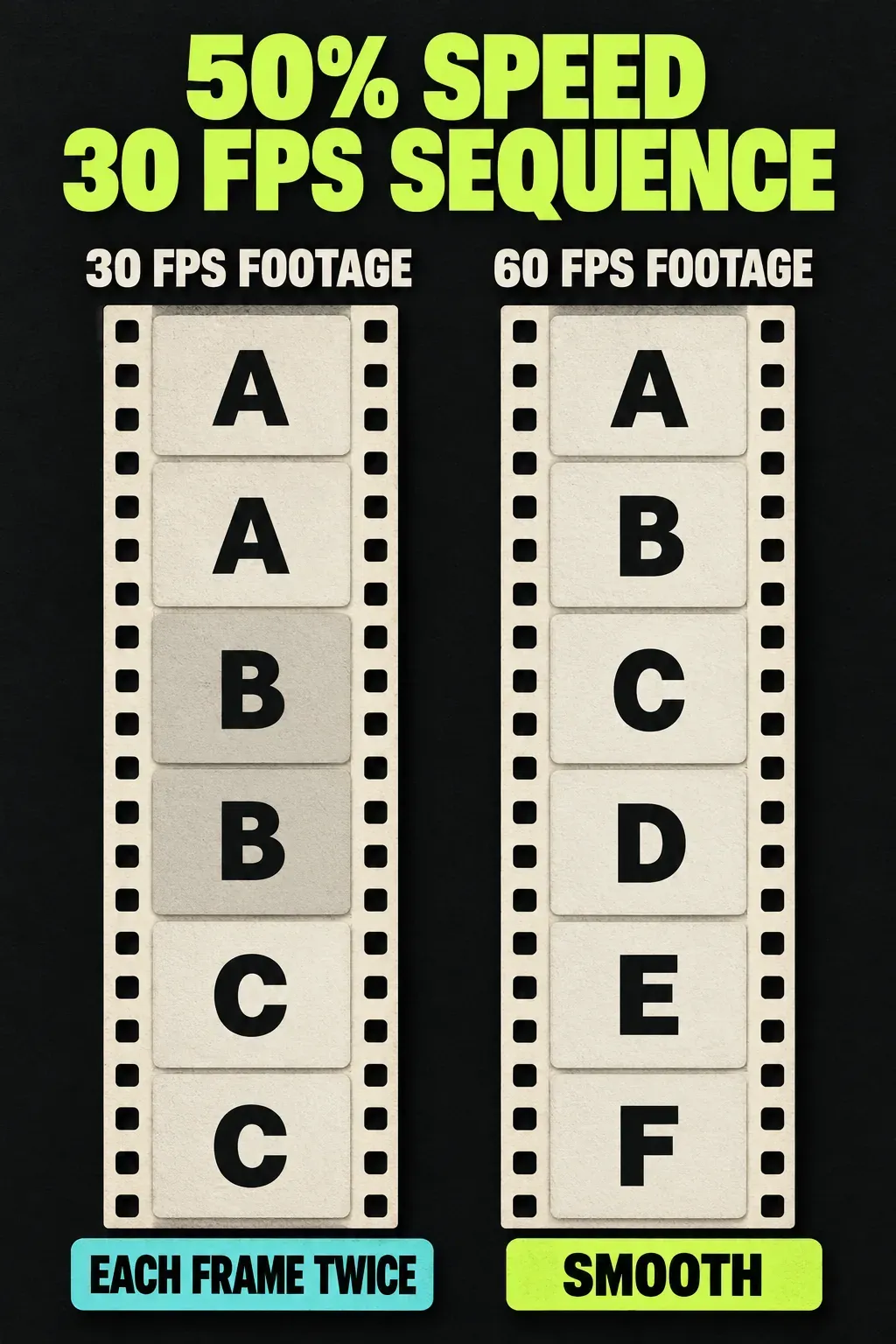
Lightworks plays every clip at the sequence frame rate, so when a slowed clip has fewer frames per second than the sequence needs, it repeats frames. A 2016 user in a LWKS forum thread on clean 25% slow motion called the duplicated frames really ugly, and the 2026.1 speed documentation still describes no frame blending or optical flow. Smooth slow motion has to come from the camera.
The arithmetic is short: the number of different frames you see each second is the clip's frame rate times the speed, up to the sequence rate. Anything below the sequence rate means held frames.
| Footage | Speed | Sequence | Different frames each second | Looks |
|---|---|---|---|---|
| 30 fps | 50% | 30 fps | 15, each shown twice | Slightly stepped |
| 30 fps | 25% | 30 fps | 7.5, each shown four times | Clearly stepped |
| 60 fps | 50% | 30 fps | 30, every frame used | Smooth |
| 120 fps | 25% | 30 fps | 30, every frame used | Smooth |
| 50 fps | 50% | 25 fps | 25, every frame used | Smooth |
| 120 fps | 20% | 24 fps | 24, every frame used | Smooth |
That's the forum's own fix from 2016: shoot 120 fps and play it at 25% in a 30 fps edit, so every frame is used. I'd shoot anything I know will be slowed at 60 fps or higher and keep the sequence at the delivery rate, because the shooting frame rate is the only thing that buys smooth slow motion here. The Lightworks importing guide says every sequence has a fixed frame rate that playback is conformed to, and a file whose rate can't be used in the current project shows its frame rate in red in the import list.
Freeze a frame
Freeze frames are the one speed job the 2026.1 documentation doesn't mention. Before 2026.1, the Lightworks blog's speed-up and freeze tutorial froze a shot by setting its speed to 0% with Keep start frame, and a forum moderator listed 0% as the freeze preset in 2024. PCMag's 2025 review still found no clear freeze frame option.
I'd split off a short piece that starts on the frame you want to hold, open Custom..., switch Resize off with Keep start frame in place and type 0%, because that matches the documented older method and keeps the rest of the timeline still. If the panel won't take 0%, the legacy controls behind the Advanced button are the fallback.
When Speed is missing from the right-click menu
Not finding the command is the most common speed complaint. The same forum thread on playback speed has users in July and December 2024 who couldn't find it, and a 2025 reply wrongly claimed Lightworks couldn't change speed at all before a moderator corrected it.
- Right-click the clip on the timeline. The Speed submenu belongs to timeline clips, not bin thumbnails or the viewer.
- Check the version. Slow and Fast presets on the right-click menu arrived in Lightworks 2026.1. Older versions hid the dialog under a Segment submenu; the Lightworks download and install guide shows how to update.
- Clear the yellow selection box. In the 2024 thread, a segment outlined in yellow didn't show Speed; the moderator's advice was not to use the yellow selection box for this.
- Try the legacy controls. The Advanced button at the end of the timeline still opens the older speed controls.
Repeated presses of J or L change transport speed while you play, not the speed of the clip; the Lightworks keyboard shortcuts list has the full set. If the whole timeline plays in slow motion without anyone retiming a clip, that's a playback fault, and the fix for slow or choppy Lightworks playback starts with the playback controls and the audio output device.
Speed changes in published reviews and forum reports
Seven reviews, tutorials and forum threads published between February 2016 and June 2025 describe changing clip speed in Lightworks. Four of the seven report people who couldn't find or reliably open the speed command, and none reports built-in frame interpolation for slow motion. Every one of them predates the 2026.1 Speed panel.
| Source | Date | What it reported |
|---|---|---|
| LWKS forum, clean 25% slow motion | February 2016 | Slow motion repeats frames; 120 fps at 25% gives clean 30 fps motion |
| LWKS forum, slow motion and replay | July 2016 | Split at both ends of the moment; audio went out of sync; keep audio at 100% or use music |
| LWKS forum, can't find speed in Free | April 2020 | User couldn't find speed; it sat under segment commands, or behind Advanced in the flexible layout |
| r/Lightworks thread | 2023 | Tutorials said right-click the segment; the user couldn't find the option |
| Lightworks blog tutorial | March 2024 | 300% with Resize; freeze with 0% and Keep start frame |
| LWKS forum, speed, freeze and reverse | April 2024 to June 2025 | Presets include -100% reverse and 0% freeze; two users couldn't find Speed |
| PCMag review (2025.1) | April 2025 | Speed by percentage, negative reverses; option didn't appear reliably; no ramps, keyframes or clear freeze frame |
| Composite | 2016 to 2025 | 4 of 7 report a hard-to-find speed command; 0 of 7 report frame interpolation; 2 of 7 give 0% as the freeze |
The pattern is clear. The speed engine itself drew few complaints; finding it did. Lightworks 2026.1 answers that on paper by putting the presets on the first right-click menu and gathering everything else in one panel, while ramps, keyframed speed and smooth interpolation are still missing from the documented tools. I'd judge Lightworks speed tools as solid for straight retimes, reverses and duration fitting, and plan around the camera frame rate for any slow motion that has to look smooth.
Retime with a plan
Split first if only part of the shot changes, use a preset for a quick retime and the Change Speed panel for exact rates, reverse and a fixed footprint. Shoot at a higher frame rate for slow motion, and sort the sound before you fine-tune the picture. The speed you set shows on the segment, so a retimed shot is easy to spot even in a long timeline.