
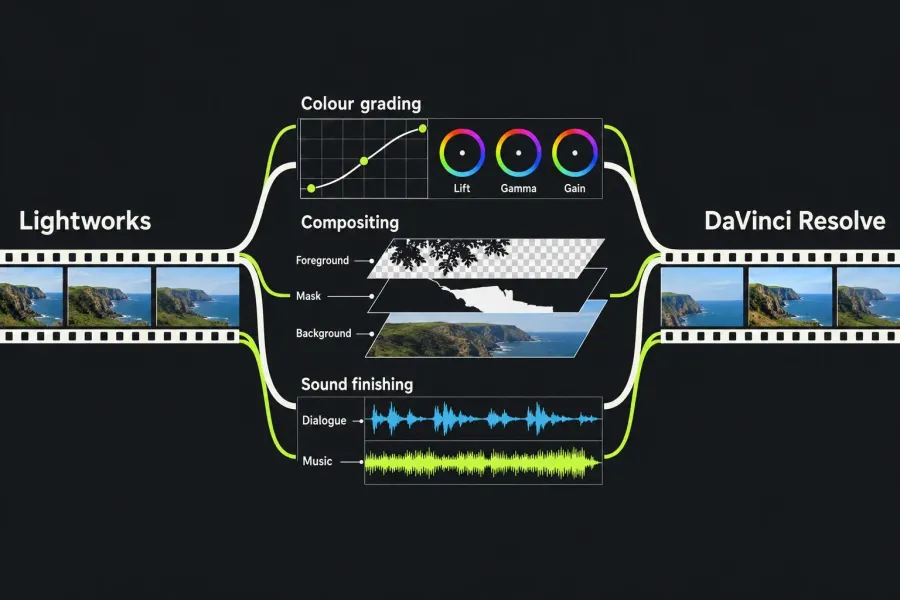
For a new project that needs detailed color work, visual effects and audio finishing in one application, I would start with DaVinci Resolve, provided your computer, source media and required edition fit. Resolve combines editing, Color, Fusion and Fairlight workspaces, which makes it the pick when the job extends well beyond assembling the cut. Keep Lightworks if your current project already makes the edit and delivers the required file.
An existing Lightworks workflow is a different decision. If you can make the edit, deliver the required file and hand off to the people finishing it, a longer feature list is a poor reason to move a working project. Lightworks documents timeline trimming, multicam editing and audio mixing. Keep that workflow when it meets the brief; switch or hand off when you can name the finishing task it no longer covers.
The checks below connect that choice to the actual deliverable: the finishing tools you need, current hardware support, source and output codecs, licence costs, and whether you want to transfer a completed video or an editable timeline.
Lightworks vs DaVinci Resolve in published reviews
The historical reviews below favour Resolve: its editorial median is 4.25 from two reviews against 4.0 from three for Lightworks, and the user-rating snapshot is 4.8 across 494 platform review entries against 3.9 across 65. PCMag also recorded a shorter render with Resolve Studio than Lightworks 2025.1. Keep the review versions and editions attached to those numbers; they do not establish a speed ratio between current releases.
| Source | Editor and version | Score | What it means here |
|---|---|---|---|
| PCMag review, November 2025 | DaVinci Resolve 20 Studio | 4.0 / 5 | Fastest render on PCMag's test PC; the free version ran out of GPU memory with full-resolution proxies |
| TechRadar review, July 2025 | DaVinci Resolve 20, free version | 4.5 / 5 | Professional-grade editing at no cost |
| PCMag review, April 2025 | Lightworks 2025.1 | 3.0 / 5 | Slow exports and few AI tools |
| TechRadar review, June 2022 | Lightworks 2022 | 4 / 5 | Free stopped at 720p then; it now exports 1080p |
| Tom's Guide review, September 2021 | Lightworks 2021.3 | 4 / 5 | Solid features with a steep learning curve |
| Composite | Both editors | Resolve median 4.25 (2, range 4.0 to 4.5); Lightworks median 4.0 (3, range 3.0 to 4.0) | Resolve leads, and its reviews are newer |
The historical user-rating snapshot also favours Resolve: Capterra lists 4.8 from 273 entries, and G2 lists 4.7 from 221. For Lightworks, G2 lists 3.6 from 31 and Capterra lists 4.2 from 34. Weighting each platform average by its displayed count gives 4.8 for Resolve and 3.9 for Lightworks. The combined totals of 494 and 65 count platform review entries; they do not establish the number of distinct reviewers.
Render speed on the same PC
The results method keeps the test machine, project and output conditions attached to a speed comparison. In PCMag's historical Lightworks 2025.1 Create review, the Windows 11 PC had an Intel Core i7-12700K, 16GB of RAM and an RTX 3060 Ti. Its project combined seven clips from 720p to 8K, just over five minutes in total, exported to 1080p30 H.264. Resolve 20 Studio finished in 27 seconds and Lightworks 2025.1 Create in 117, 4.3 times as long. Lightworks also wrote a 4.6 Mbps file where the others produced 15 to 16 Mbps, because only Pro lets you set the H.264 bitrate.
Two conditions limit that result: PCMag timed paid Resolve Studio, and Lightworks ran before the 2025.2 GPU H.264 encoding update. The bitrate mismatch also means the output files were not equivalent. I'd compare a short export of your own footage in current versions at matched resolution, codec and bitrate, noting the encoder, before deciding that a speed saving justifies a move.
I'd start a finishing-heavy project in Resolve for its integrated grading, compositing and audio tools. The older scores support that shortlist; the old render gap does not quantify today's saving. Hardware still matters: PCMag reported a GPU-memory error in Free with full-resolution proxies and resolved it by reducing their resolution. Check the current hardware and workload requirements before moving a project.
Where Resolve makes the difference
Color and visual effects
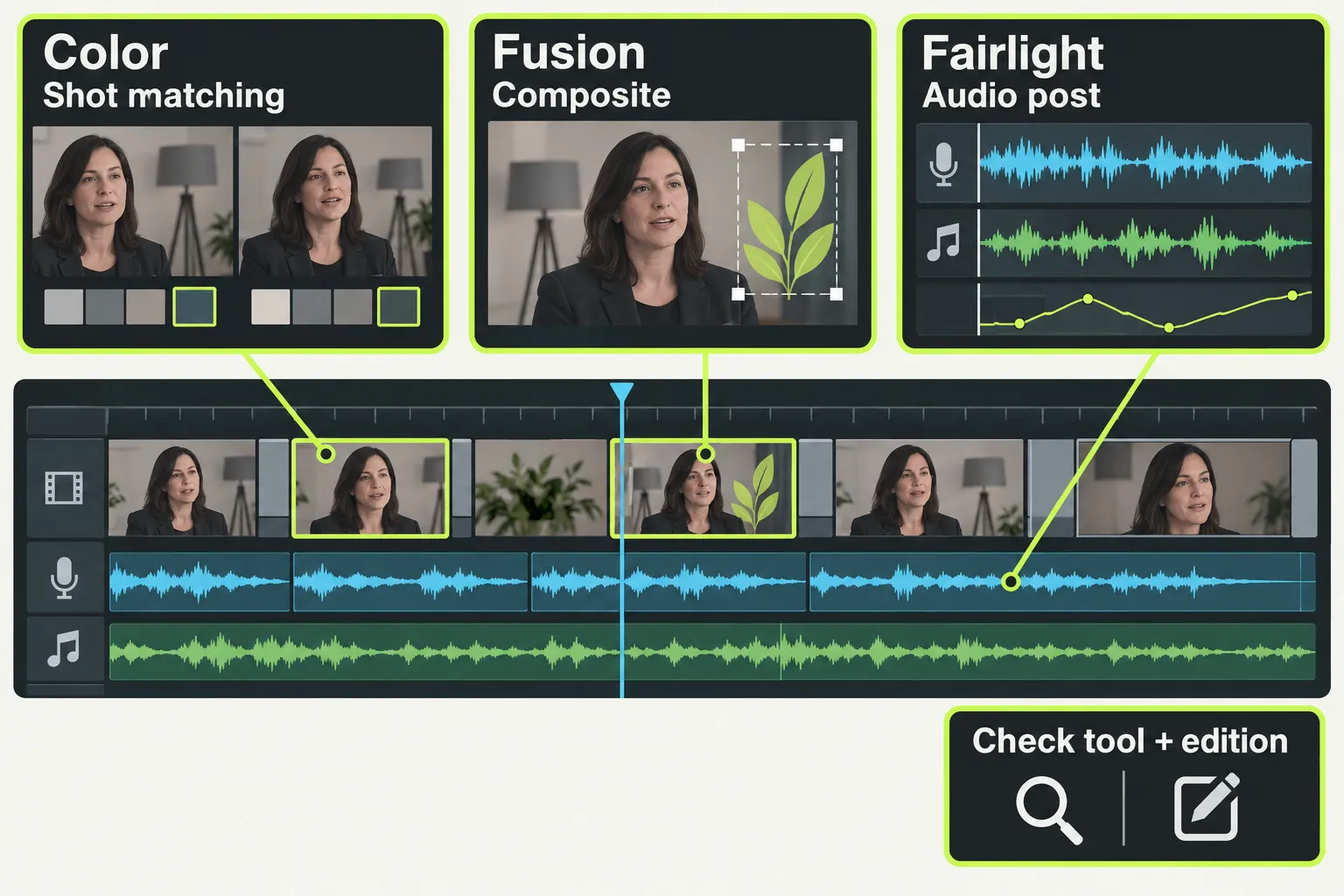
Resolve is the stronger candidate on my shortlist for a project whose finish depends on detailed grading and compositing alongside the edit. Blackmagic's Free product description lists luma, HSL and 3D keyers and Color Warper. Its HDR wording conflicts with the Free 21.2 readme, which lists HDR tools as Studio features, a conflict the edition section below comes back to. Its integrated Fusion page uses node-based 2D and 3D compositing for work such as animated titles, replacement graphics and layered visual effects. Fusion's overall scope doesn't mean every advanced tool belongs to Free, so check the entitlement for the one you need.
Lightworks also lists colour correction and grading in its current feature overview. Its effects stack and Video Routing graph support more involved arrangements. The decision is whether those tools cover your particular treatment. Having nodes in both applications does not make their compositing scope equivalent.
If you only need to balance shots and place a title, an established Lightworks project may already contain everything required. If the brief calls for substantial compositing and repeated interaction between effects and grading, that's where I'd move to Resolve, because its integrated finishing tools are a more compelling reason to change than an interface preference.
Audio post-production
For dialogue replacement, extensive automation, routing and loudness work, Fairlight supplies a dedicated audio-post workspace inside Resolve. That is a different requirement from balancing a voice against music and delivering a stereo mix. Some advanced AI and immersive-audio paths require Studio; choose the exact function before choosing the licence.
Lightworks has clip and sequence mixing, routing and automation in its documented v2026 mixer, while older builds may present different controls. Its native audio processors include compression, limiting and noise reduction with licence-dependent availability. Do not choose an editor on the assumption that Lightworks has no audio cleanup, or that its mixer provides every part of Fairlight's broader audio-post workflow.
Check the computer before the feature list
The following minimums are for Resolve 21.2. They matter more than a generic statement that an editor runs on Windows, Mac and Linux. Meeting a minimum is also no guarantee of smooth playback with your media, effects or timeline.
| Platform | Resolve 21.2 minimums relevant to the choice |
|---|---|
| Mac | macOS 15 Sequoia or later and Apple Silicon; 8 GB system memory, or 16 GB when using Fusion. An Intel Mac does not meet this current build's requirements. |
| Windows x86 | Windows 10 Creators Update, 16 GB RAM or 32 GB for Fusion, plus an integrated or discrete GPU with at least 4 GB VRAM and OpenCL 1.2 or CUDA 12.8 support. Use the specified vendor drivers; the NVIDIA minimum is Studio driver 581.57. |
| Linux | Rocky Linux 8.6, 32 GB RAM and a discrete GPU with at least 4 GB VRAM, with OpenCL 1.2 or CUDA 12.8 support and the required drivers. The listed NVIDIA minimum is 580.119.02. |
Windows on Arm has separate requirements in the same readme, so the x86 row does not tell you whether a given Arm computer is supported. On Mac, using an older Resolve version is a separate compatibility decision, with that version's own OS, codec and project restrictions.
Studio workloads can require considerably more than those starting minimums. The 21.2 Studio readme specifies at least 16 GB VRAM for advanced AI on Windows and Linux, and 32 GB RAM plus 12 GB VRAM for background rendering. On Mac it specifies 16 GB system memory for advanced AI and 32 GB for background rendering and analysis. A Studio licence does not lower those hardware requirements.
Lightworks lists Windows 10 or later, macOS 12 or later on Intel or Apple Silicon, and supported Ubuntu, Mint and Fedora releases, with 8 GB RAM minimum and 16 GB recommended. The Lightworks 2026.1 setup guide confirms that macOS minimum; 2026.1 raised it from 10.15 Catalina. Check the requirements of the build and plugins you intend to use. These published minimums cover compatibility only and say nothing about whether Lightworks runs your workload faster than Resolve.
Check codecs on your operating system
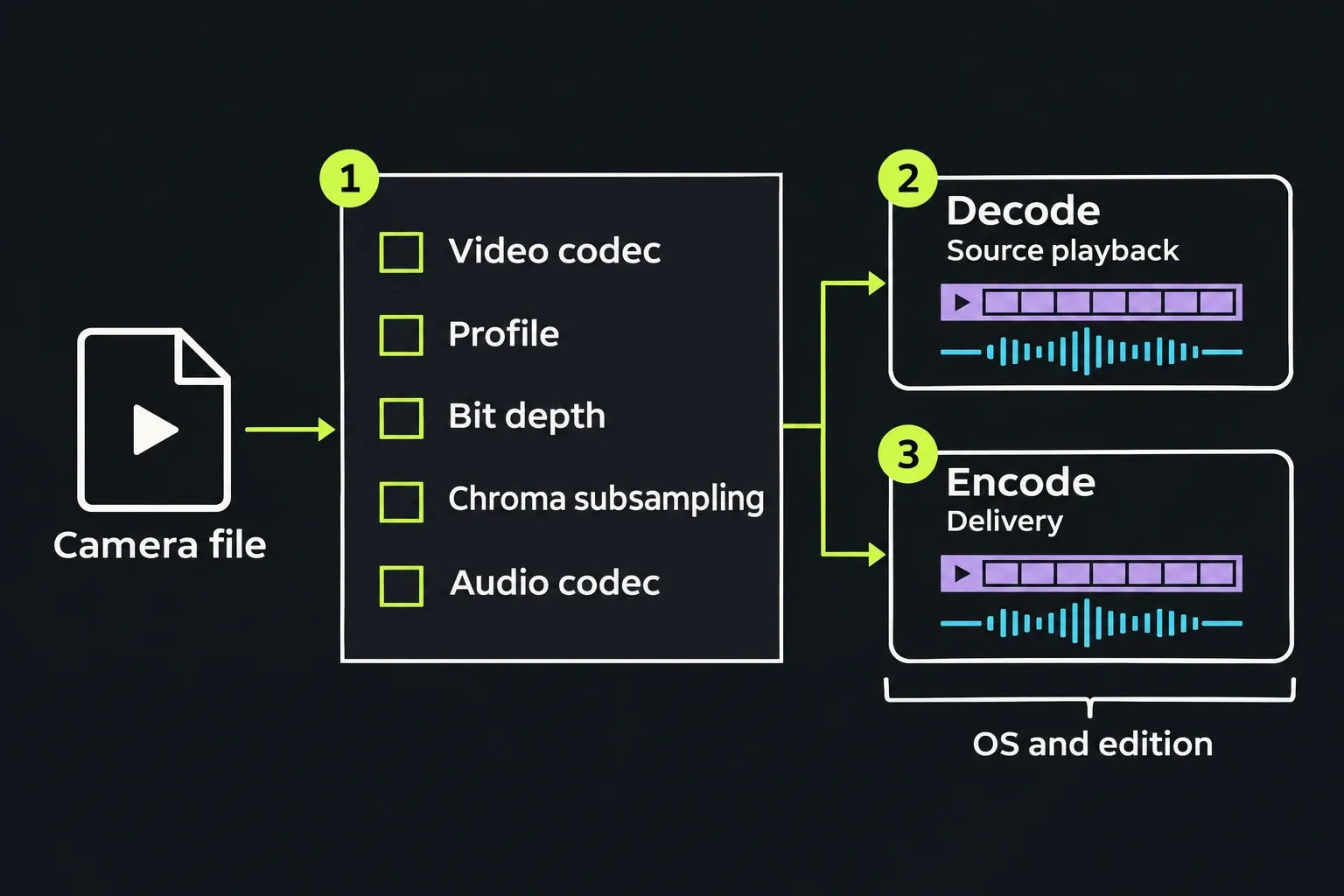
A camera or phone file ending in .mp4 does not settle compatibility. Record its video codec, profile, bit depth, chroma subsampling and audio codec, then check both decode for source playback and encode for the delivery you need. Those are separate requirements. Blackmagic's published Resolve 21.1 codec list identifies the following platform differences. Use that format-specific document alongside the 21.2 platform requirements rather than treating an OS name as a codec guarantee.
| Platform | H.264/H.265 and audio conditions to check |
|---|---|
| Windows | The H.264 rows list 8-bit OS-supported profiles, with more profiles and GPU acceleration in Studio. H.265 rows list 8/10-bit OS-supported profiles, with more profiles and GPU acceleration in Studio. That does not guarantee every 10-bit HEVC profile or chroma format. |
| macOS | The macOS H.264/H.265 rows list GPU-accelerated decode and encode without the Windows Studio-only acceleration annotation. The actual hardware's codec and profile support still governs acceleration. |
| Rocky Linux | The H.264/H.265 rows require Studio for decoding and Studio with NVIDIA graphics for encoding. The audio table lists no AAC/M4A decode or encode support. Embedded audio must also be in a decodable format; purchasing Studio is not an automatic AAC solution. |
This is why I would reject both blanket shortcuts: “all 10-bit footage needs Studio” and “Free handles any 10-bit HEVC file.” The current Windows table has a specific OS-supported 10-bit HEVC path. Other profiles, source audio, hardware and output requirements can change the answer. If the source or required export has no supported path, resolve that media requirement before moving a project or paying for a licence.
For Lightworks, check the format, platform and licence conditions too. MP4, MOV or a named codec in a general list is not a complete export guarantee. Wider professional outputs and plugins can require Pro, and DNxHD has a separate codec-licence requirement. Choose from the actual input and delivery specification rather than comparing container-name counts.
Choose the edition for the deliverable
Resolve Free or Studio
Blackmagic advertises Free finishing up to 60 fps at Ultra HD 3840 × 2160, with HDR tools and collaboration. That makes Free a strong starting point for a new UHD project when its source and output formats are supported. UHD at those exact dimensions is not DCI 4K, and the resolution ceiling doesn't cover every codec on every operating system.
I'd stay on Free until the job names a specific Studio requirement. Examples include temporal and AI spatial noise reduction, AI voice isolation, stereoscopic tools, extra Resolve FX, or higher-resolution and higher-frame-rate finishing. The Linux codec path above can also make Studio necessary. Collaboration by itself doesn't require the paid edition; the vendor's Free description expressly includes it. HDR is less clear: the product page also lists HDR tools for Free, but the Free 21.2 readme names HDR tools among the features that need Studio, so confirm the specific HDR control in Free before relying on it.
The regular US Studio price is US$295; Blackmagic's US$236 promotion runs until 20 November 2026, excluding local duties and taxes. A direct purchase is an alternative to a required monthly desktop-software subscription; optional cloud licensing and services have their own costs. The purchase model is not a promise that every future upgrade or service will be free.
Lightworks Free, Create or Pro
Lightworks offers Free, Create and Pro, with monthly, yearly and Pay Once options for the paid plans. The tier table lists general export ceilings of 4K for Create and 8K for Pro, while Pro adds interchange export, wider media-file outputs, OpenFX and third-party audio plugins. Check the actual format and platform, because a maximum resolution and a plugin-support row do not cover every combination you might need.
Lightworks 2026.1 Free exports up to 1080p, portrait included. The pricing table lists Free up to 1080p, and the web and social guide describes portrait export and 1080p delivery on Free. The older FAQ's 720p limit describes Free before 2026.1.
The Lightworks amounts shown in EUR are not a US checkout quote, so do not subtract them directly from Resolve's US price. Compare local totals, taxes and billing terms for the plan you need. The Free, Create and Pro guide covers that choice. Pay Once also is not an unconditional lifetime-upgrade guarantee.
Move a finished video or an editable timeline
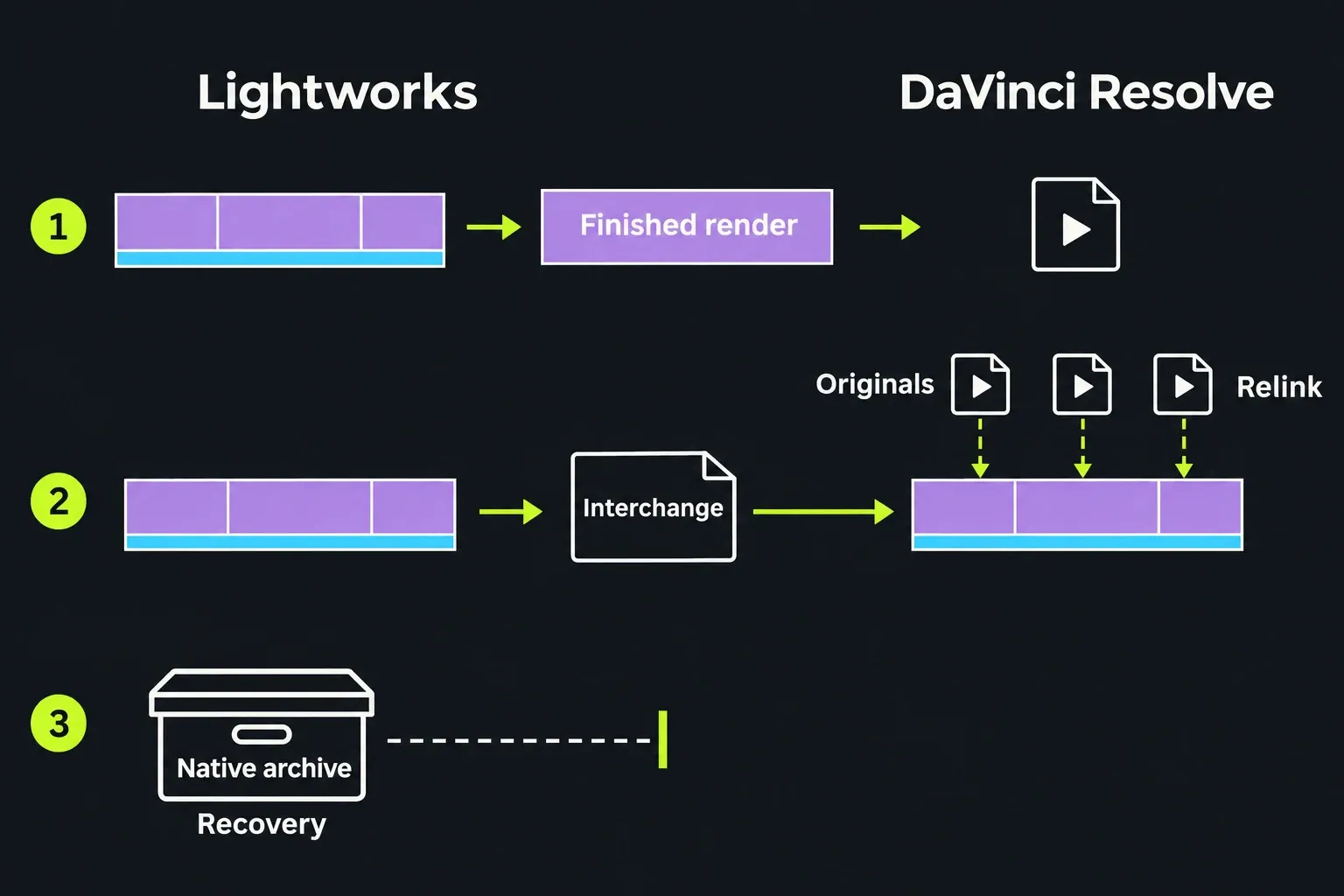
There are two useful ways to take Lightworks work into Resolve. A finished render transfers the completed picture as a media file: importing it gives you that rendered clip, with the original cuts and treatments baked in. You can work on the resulting picture and sound, but that file does not recreate the original editable clip arrangement. When that's the handoff you want, choose a supported high-quality master.
An editable handoff needs interchange edit references and the source files. The professional delivery guide describes AAF, EDL and XML interchange; many interchange formats require Pro. Agree a format the receiving workflow supports. Interchange describes the edit and references media, so the receiving application must relink to the actual files.
A native Lightworks archive serves a third purpose: keeping a recovery route for the Lightworks project. Do not send that archive as though it were the interchange timeline Resolve will open.
- Preserve the Lightworks work. Make an archive and keep the originals before reorganising or migrating. LWKS distinguishes logs-and-media archives from logs-only archives; logs-only needs the media separately. If Lightworks reports offline files during archiving, those files were not included. Bring them online and update the archive before treating it as complete.
- Keep a reference export. Use the existing edit as the comparison point for picture, sound and timing. For a master, LWKS recommends a high-quality intermediate at the sequence's full resolution and frame rate, subject to the required licence and supported receiving codec.
- Export the supported interchange from Pro. Supply the edit-reference file and the original media as distinct handoff items. Keep the native archive available separately for recovery.
- Relink in the receiving workflow and compare. Check the clip choices, cut points, frame rate, audio track and channel layout, sound sync and overall duration against the reference. Inspect titles, grades, retimes, effects and transitions where the edit uses them. LWKS warns that effects and transitions rarely translate perfectly between applications, so plan to rebuild or adjust what does not match.
- Keep the recovery route and the working media. Retain the Lightworks archive and originals for recovery. Files referenced by the receiving edit must remain available after the handoff is accepted. Do not delete linked originals merely because import or conform succeeded. If media cannot be relinked or the sequence differs materially, correct that issue before treating the transfer as complete.
Also preserve backups before changing Resolve versions. Blackmagic says that although 21.2 project libraries can remain accessible to 20.3.2, individual projects created or opened in 21.2 cannot reopen in 20.3.2. LWKS likewise warns that full backward compatibility is not always guaranteed after major Lightworks upgrades. Keep the version and recovery expectations agreed with whoever receives the job.
Make the choice from the required result
For a new integrated grading, VFX and audio-post job, Resolve is the choice I would pursue after the hardware, codec and edition checks. For an established Lightworks cut that already delivers correctly, stay unless a specific finishing need justifies the change. You can also keep the Lightworks edit and hand it off to Resolve rather than moving every stage of the job.
Write down the required resolution, frame rate, output codec, audio layout and finishing tools before paying or migrating. A missing compatible output, an unsupported source audio codec or a handoff that loses editable work can outweigh a much longer feature list. If Lightworks remains the better fit for your job, the first-edit guide walks through its basic editing and export workflow.