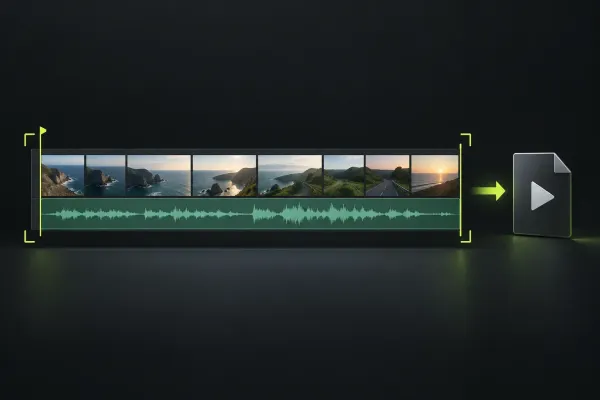
export
How to Export a Video in Lightworks
Choose a local MP4 export, confirm the sequence and range, and check frame rate, quality controls and licence limits before reviewing the finished file.
Open guideExplore the library
Lightworks Guide publishes editing, export and troubleshooting guides under the Lucas Bennett byline. Advice follows product documentation and attributed evidence.
Choose a local MP4 export, confirm the sequence and range, and check frame rate, quality controls and licence limits before reviewing the finished file.
Open guide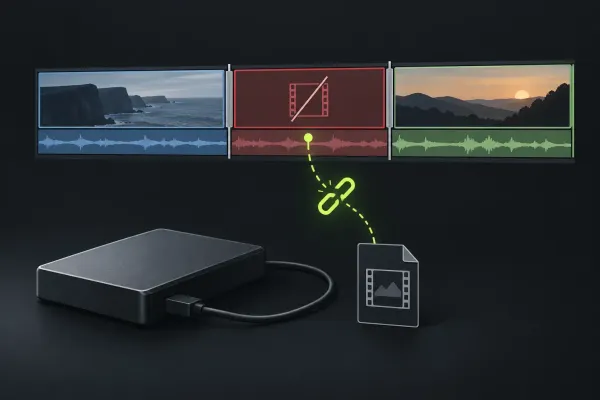
If Lightworks shows Media Offline, first find out whether the original file is unavailable, has moved, or has actually been deleted. Reconnect known storage or restore the known original path before changing
Open guide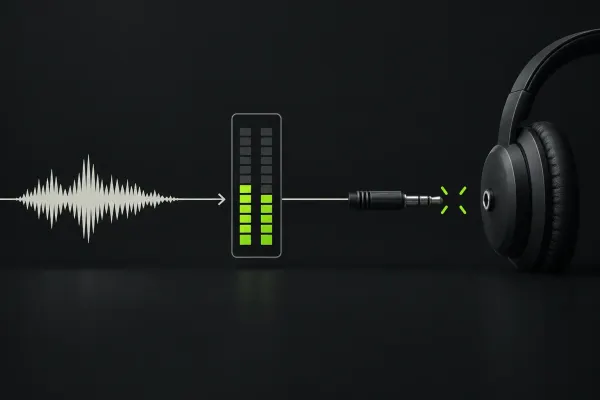
If Lightworks has no audio, check where the same section stops being audible: the original file, the source viewer, the sequence, or the completed export. Inside the editor, inspect the intended mix’
Open guide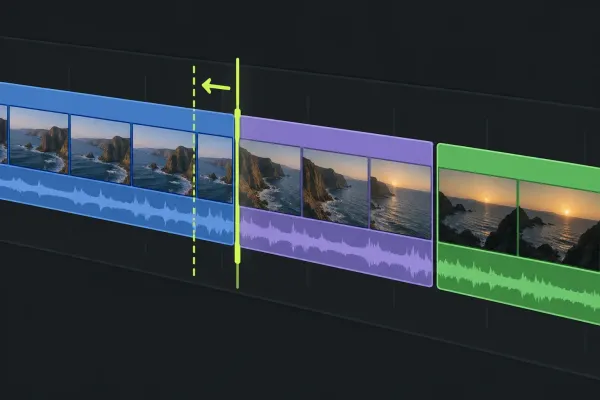
Choose the edit from the result you need: split a clip, shorten an edge, move a cut, slip source frames or slide a shot while keeping timing and linked sound under control.
Open guide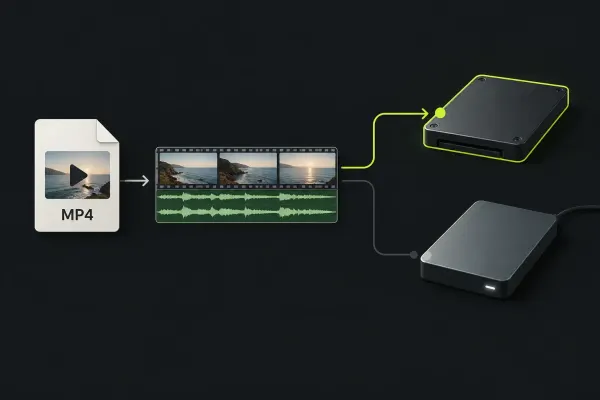
To import an MP4 or MOV into Lightworks, open Import and select the file, choose whether to link it or copy it into project media storage, set a destination bin, and click
Open guide