
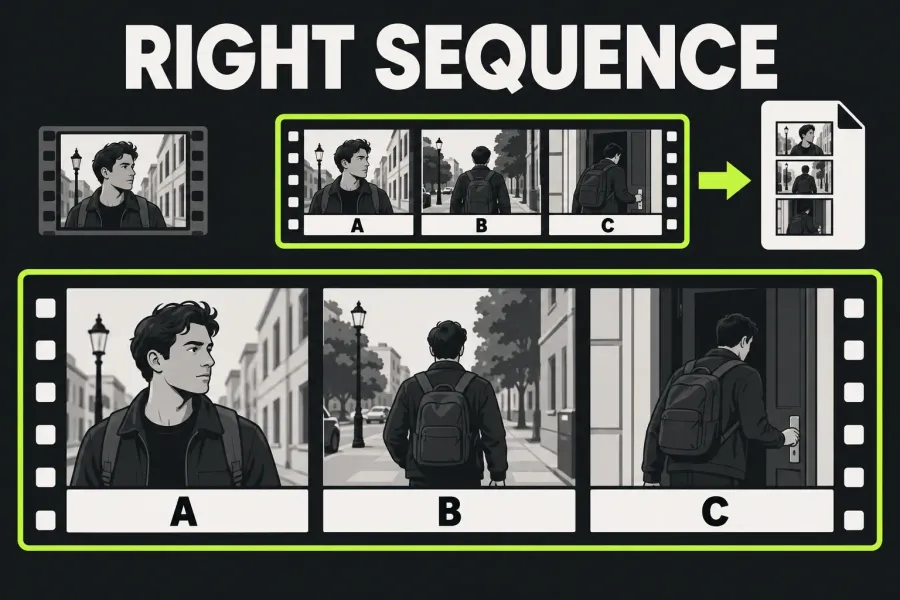
If a completed, playable Lightworks export contains a source clip instead of your edited sequence, check the queued item, the export range and the actual file you opened. In the documented Export layout, inspect every name in Source List. If the queue is uncertain, clear it, explicitly select the intended sequence and add that selection again before checking the range. The export workflow can send a sequence, clip or subclip to export; a visible finished timeline alone does not show which one was queued.
The controls below follow the single Export panel in Lightworks 2026.1. Keep the unexpected file until you've checked its replacement. I'd confirm the exported item, its range and which file was opened before touching compression settings, because wrong content and poor image quality are separate problems.
Confirm that the problem is wrong content
Start with a file that has finished exporting and that you can play. If there is no usable file, or the export task has failed, investigate the task result first. The documented Tasks page shows job status and progress, with completed work recorded in Tasks Log. Starting an export is not the same as having its finished output.
A correct edit with the wrong aspect ratio, cropped framing or poor image quality is a different problem from a file containing another clip or sequence. An unreadable file needs its own playback or format check too. Everything below assumes content you can compare with the intended edit.
Compare the file with both the intended sequence and the suspected source. Check its opening, ending, duration and a moment where the edit unmistakably changes the source: a cut to another shot, a title or a deliberately trimmed passage. Footage that was removed from the sequence is a useful clue, but it can also point to an older sequence version or an old output file. One shared opening frame proves little.
Distinguish the item from the range
The export item is the sequence, clip or subclip you chose. The range is how much of that item to deliver. LWKS documents whole-item and marked-section exports as different choices. The correct sequence can therefore produce a short excerpt when that is the range selected.
For the example below, imagine a source called Rush_07 containing A, and a finished sequence called Cut_v3_Final containing A, B and C. Exporting Rush_07 delivers source A; exporting the whole Cut_v3_Final delivers A/B/C; exporting a marked middle section delivers B.
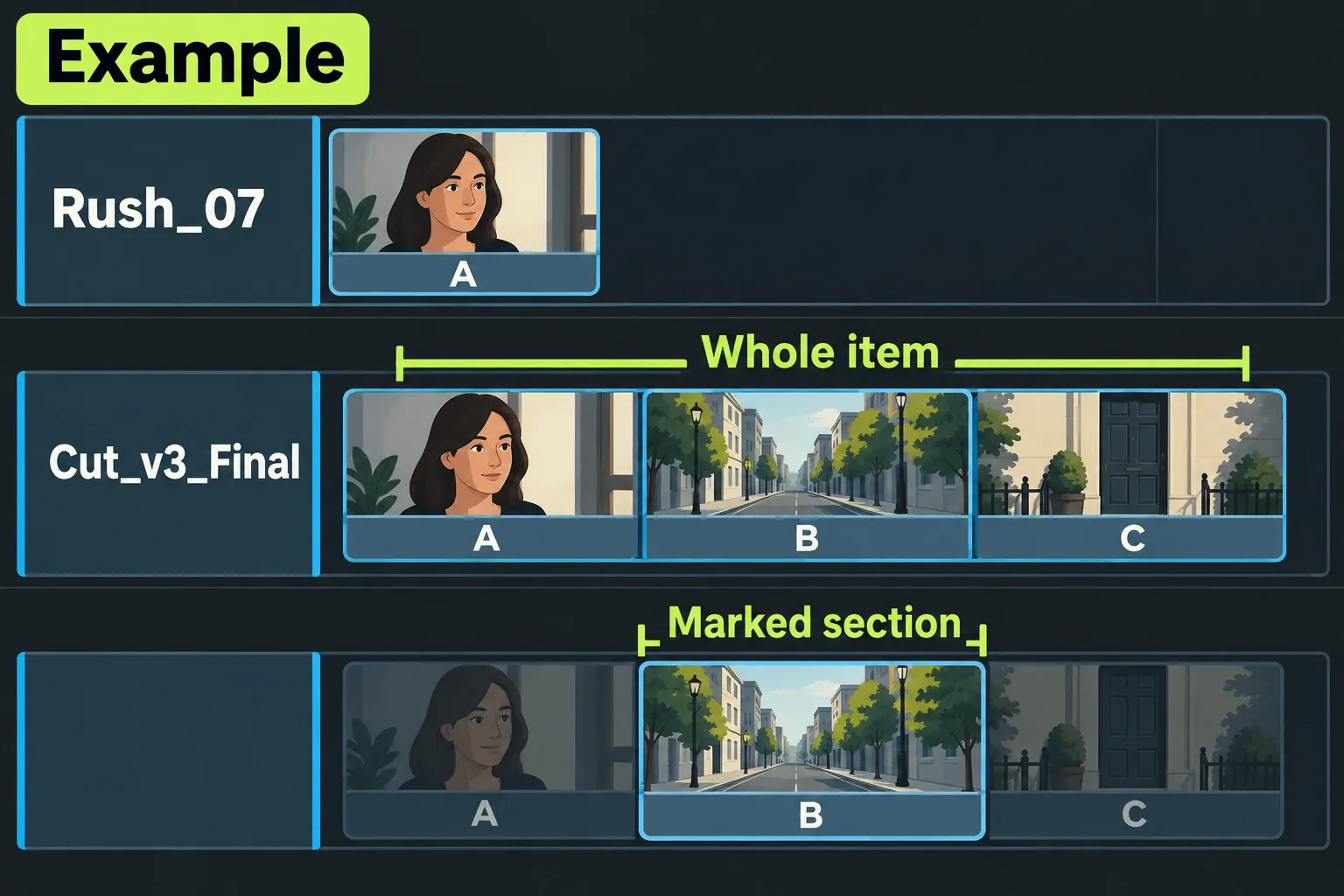
A file with the correct opening that stops early points to the selected range, so check that before assuming the wrong item was exported. Wrong shots throughout point to the item and the sequence version. If it resembles an older delivery, I'd check both the queued version and the file's destination before another render, since an old output file can look like a wrong export.
Rebuild an uncertain export Source List
Open the intended sequence and confirm its exact name and version in the project. Expand the source area where your Export panel provides it, and read all queued item names and the count. The Source Export list can hold multiple sequences, clips or subclips. An old cut or a source clip can coexist with the sequence you intended to deliver.
Recheck the list after reviewing media. In the documented Export layout, loading a clip or sequence into the viewer automatically adds it to the export source list, and seeing the final sequence in a viewer doesn't mean the other items have gone.
- Confirm the sequence and version you want to deliver. Note anything in the existing queue that you need for another delivery.
- Use Clear Export List to empty the uncertain list.
- Explicitly select only the intended sequence in the project contents, then use Add to Export List.
- Read the list again. For this single-sequence delivery, confirm that the queued name and count match that intention. If additional items appear after you review media, resolve the queue before starting.
- Check the whole-item or marked-section range and the destination before choosing a preset that starts immediately.
Add to Export List uses the selected clips or sequences; with nothing selected, it uses whatever is loaded in the source viewer. Because of that fallback, I'd check the selection every time before clicking Add.
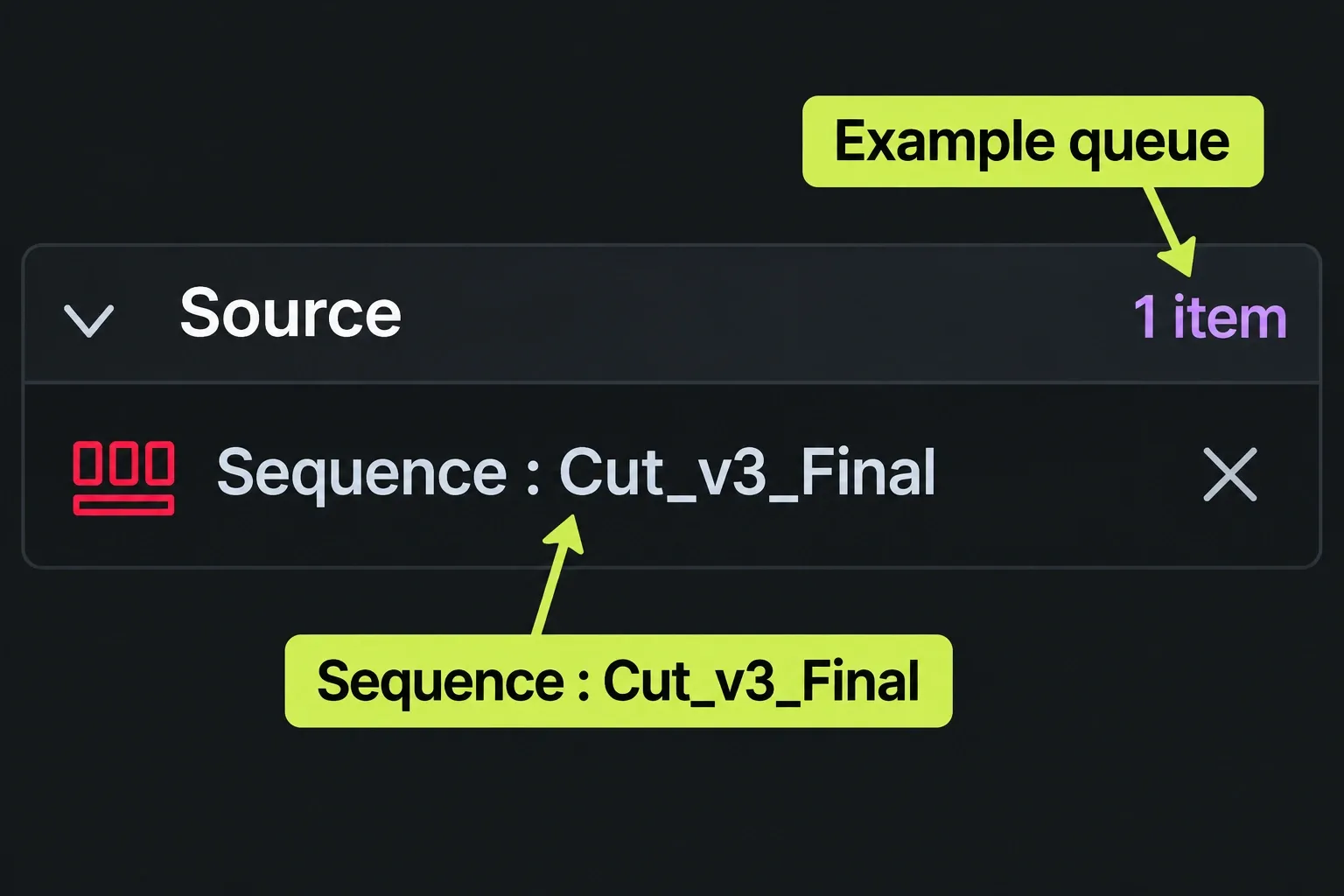
Don't mix up the neighbouring commands. Reveal Timeline loads the current active sequence into the viewer; it doesn't empty the queue. Clear Export List empties it, while the separately documented refresh icon restores the default export source. Read the list again after either action.
I'd finish these checks before selecting an Auto start preset, which begins exporting immediately. In Lightworks 2026.1, right-clicking a clip or sequence and choosing Export goes straight to its presets, so start from the intended sequence. Builds before 2026.1 follow the guide labelled “2022.3 onwards”, which documents right-click Export on a clip, subclip, sequence, sequence viewer or timeline.
Check both range boundaries
For a complete edit, choose the whole-item range offered by your workflow and inspect the intended sequence from start to finish. Check whether the ending includes an accidental empty tail. For an excerpt, confirm both marks and the passage between them. Marks that serve another purpose in the edit can stay where they are; just set the export range deliberately.
The older guide's YouTube Region menu separately describes Marked section, Whole sequence including black areas, and Ignore leading/trailing black. Those exact labels belong to that documented workflow, so use them only where your chosen export offers them. Keep intentional pauses or black sections when the delivery needs them.
Check the media behind the correct sequence
When the queued sequence and range are correct but the sequence itself contains unexpected material, inspect its referenced media. LWKS describes Relink as repointing clips to moved, renamed or replacement media while retaining edit decisions. Before any media repair, I'd compare the clip with the intended original, including distinctive content and its location, because a filename match alone doesn't confirm the right recording or version. If the right item is selected but expected layers are missing, check its video Monitor/Solo and audio Mute/Solo states: a mixed export respects those states, including when a sequence is exported from a bin.
Confirm that the originals used by the intended sequence are online before delivery. The proxy guide specifically warns that export falls back to available media when originals are offline. Don't count on that fallback to finish the export or to deliver the intended master. For missing media, reconnect the drive, restore the path or relink to the correct location, then verify what the sequence references. Give a media-identity problem that focused check instead of changing the export target again.
Verify the newly completed file
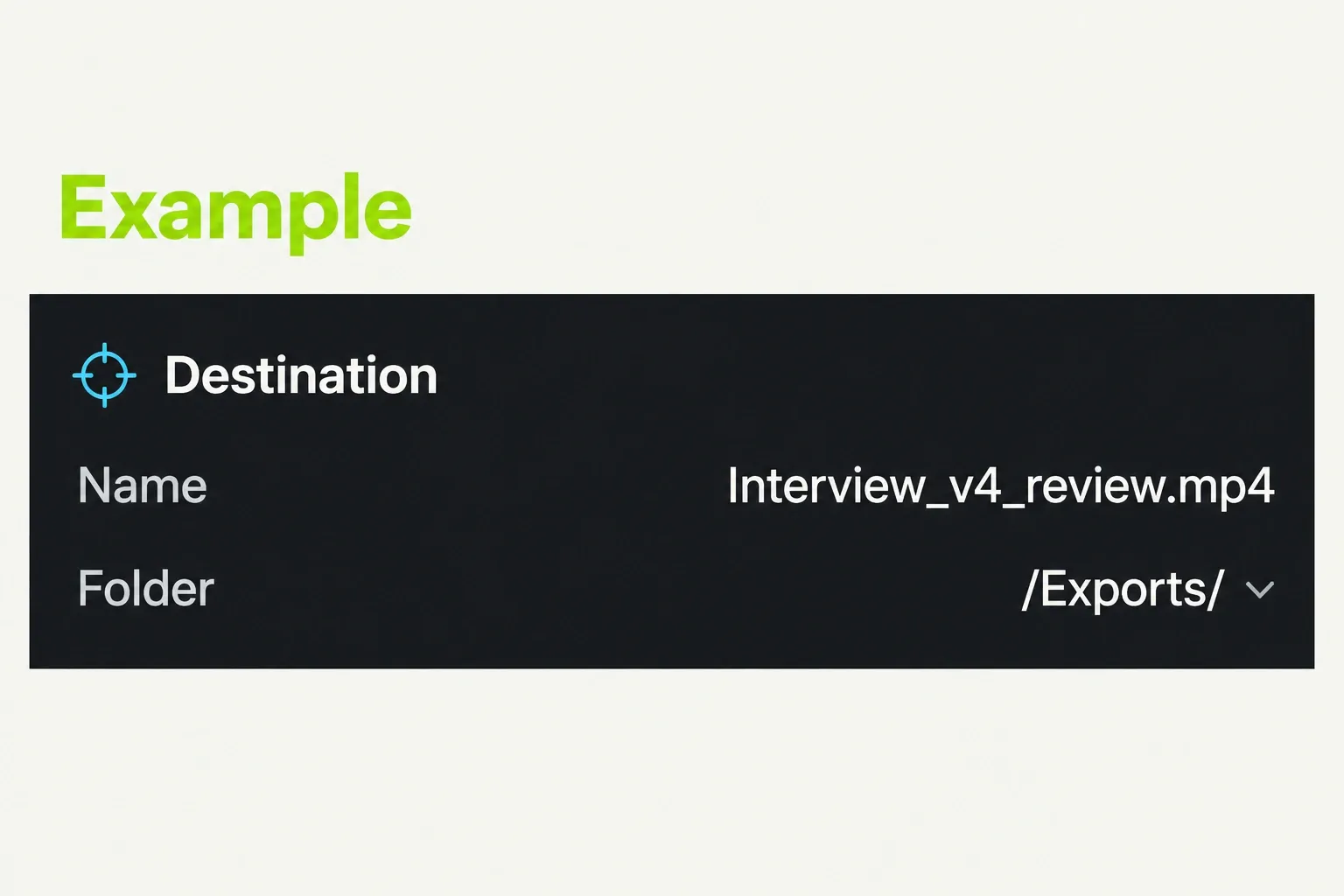
With the intended item and range established, finish choosing your Lightworks export settings, then confirm the destination folder and give the output a clear versioned name, such as Interview_v4_review.mp4. A versioned name like that separates a replacement from an old delivery, though it won't select the sequence for you.
Wait for the export task to finish, then open the new file from that actual destination. Repeat the same opening, ending, duration and distinctive-edit checks used on the unexpected file. Confirm that the selected range is present and the sequence version is right. Keep the earlier output until the replacement passes those checks.
If it still differs, record the intended sequence name, every queued item name and count, selected range and marks, build and layout, preset or format, destination and new filename. Add the exact points where the file differs and any reported task error. That gives support a specific case. If the task fails instead, address its reported error: the official task guidance calls for reconnecting or relinking offline sources, or making space or choosing another destination when disk space is the problem.