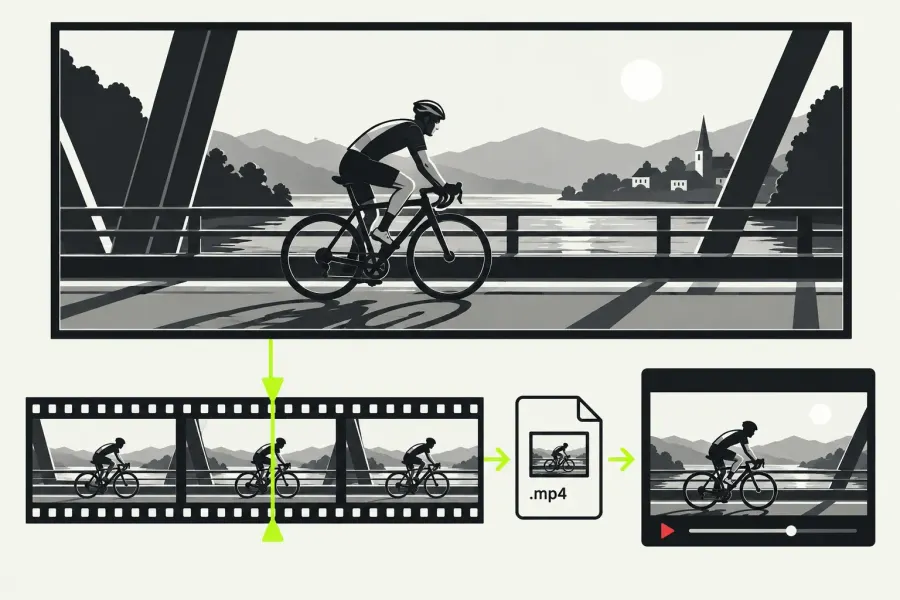
For a standard dynamic range (SDR) video, I would export a local MP4 using H.264, keep the finished sequence’s frame rate, and choose a resolution your Lightworks licence offers. Play that file outside the editor, then upload it through YouTube Studio as Private and wait for the intended viewing quality before releasing it. A saved file gives you something concrete to check when the online version looks different. Lightworks’s web-delivery guidance recommends H.264 when compatibility is the priority and advises checking the file before publication.
Choose settings your plan can export
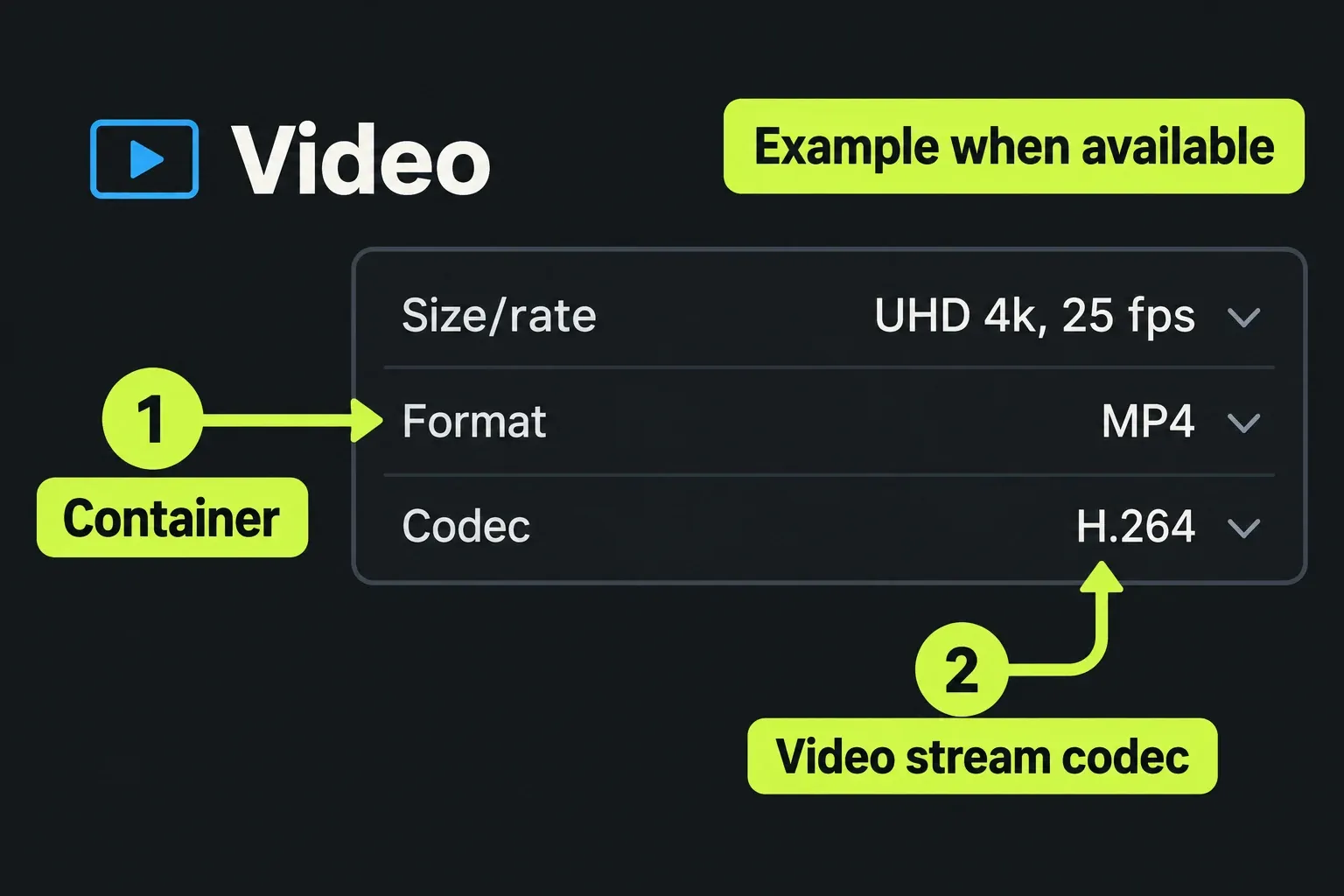
MP4 is the file container; H.264 is the video codec inside it. The Lightworks plan comparison lists MP4 export for Free, Create and Pro. Start with an available web preset, then inspect its settings. A YouTube-named preset is convenient, but the local-file route does not require signing Lightworks into your channel.
The current pricing table lists Free export up to 1080p, Create up to 4K and Pro up to 8K, as checked on 19 October 2026. The web and social guide also describes portrait export and 1080p delivery on Free; the older FAQ still gives a 720p Free limit. Check the dimensions offered for your chosen target under the active build and licence. Format availability also depends on the codec, licence and platform, so the advertised ceilings do not apply to every target.
Use the table as a delivery specification. A preset may fill in encoding settings without exposing each one as a separate control.
| Setting | What to use |
|---|---|
| Container and codec | MP4 with H.264. YouTube recommends progressive video, High Profile and 4:2:0 chroma subsampling. |
| Resolution | Match the finished sequence where the selected target and licence permit it. Use a smaller permitted size when necessary. |
| Frame rate | Preserve the recording rate for single-rate footage. With mixed-rate footage, retain the finished sequence’s intended cadence. |
| SDR colour | YouTube recommends BT.709 for SDR uploads. Treat HDR delivery separately. |
| Audio | AAC-LC at 48 kHz is one recommended option, with a stereo bitrate reference of 384 kbps. Apply it where the export target offers that control. |
For portrait or square work, preserve the intended shape. YouTube’s vertical-upload guidance says to leave out side bars; its player fits the video to the screen. If the edit needs recomposing, use the vertical-video workflow before delivery.
Use bitrate references with the right controls
YouTube publishes these recommended video bitrates for SDR uploads. They are references for uploads rather than mandatory limits, and they cannot guarantee that YouTube preserves every detail.
| Resolution | 24, 25 or 30 fps | 48, 50 or 60 fps |
|---|---|---|
| 720p | 5 Mbps | 7.5 Mbps |
| 1080p | 8 Mbps | 12 Mbps |
| 2160p / 4K | 35–45 Mbps | 53–68 Mbps |
Lightworks lists manual H.264 variable/constant bitrate and minimum/maximum configuration only for Pro. In Free or Create, work with the available preset and review the saved result. In Pro, use the relevant reference when adjusting H.264 bitrate, then examine demanding motion and fine detail. YouTube’s table does not prescribe a pair of Lightworks minimum/maximum values.
Keep resolution and frame rate tied to your edit. I would not double either merely to chase a different YouTube encoder: that complicates the comparison before you have established where the quality changed.
Export the intended sequence to a local file
- Reconnect the originals. If you edited with proxies, confirm every original used by the sequence is online. Lightworks normally exports from the originals, but its proxy guidance warns that offline originals cause a fallback to available media.
- Open the full Export panel. Load the intended sequence and inspect the panel before selecting a quick-export preset. The documented Auto start option begins an export immediately when its preset is chosen, including through the right-click Export menu.
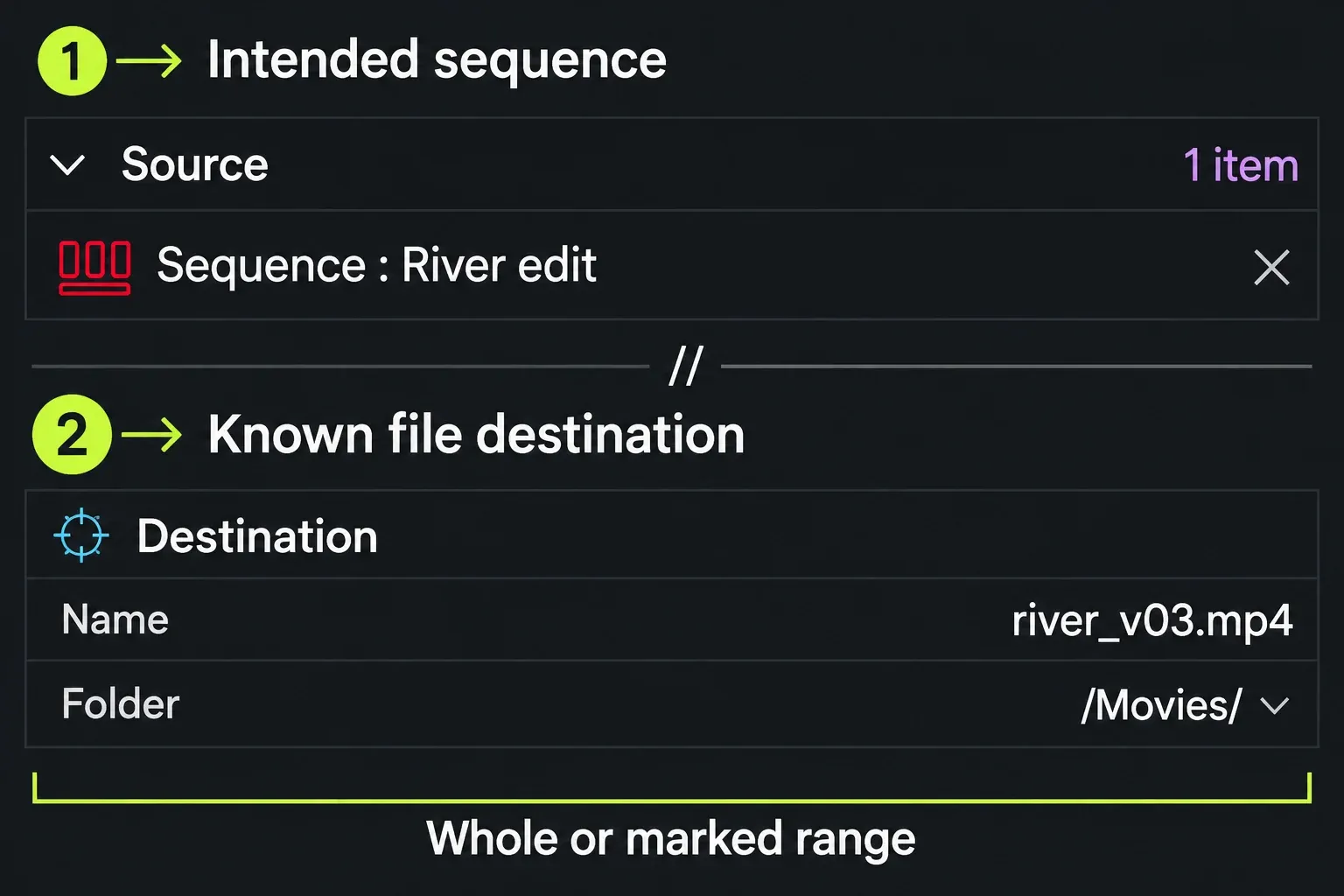
- Check the Source List. Confirm it contains the sequence you want, without unintended clips or other sequences. In the documented Export layout, loading media into the viewer adds it to that list. If the queue is wrong, Clear Export List empties it; load the intended sequence into the viewer in Export layout to add it back, then check again.
- Choose the range and settings. Use the whole sequence or a deliberately marked section. Check the opening and ending you intend to deliver, then choose the permitted MP4/H.264 preset, size and frame rate. The general export guide covers the panel workflow in more detail.
- Name and save the file deliberately. In the destination section, set a known folder and a clear filename. Include a version so you can identify which export you uploaded. Start the export once the source, range and settings are correct.
- Wait for completion. Follow the job on the Tasks page of project settings and read the Tasks Log. If it fails, resolve the reported problem before trying to upload the expected file.
A delivery choice when 1080p is unavailable
Suppose your landscape SDR sequence is 1920 × 1080 at 25 fps, but the selected MP4/H.264 target offers only 1280 × 720 at 25 fps under the active licence. These are example conditions and do not describe what any named plan offers. If 1080p is essential, stop and confirm the required target and licence support with LWKS before paying for an upgrade. If a 720p delivery meets your needs, choose that smaller size deliberately and keep 25 fps.
Select the intended sequence and whole-edit range, then save it in a known folder as project_v03_720p25_sdr.mp4. Once the task finishes, inspect the file's actual dimensions and frame rate in the player's media information or available file properties, because the filename only records what you intended. Check that the opening and ending match the edit, and watch the file as described below. If it meets your delivery requirements, retain it and upload that exact file as Private. Wait for and select 720p in the online player before comparing; 1080p was the original intention, not the size of this upload.
Review the file before upload
Open the completed file outside Lightworks and watch it from beginning to end. The official export checks cover picture and sound, sync, framing, distortion and a motion-heavy section. Also check your first and last frames, titles and any quiet passages where missing audio is easy to overlook.
Keep this exact file as the upload reference. Note a few moments worth comparing, such as a fast pan, small text, a gradient or detailed foliage. Choose them from your own video; a still frame alone will not show how motion holds up.
Upload privately and wait for HD
Sign in to YouTube Studio, choose Create → Upload videos, and select the reviewed file. Complete the title, description and audience choice; on Visibility, select Private and save. The ordinary YouTube Studio upload instructions describe these steps and visibility choices. I prefer a private review so the public release follows the quality check.
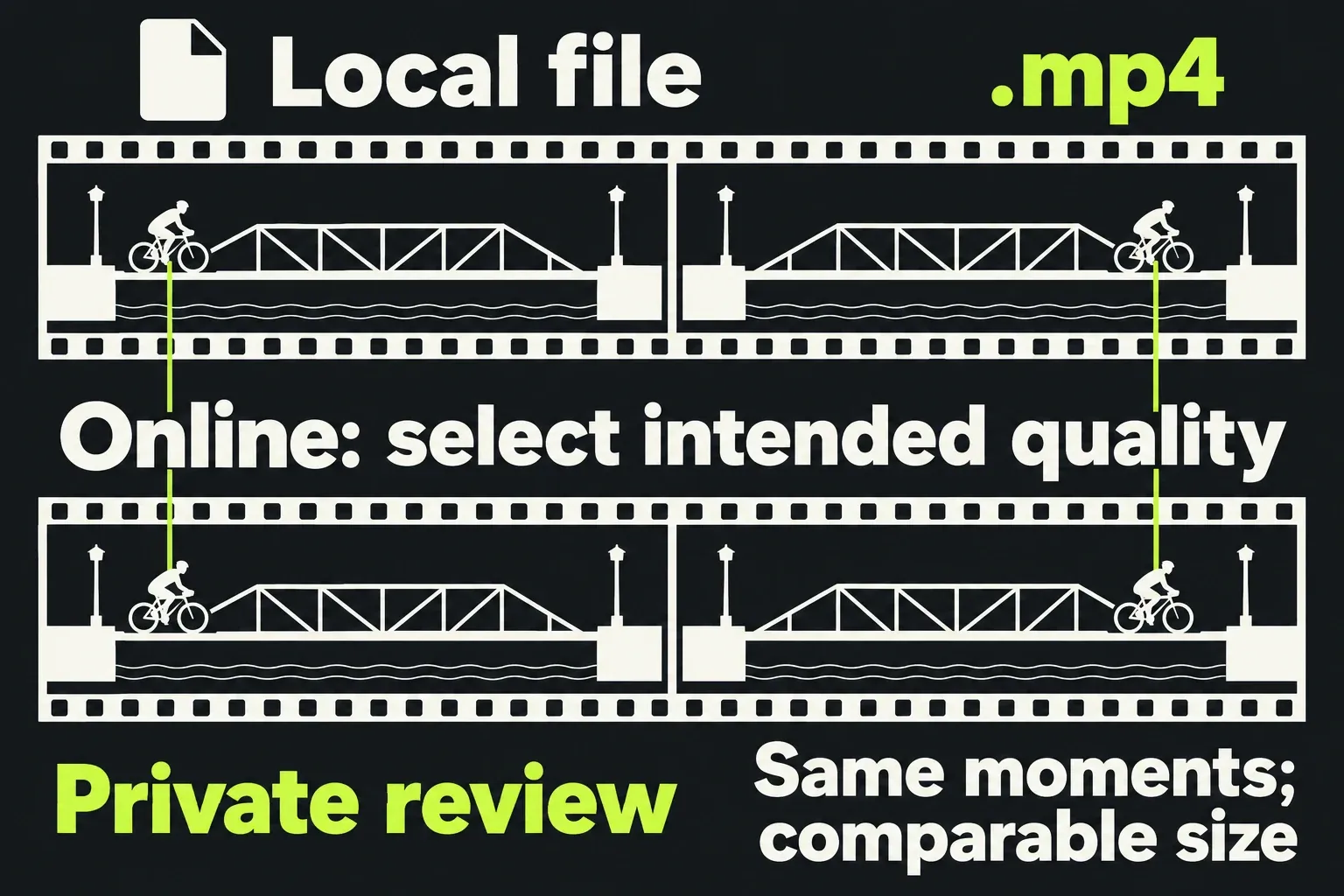
A completed upload can initially offer only low-quality playback. YouTube explains that higher-resolution processing takes longer and varies with the video. Open the video’s watch page, then Settings → Quality in the player. Wait until your intended uploaded quality is available, select it and review the comparison points. An automatic playback-quality choice is a poor basis for judging the export.
Once the processed video is satisfactory, set the visibility or schedule you actually want in Studio. Keep the local file for later deliveries and troubleshooting.
Find the stage that changed the result
- The local file has the wrong cut or duration: check the exported source and whole/marked range before uploading another copy.
- The local file is soft or the framing is wrong: check the encoded size, sequence composition, available quality setting and whether the originals were online. Raising YouTube playback quality cannot repair a defect already in the upload file.
- The export task fails: use the task’s error message. Lightworks’s documented error branches include offline media, insufficient disk space and a failing clip; investigate the branch that matches the report.
- The local file is clean but HD is missing online: check the player’s Quality menu and processing state before re-exporting.
- HD is available but the online image still differs: select the intended quality and compare the same moments at a comparable display size. Lightworks notes that streaming platforms re-encode uploads. If the local file also needs improvement, change one relevant export setting and keep both versions so the comparison remains useful.
Direct upload and HDR are separate branches
If the YouTube target and upload option are available in your build and account, you can use the documented Upload to youtube.com option and sign in when prompted. Confirm the destination channel and visibility before starting. This is an optional route; if authorization fails, use the inspected local file in Studio. Direct upload still needs the processed-video quality check.
For a high dynamic range (HDR) finish, use a dedicated HDR delivery specification. YouTube requires 10- or 12-bit video, Rec.2020 primaries, PQ or HLG, and correct HDR metadata. The Lightworks pricing table puts Advanced 10-bit Export on Pro. Verify the chosen codec, colour settings and licence support before exporting; the SDR BT.709 settings above are not an HDR recipe.