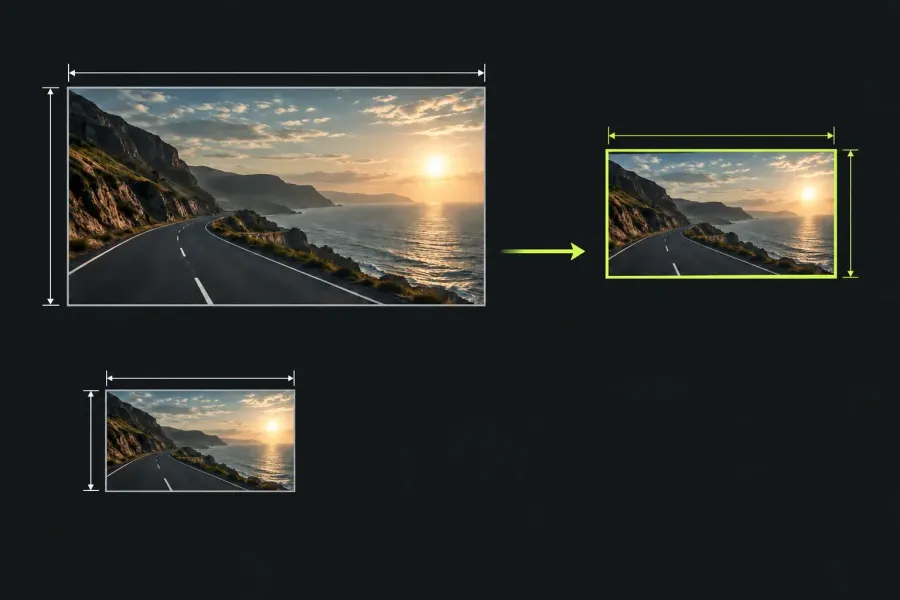
If an export size is missing, start with the licence active in Lightworks, your installed version, and the selected output target. A large source clip or proxy does not unlock a larger export. As checked on 19 October 2026, the current pricing table advertises Free export up to 1080p, matching the web-delivery guide’s 1080p Free description. The older FAQ still states 720p; check the actual target if your installation differs from the current offer.
I would confirm the available output options before changing the sequence or paying for a different plan, then make a short, separately named local export and inspect that exact file. A selected resolution in a menu is only one part of the evidence.
Advertised limits and older Free information
The Export Resolution and Proxy Editing rows on the pricing page, observed on 19 October 2026, show the following separate maxima. These are the page's stated values; not every format, preset, platform, or frame-rate combination necessarily exposes those sizes.
| Plan | Export Resolution row | Proxy Size Selection row |
|---|---|---|
| Free | Up to 1080p | Up to 720p |
| Create | Up to 4K | Up to 1080p |
| Pro | Up to 8K | Up to 4K |
The current Knowledge Base supports the advertised Free ceiling: Web and Social Delivery describes portrait export and 1080p delivery on Free, and Installation and Setup includes 1080p and portrait export in its Free description. Those statements do not make every codec, aspect ratio or output target available on every installed build.
For a required 1080p delivery, check the activated application and its actual options using the steps below. If Free only offers a smaller file in your setup, record the exact version, platform, target, and requested dimensions and ask LWKS to clarify the applicable entitlement. Confirm that requirement before buying a plan solely because a target is missing. The Free, Create, and Pro comparison covers the broader plan decision.
Check the active licence and version
Start with the delivery requirement, not the size of the camera footage. Write down the requested encoded width and height, frame rate, orientation, and any required format or codec. For example, 1920 × 1080 landscape and 1080 × 1920 portrait have different frame shapes even though they contain the same number of pixels. A recipient asking for one has not asked for the other.
- Read the application's licence type. In the Project Browser, click the avatar at the top right. The account area shows the licence type and provides Activate licenses for management. A purchase receipt alone does not show which licence this workstation is currently using.
- Record the installed version. The status text at the bottom of the Project Browser shows the version label. Include the exact available version/build information and operating system in your notes. A version label in an online guide does not identify your installation.
- Resolve an unexpected licence state first. If the displayed tier differs from the one you expect, use the application licence-management route and the documented User Portal account and licence management to clarify it. Preserve the working project and setup while resolving that mismatch. Do not diagnose it by changing sequence dimensions or purchasing the same tier again.
If the expected tier is active, move to the export target and its offered options. The controls below follow the current LWKS documentation; match them to the layout and assignments in your installed version.
Separate source, proxy, and export size
Lightworks imports media at its native size and fits it to the sequence when editing. That source property tells you what you have to work with; it does not add an output size missing from the export options. Enlarging the sequence cannot create an export entitlement either.
A proxy is an editing representation of the source. The proxy guide separates playback quality from delivery using original media. The table's Proxy Size Selection values therefore answer a different question from its Export Resolution values. Raising proxy size is not a route to a missing 1080p, 4K, or 8K export option.
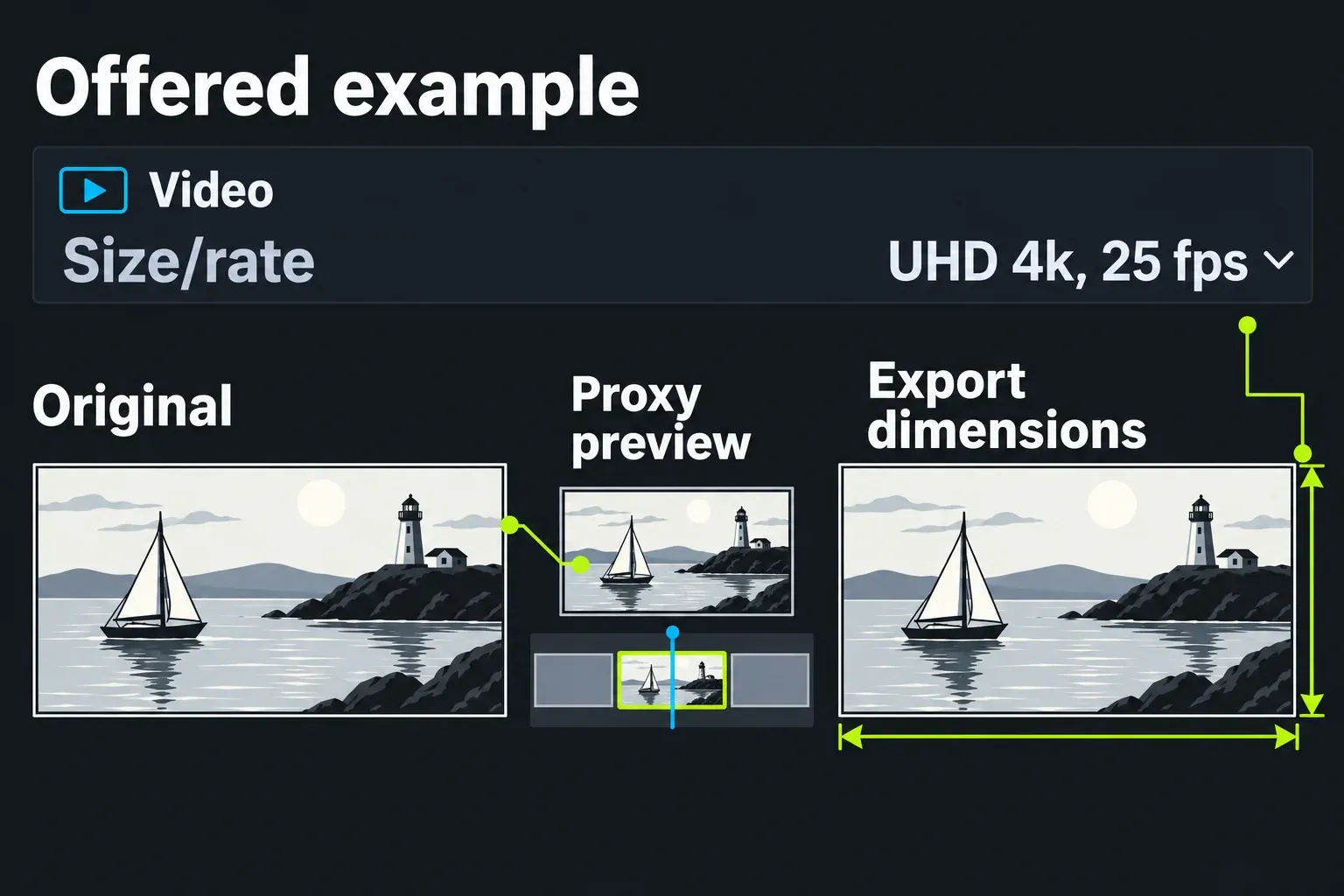
Media availability still matters for the finished picture. Before a master export, confirm that every original used by the sequence is available to Lightworks, whether linked from a drive or stored as managed local media. The documented offline-original warning says export can fall back to available media. A proxy preview that plays well says nothing about whether Lightworks can read the full-resolution originals.
Keep encoded dimensions and picture detail separate too. A file can have larger dimensions without containing more captured detail. Checking its width and height answers the delivery-size question; checking the picture answers whether the source, framing, effects, and compression give the result you need.
Compare the offered export options
Use one named sequence and a known range for this comparison. Keep its content and frame rate fixed, and record the current target, preset, and settings before switching anything. The aim is to discover which options change with the target while preserving a useful comparison.
- Open the full panel from the intended timeline. Use the timeline's side-menu toggle and choose Export, as documented in the timeline tools guide. In the Export panel, inspect the Source List and confirm the named sequence and range. The Export guide permits sequences, clips, subclips, and marked sections; the picture currently visible in a viewer does not identify every queued item.
- Inspect an offered local-file target. Select an available file format and check its codec, resolution, and frame rate. Record the available choices before starting a job. The panel's formats and codecs depend on the licence. An option in another guide or another editor's setup is not an option in yours.
- Compare another permitted target or preset. Hold the same sequence, range, and requested rate. After selecting a different offered target or preset, check which resolution choices changed and whether the rate or other relevant settings changed too. The preset fills a combination of settings, with Custom available for manual configuration, so this is not necessarily a one-setting change.
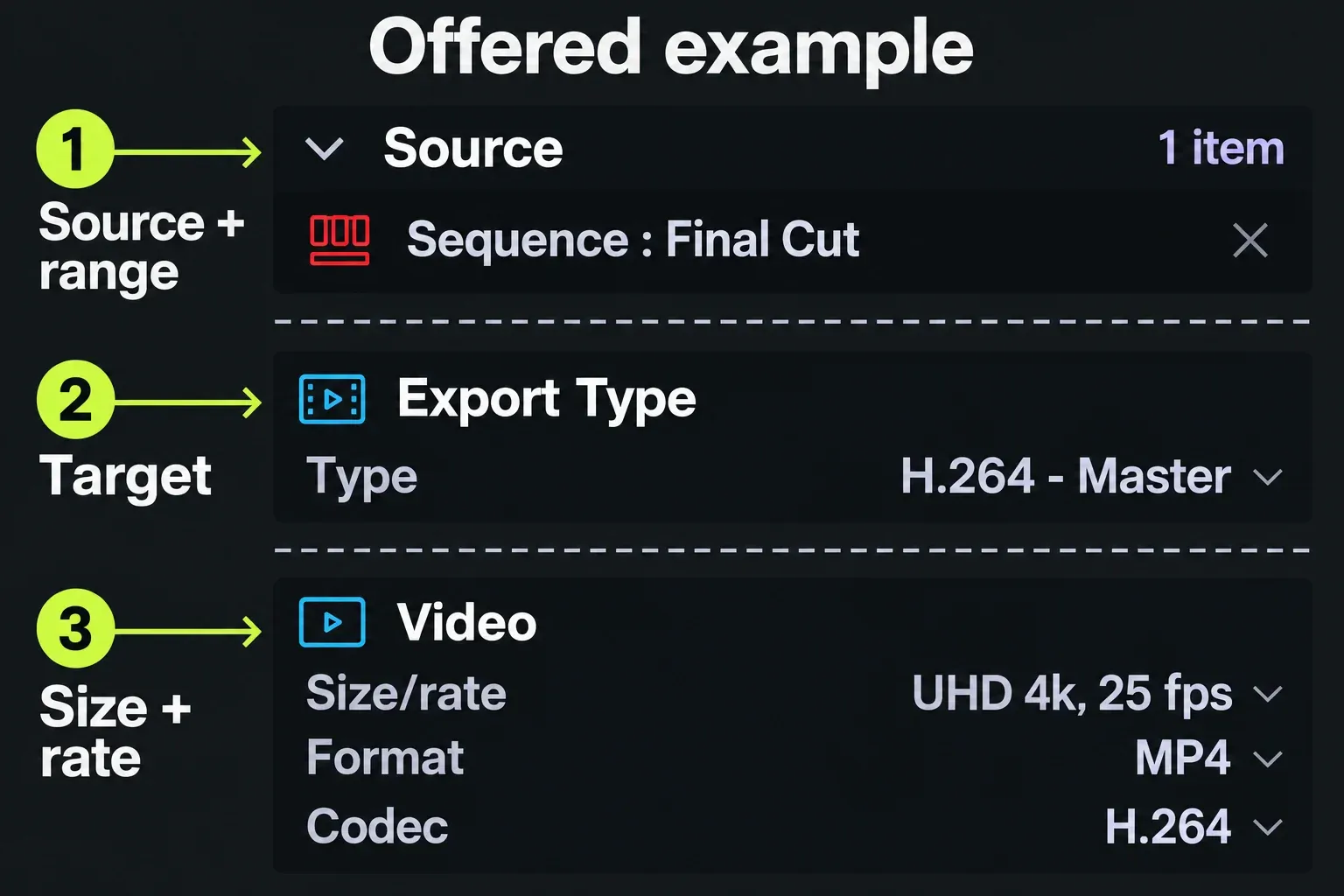
Inspect the panel before using a quick preset: a preset configured for Auto start begins exporting immediately. Same as Source matches source settings within the available workflow; it does not override the licence or establish that an advertised maximum is available for every codec.
For example, suppose an activated Free installation offers only 720p in the chosen target even though the current pricing page advertises 1080p. Record that observation and the exact build and target for LWKS to check. A proxy setting will not unlock a larger output. A smaller permitted review copy is usable only if the recipient accepts it as such.
In a different example, a Create user needs a 3840 × 2160 file, but the selected preset exposes only a smaller size. Compare another offered local-file setup with the same sequence, range, and rate, then report which choices appeared. If the required option is still absent, seek clarification using those recorded conditions. The pricing row alone cannot tell you whether a particular preset offers that exact delivery.
For an 8K requirement, record the required dimensions and codec as well as the Pro licence. The current formats reference names ProRes, Cineform, DNxHR, AV1, H.265, and image sequences for 8K export, with availability dependent on plan and platform. Confirm what the installed build offers for the required format and rate; the list does not mean that every MP4 or H.264 target offers 8K. DNxHR and DNxHD are distinct; DNxHD requires a separate licence.
Verify the completed file's dimensions
Once an offered configuration meets the request, make a short local output before committing to the full deliverable. Record the sequence name, selected target and codec, requested dimensions and rate, range, destination, and filename. Keep earlier outputs under their existing names.
- Mark the range on the sequence. Move the sequence playhead to the chosen beginning and mark in, then move to the end and mark out. The standard assignments are I for Mark in and O for Mark out; use your actual mapping if it differs. Choose the offered marked-section range in Export and inspect it. Marks on a source clip answer a different question from marks on the edited sequence.
- Check originals and settings again. All originals referenced by this range must be available. Confirm the actual queued sequence, range, resolution, and rate after selecting the preset or Custom settings. Use the destination section to set a distinct local filename and known folder, then start the export.
- Wait for a completed job. In the project settings panel, the Tasks page shows job progress and Tasks Log records completed work. A failed, aborted, or unfinished job is not a completed delivery. Open the exact file produced by that job, not an older file with a similar name.
- Read the finished file's properties. Use an available media inspector for that file, or the native-link procedure below. Record encoded width and height and the reported frame rate, and compare them with the requested values. A filename ending in
1080pis not evidence of those dimensions.
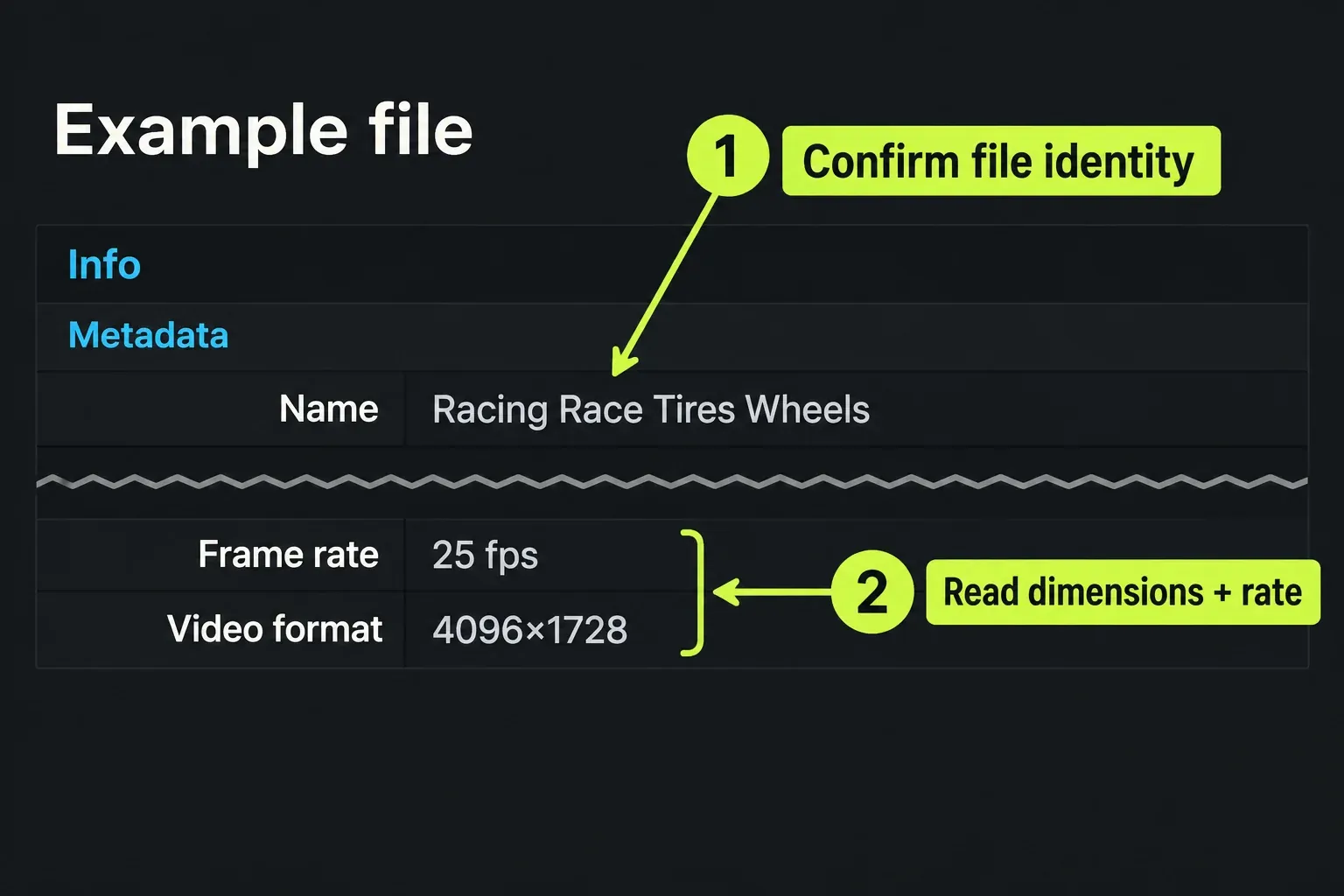
For the Lightworks route, open Import with F1 or Ctrl+I on Windows/Linux, or Cmd+I on macOS. Under This Computer, select the exact completed file. If it is available for native import, choose Create Link To Media, which references the file without copying it. Set Add to bin to New Bin and name a separate diagnostic bin, such as Export checks, then click Import and let the job finish. Keep that local file in place; the link depends on its location. Do not add the diagnostic clip to the edit. The panel remembers this import method as the default, so restore your usual method after the diagnostic import.
Open that diagnostic clip as a Source item and confirm that the Info panel’s Source: line names that diagnostic clip, then read its Metadata dimensions and native frame rate. Confirm that Info follows the exported file, not a camera clip or the sequence. If import requires conversion or the file is unsupported, keep the finished output unchanged and inspect it with a suitable media inspector or seek help. Converting it and reading the converted clip would answer a different question.
If the dimensions differ, retain the file and the completed job's settings, then recheck the actual source, target, range, and output choices. Report the requested and observed dimensions alongside the licence and version. Do not repeatedly enlarge the sequence or overwrite outputs while the mismatch is unexplained. The full export-settings guide covers the wider delivery workflow.
Matching properties still say nothing about whether the contents are correct. Play the short file outside Lightworks and check its picture, sound, framing, sync, and intended start and end. After the configuration is confirmed, select the intended full range, confirm every original used by that sequence is available, export the full deliverable under its own name, and inspect that finished file too. The short sample only covers its own range.
Resolution, shape, and file size
Portrait support, a resolution ceiling, and file weight are separate decisions. A vertical preset does not establish a higher pixel limit, and black bars in a player do not tell you the encoded width and height. Compare the actual file properties with the requested orientation and inspect the framing.
If the dimensions are correct but the file is too large, investigate codec, duration, and the available bitrate controls as a file-size task. The pricing table's H.264 Bitrate Config row, observed on 14 October 2026, lists manual variable/constant and minimum/maximum bitrate control for Pro, with that row unavailable for Free and Create. That is a separate published capability from Export Resolution. A bitrate change does not grant a missing output size.