
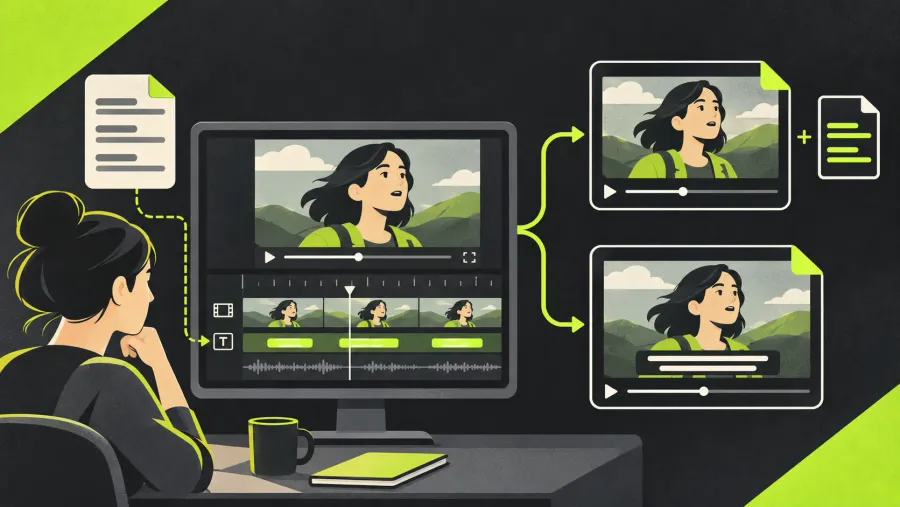
To add an SRT in Lightworks on Windows or macOS, open the finished sequence and drag the caption file from Finder or Explorer onto its sequence viewer. Review the timing, then choose a burned-in video, a separate caption file, or captions on YouTube. The Lightworks plan comparison lists separate SRT export for Pro; YouTube subtitle uploads are available with all licence types. I would keep a reviewed SRT alongside the finished video because a later wording correction is easier when the captions remain editable.
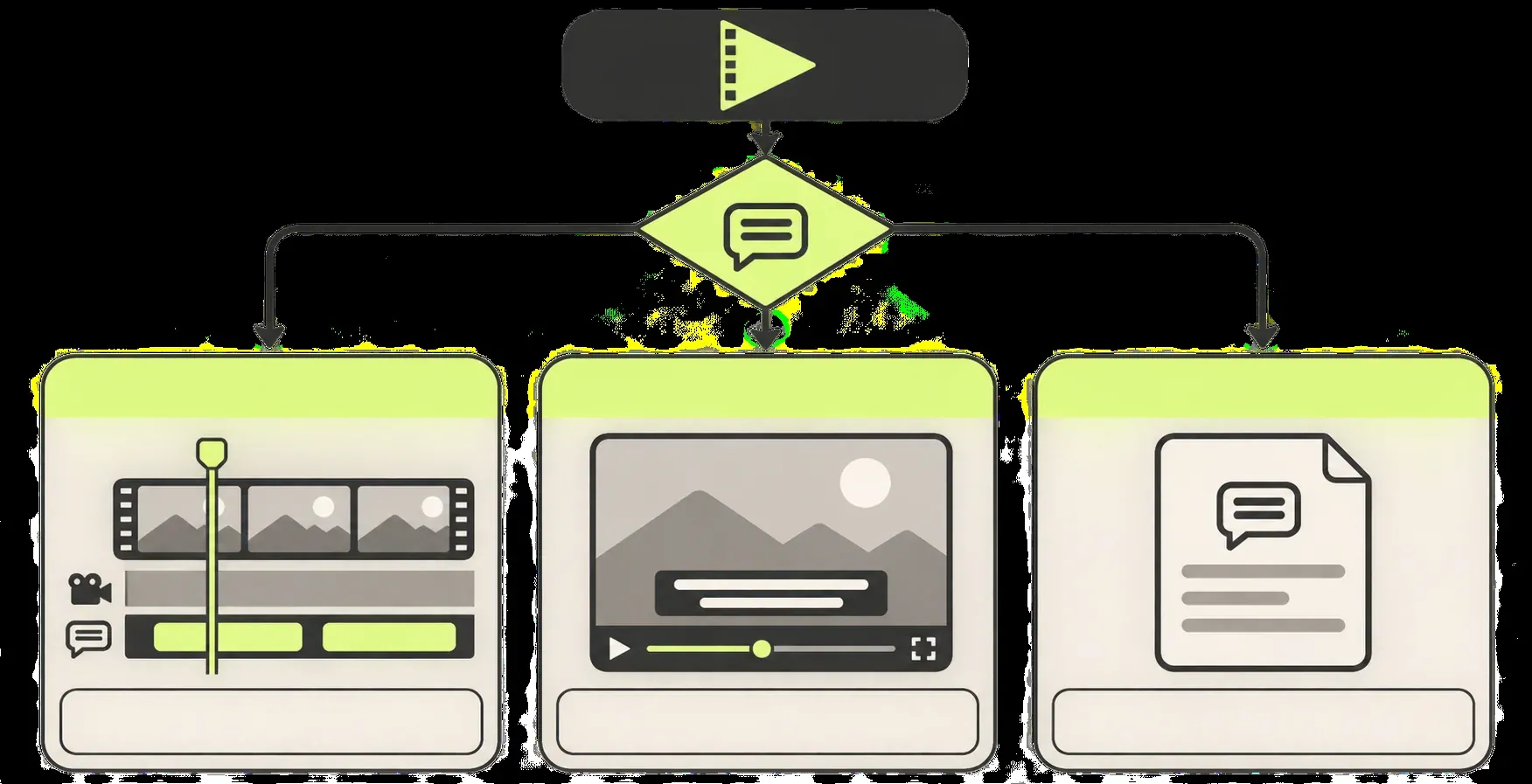
Choose the subtitle result first
Choose the destination before you start typing. A burned-in caption stays visible; a separate file lets the destination display switchable captions.
| What you need | Route to use | Check before delivery |
|---|---|---|
| An SRT added to the edit | Drop the SRT from Finder or Explorer onto the sequence viewer | This Finder/Explorer route covers Windows and macOS in Lightworks 2025.2 and later. Check import availability in your installed build and licence. |
| Captions when no file exists yet | Prepare a timed SRT, or type captions in YouTube Studio after exporting the video | A transcript alone has no cue timings. Review the words and when they appear. |
| Text permanently visible in the video | Monitor the subtitle track and enable Export > Overlays > Subtitles | Open the rendered file outside Lightworks and check that the text is part of the picture. |
| A separate caption file from Lightworks | Export panel → Interchange → Subtitles | The plan comparison lists separate SRT export for Pro. |
| Switchable captions on YouTube | Upload the finished video and SRT in YouTube Studio | Confirm the caption language and replay the uploaded video with captions enabled. |
If you're moving an existing project to v2026.1, back it up before opening it in the new version. The update adds clip and project data, and backwards compatibility is not guaranteed. Match the subtitle controls to your installed build and licence, and check the current technical requirements for platform limits.
Import an SRT into the subtitle system
Use this path when the dialogue has already been transcribed and timed. Lightworks' Import panel accepts subtitle files, and its 2025.2 release notes specifically record the fix for dropping SRT files from Finder or Explorer into a sequence viewer. This guide uses that route with the v2026 export controls.
- Finish the cut before timing captions. Check the sequence frame rate and language. Changing the edit after caption timing can move the words away from the speech.
- Open the destination sequence. Double-click it in the project's Sequences filter or a bin. Check its name and picture so you don't add captions to a different cut.
- Drop the SRT onto the sequence viewer. Drag the file from Finder or Explorer onto the viewer showing that sequence. Use the sequence viewer, rather than the source viewer or an empty part of the timeline.
- Check the first, middle and final cues. Play the sequence and confirm that the caption entries match the words being spoken. If they do, review every cue for names, punctuation, line breaks and overlaps before the full export.
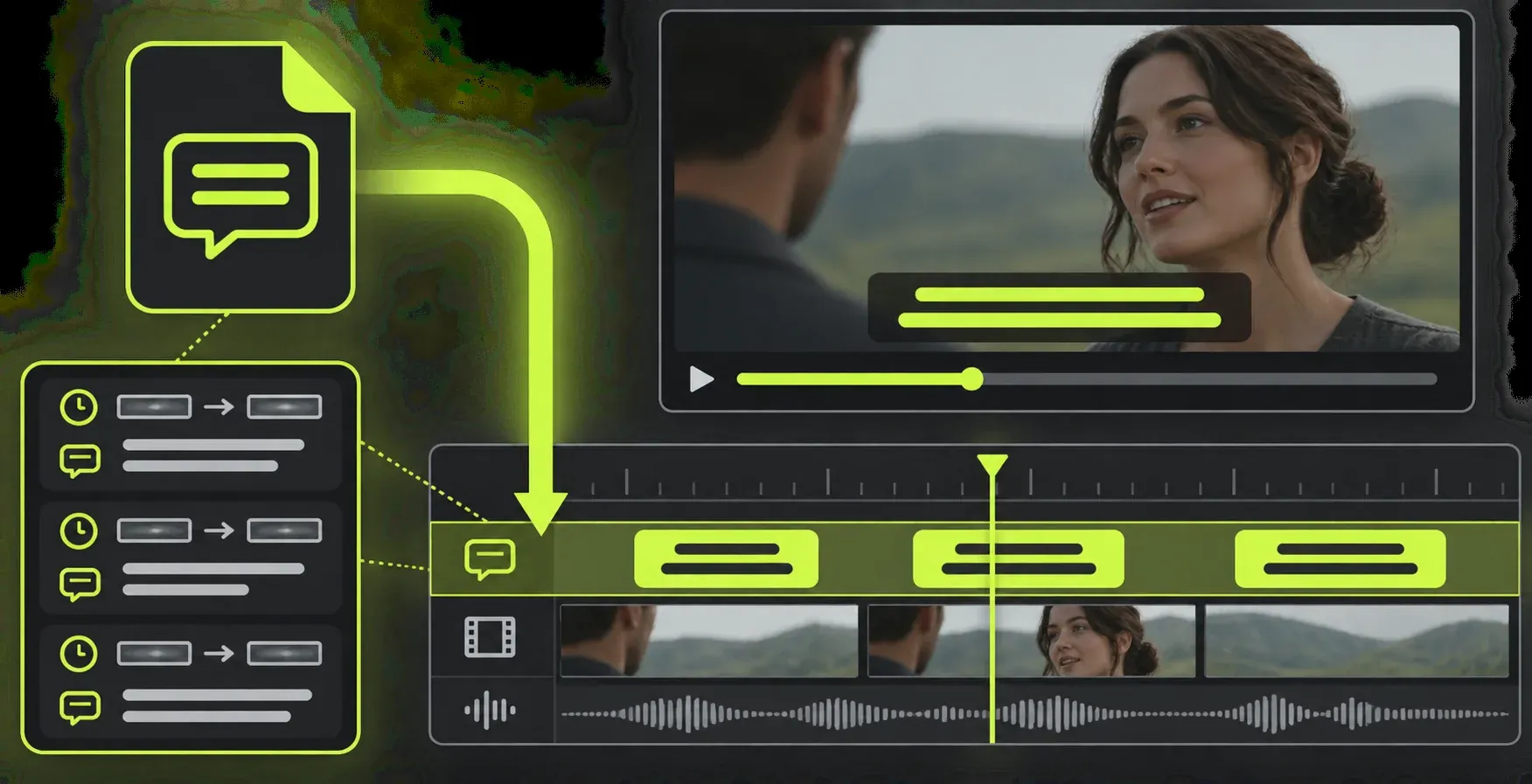
If the file will not import, press F1 and locate it in the Import panel. A red entry means Lightworks cannot import it in that setup; check the file and active licence rather than repeatedly dropping it into the edit. The Pro listing for separate SRT export does not establish the full import rules. For YouTube delivery, the Studio route below lets you attach the SRT to the finished video without importing it into Lightworks.
Keep the reviewed SRT beside the project. Give each language its own clearly named file, and check the caption language at the destination.
Create timed captions when no SRT exists
For a video that will stay on YouTube, you can type the captions in Studio after exporting from Lightworks; the steps below cover that route. For captions that must travel back into the edit or become part of the picture, prepare a timed SRT first. A caption editor can produce the file, and a short SRT can also be written in a plain-text editor.
Each SRT entry has a number, a start and end time, the caption text, then a blank line. Number the cues from 1 and separate the times with -->. Times use hours:minutes:seconds,milliseconds, with a comma before the three-digit millisecond field. This small example puts one cue at the start and a second after a pause; replace its words and timings with your dialogue:
1
00:00:00,000 --> 00:00:02,000
The first spoken line.

2
00:00:03,000 --> 00:00:05,000
The next spoken line.
- Work from the finished sequence. Play a phrase, note where its first word begins and its last word ends, then write that cue's text and times.
- Split at a useful pause. Keep each cue tied to the speech it represents. Preserve names, numbers and punctuation; avoid a line break that separates a short word from the noun it describes.
- Save a real SRT. Use plain text, save with the
.srtextension, and check that the editor has not added.txt. Use UTF-8 when the same file will go to YouTube. - Read against playback. Check the full file against the dialogue before importing it. Each end time must follow its start, and the final cue must end by the finished video's duration. SRT uses milliseconds, so don't copy a frame-count field into that position. A correctly formatted file can still display the wrong words or show them too late.
I would prepare the captions against the final cut rather than a rough assembly. That gives each timing decision a stable reference and saves a second round of cue repairs after picture changes.
Make the captions readable
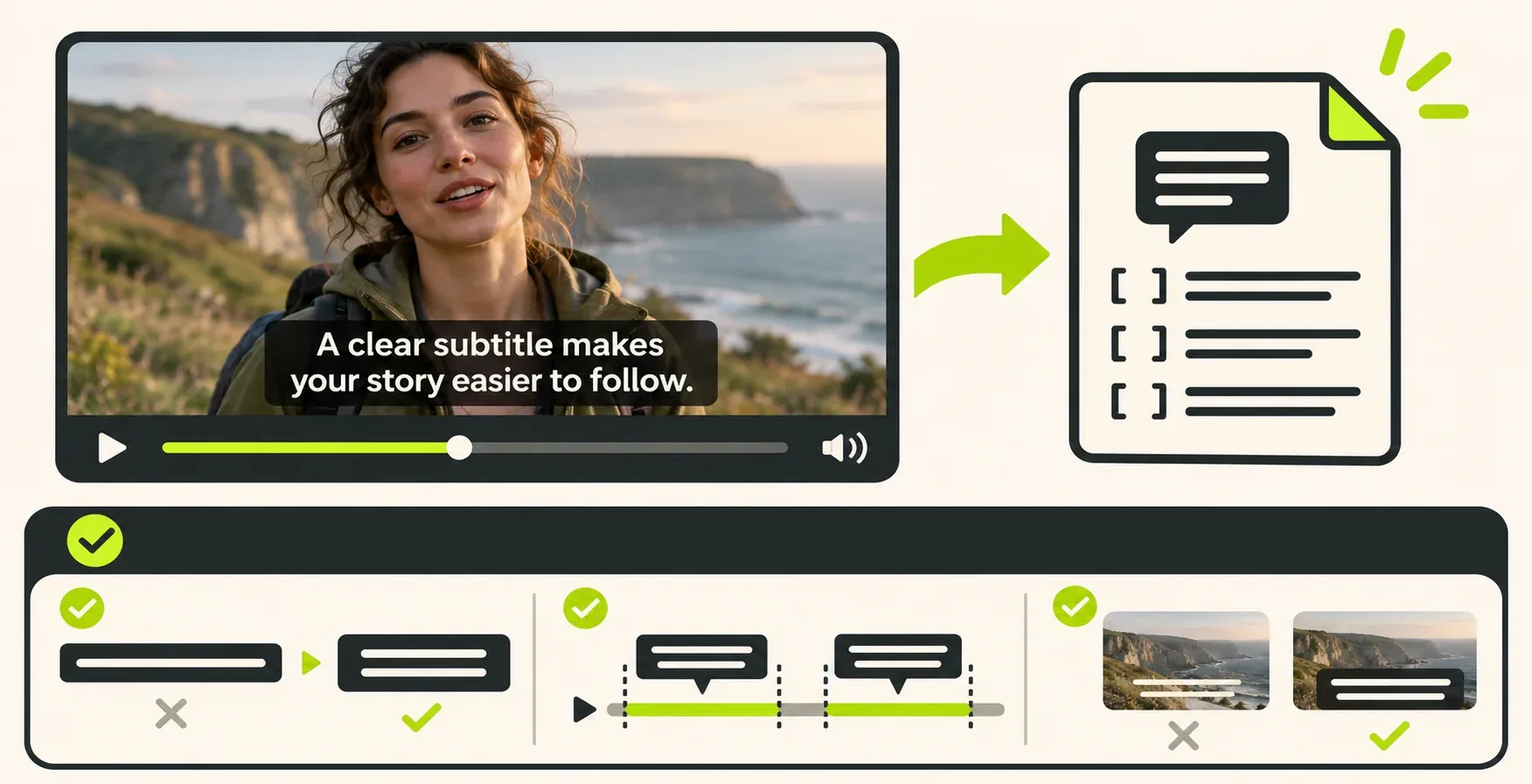
Readability is a timing decision as much as a font decision. Check the following while the sequence plays:
- The words match the audio, including names and numbers that could change the meaning.
- Time each cue to the words being spoken. Keep text from an earlier line from lingering over the next speaker.
- Line breaks follow the sentence, so the eye does not have to jump between an article and its noun.
- The text remains visible over light and dark parts of the picture at the size your audience will see.
- The cue still makes sense when the viewer watches without pausing the sequence.
For a burned-in result, check the caption style over both light and dark shots before the full render. For a separate SRT, check the destination player's caption display: YouTube ignores styling stored in an SRT. I prefer to make that check at normal playback size; a close timeline view helps with timing but does not show how comfortably the audience can read the finished picture.
Burn subtitles into the video
Burn-in makes the text part of every rendered frame. Use it for destinations that do not receive a separate caption file or when the design requires captions to stay visible. The current Export overview gives two conditions: monitor the subtitle track, then tick Subtitles under Export > Overlays.
- Monitor the correct track. Confirm that the subtitle track containing the reviewed cues is the one sent to the viewer and export.
- Open the full export settings. In v2026, switch to the Export layout, select the sequence and choose the delivery preset. Use the full panel so you can set the Overlays options.
- Enable Subtitles. Tick the Subtitles overlay option. Without the monitored track and this setting, the rendered file can omit text even though the editor preview shows it.
- Render a short check. Open the exported file outside Lightworks and check a line over a cut, a light background and a dark background.
- Restore the full delivery range and render. If you marked a short region for the check, clear those test marks or set the export to the whole sequence. Confirm the intended start and end, run the full render, then open the final file outside Lightworks to check picture, audio and captions.
If the file comes out without captions, return to those two conditions before changing the text. For a wider export diagnosis, use the site's export-failed checks and compare the rendered file outside the editor.
Export an SRT or upload captions to YouTube
A separate SRT keeps captions switchable and lets the destination platform display them. In the Export panel, open the Interchange group and choose Subtitles. The Lightworks plan comparison lists separate SRT export for Pro. Use it when the destination accepts a caption file or you need to deliver captions separately from the picture.
Lightworks also lists subtitle uploads with YouTube exports on all licence types. To attach an existing SRT independently of that export path, upload the finished video, then open YouTube Studio's subtitle controls. Select Subtitles, select the video, choose ADD LANGUAGE and select the caption language. Under Subtitles, choose ADD → Upload file → With timing → Continue, select the SRT and choose Save.
If you have no caption file, follow the same path as far as ADD, then choose Type manually. Play the video and type or paste the captions; include meaningful sounds such as [applause] when the viewer needs them to follow the scene. Choose PUBLISH, then review the words and timing on the video. This creates YouTube captions; it does not burn them into the video file exported by Lightworks.
Use plain UTF-8 for the SRT you upload to YouTube; the platform ignores SRT styling. Check the caption track and language on the uploaded video before making it public.
The site's export guide covers the sequence, frame-rate and file checks that still apply when the subtitle file travels separately.
Use external transcription as a first draft
An external transcription tool can supply the first SRT draft for a longer dialogue sequence. Choose SRT at its export step, then check names, numbers, punctuation and cue timings against the finished audio. Automatic text is a starting point: a wrong name or a missing negation can change what a speaker appears to say.
Fix common subtitle problems
- The track is present but no text appears. Check that the playhead sits inside a cue, the subtitle track is visible and the correct track is monitored for the chosen output.
- Every cue starts too early or too late. Compare the first spoken phrase with its start time in the SRT. A constant offset and an offset that grows through the video are different problems; check that the captions were timed against this exact cut before retiming every line.
- The timing is right but the words are wrong. Correct the caption text, then replay the sentence with the picture. Keep the source SRT in step with the final delivery so the next revision does not bring the error back.
- Export offers no separate SRT. The current pricing page marks that output as Pro. Confirm the active licence and the build before rebuilding the subtitle track.
- The editor shows captions but the rendered file does not. For burn-in, monitor the subtitle track and enable Subtitles under Export > Overlays. For YouTube, use the subtitle upload route instead of expecting the words to be baked into the picture.
Check the result in its destination: play a burned-in video outside Lightworks, or attach the separate caption file and review it on the platform that will display it. Keep any reviewed SRT beside the project and finished video, so the next revision starts with the words and timing you approved.